


Valheim ships with no mod support of its own. Everything the community builds sits on top of BepInEx, a loader that hooks into the game before it starts, and on a hosted server exactly one thing decides whether your mods run: which of the two server setups you are on. Get that wrong and the panel will happily list your mod files while the game ignores every one of them.
Vanilla or BepInEx: the setup decides everything
Your Valheim server runs one of two configurations, and every new server is created on the vanilla one.
- Vanilla is the stock dedicated server. No loader, no plugins, nothing patched.
- BepInEx is the same game with the loader injected at startup, through a pair of startup variables (
DOORSTOP_ENABLEDandLD_PRELOAD) that the vanilla setup does not have.
A mod file on a vanilla server does nothing, and it fails silently. The BepInEx/plugins folder exists either way, the Files tab lists whatever you put in it, and the server boots normally. No error, no warning, no red text anywhere. The plugin is simply never loaded, because nothing is there to load it. That one mechanism is behind most "the mod is installed but nothing happens" reports we see for Valheim.
You do not have to handle the switch yourself. The Mods tab folds it into your first install.
Not every tweak needs a mod, either. Resource rates, for one, have their own guide.
Install a mod from the Mods tab
Open your server in the DoomHosting control panel and go to Mods. The Thunderstore catalogue is built into the tab, so you search for a package by name instead of downloading zip files and dragging them over SFTP.
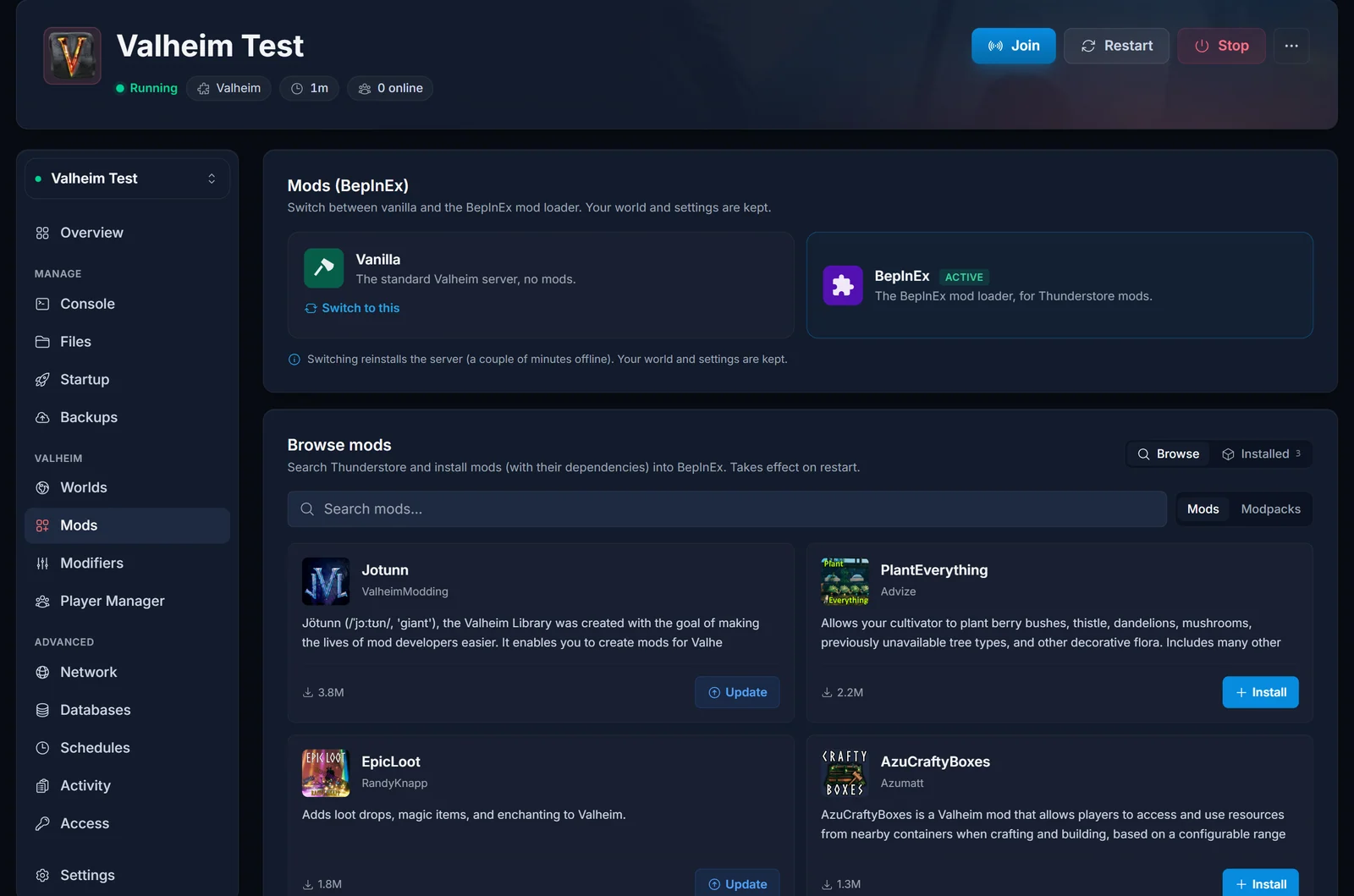
Find the mod and click Install. The panel pulls the package straight from Thunderstore into its own folder under BepInEx/plugins, so mods never overwrite each other, and it installs the dependencies the package declares along with it. Jotunn, the library a lot of Valheim mods are built against, usually arrives this way without you asking for it.
If your server is still on the vanilla setup, this is where the switch happens. The install offers to move you to BepInEx first:
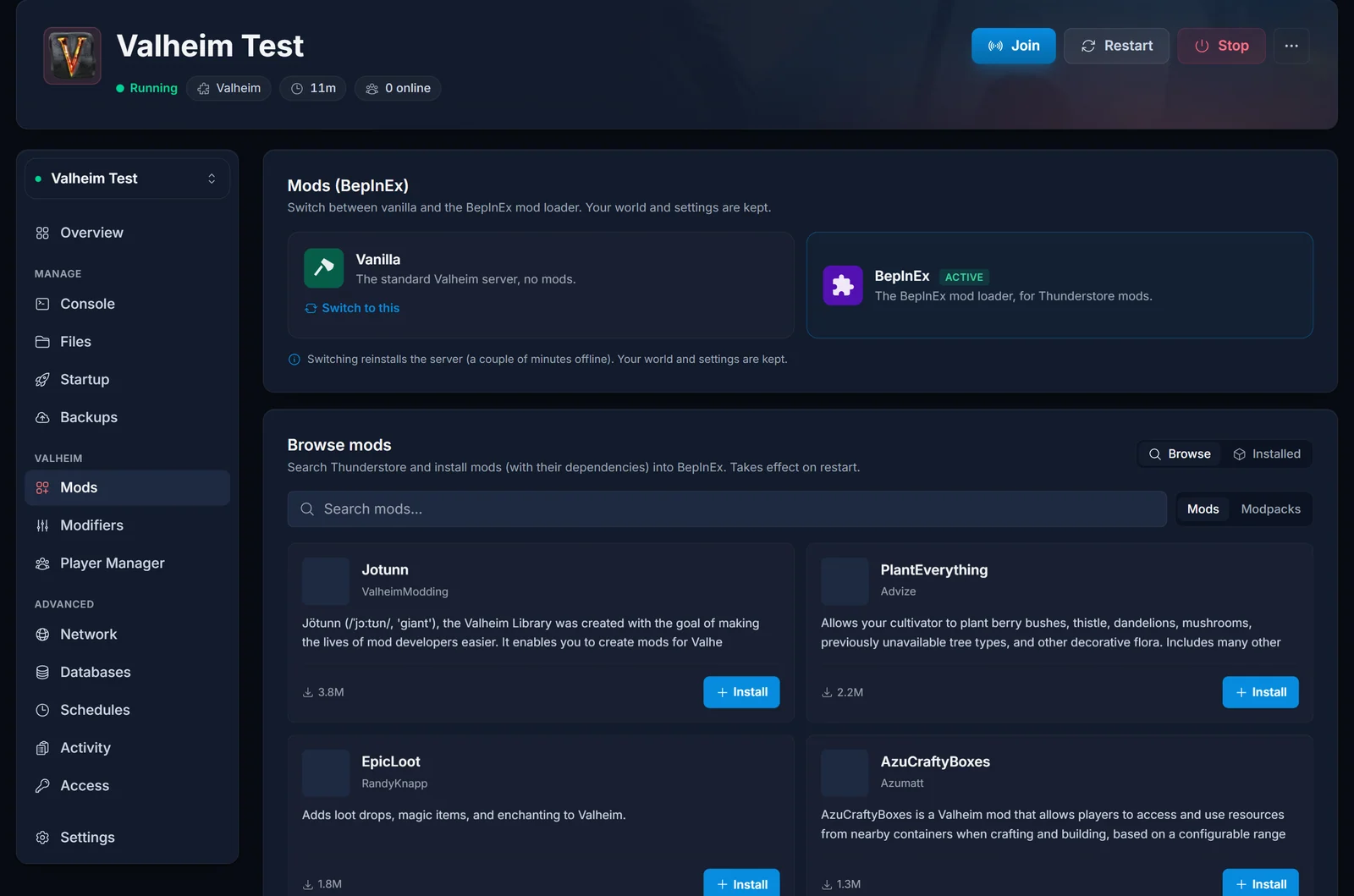
Confirm and the panel does the rest. It remembers which mod you picked, reinstalls the server onto the BepInEx setup, and offers the install again once the server is back. Only the server files are replaced, so your world and configs survive it, but take the backup when it offers one. The reinstall takes a few minutes.
One thing to check afterwards: the BepInEx setup ships with crossplay off, while the vanilla one ships with it on. If console players use your server, turn crossplay back on after the switch. It works fine alongside mods, and the section below has the proof.
When the install finishes, the mod appears in your installed list:
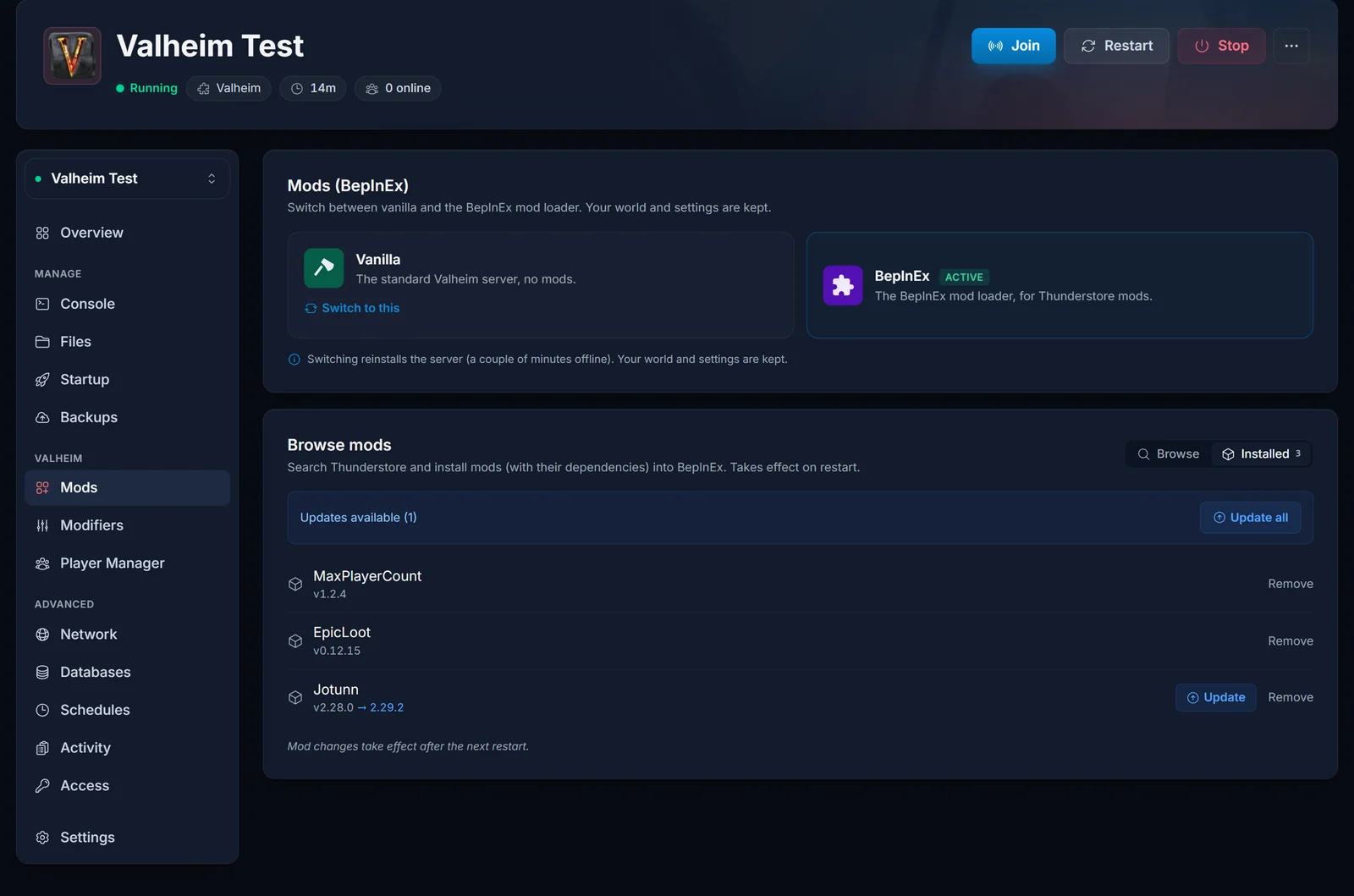
Verify the mod actually loaded
An entry in the installed list means the files are on disk, not that the game loaded them. The console is the only reliable confirmation.
Start the server, open the Console tab and look for the BepInEx chainloader block. This is a real boot from our test server:
[Message:   BepInEx] Chainloader started
[Info   :   BepInEx] 3 plugins to load
[Info   :   BepInEx] Loading [MaxPlayerCount 1.2.4]
[Info   :   BepInEx] Loading [Jotunn 2.28.0]
[Message:   BepInEx] Chainloader startup complete
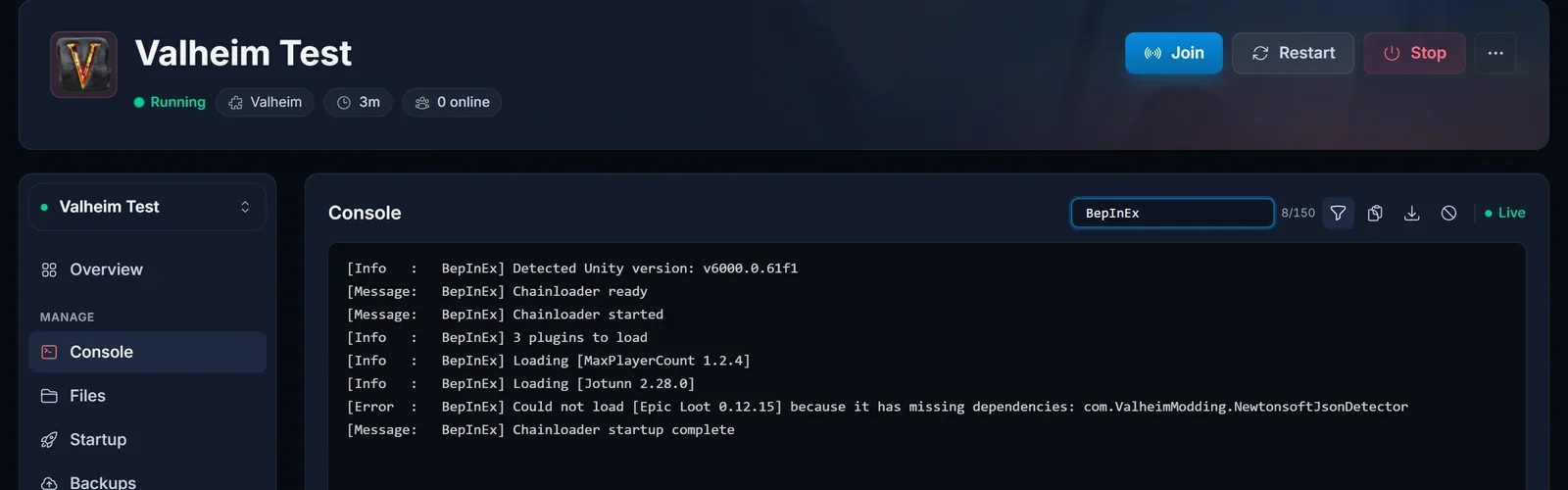
Two things to read there. Chainloader started proves the server is on the BepInEx setup at all: no chainloader lines means no loader, whatever the installed list says. Then every plugin that loads gets its own Loading [Name version] line. If your mod has a line, it is running. If it has no line, it is not running, and the reason is usually a few lines further down.
Configure a mod after its first boot
This is the step that sends people hunting for a file that does not exist yet.
BepInEx writes a plugin's config file on the first boot with that plugin loaded, not when you install it. Straight after an install there is no config file, and the panel therefore shows no Settings button for that mod. Start the server once, let it come fully online, and the file appears at:
BepInEx/config/<Author>.<PluginName>.cfg
From then on the mod's Settings button opens a form built from that file, and the Files tab can edit it directly. The # comment lines above each setting are the documentation: type, default, acceptable values and any range the plugin accepts. Settings are read as the plugin loads, so restart after a change. Saving alone does nothing.
The worked example is how to get more than 10 players on your Valheim server. MaxPlayerCount is server-side only, so nobody joining installs anything, and the whole job is one number in one config file.
Crossplay and mods run together
You will find guides claiming that enabling crossplay disables BepInEx. It does not. Here is a boot from our own test server with crossplay on and mods loaded:
[Info   :   BepInEx] Loading [MaxPlayerCount 1.2.4]
[Message:   BepInEx] Chainloader startup complete
[Info   :MaxPlayerCount] Patching for backend: PlayFab
[Info   : Unity Log] Logged in PlayFab user via custom ID
Crossplay switches Valheim's networking from Steam to PlayFab. BepInEx loaded normally next to it, and MaxPlayerCount detected the PlayFab backend and patched for it.
The honest version: BepInEx itself has no problem with crossplay. An individual mod that touches the networking layer has to handle the PlayFab backend, and a maintained one does. That is not a guarantee for every package on Thunderstore, but it is no reason to switch crossplay off before you have tested your own list.
What happens when Valheim updates
Mods break on game updates. That is normal rather than a fault in your server, and the fix is almost always a newer build of the mod.
Updating is not a separate job: AUTO_UPDATE is on by default, so restarting the server updates the game. Details in how to update your Valheim server. When a mod does break, the console names it, and the panel matches those lines automatically and offers the fix, covered in common Valheim server problems and their fixes.
Worth knowing at the time of writing (September 2026): Iron Gate shipped no public test branch ahead of Valheim 1.0, so no mod author could build against the final release in advance. Breakage after a release like that is expected, and fixes land over the following days.
Common issues
The mod is installed but nothing happens, and the console is clean. No chainloader lines means the server is still on the vanilla setup. Open the Mods tab and check which setup carries the Active badge.
Could not load [X] because it has missing dependencies: ... The package named after the colon is not installed. Search for that name in the Mods tab, install it and restart. The server boots fine in this state, which is why the mod looks fine and does nothing.
Error loading [X] : ... or Could not load [X] because it is incompatible with: ... The mod threw while loading, or refuses to run beside another mod on your list. After a game update the first one usually means the mod has not been rebuilt yet. Check its Thunderstore page for a newer version, and remove it until there is one.
The console is full of scary looking warnings. A modded server prints plenty of noise while booting perfectly well. The [Error : BepInEx] lines above are the ones that mean something.
Out of memory: true. That line comes from the daemon rather than the game: the server hit its memory limit and the process was killed. Mods add memory use, some of them a lot. The panel detects this one automatically and offers the fix.
There is no Settings button for one of my mods. It has not booted with that plugin loaded yet, so the config file does not exist. Start the server once.
Mods did not give me cheat commands. They were never going to. devcommands, spawn and everything behind them do not work on a dedicated server, and admin status grants only kick, ban, unban, banned, save, setworldmodifier and setworldpreset, none with a leading slash. Full list in our Valheim commands reference.
Everyone gets a version mismatch when joining. One of your mods is client-side, so every player needs the same version installed. Server-side-only mods such as MaxPlayerCount never cause this, and each mod's Thunderstore page states which kind it is.
Planning a heavily modded world? Our Valheim server hosting runs on Ryzen 9 hardware with the BepInEx setup and Thunderstore installs built into the panel, so the process above is a few clicks rather than an SFTP session.
