


Two mods on Thunderstore actually reduce lag on a Valheim dedicated server: Better Networking and Serverside Simulations. Almost everything else filed under performance is client-side graphics work. It can raise the frame rate on one player's PC, and it changes nothing about rubberbanding, late-loading building pieces, or a boat that everyone sees in a different place.
This guide covers what each of the two does, who has to install it, how to install and tune them from your server panel, and how to tell whether it worked.
Fix the free causes first. If you have not worked through them yet, start with how to fix Valheim server lag and come back here.
Which mods actually reduce server lag
| Mod | What it fixes | Goes on |
|---|---|---|
| Better Networking | The server cannot push enough data to each player, so a dense base loads late and desyncs | The server and every player |
| Serverside Simulations | One player's bad connection lags the whole area they walked into first | The server only |
Both are BepInEx mods, so the server needs the BepInEx loader. Your panel's Mods tab handles that: if the server is still on Vanilla, picking any mod offers to switch it first.
Better Networking
Valheim limits how much data the server sends each connected player. Out in the meadows that limit is never the problem. Inside a large base it is: every wall, beam, chest, torch, dropped item and piece of raised ground is something the server has to describe, and the pipe fills up. That is why the same server feels perfect in open terrain and underwater in your build.
Better Networking widens that pipe. It adds compression so more fits through, lets you raise the outgoing queue size and lower the update rate, and adds a connection buffer that prevents data loss when someone connects.
Who needs it
Install it on the server and on every player. Players without it can still connect, so nobody is locked out, but the compression only works between two machines that both run the mod. A player who skips it keeps the old behaviour while everyone else gets the benefit.
That is the practical reason to get the whole group on it at once rather than modding the server and hoping.
Crossplay, and what it changes
The mod's own config explains how it behaves in each mode:
- Crossplay off: the mod adds network compression that the game does not have on its own.
- Crossplay on: the relay already compresses, and the mod makes that compression faster and stronger.
So it helps either way and turning crossplay off is not a prerequisite. The mod author does note that Valheim multiplayer performance appears to be better with crossplay disabled, which matches what we see on Steam-only groups. It is a real trade, because turning crossplay off removes console players and the join code, so read how to turn off crossplay on a Valheim server before you flip it.
One more crossplay detail from the mod: with crossplay on, players on the same local network as the server have to connect with the join code or the external IP, not the local address.
Before you install
- Do not stack it with another networking mod. The author states it is likely incompatible with other networking mods. Pick one.
- Compression costs CPU. Valheim's server is single-thread bound already, so watch CPU on the Overview tab after you turn it on.
- Changes need a restart. A dedicated server does not pick up new mod settings until it restarts.
Install it from the panel
Open your server in the panel and go to the Mods tab.
Type
BetterNetworkingin the search box. The search covers the most popular Valheim packages on Thunderstore, and Better Networking is one of them.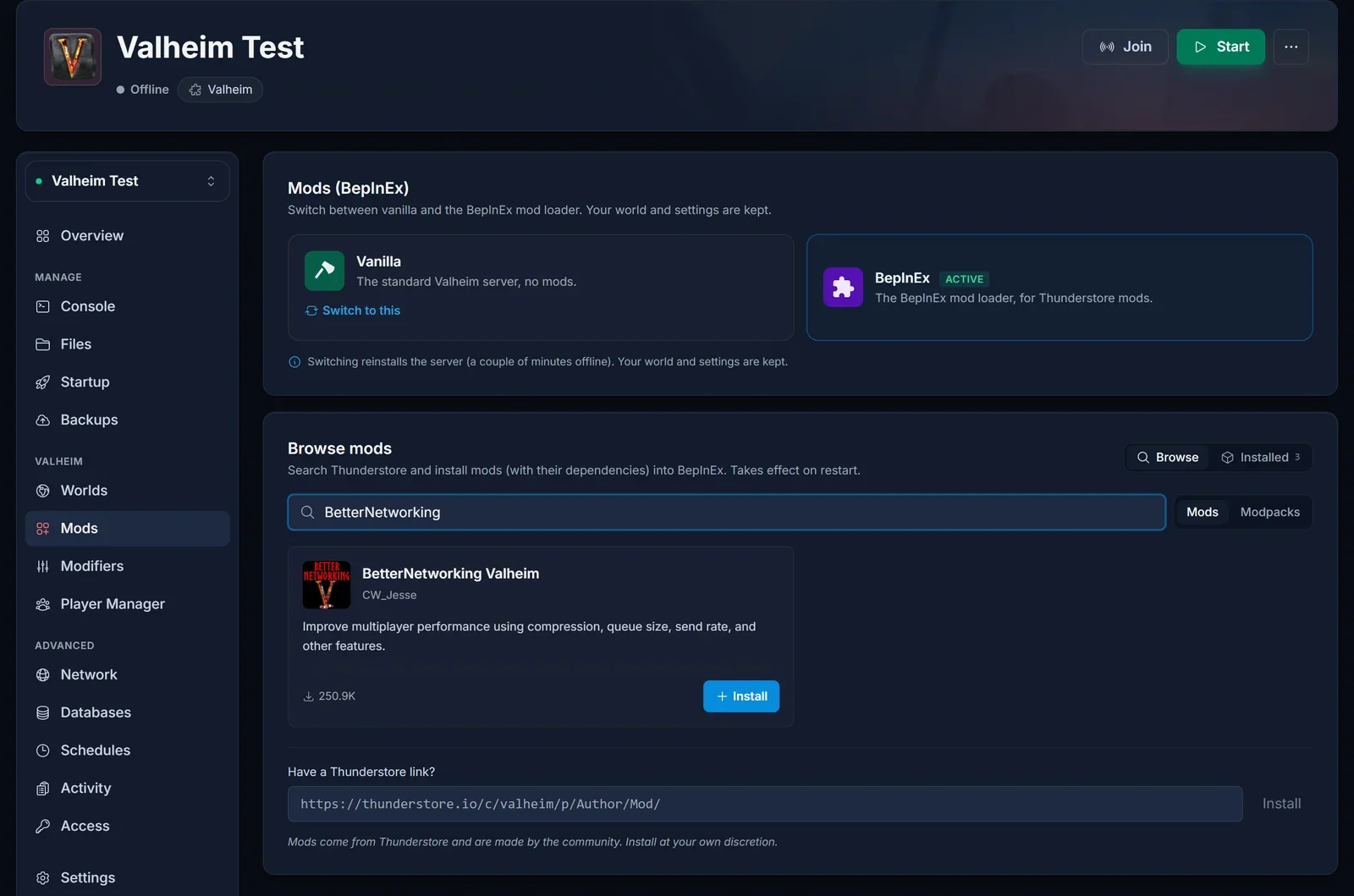
Click Install and confirm. The panel pulls the package and anything it depends on into BepInEx for you.
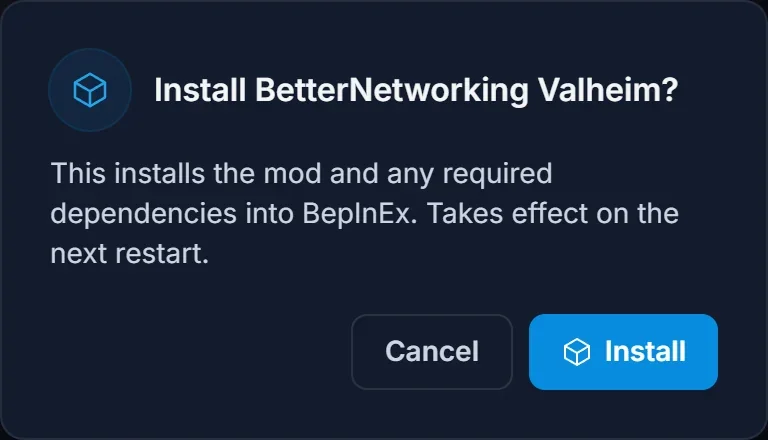
If your server is still on Vanilla, the dialog says so and offers to switch it to BepInEx first. That switch reinstalls the server, so it is offline for a couple of minutes. Your world and your settings are kept. The manual route, and what the loader actually does, is in how to install BepInEx mods on a Valheim server.
Restart the server. Mods do not load until it restarts.
Have every player install the same mod on their own PC, through Thunderstore or a mod manager.
The Installed view lists what is on the server and the version each mod is running.

Tune it, if you need to
Better Networking keeps its settings in BepInEx/config/CW_Jesse.BetterNetworking.cfg. Open the Files tab, go into BepInEx, then config, and click the file to edit it in the browser.
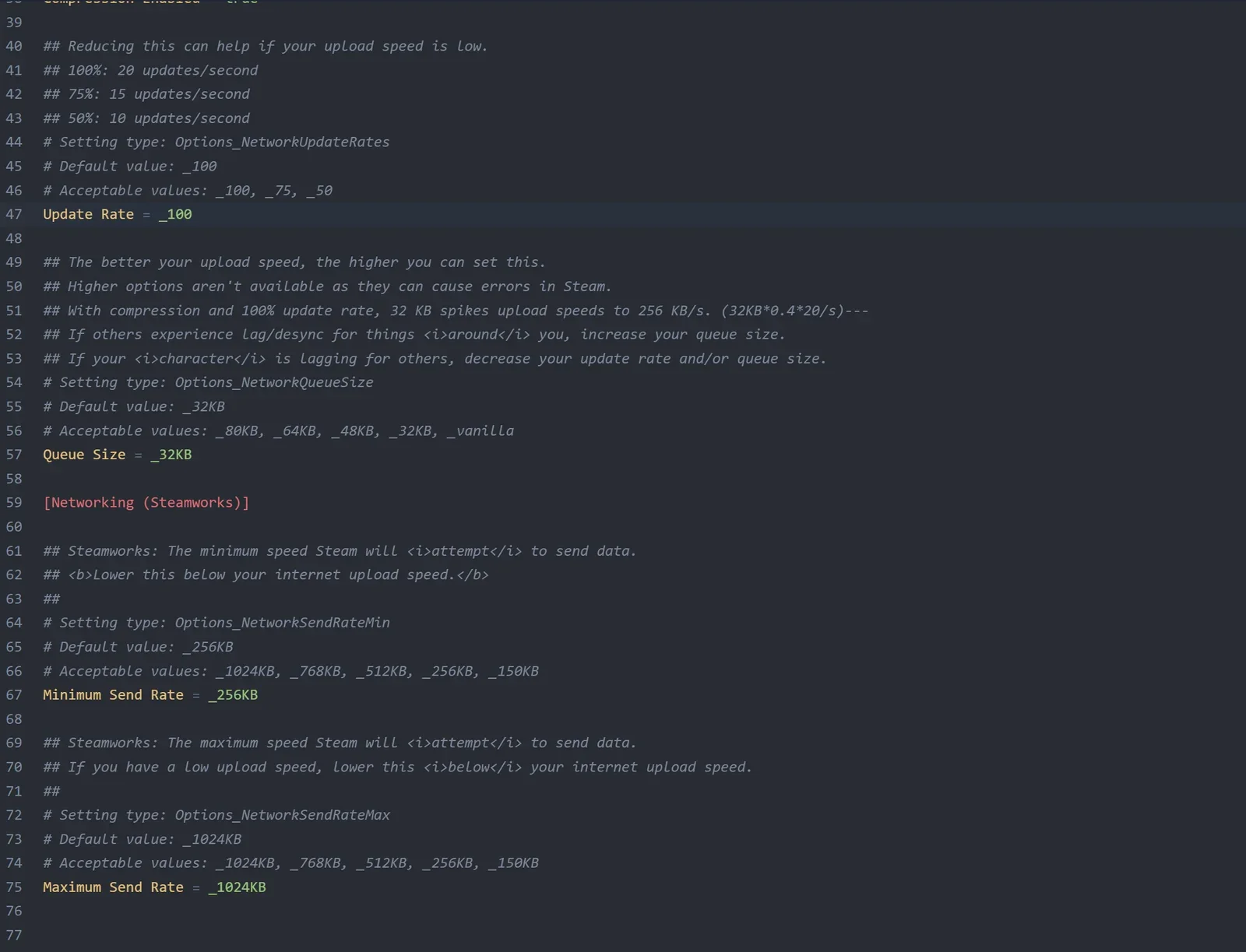
The defaults are deliberately safe and most servers should leave them alone. The settings worth knowing:
- Compression Enabled. Leave it on. It is the reason the mod exists, and it is also why the whole group needs the mod.
- Queue Size. How much the server may have queued for one player. Raising it sends more data, which helps when bandwidth is good, but it deprioritises important objects and can swamp a player whose connection cannot take it. The comments in the file above each setting list the accepted values.
- Update Rate. How often data goes out, as a percentage of the normal rate. Lowering it trades a little latency for much less congestion, which is the right move when a player's connection is the bottleneck.
- Minimum Send Rate and Maximum Send Rate sit under a Steamworks heading and only apply with crossplay disabled. Keep the maximum below the upload speed of whichever machine you are configuring.
The author's own advice, in order: if the lag is gone, change nothing. If creatures skip for everybody, lower the update rate and raise the queue size a little. If one player skips, lower that player's queue size, and if it is already low, lower their update rate instead. Queue size and update rate are per machine, so a struggling player edits their own config, not the server's.
Save the file and restart the server.
There is no Settings form for this mod in the Mods tab. The panel builds that form when it can match a mod to its config file, and this mod names its file differently from its package, so the Files tab is the route. Serverside Simulations, below, does get the form.
Check the mod is still current before you trust it
Better Networking is stable but it is not actively maintained. At the time of writing, its newest release predates several large Valheim updates. That does not automatically mean it is broken, and it does mean you should check rather than assume.
Open the mod's page on Thunderstore, look at the Versions tab, and compare the newest upload date against the game's most recent big update. If the mod is older, read the comments before you install: a networking mod that no longer matches the game build causes worse problems than the lag you started with. Repeat that check after any large Valheim patch, and keep a backup you can roll back to.
Serverside Simulations
Valheim hands simulation of an area to the first player who walks into it. That player's machine runs the terrain, the creatures and the physics there, and everyone else waits on them. It keeps server cost down, and it means one person on a weak connection can make an area miserable for the whole group, usually without noticing, because their own client never has to wait for anybody.
Serverside Simulations moves that work to the server. Terrain, monsters and other objects that would normally be created and owned by a client are created on the server instead, so no player is in charge of an area. Ships are still simulated by whoever is steering, which keeps the wheel responsive at high latency.
This one goes on the server only. Players install nothing. That makes it the answer when the same person always ends up owning the zone and cannot fix their connection.
Installing it from a Thunderstore link
Serverside Simulations is a smaller mod, so it is outside the popular list the Mods tab searches. Install it by link instead:
Open the mod's page on Thunderstore and copy the URL.
In the Mods tab, scroll to Have a Thunderstore link? at the bottom of the browse list, paste it in and click Install.

Restart the server.
This works for any Valheim package on Thunderstore, not just this one.
Its settings
Once the server has booted at least once with the mod loaded, a Settings button appears next to it in the Installed view and the panel renders its config as a form.
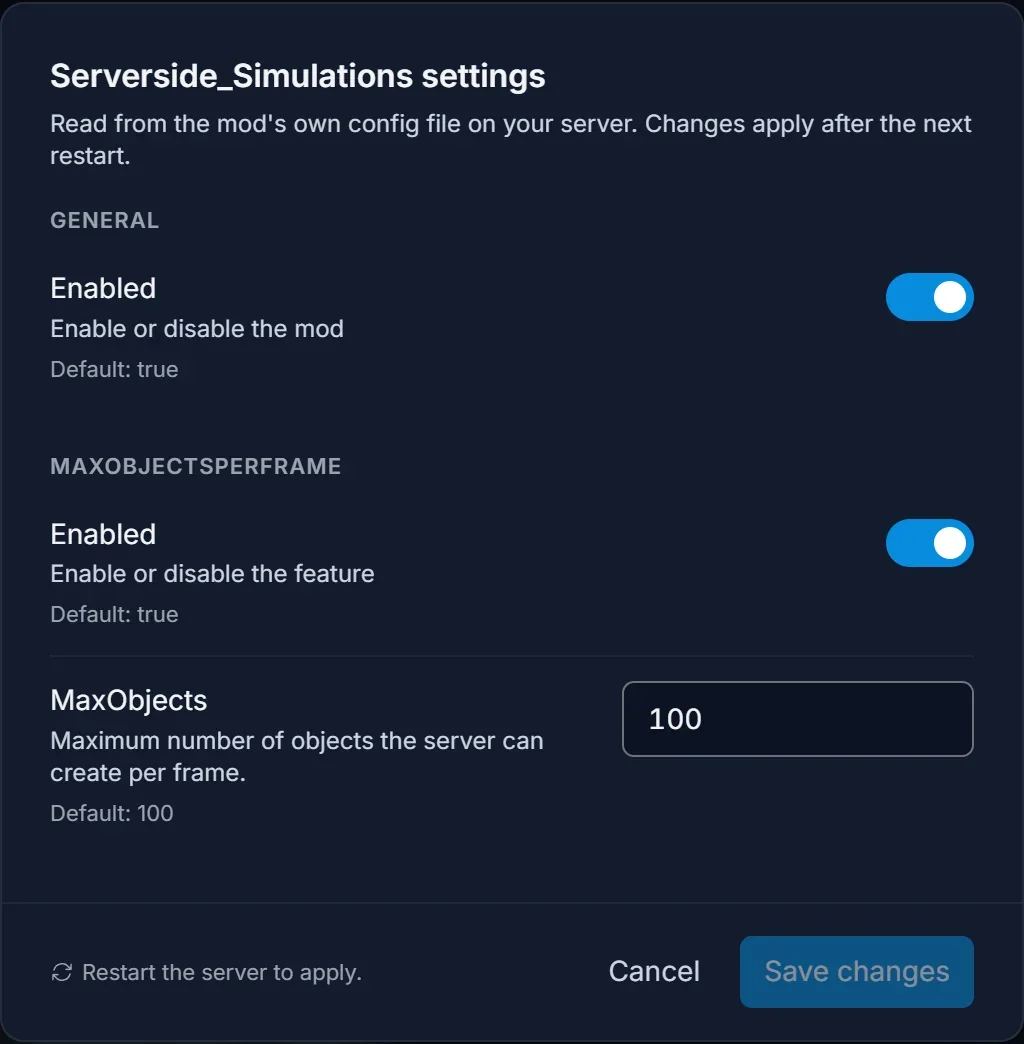
Enabled turns the mod off without uninstalling it, which is the quick way to test whether it is behind a problem. MaxObjects caps how many objects the server may create per frame: raising it speeds up how fast an area loads on the server and costs more CPU.
What it costs
- CPU. The author is blunt that the mod increases server resource usage significantly and that a weak CPU gives a poor result. Watch CPU on the Overview tab after enabling it.
- Latency for one player. Whoever would have owned the area now talks to the server like everyone else, so they lose the advantage they had.
- Patch risk. The author recommends backing up your characters and worlds, and disabling the mod after a new game patch until it is confirmed working. Use the panel's Backups tab first.
- It should also be disabled if you run the
optterrainconsole command.
The two mods work well together, and the Serverside Simulations author recommends running Better Networking alongside it.
Mods that will not help
Most of what gets recommended as a Valheim performance mod is client-side: FPS boosters, particle and effect reducers, LOD and mist tweaks, texture optimisers. They can make one player's game run smoother on their own hardware, which is worth doing on a slow PC.
None of them change what the server sends, what the server simulates, or who owns a zone, so none of them touch rubberbanding, desync or late-loading building pieces. If the whole group lags in the base, a client-side mod is not the fix.
Extra content mods pull the other way. Anything that adds creatures, adds spawns, or runs work every tick costs server CPU, so a heavy mod list can cause the lag you are trying to mod away.
Test whether it worked
Measure the same place twice instead of going on feel.
- Stand in the worst spot you have, usually the middle of your main base.
- Press F2 to open the in-game network overlay. It shows the instance count where you are standing and the data being sent and received.
- Write the numbers down, with how it feels: pieces loading late, doors lagging, creatures skipping.
- Install the mod, restart the server, get everyone on the same build, and stand in the exact same spot again.
- Compare. The instance count will be similar, because the mod does not delete anything. What should change is the throughput and how the area feels.
Change one thing at a time. Installing both mods, turning crossplay off and trimming your base in one evening tells you nothing about which of them worked.
Common issues
Some players still lag after installing it. Better Networking's compression only works between two machines that both run the mod. Check that every player actually installed it.
Nothing changed at all. Mods load on restart, not on install. Restart the server, then open the Installed view in the Mods tab to confirm the mod is really there.
The Settings button is missing. Two reasons. BepInEx writes a mod's config file the first time the server starts with that mod loaded, so a freshly installed mod has none yet: start the server once and come back. Some mods, Better Networking among them, name their config file differently from their package, and the panel cannot match those to a mod. Edit those in the Files tab under BepInEx/config.
It broke after a Valheim update. Both mods patch game internals, so a game update can break them. Remove the mod, or switch the server back to Vanilla from the Mods tab, and confirm the server is healthy. Then check the mod's Thunderstore page for a new release or a comment thread about the current build.
The server is slower now, not faster. Compression and server-side simulation both cost CPU. Look at the Usage card on the Overview tab. If CPU is pinned, Serverside Simulations is the one to remove first.
A player cannot connect after the change. That is not the mod, because players without it can still join. Work through Valheim failed to connect instead.
FAQ
Do all players need Better Networking, or just the server? Both. Players without it can connect, but they will not get the compression, because it only applies between two machines that both run the mod.
Does Serverside Simulations need to be installed by players? No. It is a dedicated-server mod and players install nothing.
Can I run both at once? Yes, and it is the usual setup. The Serverside Simulations author recommends Better Networking alongside it.
Will installing a mod wipe my world? No. Installing a mod does not touch world data, and switching a server between Vanilla and BepInEx keeps the world and the settings. Take a backup first anyway, which the panel offers when you switch.
Which one should I install if I only pick one? If everyone lags in the base, Better Networking. If one area lags while one player feels fine, Serverside Simulations.
Do I need a bigger plan for these? Not for Better Networking in most cases. Serverside Simulations moves real work onto the server, so if CPU is already busy, expect to need headroom. Every Valheim server we host has the same Mods tab, and you can see the rest of what the control panel does before you order.
