


Crossplay routes every Valheim connection through the PlayFab relay, and Steam-only groups that want a direct connection often turn it off. It is one switch in your server panel, and afterwards Steam players join with Join IP instead of a join code.
Read the next section before you flip it: with crossplay off, console players lose access to the server entirely.
What changes when crossplay is off
With crossplay on, the server registers with the PlayFab relay and prints a join code on every start. Players on Steam, on Xbox (including Game Pass on PC), and from Valheim 1.0 on 9 September 2026 on PS5 and Switch 2, all join with that code through Join Game. Every one of those connections travels through the relay, which is why some Steam-only groups see higher latency and prefer crossplay off.
With crossplay off:
- The join code stops existing. Nothing generates one, and an old code no longer works.
- Only Steam players can join, using Join IP in Valheim with the server address shown on the panel Overview, for example
1.2.3.4:25685. - Xbox, Game Pass, PS5 and Switch 2 players cannot join at all.
- Steam players connect through Steam instead of through the relay.
That is the trade. If anyone in your group plays on a console, leave crossplay on and send them how to join a Valheim server on Xbox, PS5 and Switch 2 instead.
The setting that has to be right: Public server
Join IP does not simply open a socket to your server. Valheim first asks the server's Steam query port, which is the game port plus one, for the server's Steam ID, and then connects through Steam.
If the server is set to not public (Public server off, which is -public 0 on the command line), Steamworks does not answer those queries. Join IP then fails silently, with no error message, on a server that is running perfectly.
Public server = 1 only means the server answers those queries and is listed in the community server browser. Your server password still decides who gets in. So crossplay off requires Public server = 1.
The panel handles that for you: turning crossplay off also sets Public server to 1.
How to turn crossplay off in the panel
- Open your server in the DoomHosting control panel and stay on the Overview tab.
- Find the Crossplay card. With crossplay on it reads Enabled and lists every platform that can join.
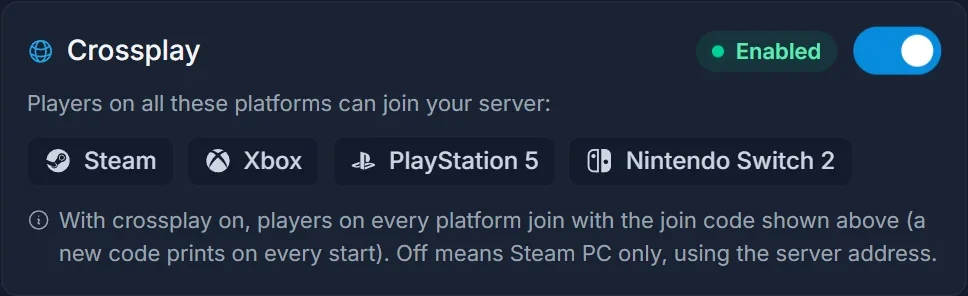
- Click the switch on the right of the card. It flips to Disabled, and the panel sets Public server to 1 at the same time.
- A "Saved. Restart to apply." bar appears. The change takes effect on the next restart, so press Restart now, or restart later from the server header.
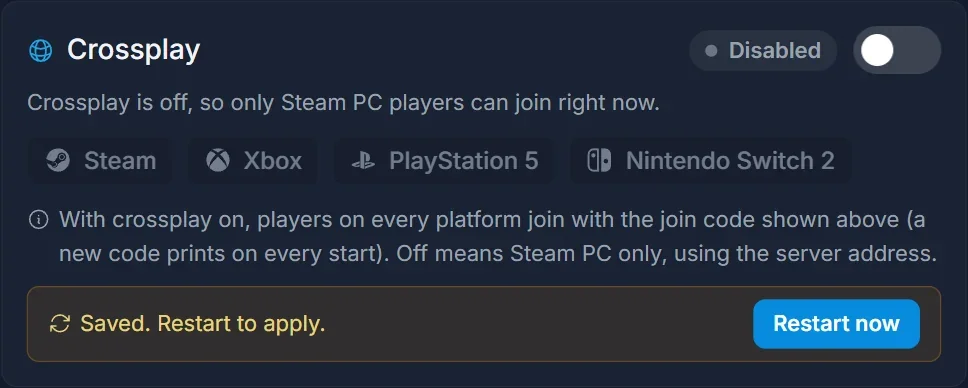
That is the whole procedure. If you want to see the raw values, the Startup tab holds both of them: Enable Crossplay is now off and Public Server is on.
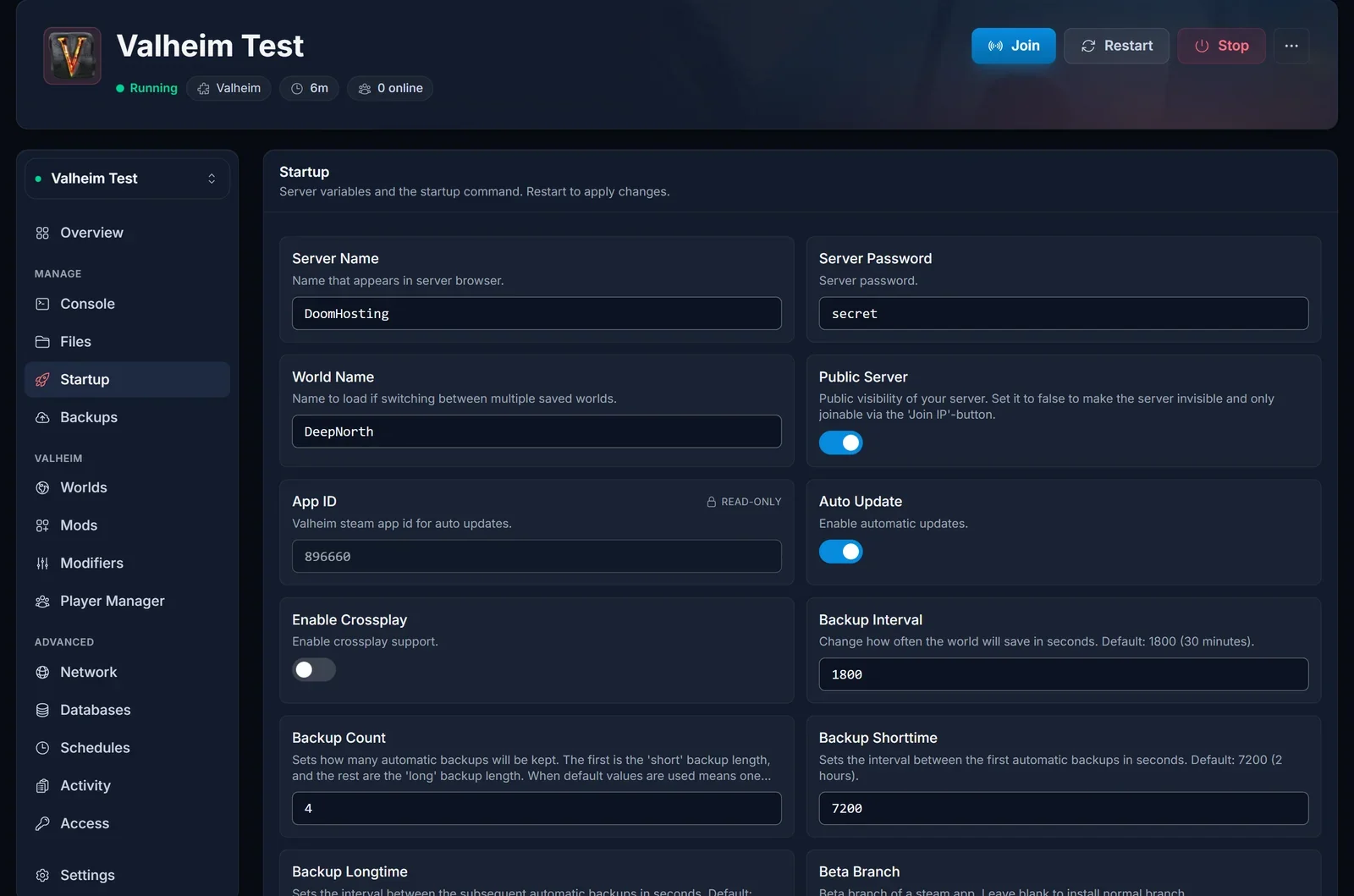
How players join afterwards
The connection area on the Overview tells you where the server stands and which method to use:
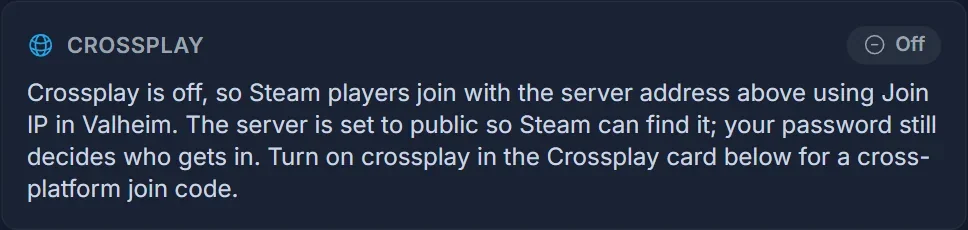
Send your Steam players the IP:port from the connection card, then:
- Launch Valheim and pick your character.
- Open Join Game.
- Choose Join IP.
- Paste the address exactly as the panel shows it, port included.
- Enter the server password.
Have everyone delete the old join code entry from their server list first. A saved code cannot work once crossplay is off, and a dead entry is the quickest way to convince yourself the server is down.
Add the server to Steam favorites
Once the server is public, Steam's own server browser works as well, and it wants the query port rather than the game port:
- In Steam, open View, then Game Servers.
- Go to the Favorites tab and click Add a server.
- Enter your IP with the query port, which is the game port plus one. If the panel shows
1.2.3.4:25685, Steam wants1.2.3.4:25686.
The server then shows up in Valheim's own list too.
Turning crossplay back on
Flip the same switch back on and restart. The server registers with the relay again, prints a fresh join code on that boot, and console players can join once more. The public flag is left as it is, so if you also want the server out of the community browser again, turn Public server off yourself on the Startup tab.
Both join routes, code and address, are covered step by step in how to join a Valheim server.
Common issues
Players get "Failed to connect" after the switch. Their Valheim client still holds a PlayFab account from join-code days and keeps trying the crossplay route. Each player deletes it once in Valheim's Settings; the steps with screenshots are in Valheim Failed to connect: how to fix it.
Join IP does nothing, and nobody can connect. Either Public server is off, or the server has not restarted since you turned crossplay off. Check that Public Server is on in the Startup tab, then restart the server.
The startup command still mentions -crossplay. The Startup tab shows $( [[ 0 -eq 1 ]] && echo " -crossplay "). That is a shell check the container evaluates when the server boots, not the flag itself. With a 0 in it the check adds nothing, so crossplay really is off. It reads [[ 1 -eq 1 ]] when crossplay is on.
A console player cannot get in. That is expected. Xbox, Game Pass, PS5 and Switch 2 players need crossplay on, and there is no IP route for them.
The join code stopped working. Also expected. No code is generated with crossplay off. Send the server address instead.
Steam reports the server as not responding. You almost certainly used the game port. Steam's browser wants the query port, which is the game port plus one.
Frequently asked questions
Does turning crossplay off change my world? No. It only changes how players reach the server. Your world and characters are untouched.
Do I have to restart the server? Yes. The running server keeps the old setting until it restarts.
Does the address change? No. The IP and port stay the same.
Can I keep crossplay on and still join by IP? Yes. With crossplay on, Steam players can use either the join code or the address, and console players use the code. Turning crossplay off is only about taking the relay out of the path for Steam players.
Is my server actually up? Check it from outside the panel with our Valheim server status checker.
Not got a server yet? Our Valheim server hosting runs on Ryzen 9 hardware, with the crossplay switch and the server address on the same Overview page from the first boot.
