
Valheim 1.0 arrived on September 9, 2026 with the Deep North, the game's final biome. The question every server group is asking is whether their world still works. Short answer: your world is not deleted and nothing is forced on you, but the Deep North will only generate in the parts of the map nobody has visited yet. This guide covers what Iron Gate has actually confirmed, how to decide, and how to spin up a fresh Deep North world on your server in about a minute without losing the world you already have.
Does the Deep North Appear in My Existing World?
Iron Gate answered this in the official Valheim 1.0 FAQ on valheim.com, so this part is confirmed rather than guesswork:
- Your saves are untouched. "Your old saves will still be where you last left them, and you can continue to play with them if you like."
- New terrain only lands where you have not been. "Biome generation will only work properly on areas that have not yet been explored."
- Iron Gate still recommends a fresh start. "We always recommend that you start the game over from scratch to get the best possible experience." Asked directly whether you can head straight for the Deep North on an old save, the answer is that you can, but starting over is their recommendation.
- Achievements start counting at 1.0. The achievement system begins tracking statistics from the moment you download the 1.0 version, so nothing you did before September 9 is credited retroactively. Old saves are eligible, but a character that has used cheats carries a permanent flag that blocks unlocks.
In practice that means the far north of your map is the deciding factor. If your longship never made it up there and those tiles were never loaded, they are still unwritten and will generate as the real Deep North the first time someone sails in. If you already explored the old placeholder north, that terrain is baked into your .db file and stays exactly as it is.
That explored-versus-unexplored split is how Mistlands and Ashlands behaved when they shipped, and it matches what Iron Gate describes for 1.0. What Iron Gate has not published is a tile-by-tile list of which other changes reach an old world, which is precisely why their answer is "we recommend starting over" rather than "your world is fine".
Keep Your World, Start Fresh, or Run Both?
You do not actually have to pick a side. A dedicated server holds as many worlds as you want and switches between them, so the honest recommendation for most groups is the third option.
Keep your existing world if:
- Nobody in your group has sailed into the far north.
- You have a base you are not willing to rebuild.
- You care more about continuing the save than about a clean achievement run.
Start a fresh world if:
- Your map's north is already explored, so the Deep North has nowhere to generate.
- You want the full 1.0 experience the way Iron Gate designed it, including world generation changes outside the Deep North.
- Your group runs mods and would rather start clean than untangle a broken BepInEx stack on an old save.
Run both if: you want the Deep North now and your old base later, which is the normal case. Create the new world, play 1.0 in it, and switch the server back to the old world any time you feel like visiting. Both worlds stay on the server permanently, and neither one is overwritten.
Your character is separate from the world in Valheim, so you can bring the same Viking into a fresh world. Whether you want to arrive in the Deep North fully geared or earn it again is a group decision, not a technical one.
Back Up Before You Change Anything
Do this first, before you create, switch or upload a world. Open your server in the DoomHosting panel, go to Backups, and take a manual backup. It captures the whole server, so every world file goes with it. If a 1.0 world upgrade goes badly, or a mod scrambles a save on day one, that backup is the difference between a bad evening and a lost world.
While you are there, download a copy of your world locally too. The Worlds tab has a Download action per world. On a pre-1.0 world it packages the .fwl and .db pair, and on a 1.0 world it packages the whole world folder, so either way you get an off-server copy that no panel action can touch.
How to Create a New Deep North World
Valheim's dedicated server has no seed argument. The seed lives inside the world file itself, which is why the usual advice online is to generate the world in your game client and copy it up. Our panel does that step for you.
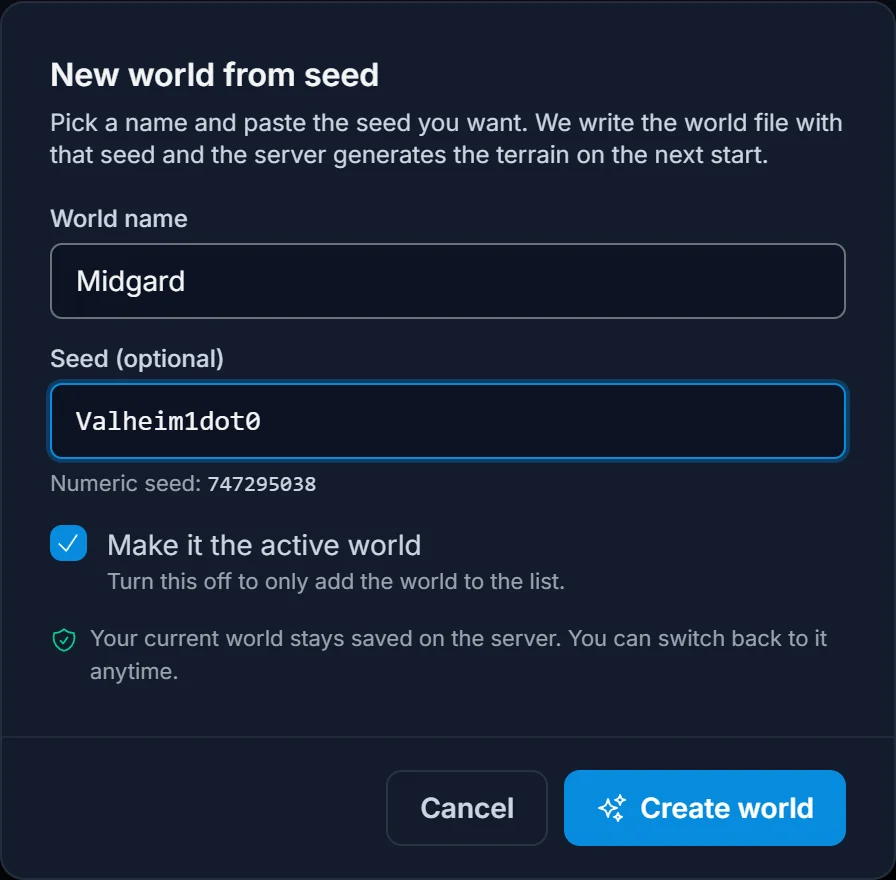
- Open your server in the panel and select Worlds in the sidebar.
- Click New world from seed.
- Enter a World name. Letters, digits, spaces, underscores and hyphens are allowed, up to 20 characters, and the name has to be unique on the server. If you see "A world with that name already exists", pick another name or delete the old one first.
- Paste a Seed, or leave it blank for a random one. The dialog shows the numeric seed the game will use. Our Valheim seed finder is a good place to shop for one.
- Leave Make it the active world ticked so the server boots into it. Untick it if you only want to stage the world for later.
- Click Create world.
The panel writes a fresh world file with your seed and points the server's world setting at it. If the server is running, you get a prompt to restart, and the restart is what actually applies the switch. On that first boot the server sees a world file with no terrain data and generates the map from your seed, which takes a couple of minutes on a fresh world.
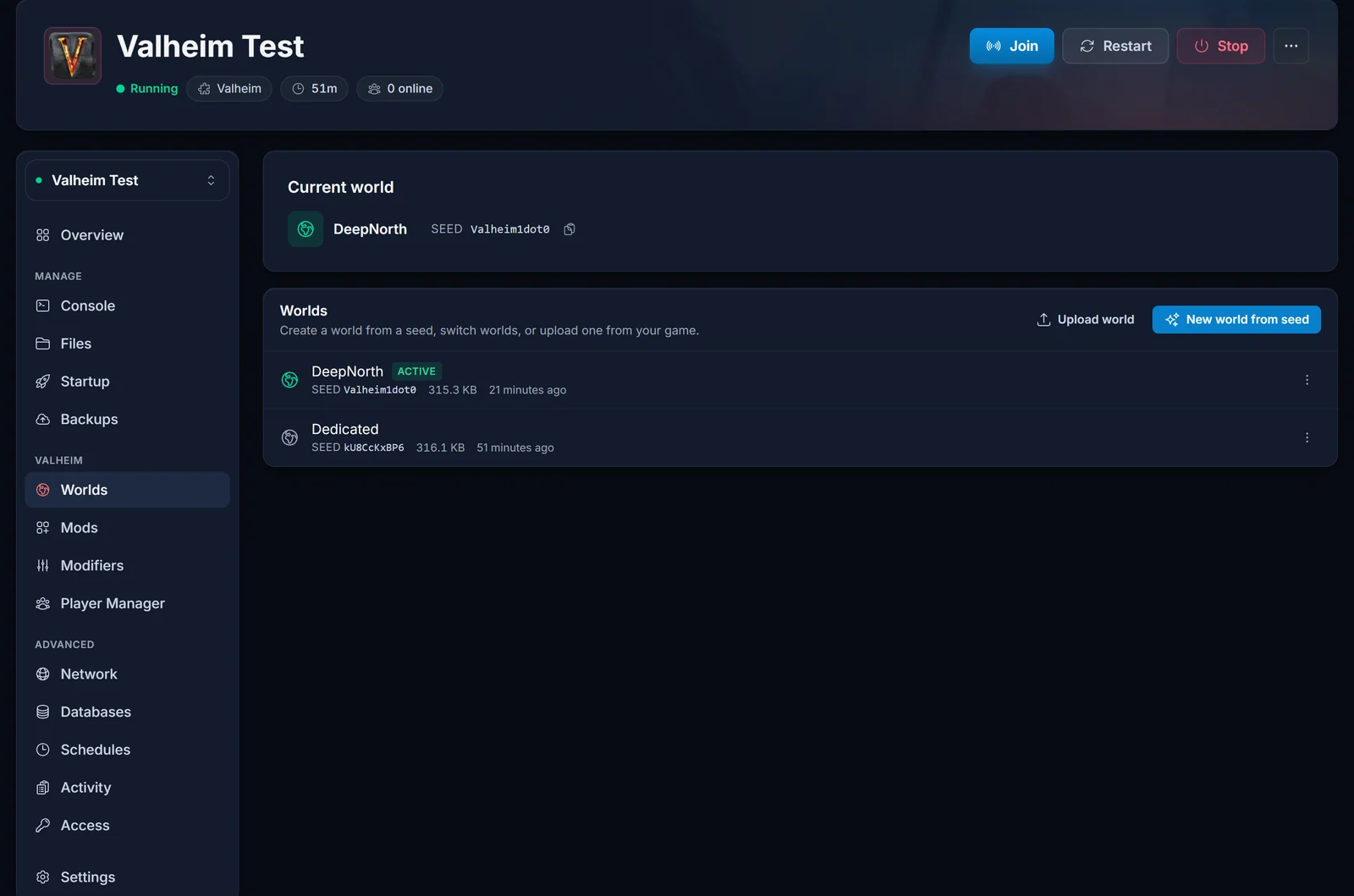
Right after the first start the world shows Generating now (or Not generated yet while the server is off). That is expected and not an error: Valheim builds the terrain in memory and only writes the world file on its first save, usually around 30 minutes after start. Once that save lands, the entry gains a file size, as in the screenshot, and the world is live.
Note what did not happen: the old world is still sitting in the list underneath, with its own seed, untouched.
Switching Back to Your Old World
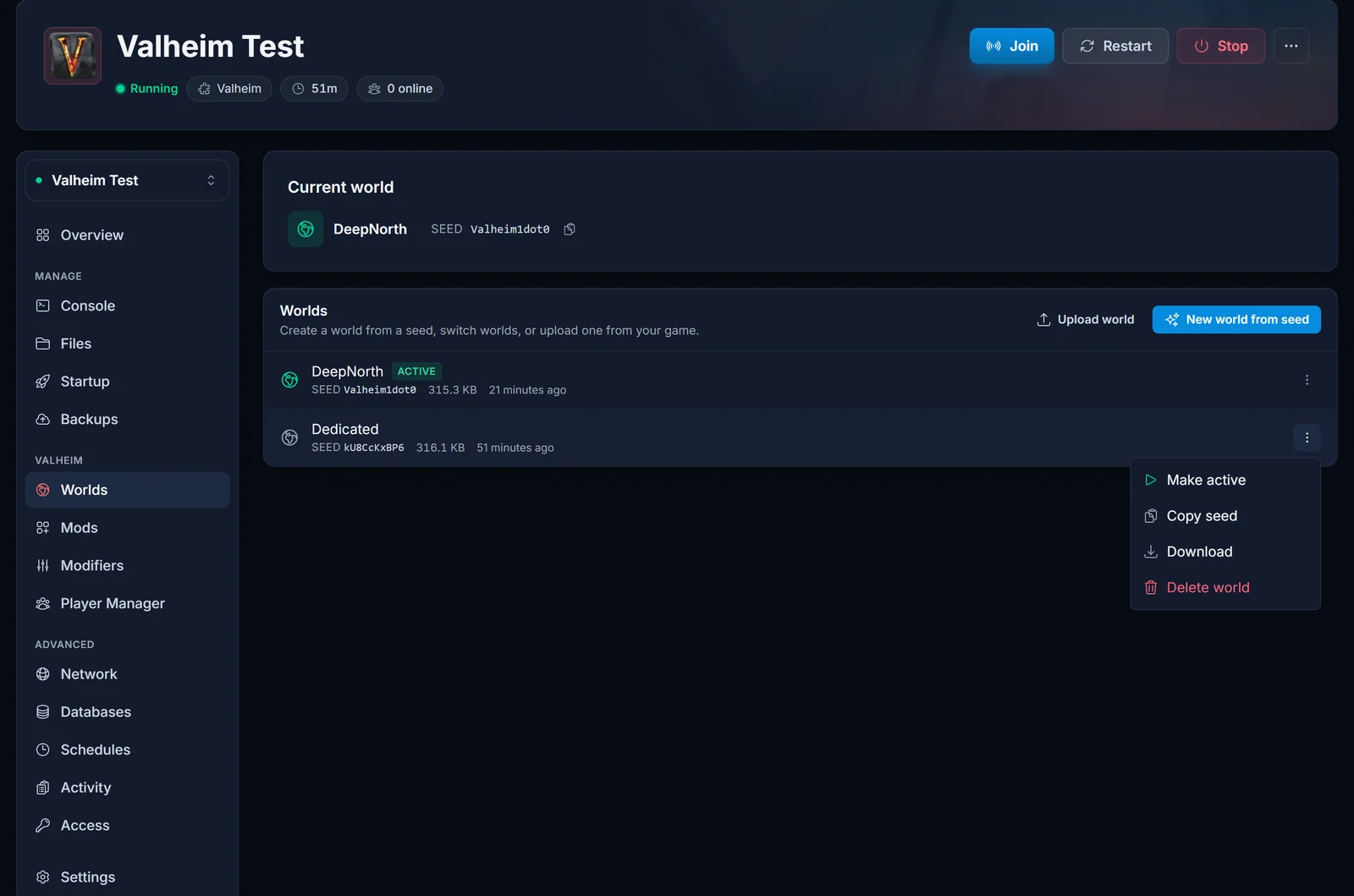
Open the menu on any world in the list and choose Make active. Restart the server and it boots that world instead. There is no limit on how often you switch, so a group can run a 1.0 Deep North world on weeknights and drop back into the old base world whenever they want.
The same menu offers Copy seed (handy for regenerating the same map later), Download, and Delete world. The active world cannot be deleted, which is a deliberate guard against deleting the map the server is currently running.
Using a World You Made in Your Own Game
If you would rather roll the world in your Valheim client first, for example to check the spawn before committing, generate it in single player and upload it. Your local worlds are at:
C:\Users\<username>\AppData\LocalLow\IronGate\Valheim\worlds_local
Use Upload world in the Worlds tab and pick the .fwl file, plus the matching .db if the world has already been generated. Uploading only the .fwl is fine for a brand new world, since the server will build the terrain on the next start. The full walkthrough, including the Steam Cloud path, is in How to Upload Your Valheim World Save to Your Server.
What Else Changes for Server Owners at 1.0
- Mods will break on day one. Iron Gate is explicit that there is no official mod support and no guarantee any mod works at 1.0. Expect BepInEx plugins to need updates, and plan for a mod-free first week if your group wants to play on launch day. A fresh vanilla world is the least painful way through launch week.
- Crossplay covers every platform. PlayStation 5 and Nintendo Switch 2 join PC and Xbox at 1.0, with crossplay between all of them. Your server does not care which platform a player is on.
- Player capacity is unchanged. Iron Gate states 1.0 is a game for 1 to 10 players. If you want more than that, it takes a modded setup, which is covered in our guide on getting more than 10 players on a Valheim server.
- The join code changes on every boot. Restarting to switch worlds means a new join code, so share the direct IP with your group instead if you are switching often. See How to Join a Valheim Server for both methods.
Common Issues
"A world with that name already exists" World names are unique per server and the panel never overwrites a world, on purpose. Pick a different name, or delete the old world first if you genuinely do not want it.
The server still loaded the old world The switch only takes effect on restart. If the server was running when you created or activated a world, restart it, then check the Current world card at the top of the Worlds tab to confirm which world is live.
The world still says "Generating now" or "Not generated yet" The world file exists but the terrain has not been saved yet. Valheim writes it on the first autosave, about 30 minutes after the first start, so give a freshly created world that long. Check the Console tab if it never progresses.
I sailed north and there is no Deep North That part of the map was generated before 1.0 and is locked in. This is the case where a fresh world is the only fix.
My mods stopped working after 1.0 Expected. Update or remove BepInEx plugins one at a time until the server boots clean. A plugin built against a pre-1.0 build will usually take the server down at startup rather than fail quietly.
Ready to run both worlds side by side? Every Valheim server from DoomHosting includes the Worlds tab, backups, and one-click BepInEx, and you can see the rest of the panel on our game control panel page.
