

Valheim gives you two ways onto a dedicated server: a numeric join code, or the raw IP address. Your DoomHosting panel shows both on one card, along with the password you will be asked for.
Playing from a console? The join code is the console route too, and the controller-side steps are in how to join a Valheim server on Xbox, PS5 and Switch 2.
Which one you use mostly depends on where you bought the game. The join code works for everyone, including Game Pass and Microsoft Store players. The IP address is the classic route and is what most Steam players reach for. This guide covers both, plus the Steam favorites trick and the port detail that catches people out.
Where to find your join code and address
Open your server in the DoomHosting control panel. The Overview tab has a Connection address card with everything you need:
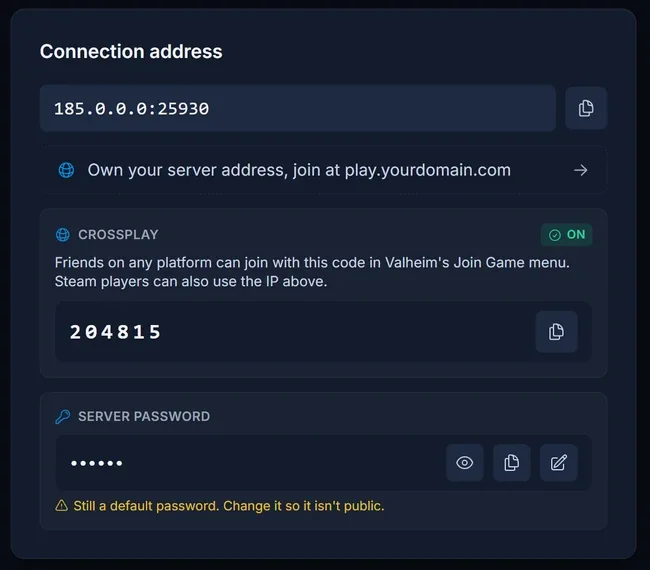
Three things live there:
- The address, as
IP:port, with a copy button. - The join code, shown when crossplay is on (it is on by default on our servers). The card marks crossplay
ONso you know which methods apply, and the Crossplay card beside it is where you switch it: how to turn off crossplay on a Valheim server. - The server password, hidden behind a reveal button.
You do not have to be on the Overview tab to get at it. The Join button in the server header opens the same card from anywhere in the panel:
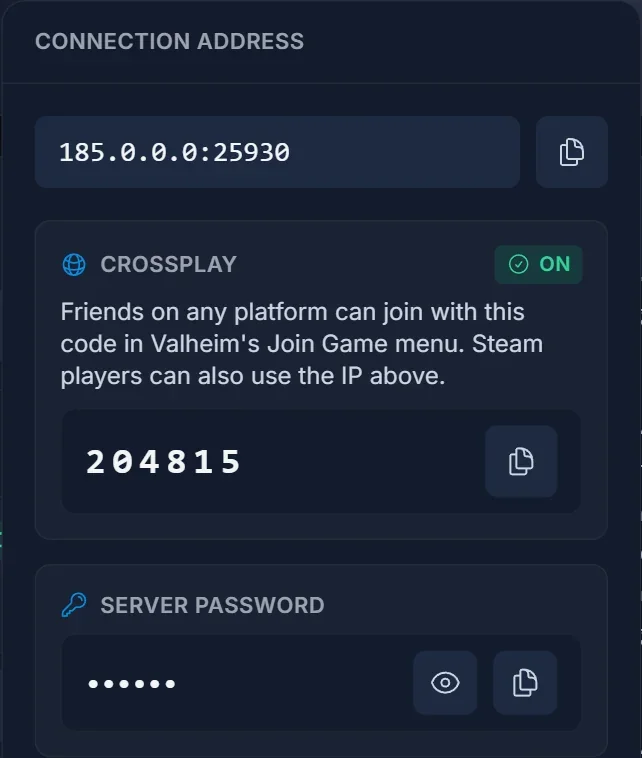
The single most important thing to know: the join code changes every time the server restarts. Valheim mints a new one each boot. If a code stopped working, it is almost never broken, it is just old. Grab the current one from the panel.
Method 1: join with the join code
This works for every PC player regardless of store.
- Launch Valheim and pick your character.
- Go to Join Game.
- Press Add server.
- Paste the join code and confirm.
- Enter the server password when prompted.
The server is then saved in your list, so you only do this once. Just remember that the saved entry points at a code that will change on the next restart, so if it fails later, re-add it with the current code.
Method 2: join by IP address
The same Add server box accepts an address instead of a code. Copy the IP:port value from the panel and paste it in exactly as shown, then enter the password.
Two limits worth knowing, both from Iron Gate's own server guide: on a crossplay server you can connect by public IP, join code or the server list, but a local or loopback address will never work. That only matters for people self-hosting at home, not for a rented server.
Method 3: add it to your Steam favorites
If you want the server pinned in Steam so it is always one click away, use Steam's own server browser. This is where nearly everyone gets tripped up, so read the port note carefully.
- In Steam, open View then Game Servers.
- Switch to the Favorites tab and click Add a server.
- Enter your server's IP with the query port, not the game port.
Valheim binds two consecutive ports: the one you are given, and that port plus one. The game itself uses the first, and Steam's server browser talks to the second. So if the panel shows 185.0.0.0:25930, the address Steam wants is 185.0.0.0:25931.
Get that one digit wrong and Steam reports the server as unreachable even though it is running perfectly and your friends are on it. Once added, it shows up in Valheim's own server list too.
Which password do I use
The one on the Server password card, not your DoomHosting account password. It is the password Valheim asks for as you connect.
If you are setting one, Valheim enforces two rules: it must be at least five characters, and it cannot appear anywhere in the server name. A password that breaks either rule stops the server from starting at all. If your panel still shows the default password with a warning, change it from the same card. Anyone who finds your server in the browser can walk in until you do. Full walkthrough: how to set or change your Valheim server password.
Can Xbox and Game Pass players join
Yes, with a caveat worth stating precisely. Iron Gate's crossplay FAQ says an Xbox player can join a dedicated server as long as crossplay is enabled on both the Xbox and the server. Our Valheim servers ship with crossplay on, so the server half is already handled.
Those players should use the join code. The IP route is the practical one for Steam players on PC.
Common issues
"Incorrect password". Check you copied the password rather than the join code, and that you are not typing a password that includes the server name (Valheim refuses those outright).
The join code does not work. It changed on the last restart. Open the panel and copy the current one. This is by far the most common report.
The join code area says it is waiting. The code is minted a few seconds after the server finishes booting, and the panel reads it from the console as it appears. Give a freshly started server a moment.
The server is not in the in-game browser. It can take a few minutes to register after a start. Use the join code or the IP in the meantime, both of which work immediately.
Steam says the server is not responding. You almost certainly used the game port instead of the query port. Add one to the port number and try again.
Everyone else is in but one person cannot connect. If that person is on a different store than the rest, have them use the join code rather than the IP.
Valheim says "Failed to connect". One message, several different causes, each with its own fix: Valheim failed to connect, how to fix it. If that player is stuck on the crossplay login rather than the server itself, deleting their PlayFab account forces Valheim to make a fresh one.
Frequently asked questions
Does the join code stay the same? No. It is regenerated every time the server boots, which is the single biggest source of confusion with Valheim servers.
Do I need to forward any ports? No. The server is hosted with us, and the ports are already open. Port forwarding only applies to hosting from your own PC.
Can I play without a password? Not on a public server. Valheim requires one, which is why every new server ships with a default that you should change.
How many people can join at once? Ten, which is Valheim's built-in cap. It can be raised with a server-side mod, and no one joining needs to install anything: see how to get more than 10 players on your Valheim server.
Is the server actually online? Check it from outside the panel with our Valheim server status checker.
Do I need to keep the game open for friends to play? No. A dedicated server runs on its own, so your group can play whether or not you are online. That is the whole point of renting one.
Not got a server yet? Our Valheim server hosting runs on Ryzen 9 hardware with crossplay enabled out of the box, so the join code is there the moment your server finishes its first boot.
