

How to Upload Your Valheim World Save to Your Server
Want to keep playing your single-player world on your Valheim server? You do not need an FTP client. The panel's Worlds tab takes the world files straight from your PC, and the whole job is two clicks and a restart.
Find your world files first
Generate the world in single player first if you have not already, then close Valheim so nothing is holding the files open.
Standard install:
C:\Users\<username>\AppData\LocalLow\IronGate\Valheim\worlds_local
Steam Cloud install:
C:\Program Files (x86)\Steam\userdata\<STEAM_ID>\892970\remote\worlds_local
To find the right Steam ID folder, open C:\Program Files (x86)\Steam\userdata in File Explorer. Each long number is a Steam account on that PC. Open yours, then go to 892970, then remote, then worlds_local. Very old installs use a folder called worlds instead.
A world is two files that share a name:
<worldname>.fwlis the world's own file: its seed, its name and its modifier keys.<worldname>.dbis the terrain and everything built on it.
Valheim 1.0 stores newer worlds as a folder named after the world instead of a flat pair of files. Inside it are _main.N.fwl2, which holds the same seed, name and modifier keys, plus _main.N.db2, _main.N.chunks and the terrain .chunk files, where N is a save counter. The Worlds tab takes that too: Upload world folder sits beside Upload world, and you point it at the folder instead of at single files.
Upload it from the Worlds tab
- Open your server in the DoomHosting control panel and select Worlds in the sidebar.
- Click Upload world folder for a Valheim 1.0 world, or Upload world for an older
.fwland.dbpair. - For a folder, pick the world's folder and confirm when your browser asks about uploading its contents. For the older layout, pick the
.fwlfile, and its.dbfile too if you want to keep the terrain and everything you built, selecting both in the same go. - Confirm the upload. The panel writes them into the server's
worlds_localfolder for you. - When it finishes, choose Make it active, then restart the server so it boots your world.
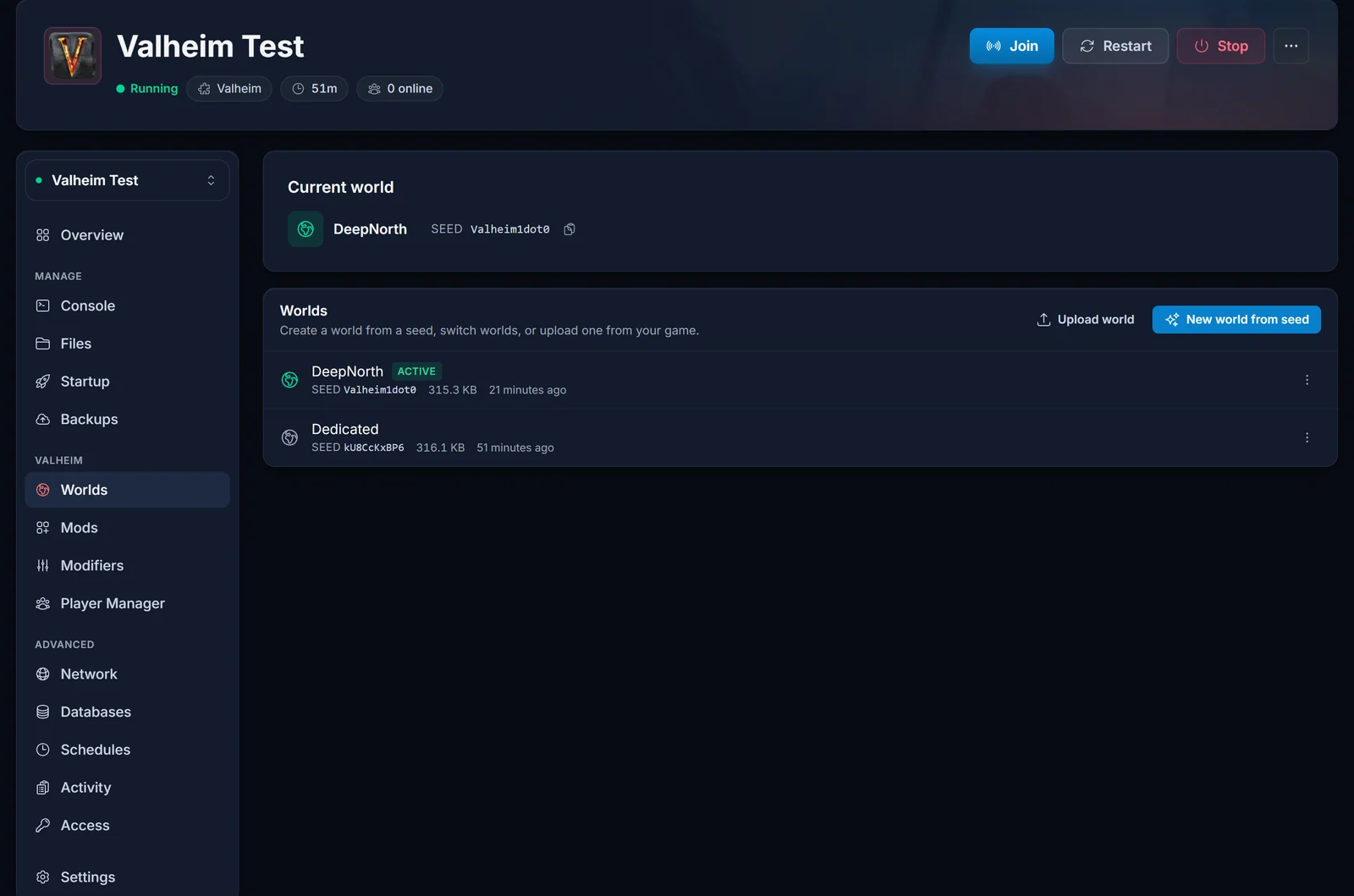
Three things the tab handles for you, which are exactly the things that go wrong by hand:
- The world name. Activating the world sets the server's World startup value to match the file name. There is no field to type it into and no way to mistype it.
- Uploading only the
.fwl. That is allowed. The server then generates fresh terrain from that world's seed on the next start, the same as creating a world from a seed in the panel. - Overwriting the world you are playing on. If the upload would replace the active world while the server is running, the panel refuses. The live server holds that world in memory and writes it back over your upload when it saves, so it stops you rather than losing the file.
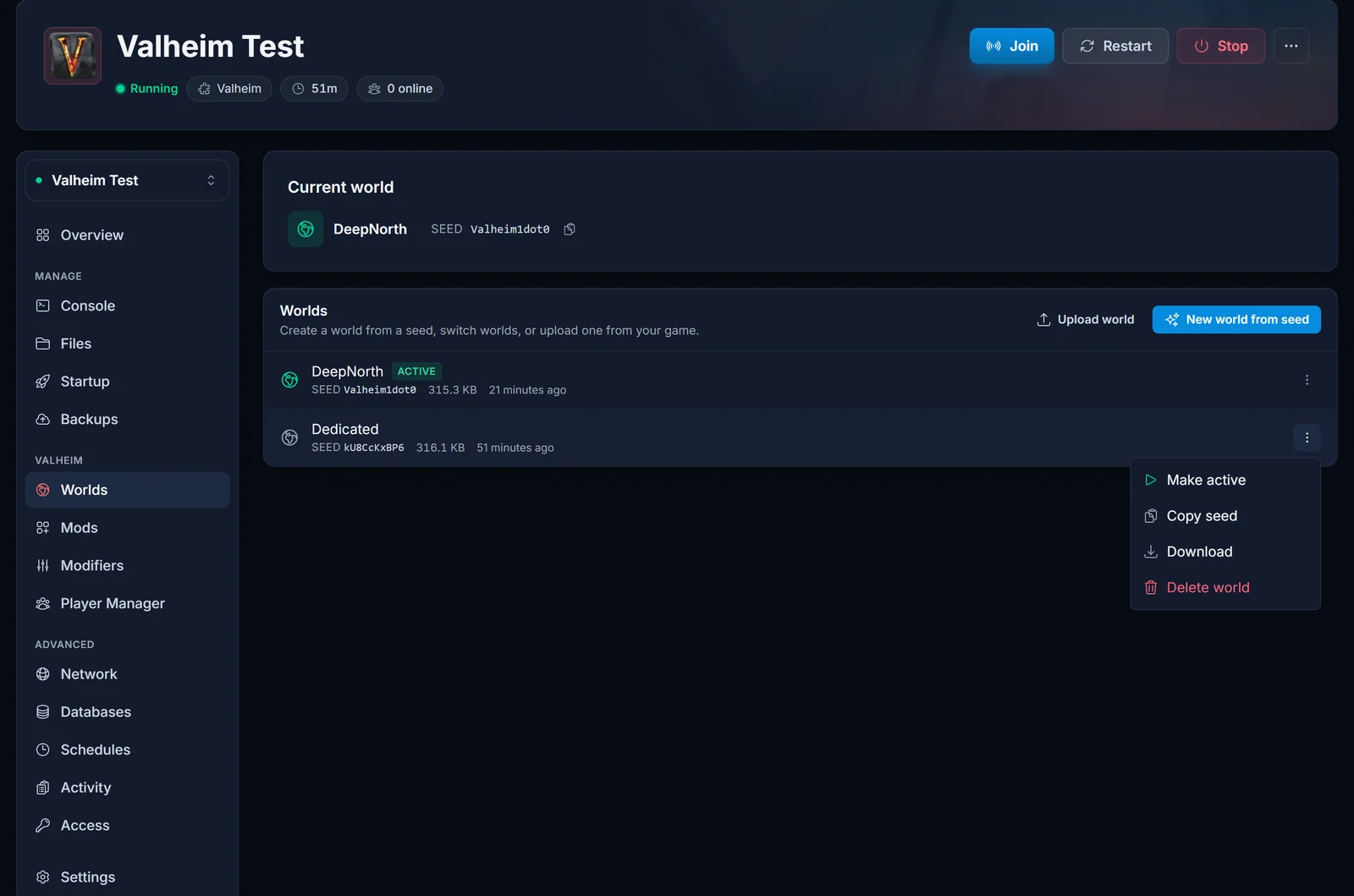
You can switch back at any time. Every world stays on the server, and the row menu offers Make active, Copy seed, Download and Delete world:
Fallback: upload through the Files tab
Use this when you want to drop several worlds in at once, or if your browser will not let you pick a folder.
- Stop the server. Do not upload over a world while the server is running.
- Go to Files and navigate to
.configthenunity3dthenIronGatethenValheimthenworlds_local. The first folder starts with a dot, so turn on hidden files if your SFTP client hides it. - Upload the
.fwland.dbpair, or the whole world folder, intoworlds_local. - Go to Startup and set World to the world's name, without the file extension.
- Start the server.
The result is identical. The Worlds tab is just the same steps with the name typed for you and the overwrite guard in place.
Common issues
The server booted an empty world instead of mine. The World value does not match the file name. Open the Worlds tab and use Make active on the world you want, then restart.
The world shows "Not generated". Valheim writes the terrain on its first autosave, roughly 30 minutes after the server starts. On a world uploaded without a .db that is expected. Leave it running.
The upload button refuses my files. Pick exactly one .fwl plus its matching .db. The name has to be letters, digits, spaces, underscores or hyphens, up to 20 characters, so rename the pair on your PC first if it is longer.
My buildings are missing. You uploaded the .fwl without the .db. The .db is the file that holds the terrain and everything on it.
Take a backup first. Open the Backups tab and create one before you replace a world you care about.
Where to go next
- Want a brand new map instead? The Worlds tab creates one from any seed: how to start a fresh Deep North world.
- Setting the difficulty for the world you just uploaded: how to change world modifiers on your Valheim server.
- Getting everyone in afterwards: how to join a Valheim server, and how to set or change your Valheim server password.
