

Updating a Palworld server on DoomHosting takes one restart. The server checks Steam for a newer build every time it boots, downloads it, and starts on the new version. There is nothing to type and no SteamCMD to run yourself.
This guide covers the restart, how to prove the update actually landed, and what to do when a server refuses to move off an old build.
Update your Palworld server in one restart
- Open your server in the control panel.
- Click Restart in the header. If the server is already stopped, click Start instead: a cold boot runs the same update check.
- Watch the Console tab. SteamCMD runs before the game launches and reports what it downloaded.
- Wait for the console to settle on the Palworld startup lines before you invite anyone back in.

A patch day update usually takes a couple of minutes. A major version jump downloads several gigabytes and takes longer, so give it time before assuming something is wrong.
The Console tab is where the update is visible while it happens. SteamCMD prints its download progress there, then hands over to the Palworld server process.
Confirm the update actually worked
"It restarted" and "it updated" are not the same thing. Steam records the result of every update attempt in a manifest file on your server, and reading it is the only way to be certain.
- Open the Files tab.
- Enter the
steamappsfolder. - Click
appmanifest_2394010.acfto open it in the editor. (2394010 is the Steam app ID of the Palworld dedicated server.)
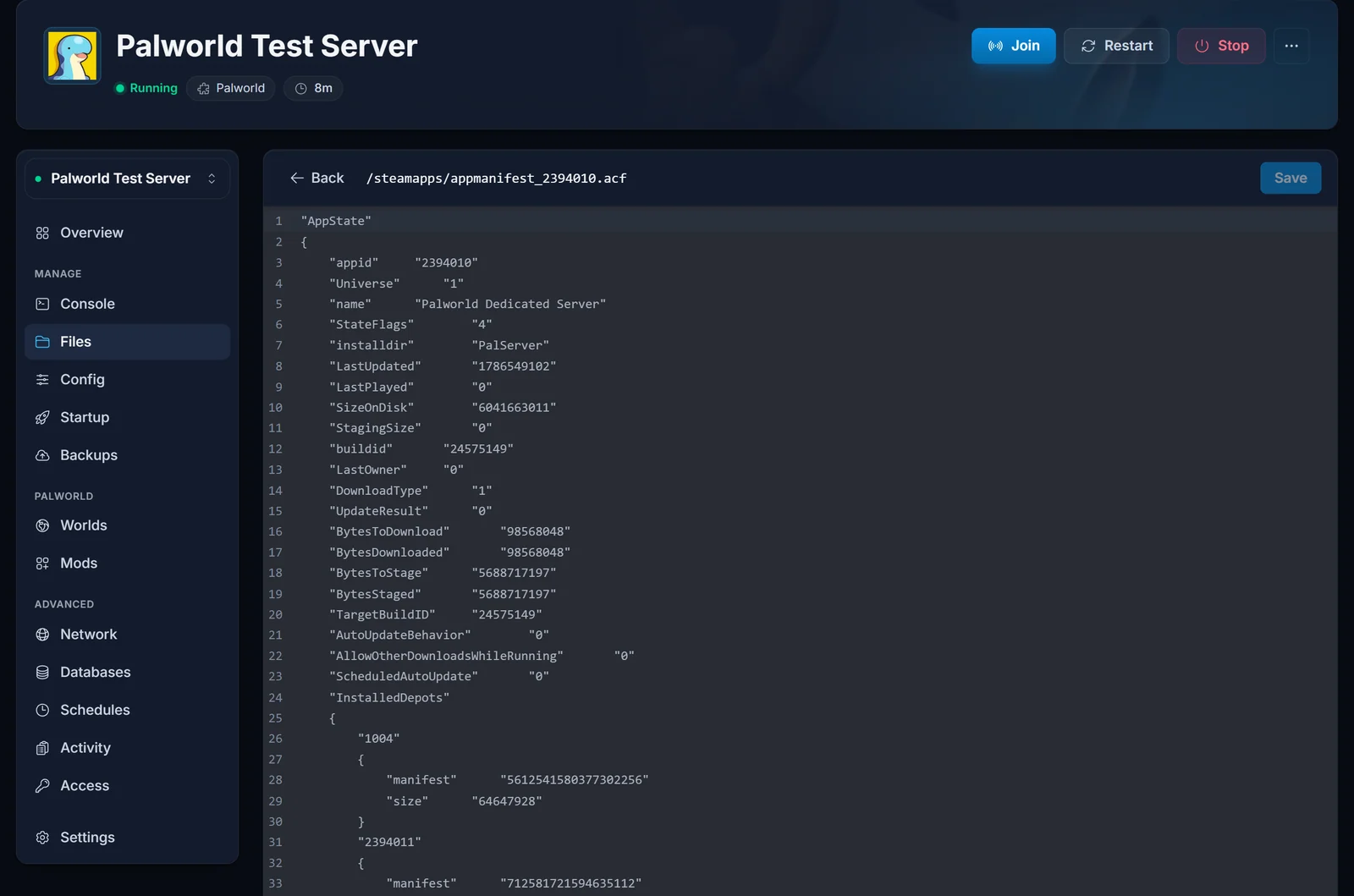
Three values tell you everything:
| Field | What it should say |
|---|---|
buildid |
The build your server is actually running |
TargetBuildID |
The build Steam wants it on |
UpdateResult |
0 |
A healthy, fully updated server has buildid and TargetBuildID matching, with UpdateResult set to 0. If buildid is lower than TargetBuildID, the update did not finish. If UpdateResult is anything other than 0, the last attempt failed, and the section below is the fix.
Do not edit this file. Read it, close it, and leave it alone. It is Steam's bookkeeping, not a setting.
Back up your world before a major patch
Routine patches are safe. Major version jumps are the ones worth a backup, and it costs you thirty seconds.
Open the Backups tab and click Create backup. Wait for it to finish before you restart. Your world data lives in Pal/Saved/SaveGames and your settings live in PalWorldSettings.ini under Pal/Saved/Config, both of which a panel backup captures.
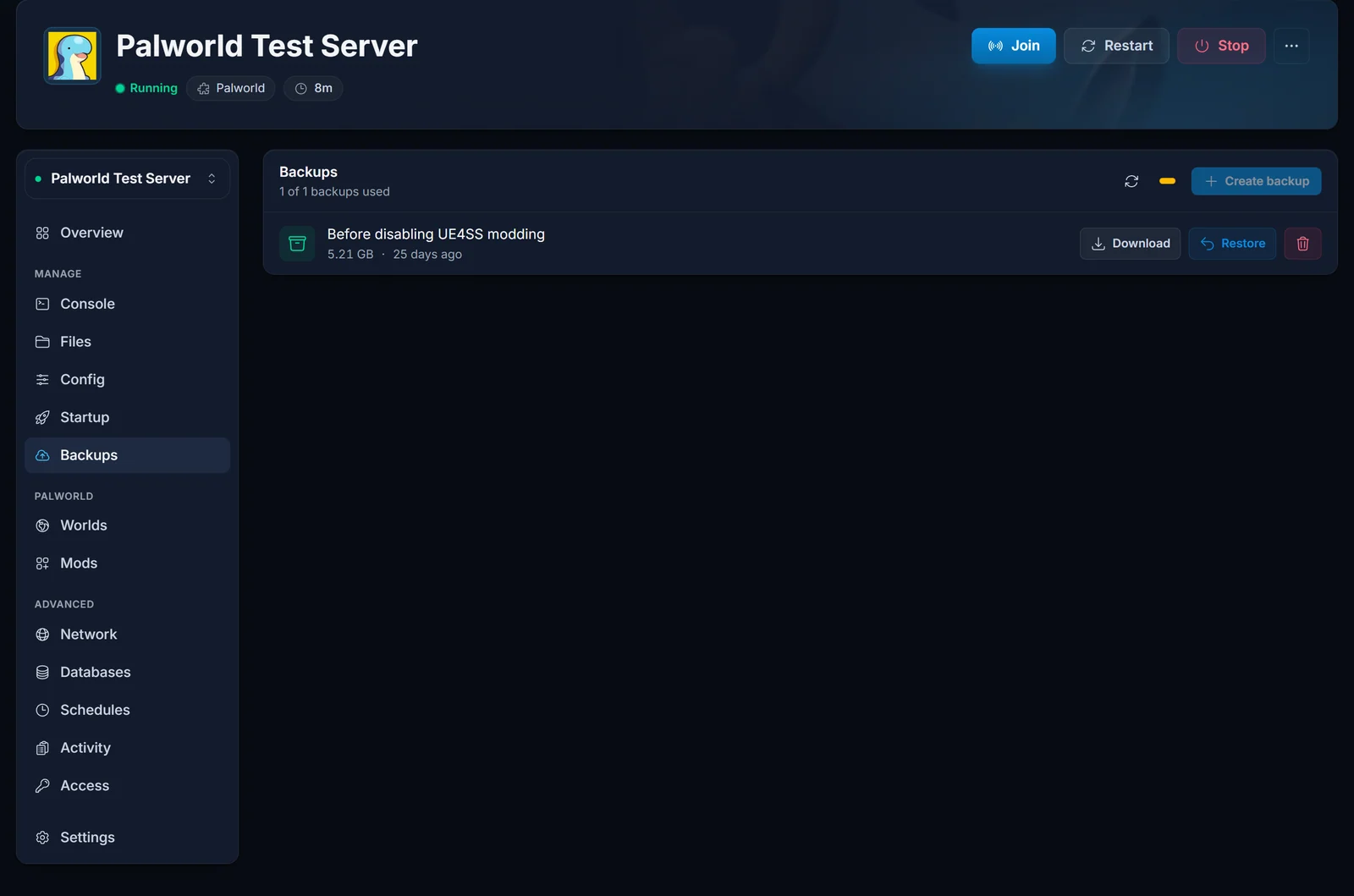
Updating does not wipe your save. A backup is not there because the patch is dangerous, it is there so a bad mod or a half-finished download costs you minutes instead of your world.
Keep automatic updates turned on
The update-on-boot behaviour comes from a single setting. Open the Startup tab and find Auto Update, the first toggle on the page.
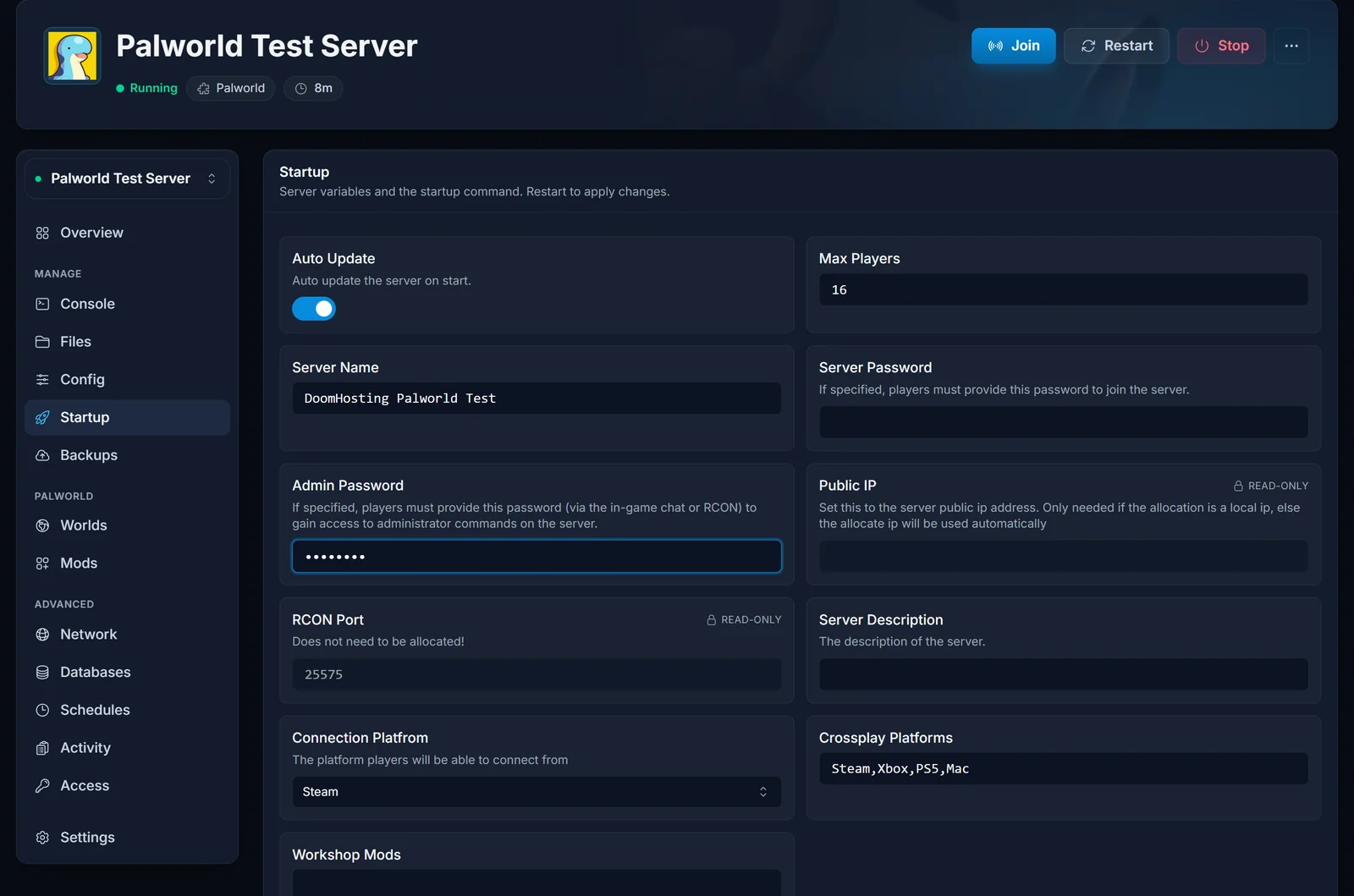
Leave it switched on. That is what makes a restart update the server, and it is on by default.
Switching it off pins the server to whatever build is already on disk and skips the Steam check entirely. That is occasionally useful while you wait for a mod to catch up with a new patch, but it has a sharp edge: a server left off drifts further behind with every patch, and players on the current client will not be able to join it. If you switch it off, write yourself a note to switch it back.
Server stuck on an old version
If the build ID never moves no matter how many times you restart, SteamCMD has recorded a failed update and is refusing to retry cleanly. In the manifest, UpdateResult shows a non-zero value (6 is the common one) and buildid stays behind TargetBuildID.
Restart it one more time before doing anything else. Palworld servers here run a repair check at startup that looks for exactly this, clears the failed manifest, and re-downloads the build before the game launches. You can see it working in the Console tab:
[DoomHosting] Stuck Steam update detected, refreshing manifest and re-downloading...
If that line appears, the repair ran and the server should come up on the current build. If a server is still stuck after that:
- Check Auto Update is switched on in the Startup tab. A server with it off will never update, and the repair check cannot help it.
- Confirm the server has free disk space. A Steam update needs room for the new files alongside the old ones, and a full disk fails the download every time.
- Restart once more and re-read the manifest.
- If
UpdateResultis still non-zero, open a support ticket and tell us thebuildidandUpdateResultvalues you saw. That pair tells us exactly what went wrong.
Players cannot join after an update
Palworld requires the client and the server to be on the same build. When your server updates first, anyone still on the old client is locked out until Steam updates their game too.
Work through these in order:
- Have each player update Palworld in their own library and fully restart the game. This fixes the overwhelming majority of post-update join failures.
- Confirm the server finished updating using the manifest check above. A half-updated server produces the same symptom.
- Crossplay in Palworld spans Steam, Xbox, PS5, and Mac, and every platform has to be on the current build. A console player whose store has not pushed the patch yet simply has to wait.
If the address itself is the problem rather than the version, find your Palworld server IP has the connection details.
Mods after a Palworld update
Mods are the single most common reason a server misbehaves after a patch, not the patch itself. A pak mod built against the previous build can crash the server on boot or block players from connecting.
The reliable order is:
- Remove or disable your mods.
- Update and confirm the server boots clean on the new build.
- Re-add mods one at a time, and only ones whose authors have confirmed compatibility with the current version.
A mod that has not been touched since before the patch is far more likely to break your server than to work. Give mod authors a few days after a major update. Full details in how to install Palworld mods.
Did the update reset your server settings?
This one surprises people, and it is usually not the update at all.
A specific set of keys is re-applied from your Startup tab on every boot, updated or not: server name, description, join password, admin password, max players, and the crossplay platform list. If you edited any of those directly in PalWorldSettings.ini over FTP, the next restart overwrites them with whatever the Startup tab says. It looks exactly like an update wiping your config.
Edit those values on the Startup tab and they stick. Your gameplay settings (rates, combat, PvP, base and guild rules) are not touched by this and survive restarts normally. See how to edit Palworld server settings for which setting belongs where.
Common questions
Does updating delete my save?
No. Updates replace the game files, not your world. Your save sits in Pal/Saved/SaveGames and is left alone.
How do I know when a new Palworld version is out? You do not need to track it. With Auto Update switched on, a restart always pulls whatever the current build is. If players report a version mismatch, restart the server.
Can I update without restarting? No. The update runs during boot, before the game process starts, so a restart is required by design.
Can I roll back to an older build? Not from the panel. Steam serves the current build to anonymous downloads. If a patch broke something for you, restore a backup of your save and report the issue rather than trying to pin an old version.
My server updated but still shows the old version in-game.
Check the manifest. If buildid matches TargetBuildID, the server is current and the stale version is on the client side, so update the game on the player's machine.
Do I have to update at all? Practically, yes. Players cannot join a server running a different build than their client, so an un-updated server becomes unjoinable as soon as people update their own game.
Need a Palworld server that handles this for you? Palworld server hosting from DoomHosting includes one-click restarts, automatic Steam updates, backups, and 24/7 support. If you are moving an existing world onto 1.0 specifically, our guide on updating a Palworld server to 1.0 covers that migration in detail.
