


Your server's address is on the Overview tab of your panel, ready to copy. This guide shows you where it is, how to hand it to your friends, and how to control who is allowed in. If you are the one trying to get into someone else's server, read How to Join a Palworld Dedicated Server instead.
Copy your connection address
Open your server in the panel. The Overview tab opens first, and the Connection address card is right at the top.
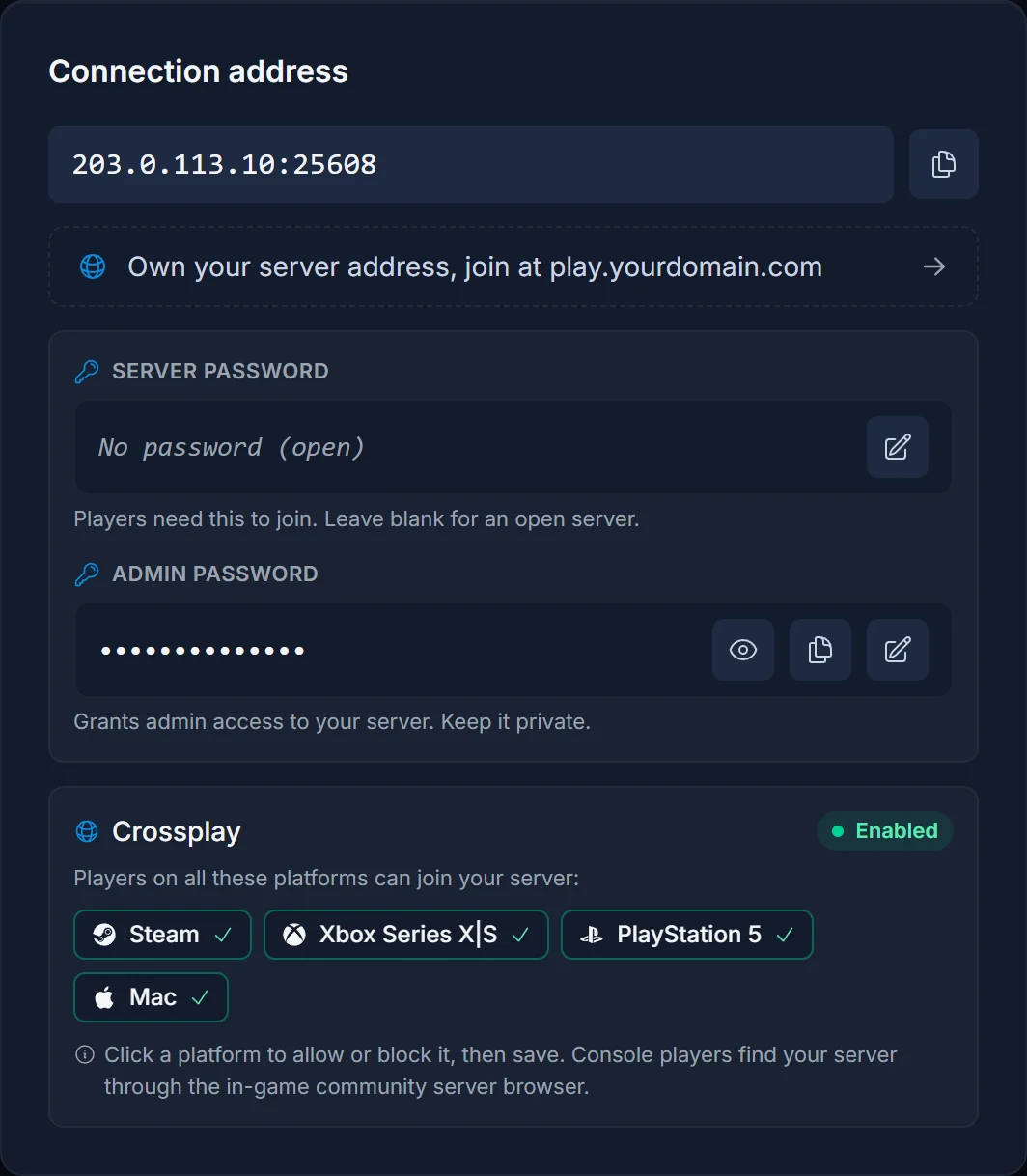
Click the copy button next to the address. That gives you the full IP:port string, for example 203.0.113.10:25608, which is exactly what a player pastes into Palworld.
Two things worth knowing:
- Always copy, never retype. A mistyped digit is the single most common reason a friend "can't connect", and the port matters as much as the IP.
- Your port is not 8211. That is the default for a server you host at home. Every DoomHosting server gets its own port, so send the whole string, not just the IP.
The Join button is a shortcut
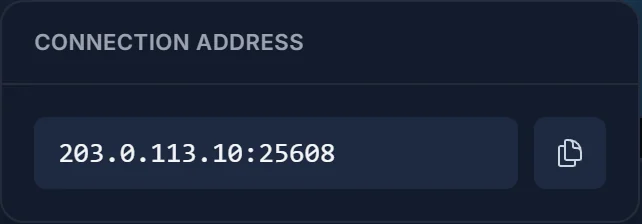
You do not have to scroll to the Overview card every time. The Join button in the server header opens a popover with the same address and its own copy button, from any tab in the panel.
What your friends do with it
Send them the address and, if you set one, the server password. On their end it is four steps:
- Launch Palworld and pick Join Multiplayer Game (Dedicated Server) from the main menu.
- Ignore the community list. The address field is at the bottom of that screen.
- Paste your
IP:portand click Connect. - Create a character. Palworld characters are per server, so even a veteran player makes a fresh one the first time they join yours.
First connection to a large save can take a couple of minutes. That is the world loading, not a failure.
Decide who can get in
The same Overview card holds the two passwords, and they do different jobs:
- Server password: what players type to join. Leave it blank and anyone with your address can connect. Set one and only people you have given it to can get in.
- Admin password: your own administrative control, not for sharing with players. See How to Set the Palworld Admin Password.
Changing either one needs a restart before it takes effect.
Which platforms can join
Your Palworld server accepts Steam, Xbox Series X|S, PlayStation 5 and Mac players by default. The Crossplay card at the bottom of the Overview tab shows exactly which platforms are currently allowed, and you can click any of them to block or re-allow it.
This is worth stating plainly because it changed with Palworld 1.0 and a lot of older guides still say otherwise: a Steam player and an Xbox player can share your server. If you want to keep it to one platform, turn the others off there rather than trusting an out-of-date compatibility chart.
Console players are the one exception to the paste-an-address flow. PlayStation and Xbox do not let games take a raw IP, so console friends have to find your server by name in the in-game community browser. For that to work your server needs a distinct name and needs to be public. Search for something like "DoomHosting" and you will scroll forever, so give it a name nobody else will have.
Common issues
A friend gets "connection failed" Nine times out of ten the address was retyped rather than copied, or the port was left off. Send the copied string again. Then check the server is actually running: the header in your panel shows Running with a green dot.
They connected yesterday and cannot today Check whether Palworld updated. The client and the server have to be on the same build, and a client that auto-updated before the server did will bounce off. Restarting your server picks up the new build.
Your console friend cannot find the server It needs to be public and have a searchable name. A server that has just restarted also takes a minute or two to reappear in the community list.
Everyone can join who should not You have no server password set. The Overview card shows "No password (open)" when that is the case. Set one and restart.
They joined but their character is gone They are on a different server than last time, or the save was changed. Characters live on the server, not the account, so the address they used has to be identical.
Frequently asked questions
Where do I find my Palworld server IP? On the Overview tab of your panel, in the Connection address card. There is a copy button that gives you the IP and port together.
What port does my Palworld server use?
Whatever is shown in the Connection address card. It is assigned per server and is generally not 8211, so always send the full IP:port string.
Can I use a normal address instead of an IP?
Yes. The Overview card links straight to a custom domain, so your friends can join at something like play.yourdomain.com instead of memorising numbers.
Can Xbox and Steam players play together on my server? Yes, that is on by default. The Crossplay card on Overview lists every platform currently allowed and lets you turn any of them off.
Do my friends need to buy anything to join? Only Palworld itself. There is no per-player cost on the server, and your plan's slot count is the only limit on how many can be in at once.
How many people can join? Up to the max player count on your server, which you can change from the panel. Larger groups want more RAM, so size the plan to the group.
Need a server first? Rent a Palworld server and get the address, passwords and crossplay controls on one screen. New to the panel? See what it does on the game server control panel page.
