


Palworld's dedicated server has thirteen admin commands covering player moderation, broadcasts, saving and shutdown. This guide lists all of them with working examples, and shows you the two places you can run them: your panel's Console tab, or the in-game chat box. The two are not identical, and the one difference between them is why most people think the commands are broken.
First, set an admin password
Nothing below works until your server has an admin password. It is what the game checks before it accepts a privileged command, and it is also what authenticates the panel console.
If you have not set one yet, do that first: How to Set the Palworld Admin Password. It takes about ten seconds on the Overview tab.
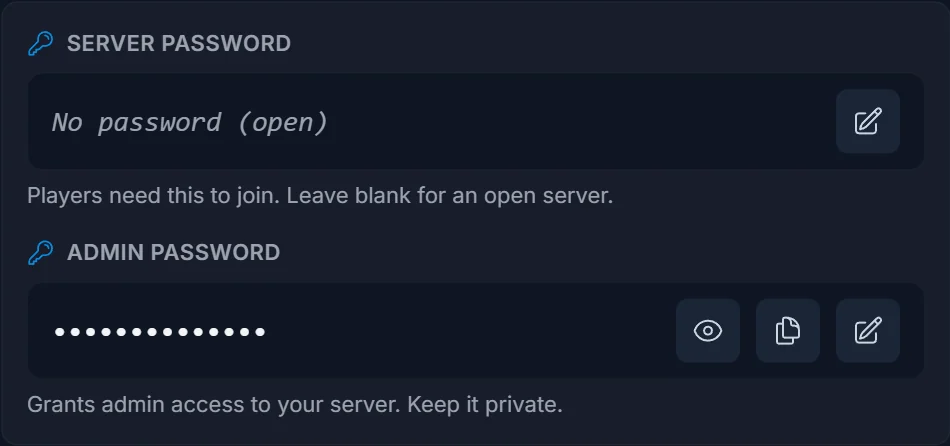
Restart the server after setting it. Palworld reads the admin password at startup, so until you restart, the old value is still active.
The slash rule: the one thing that trips everyone up
Palworld accepts the same commands in two ways, and the prefix is different:
- In the game's chat box: type the command with a leading slash, like
/Save. - In your panel's Console tab: type it without the slash, like
Save.
The panel console talks to the server over RCON, and RCON does not want the slash. Send /Save there and the server answers Unknown command every time. Drop the slash and the same command returns Complete Save.
Almost every Palworld command list you will find online only gives the slash form, because it is copied from the official in-game documentation. That is why pasting those commands into a server console appears to do nothing.
Run commands from the panel Console tab
This is the easier method, and you do not need to launch the game to use it.
- Open your server in the panel and click Console in the left menu.
- Click the input box at the bottom.
- Type the command without a slash and press Enter.
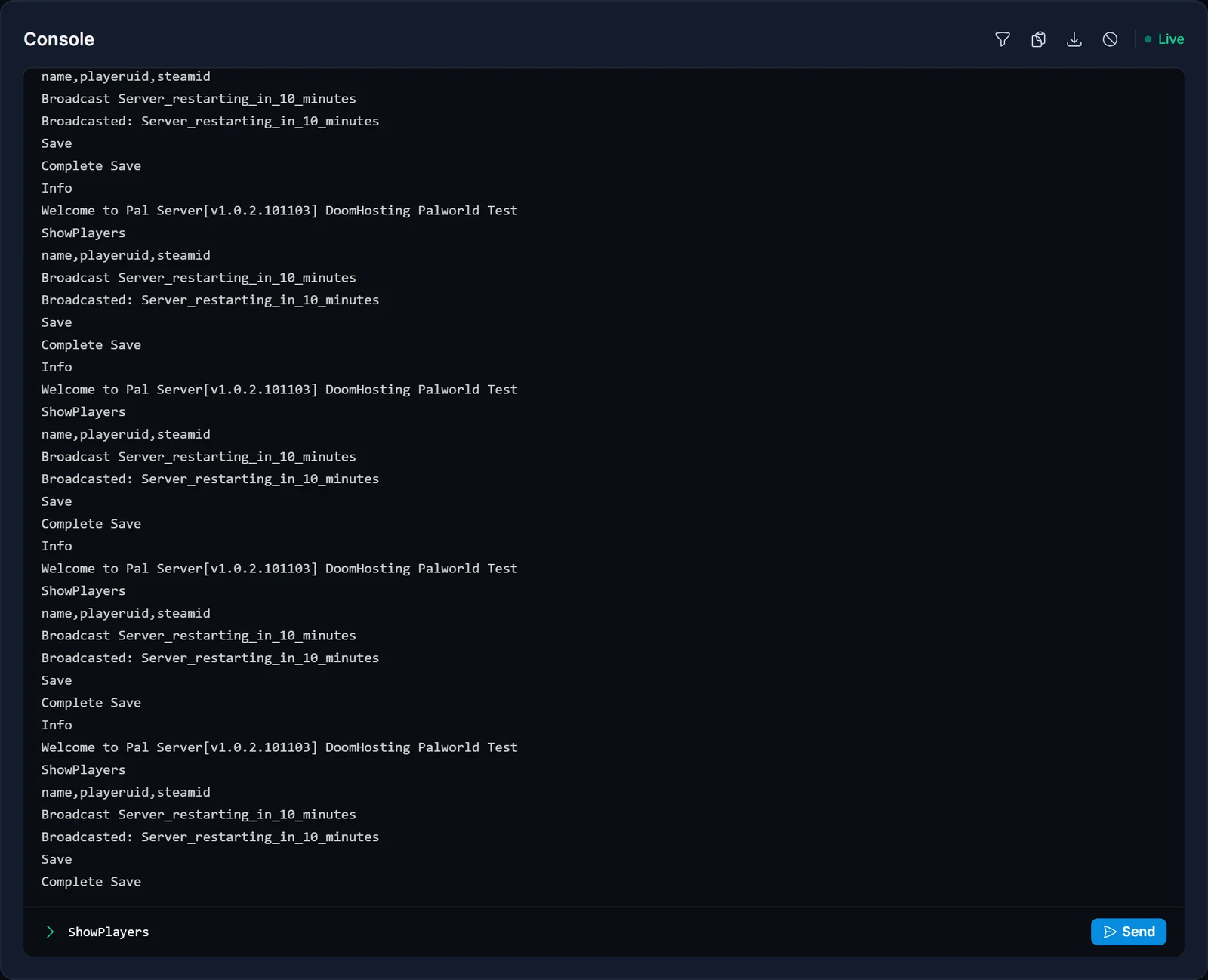
The server's reply appears in the log a moment later. Info returns your server name and build number, which is a quick way to confirm the console is actually reaching the game and to check which version you are running.
Run commands in-game
Use this method when you are already playing and want to teleport or moderate on the spot.
- Join your server.
- Open the chat box and type
/AdminPassword YourPasswordHere, then press Enter. - You now have admin rights for that session. Run any command with the leading slash.
You have to log in again with /AdminPassword every time you reconnect. Admin status is per session, not attached to your account.
Full list of Palworld admin commands
Verified on Palworld dedicated server v1.0.2. The panel column is the form to type in your Console tab, the in-game column is the form for the chat box.
| In-game | Panel console | What it does |
|---|---|---|
/AdminPassword <password> |
not needed | Grants admin rights in-game for the current session. The panel console is already authenticated. |
/Info |
Info |
Prints the server name and build number. |
/ShowPlayers |
ShowPlayers |
Lists everyone connected, with their IDs. |
/Save |
Save |
Writes the world to disk immediately. |
/Broadcast <message> |
Broadcast <message> |
Sends a message to every player on the server. |
/KickPlayer <id> |
KickPlayer <id> |
Disconnects a player. They can rejoin. |
/BanPlayer <id> |
BanPlayer <id> |
Blocks a player from the server permanently. |
/UnBanPlayer <id> |
UnBanPlayer <id> |
Lifts a ban. |
/TeleportToPlayer <id> |
in-game only | Teleports you to that player. |
/TeleportToMe <id> |
in-game only | Teleports that player to you. |
/ToggleSpectate |
in-game only | Enters spectator mode. Press backslash to toggle back. |
/Shutdown <seconds> <message> |
Shutdown <seconds> <message> |
Warns players, then stops the server after the countdown. |
/DoExit |
DoExit |
Stops the server immediately, with no warning and no save. |
The three teleport and spectate commands are marked in-game only for a reason. They act on "you", and over RCON there is no character to act on, so the server answers Failed to TeleportToMe Missing MyCharacter.
Finding a player's ID for kick, ban and teleport
Every moderation command needs an ID, and you get it from ShowPlayers. The output is comma-separated with a header row:
name,playeruid,steamid
Steve,1234567890,76561198000000000
That gives you two usable IDs per player, and which one you need depends on how they are playing:
- Steam players: either column works. The steamid is the 17-digit one.
- Xbox, Game Pass, PS5 and Mac players: they have no Steam ID, so use the playeruid.
Because Palworld servers run with crossplay enabled by default, always check which column is actually filled before you copy an ID. Reaching for the SteamID out of habit is the most common reason a ban silently fails.
If you want to look up a Steam player's ID ahead of time rather than waiting for them to connect, see How to Find Your SteamID64.
Shutting the server down safely
Shutdown is the polite option. It broadcasts your message, counts down, and stops cleanly:
Shutdown 60 Restarting_for_updates
DoExit kills the server on the spot. It does not save first, so anything since the last autosave is lost. Run Save before DoExit if you use it at all.
In practice you rarely need either from the console, because the Restart and Stop buttons at the top of your panel do the same job and handle the save for you. Use Shutdown when you specifically want players warned in advance.
Common issues
Every command returns "Unknown command"
You are typing the slash in the panel console. Remove it. Save, not /Save.
Broadcast only sends the first word
This is a genuine Palworld bug and it still exists in 1.0. Broadcast hello there admins broadcasts just hello. Replace the spaces with underscores: Broadcast Server_restarting_in_10_minutes sends the whole line. The underscores are visible to players, which is ugly, but it is the only reliable workaround.
"Failed to Kick" or "Failed to Ban"
The ID does not match a connected player. Run ShowPlayers and copy the ID from the output rather than typing it. For console players, use the playeruid column, not steamid.
Commands do nothing in-game
You did not run /AdminPassword after joining, or the password you typed does not match the server's. Admin rights reset every time you reconnect.
You set an admin password but nothing changed The server has not restarted since. Palworld only reads the admin password at startup.
ToggleSpectate does nothing from the panel It is an in-game command. Over RCON it times out because there is no character to put into spectator mode.
Frequently asked questions
What is the command list for Palworld? Thirteen commands: AdminPassword, Info, ShowPlayers, Save, Broadcast, KickPlayer, BanPlayer, UnBanPlayer, TeleportToPlayer, TeleportToMe, ToggleSpectate, Shutdown and DoExit. The full table above shows the syntax for each.
Do I need to be in-game to run Palworld admin commands? No. Everything except the teleport and spectate commands runs from the Console tab in your panel, without launching the game.
Why do my Palworld commands say "Unknown command"? You included the leading slash in the panel console. The slash is for the in-game chat box only.
How do I ban a player on Palworld?
Run ShowPlayers, copy the player's ID, then run BanPlayer <id>. Use the playeruid for Xbox, PS5 and Mac players since they have no Steam ID.
Can I use an RCON tool instead? You can, but there is little reason to. The panel Console tab is already an RCON connection, with the authentication handled for you and a full scrollback of everything the server has said.
How do I give another player admin rights?
Share the admin password with them. They run /AdminPassword in chat like you do. Palworld has no per-player admin list, so anyone with that password has full control. Treat it accordingly.
Need a server to run these on? Rent a Palworld server and get the console, save management and one-click mods in one place. You can also change the rest of your world settings without touching a config file: see How to Edit Your Palworld Server Settings, or take a tour of the game server control panel.
