


Palworld keeps each character in its own small file inside your save folder, and you can edit that file in a browser without installing anything. This guide shows what is actually stored in a player save, how to change your technology points with the Palworld Save Editor, and how to put the edited file back on a single player world or a dedicated server.
The editor runs entirely in your browser. Your save is never uploaded to us or to anyone else.
What can you edit in a Palworld save file?
Palworld splits a world across several files, and it matters which one holds what. Your player save is tiny and readable. Almost everything else lives in Level.sav, packed into a binary format.
| Stored in your player save | Stored in Level.sav |
|---|---|
| Technology Points | Character level and EXP |
| Ancient Technology Points | Your Pals, their stats and passive skills |
| Unlocked recipe list | Bases, guilds and containers |
| Your player ID and SteamID64 | Everything other players own |
So the editor changes technology points and shows you the rest as read only. Anything in the right hand column is deliberately left alone, and the section below explains why.
Where is my Palworld save file?
On Windows, open the Run dialog with Win + R, paste this and press Enter:
%LOCALAPPDATA%\Pal\Saved\SaveGames
Inside you will find a folder named after your Steam ID, and inside that a folder for each world. Your character files are in the Players subfolder:
%LOCALAPPDATA%\Pal\Saved\SaveGames\<SteamID>\<WorldID>\Players\<PlayerID>.sav
Each .sav in Players is one character, named after a 32 character ID. If you only ever played solo, there will usually be a single file. In a co-op world the host is 00000000000000000000000000000001.
How to edit your Palworld save
Close Palworld completely first. Editing a file while the game has it open will get your changes overwritten when the game saves.
- Copy your whole save folder somewhere safe. The tool never touches your original file, but a backup costs nothing.
- Open the Palworld Save Editor.
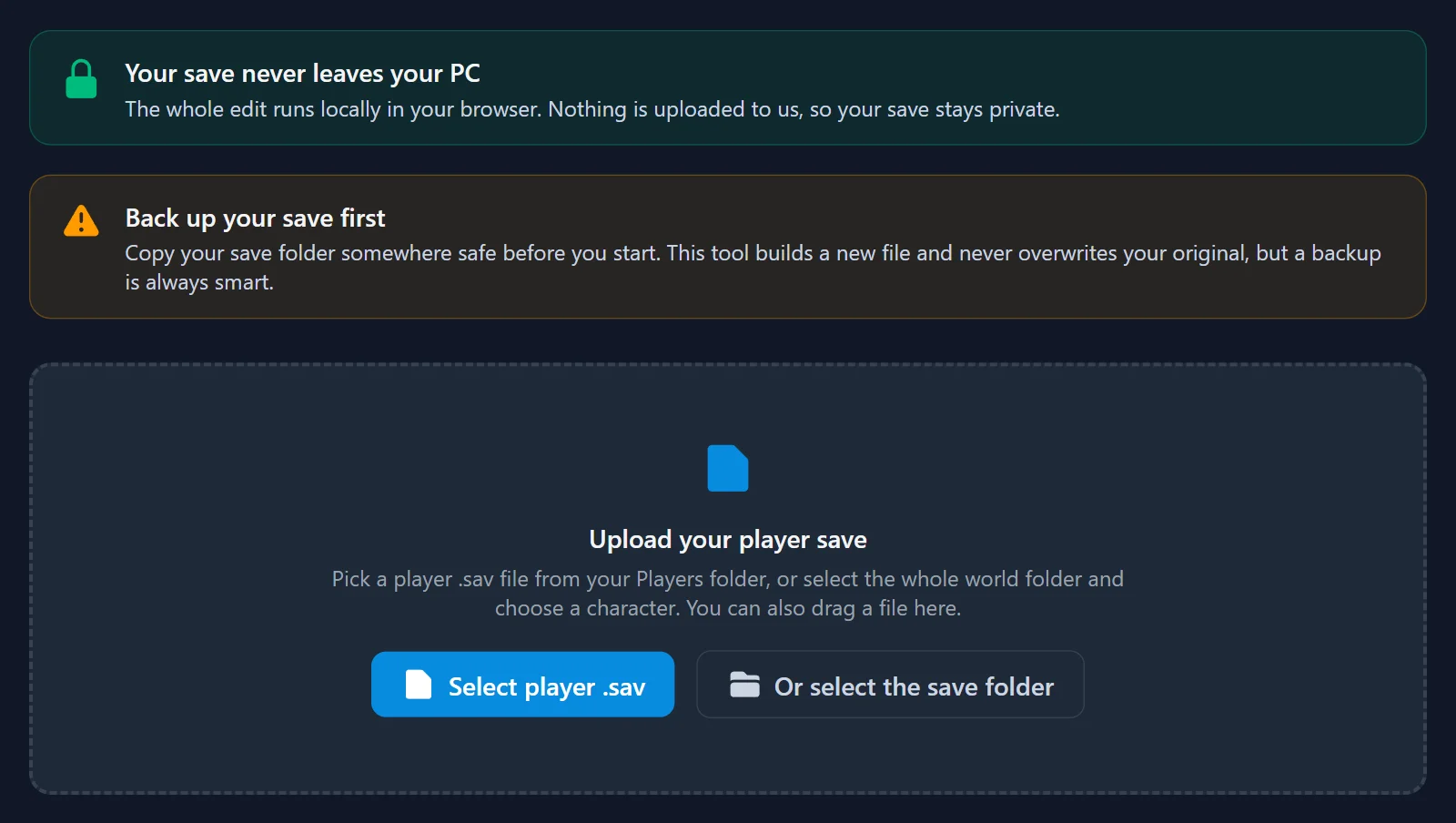
- Click Select player .sav and pick a file from your
Playersfolder. If you are not sure which character is yours, click Or select the save folder instead, pick the world folder, and the tool lists every character it finds so you can choose. - The editor reads the file and shows what is inside it: your player ID, the SteamID64 behind it, and how many recipes you have unlocked.
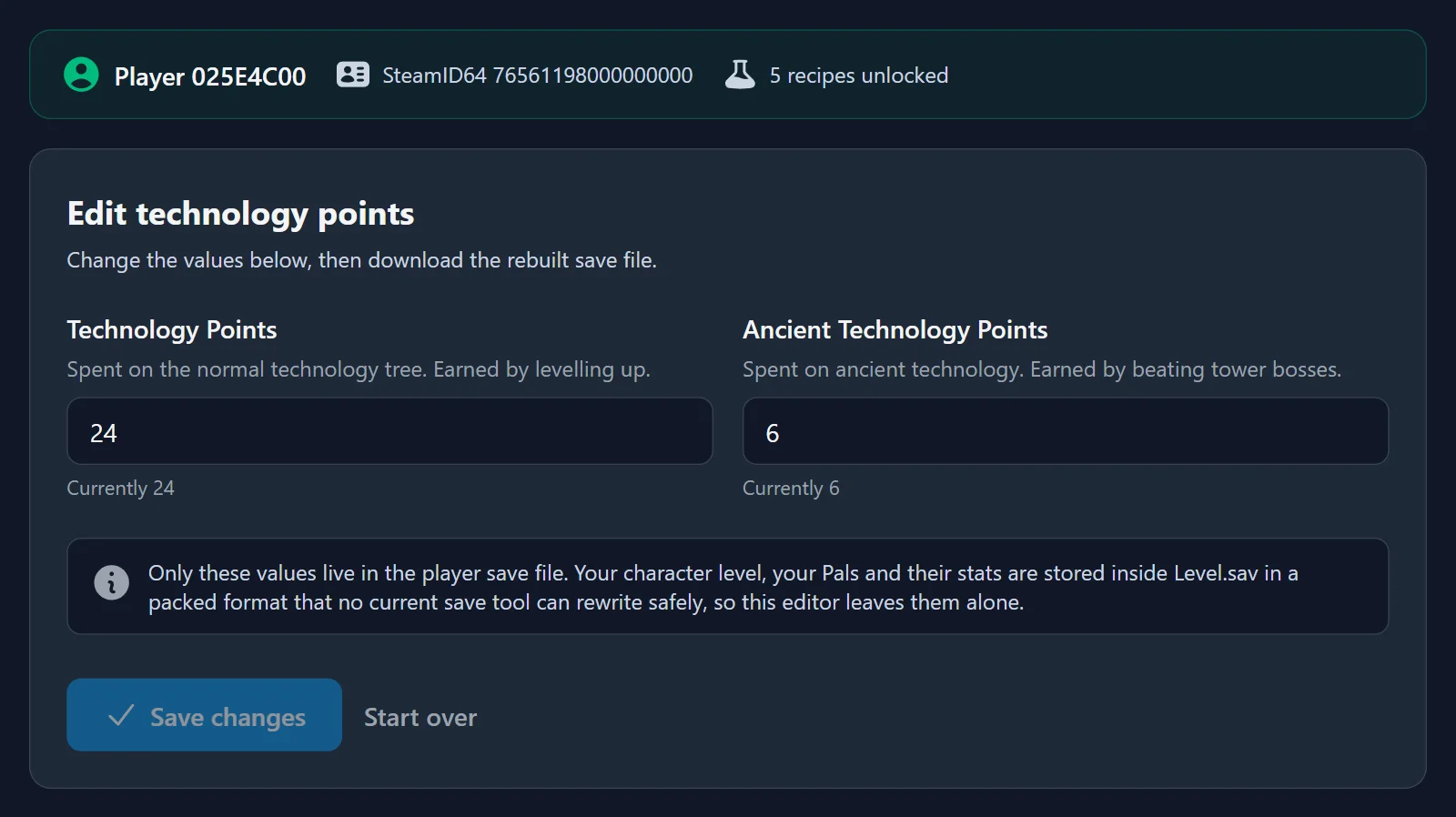
- Change Technology Points or Ancient Technology Points. Leaving a box empty means "do not change this value", so you can edit one and leave the other exactly as it was.
- Click Save changes and download the rebuilt file.
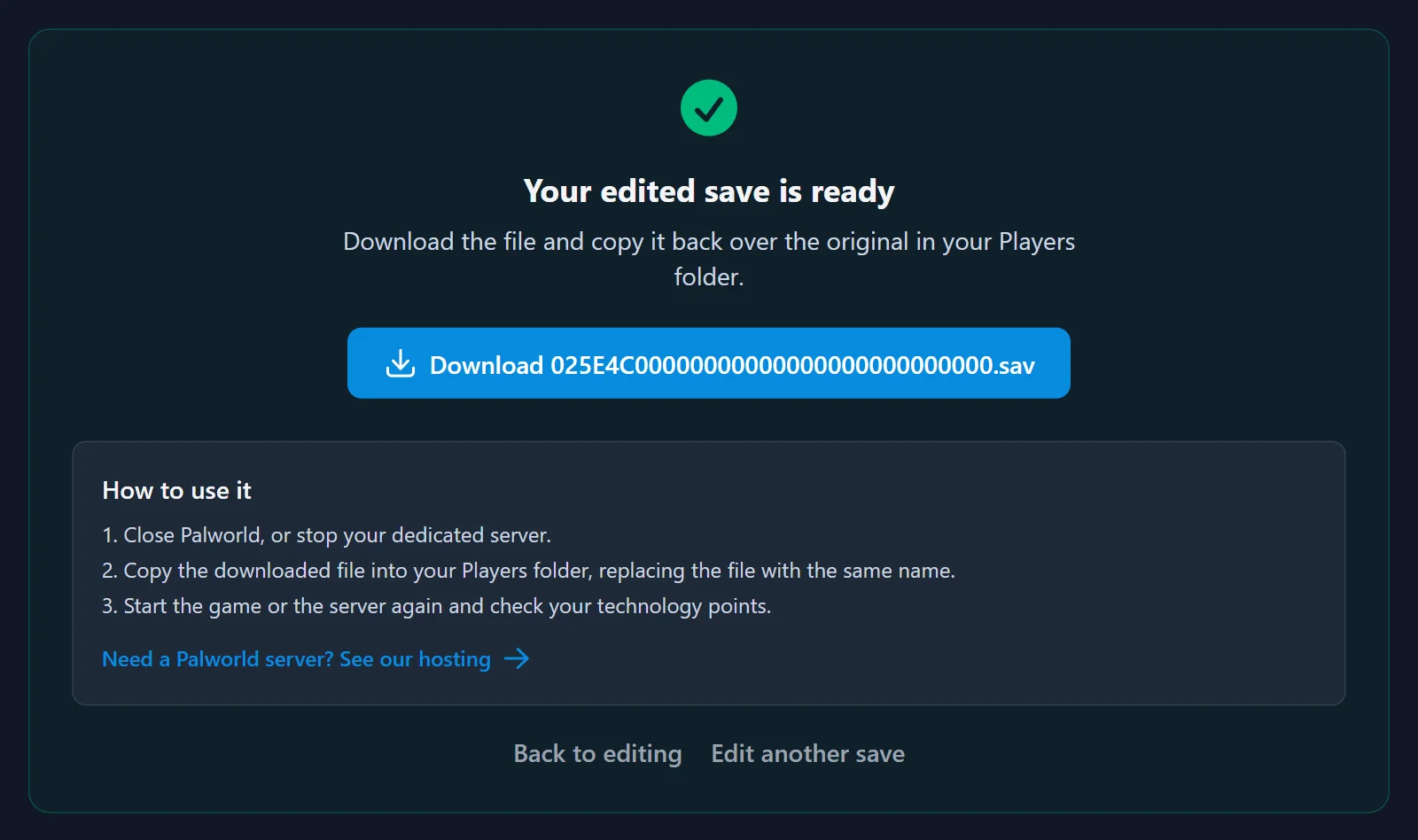
- Copy the downloaded file into your
Playersfolder, replacing the file with the same name. The filename must stay identical or the game will not find your character. - Start Palworld and check your technology tree.
How to edit a player save on a dedicated server
The layout is the same, the file just lives on the server instead of your PC.
- Stop the server. A running server holds the save in memory and will overwrite whatever you upload when it next writes to disk. This is the single most common reason an edit "does not work".
- Open the file manager or FTP in your control panel and go to the world folder, then
Players. - Download the
.savfor your character and run it through the editor. - Upload the edited file back, replacing the original.
- Start the server and join.
On our panel this is all in the Files tab, and you can read more about what it does on the game control panel page.
If instead you want to move a solo or co-op world onto a server, that is a different job with a different tool: see How to Move Your Palworld Co-op Save to a Dedicated Server, which uses the Palworld Save Converter to rewrite the owner ID.
Why can't I edit my level, my Pals or their stats?
Because no current tool can do it safely, and a tool that pretends otherwise will corrupt your world.
Your level, your Pals, their IVs and passive skills all live inside Level.sav, in packed binary blocks. The community library that every Palworld save tool is built on decodes those blocks with a strict length check, and Palworld 1.0 added new fields to them. On any current save that check fails, so the blocks cannot be rewritten without risking damage to the world.
The editor works around this by never decoding those blocks at all. It only reads and writes the plain values stored directly in your player save, which is why technology points are offered and Pal editing is not. If you want stronger Pals in the meantime, breeding is the reliable route, and the Palworld breeding calculator will tell you which parents produce what.
Common problems
"No player save found" means you picked a file that is not a character save. Level.sav, LevelMeta.sav and WorldOption.sav are world files, not player files. Pick something from the Players folder.
"This looks like an Xbox / Game Pass save" means your save is in a wgs container, which stores files differently. Only Steam saves are supported right now.
The edit did not apply. Nearly always one of three things: the game or server was still running when you replaced the file, the file was copied to the wrong world folder, or the filename was changed. The name must match the original exactly.
Multiple files in Players and you do not know which is yours. Select the whole save folder rather than one file. The tool reads each character and shows the SteamID64 behind it, so you can match it to your own account.
Your technology points look wrong in game. Points already spent stay spent. The number you set is your available pool, not a reset of the tree.
Related reading
- How to Edit Your Palworld Server Settings (PalWorldSettings.ini)
- Palworld server hosting if you want your world running 24/7 instead of only when you are online.
