

Palworld's mod scene lives almost entirely on CurseForge: balance tweaks, faster mounts, bigger bases, more worker Pals, quality-of-life fixes, and full overhauls all ship as .pak files. A Palworld dedicated server loads those .pak files from one specific folder, Pal/Content/Paks/~mods. This guide covers both ways to add them on a DoomHosting server: the one-click Mods manager built into your control panel, and a manual upload through the File Manager for the rare mod that isn't on CurseForge.
Before you start: client-side vs server-side mods
This is the part that trips most people up, so read it first. Most Palworld mods are client-side. A client-side mod (new UI, cosmetic changes, camera tweaks) does nothing if it only sits on the server. Mods that change data, balance, spawn rates, or admin behavior belong on the server, and many of those still need every player to install the same mod from CurseForge so the client and server match.
If a mod isn't behaving, open its CurseForge page and check whether it's client-side, server-side, or both. The Mods tab in your panel shows this reminder inline so you don't forget.
Method 1: One-click with the Mods tab (recommended)
The fastest way, with no FTP, no unzipping, and no folder names to get wrong.
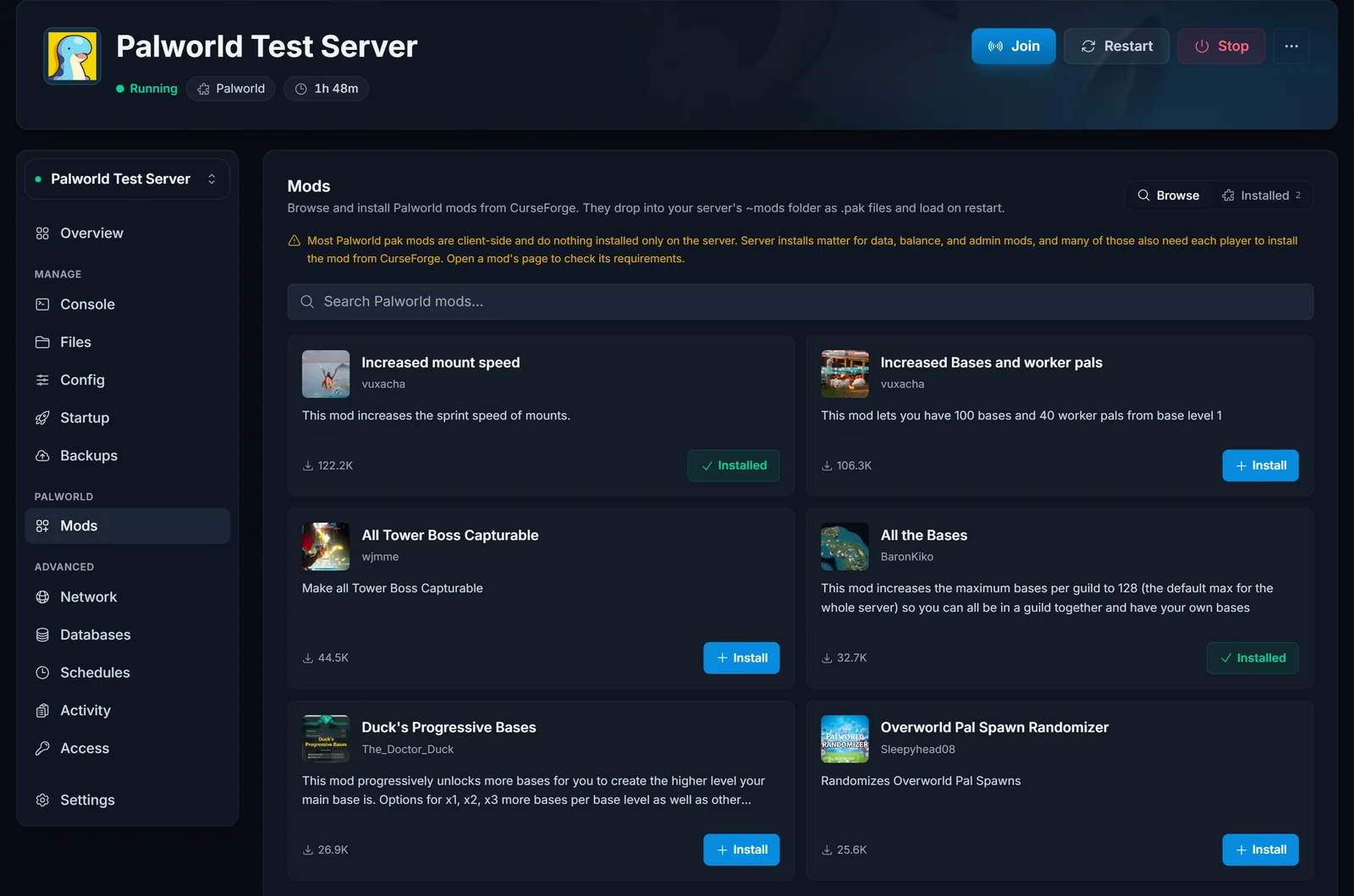
- Open your server in the panel and click Mods in the section menu.
- Stay on the Browse tab. Search CurseForge by name, or scroll the popular mods.
- Click Install on the mod you want. Pick a version (the latest is selected by default) and confirm.
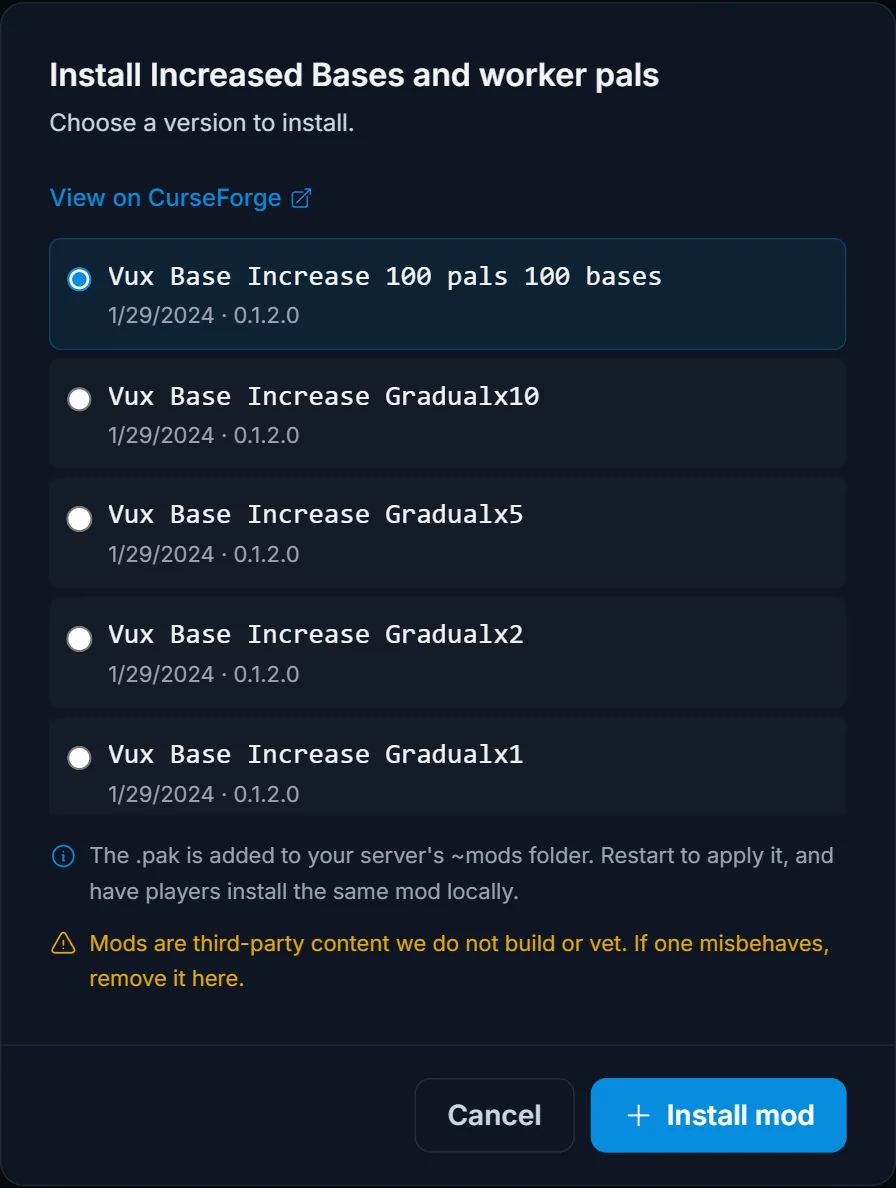
The panel downloads the mod, extracts the .pak, and drops it into Pal/Content/Paks/~mods for you. No archive juggling.
- Switch to the Installed tab to see everything you've added, each with a one-click remove button.
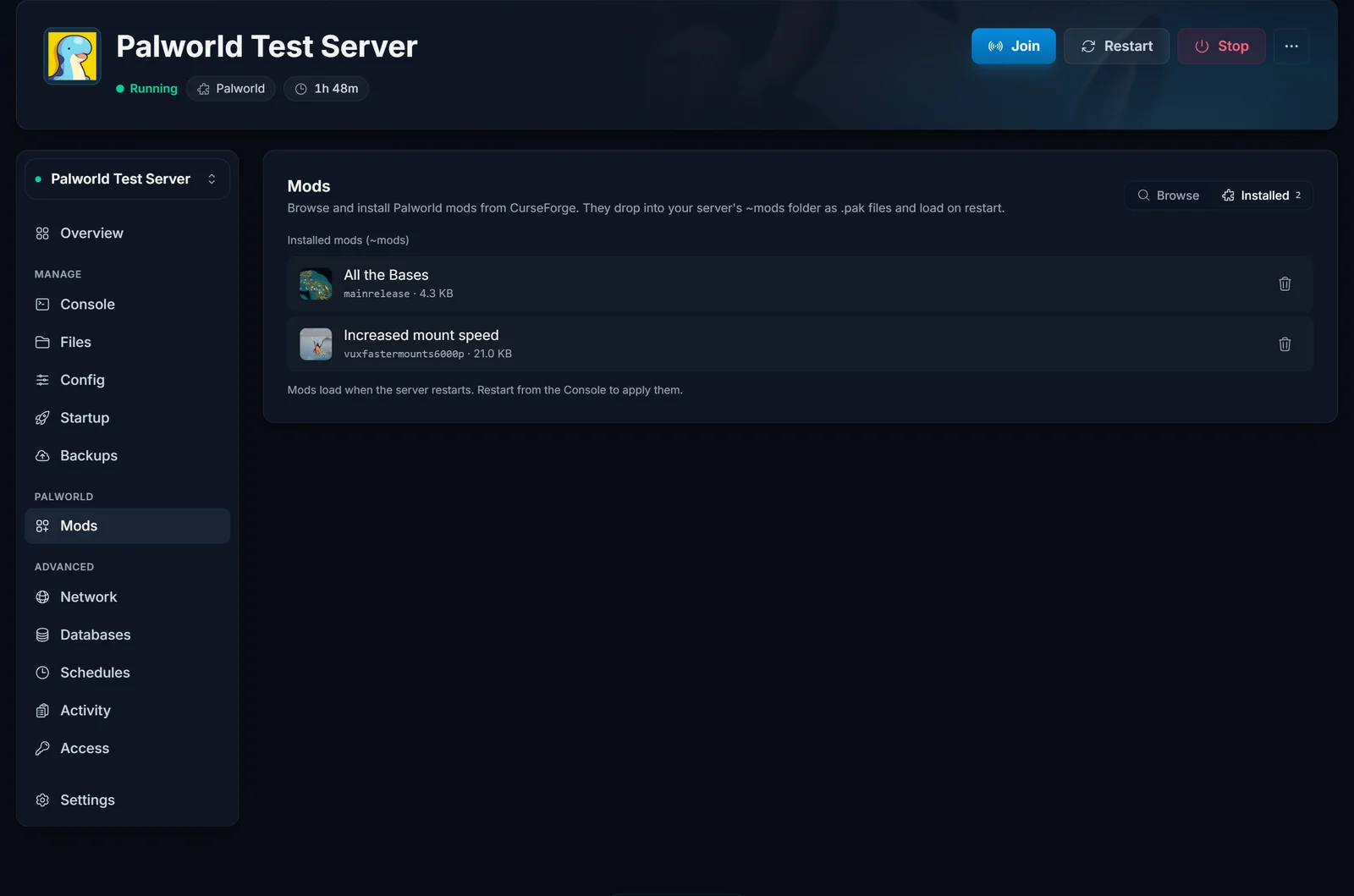
- Restart the server so it loads the new
.pakfiles.
Repeat for as many mods as you want. The Installed tab is your source of truth for what's running.
Method 2: Manual upload with the File Manager
Use this for a mod that isn't on CurseForge, or a .pak someone sent you directly.
- Download the mod. CurseForge mods come as a
.zip: extract it on your PC and find the.pakfile inside. - In the panel, open Files and navigate to
Pal/Content/Paks.
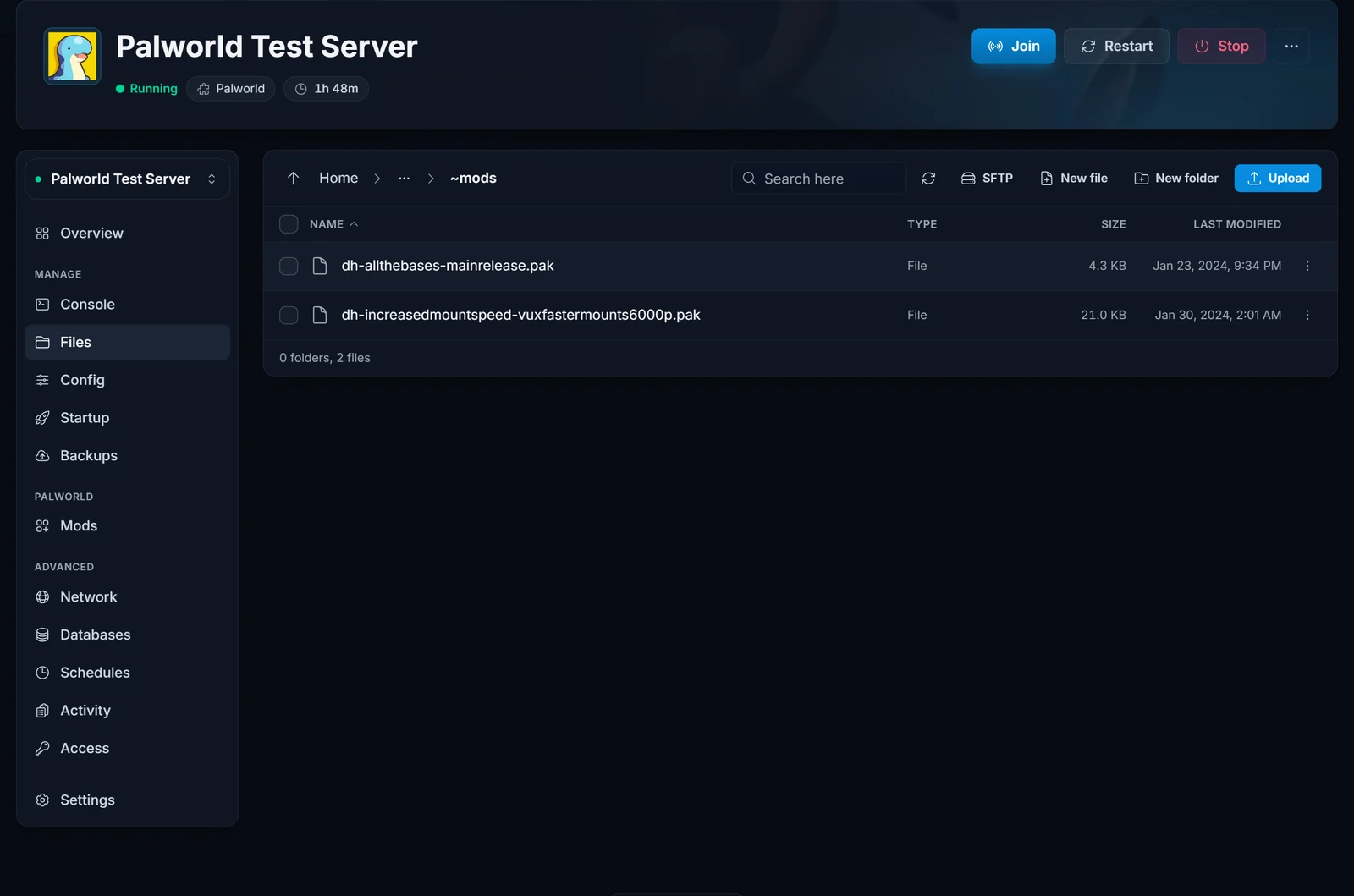
- If there's no
~modsfolder yet, create one. The name must be exactly~mods, with the leading tilde. - Open
~modsand upload the.pakfile. Drag it in, or use the Upload button. - Restart the server.
Only .pak mods go in ~mods. Lua, Blueprint, and C++ mods use the UE4SS loader instead; see the next section.
UE4SS mods: Lua, Blueprint, and C++ (advanced)
Pak mods are only part of the CurseForge catalog. Lua, Blueprint, and C++ mods (admin commands, gameplay scripts, deeper overhauls) need the UE4SS mod loader, and your panel sets that up with one click:
- Open the Mods tab and find the runtime card at the top.
- Switch from Native to UE4SS Modding and confirm. The panel takes a backup, reinstalls the server with the UE4SS runtime, and keeps your worlds. Gameplay settings from the Config tab reset to defaults, so note down anything you tuned.
- When the install finishes, the Browse tab shows type filters: Paks, Lua, Blueprint, and C++. Install them like any other mod.
Where they end up on the server:
- Lua and C++ mods:
Pal/Binaries/Win64/ue4ss/Mods(one folder per mod) - Blueprint mods:
Pal/Content/Paks/LogicMods - Pak mods:
Pal/Content/Paks/~mods, same as always
The client-side rule from the top of this guide still applies to UE4SS mods. You can switch back to Native at any time from the same card; your worlds carry over both ways.
Popular Palworld mods to try
New to modding and not sure where to start? A few categories are consistently popular on CurseForge:
- Bigger bases and more workers: mods such as All the Bases or Increased Bases and Worker Pals raise the base and worker Pal limits so a whole guild can build together.
- Faster mounts: mount-speed mods cut down travel time across the map.
- Spawns and capture: tweaks that change which Pals appear in the world, or make more bosses capturable.
- Quality of life: larger stack sizes, looser build limits, and interface improvements.
Whatever you pick, open its CurseForge page first and check whether it's client-side, server-side, or both, so you know if every player needs it too.
Updating and removing mods
- Mods tab: the Installed tab lists each mod with a remove button. To update, remove the old version and install the newer one from Browse.
- Manual: delete the old
.pakfrom~modsand upload the new one.
Always restart the server after adding, updating, or removing a mod.
Troubleshooting
- Mod does nothing in game: check it's actually server-relevant and not purely client-side, and make sure every player has installed it from CurseForge too.
- Server won't start after adding a mod: remove the last
.pakyou added. The mod may not match your current Palworld version. - Forgot to restart: Palworld only scans
~modsat startup, so a restart is required for any change to take effect.
Frequently asked questions
Do I need to install mods on my own PC too? For client-side and hybrid mods, yes. Every player who connects needs the same mod from CurseForge. Pure server-side mods (some admin and data tools) only need to be on the server.
Where do Palworld mods go on the server?
Pak mods live in Pal/Content/Paks/~mods. With UE4SS Modding enabled, Lua and C++ mods live in Pal/Binaries/Win64/ue4ss/Mods and Blueprint mods in Pal/Content/Paks/LogicMods. The Mods tab puts everything in the right place automatically.
Can I install mods without FTP? Yes. Both the Mods tab and the File Manager run in your browser, so you never need an FTP client for Palworld mods.
Will mods wipe my save? Installing a mod won't wipe your world, but large overhaul mods can change world data in ways that are hard to undo. Take a backup from the Backups tab before adding anything major.
Ready to start? Rent a Palworld server and manage your mods, saves, and settings from one panel. New to the control panel? See what it can do on the game server control panel page.
