
Rust gives your server two custom images: a wide header image that sits at the top of the server info window in the browser, and a square server logo that shows as a circular icon in game and in the Rust+ app. On a DoomHosting server both are set on the Startup tab by pasting a direct link to the image file, then restarting. This guide covers the exact sizes, where to host the file so the link actually works, and the reasons an image silently refuses to load.
The two images are separate settings
| Header image | Server logo | |
|---|---|---|
| Field on the Startup tab | Server Image | Server Logo |
| Rust convar | server.headerimage |
server.logoimage |
| Where players see it | Across the top of the server info window when they click your server in the browser | As a circular icon in game and in the Rust+ app |
| Shape | Wide banner, 2:1 | Square, cropped to a circle |
| Size to export | 512 x 256 (1024 x 512 also works) | 256 x 256 |
Setting one does nothing to the other. Most servers set the header and forget the logo, which is why so many listings show a banner but a blank circle in Rust+.
On the header size: what matters is the 2:1 ratio. 512 x 256 is the classic size and 1024 x 512 is the same shape at double resolution, so it looks sharper on a large monitor. A square image or a 16:9 screenshot is not rejected, it is stretched to fit, which is why so many servers have a squashed banner.
On the logo: Rust draws it inside a circle, so anything in the corners is cut off. Centre your logo and leave the corners empty.
What the file has to be
PNG or JPG. Those are the two formats Facepunch documents, and they are the two Rust loads. WebP does not work, which trips up more people every year because most image editors and background removers now export WebP by default. GIF, SVG and AVIF do not work either. If you are not sure what you have, check the file extension before you upload it.
A direct link to the image file. The URL has to return the picture itself and normally ends in .png or .jpg. A link to a page that happens to show the image is not the same thing, and it is the single most common reason a header image never appears.
Publicly reachable. No login, no password, no "request access". Every player's game client downloads the file itself, so if it only works while you are signed in somewhere, it will not work for them.
Small. Everyone who opens your server info downloads it. Keep it under about 1 MB. There is no reason a 512 x 256 banner should be larger than a couple of hundred kilobytes.
HTTPS links are fine and preferred.
Free size templates
Drop either of these into your image editor as a bottom layer, design on top, and export at the same size.
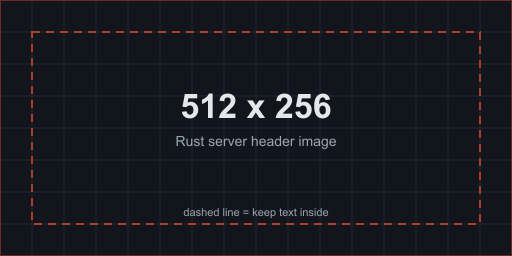
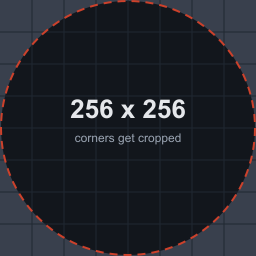
Right-click either image and save it. The dashed line on the header marks a comfortable margin for text. The dashed circle on the logo is the crop: everything in the shaded corners is cut off.
Where to host the image
You need somewhere that hands out a direct file link. A few options, and a few that look like they should work and do not.
Imgur is the usual choice. Upload the image, then right-click the picture itself and choose Copy image address. You want the link that looks like https://i.imgur.com/AbCdEf1.png. The address in your browser bar while you are looking at the page, https://imgur.com/a/AbCdEf1, is a web page, not an image, and Rust cannot use it.
Your own website works if you can upload a file and open it directly in a browser tab.
Discord will break on you. Discord attachment links have carried an expiry signature since late 2023: the ex, is and hm parameters on the end are a timestamped signature, and the link stops serving the file once it lapses. Your header will work for a day and then quietly disappear. Do not use a Discord link, even though copying one is the fastest thing in the world.
Google Drive, OneDrive and Dropbox share links are pages, not files. A Dropbox link can be converted by changing ?dl=0 on the end to ?raw=1, and it is worth testing before you rely on it. Google Drive and OneDrive share links are best avoided entirely.
Not your game server. The file manager on your Rust server is not a web host. The image has to be somewhere every player's PC can reach over the internet.
The test for any link: paste it into a fresh private browsing window. If you see just the image on a blank background, with no page around it and no sign-in prompt, it will work.
Set both images in the control panel
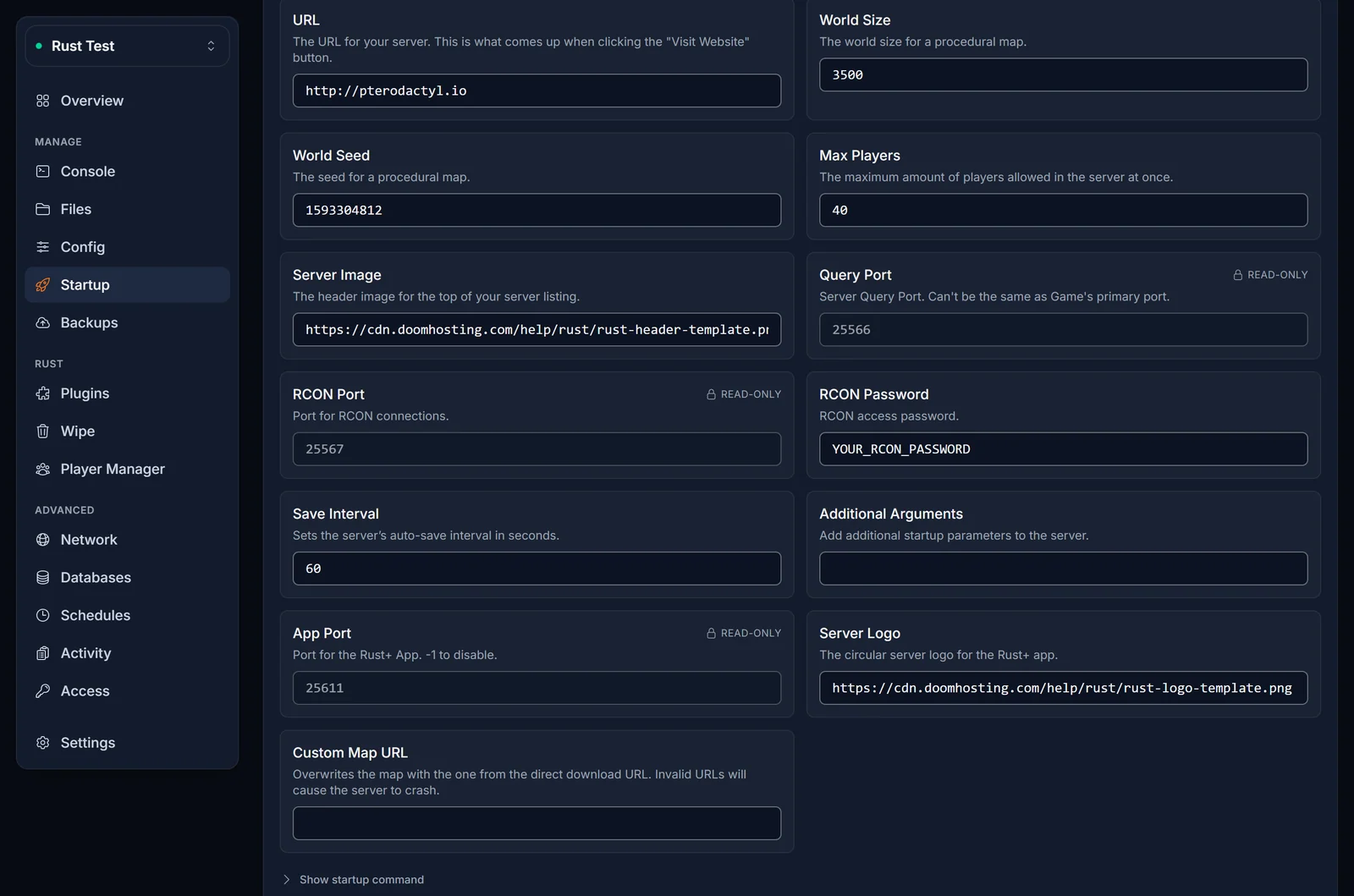
- Open your Rust server in the control panel and select the Startup tab.
- Paste your banner link into Server Image.
- Paste your icon link into Server Logo.
- Both fields save on their own as soon as you click away, so there is no save button to hunt for.
- Restart the server from the power menu. Rust reads both values at startup, so a running server keeps the old images until it is restarted.
While you are on that tab, Description and URL sit right next to the two image fields. The description is the text under your server name in the same info window, and the URL is what the Visit Website button on that window opens. Filling all four at once makes a listing look deliberate rather than default.
server.cfg cannot set these, and most guides get this wrong
Search for this and you will be told to put server.headerimage into server.cfg. On a Pterodactyl-based host, including ours, that does nothing.
Rust applies its saved settings, then server.cfg, then the +convar arguments from the startup command. Our startup command always passes +server.headerimage and +server.logoimage from the Startup tab fields, and because that comes last, it wins. A line in server.cfg is read and then immediately overwritten.
We tested exactly this. With the Startup tab pointing at one image and a deliberately different server.headerimage line written into server.cfg, the running server reported the Startup tab value. Emptying the Startup field is not a workaround either. We tried that as well: with the field blank and a perfectly good URL sitting in server.cfg, the server still ignored the file and came up with a junk value and no image at all.
So: the Startup tab is the only place these two settings belong. That is also why our Config tab does not offer them, even though it edits plenty of other Rust convars. A field that saves happily and changes nothing is worse than no field at all.
Additional Arguments beat the Startup fields
There is one exception to the rule above, and it lives on the same tab. Anything you type into Additional Arguments is appended to the very end of the startup command, so a +server.headerimage in there overrides the Server Image field above it.
If you changed the image field, restarted, and the old picture is still there, open Additional Arguments and check it for +server.headerimage or +server.logoimage. Remove them and manage both from the proper fields.
Why your image is not showing
Work down this list in order. The first three cover most cases.
You did not restart. Both values are read at startup. Saving the field on a running server changes nothing until it reboots.
The link is a page, not a file. Open it in a private browsing window. If you see a website, Rust sees the same website. Get the direct link instead.
It is a WebP. Renaming it to .png does not help, because the file inside is unchanged. Re-export it as a real PNG or JPG.
It is a Discord link. It worked yesterday and expired overnight. See above.
The image is the wrong shape. This shows up as a banner that is stretched or letterboxed rather than missing. Re-export at 2:1.
The host blocks hotlinking. Some image hosts serve the file to a browser but refuse it to anything else. If a link looks perfect and still fails, try a different host before assuming your settings are wrong.
You changed the picture but kept the same URL. Rust and the game clients cache the image, so replacing the file at the same address often keeps showing the old one. Upload the new version under a new filename and paste the new link. This is the fix for "I changed it and nothing happened" when everything else looks right.
Your server is not reachable at all. If nobody can see your server in the browser with or without filters, the image is not the problem. Check it with our Rust server status checker.
Common questions
Does the header image affect performance? No. It is downloaded by the player's client when they look at your server, and it never touches the game server's frame time. Only the file size matters, and only for the split second it takes to load.
Do I need both images? No, they are independent, and either one can be left empty. Setting both is worth the extra two minutes: the logo is what represents your server in the Rust+ app, where a blank circle looks abandoned.
Can I change it without restarting? You can set the convar live over RCON and it applies immediately, but it reverts to the Startup tab value the next time the server restarts. Use the Startup tab for anything you want to keep.
Does a wipe remove my images? No. Both are server settings, not world data, so they survive map wipes and full wipes alike. See How to Wipe a Rust Server.
Can I animate it? No. Rust loads a single still frame, so an animated GIF does not work.
Is there a file size limit? Facepunch does not publish one. Treat 1 MB as a practical ceiling and aim far below it.
Where does the logo show up besides Rust+? In game, wherever your server is represented by an icon rather than a row of text. It is always drawn as a circle, so design for the circle.
What to do next
A picture gets people to stop scrolling; your tags are what put you in front of them in the first place. Set both in the same sitting: Rust Server Tags: Full List and How to Set Them covers the wipe schedule, difficulty and region tags players filter on. If you run mods, Installing Oxide on Your Rust Server is the next step, and How to Join a Rust Server is the link to hand to players once your listing looks the way you want.
Do not have a server yet? See our Rust server hosting plans.
