

To join your own Rust server, copy its address from the control panel, launch Rust, press F1 to open the console, and type client.connect followed by the address. Rust has no direct connect box in its main menu, so the console is the fastest route. You can also find the server by name in the in-game server browser. This guide covers both, plus what to do when the server does not show up.
Find your server address
Every Rust server we host has a fixed IP and port. You will find them on the Overview tab of your server in the control panel, on the connection card.
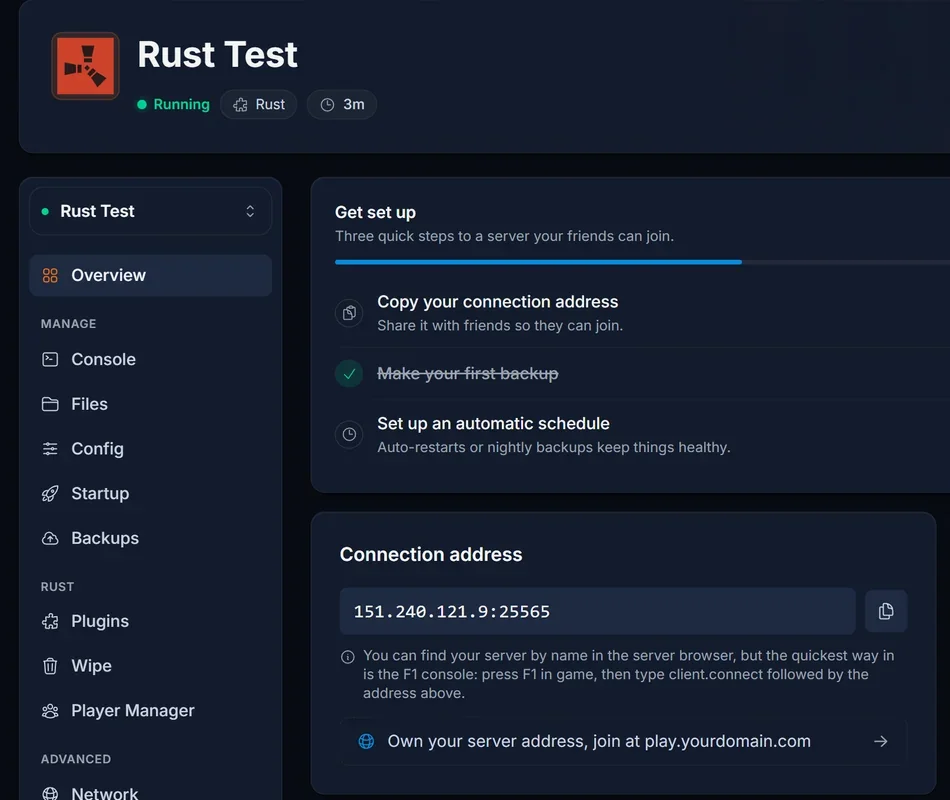
- Open your server in the control panel.
- On Overview, find Connection address.
- Click it to copy. It looks like
12.34.56.78:25565.
That single string, IP and port together, is what the console command needs. Keep it on your clipboard.
Your server also needs to be running before anyone can join. If the status chip next to the server name does not say Running, start it from the Console tab and give it a moment. A Rust server generates its map on the first boot after a wipe, which can take several minutes on a large map. It will not answer connections until that finishes.
Method 1: the F1 console (fastest)
This is the method to send your friends, because it works the moment the server is up and does not depend on the server browser having listed you yet.
- Launch Rust and wait for the main menu.
- Press F1. The console opens.
- Type the connect command, replacing the address with your own:
client.connect 12.34.56.78:25565
- Press Enter.
Rust closes the console and starts connecting. The first join to any server downloads the map, so expect a wait of anywhere from a few seconds to a couple of minutes depending on your map size. If your server runs Oxide or Carbon plugins, the first connection may also pull down plugin content.
A few things worth knowing about the console:
- The command is
client.connect, notconnect. Typingconnectalone does nothing. - Use the full
IP:PORT. Leaving the port off makes Rust assume the default28015, which is almost certainly not your port. - Press F1 again at any time to reopen the console, for example to reconnect after a restart.
Method 2: the in-game server browser
If you would rather not use the console, or you want the server saved somewhere you can click, search for it by name.
- From the Rust main menu, click Play Game.
- Open the Community tab (or Modded, if your server runs Oxide or Carbon, since modded servers are listed separately).
- Type your server's name into the search box.
- Click the server, then Connect.
Two things decide whether this works. First, the name: this is the Server Name value on the Startup tab of the control panel, and searching only matches what is actually set there. If yours is still the default, rename it to something distinctive, restart, and it will be far easier to find.
Second, the tab. A server running Oxide or Carbon advertises itself as modded and appears under Modded rather than Community. This catches a lot of people out, because the server is listed and reachable but simply not in the tab they are looking at. Our guide to Rust server tags explains how the browser categorises and filters servers, and how to set the tags that put yours in front of the right players.
Why your server does not appear in the browser
The server browser is a listing service, not a live connection test, and a brand new server takes time to be picked up. Work down this list.
The server is not running yet. Check the status chip in the control panel. A server that is installing, starting, or generating a map is not joinable.
It is genuinely brand new. Fresh servers can take several minutes after first boot to appear in the browser. The F1 console method works immediately and does not care about the listing, so use that in the meantime.
You are on the wrong tab. Modded servers (Oxide, Carbon) are under Modded, not Community.
Your search does not match the name. Search matches the server's actual name. Check the Server Name field on the Startup tab, and remember it only changes after a restart.
Filters are hiding it. The browser remembers filters between sessions. A player filtering for a wipe schedule or region your server does not advertise will not see it, even by exact name. Clear the filters and search again.
The console method sidesteps every one of these, which is why it is the one to give people who are struggling.
Common connection errors
"Disconnected: Steam Auth Timeout" means Rust could not verify your Steam session. Fully close Rust and Steam, reopen Steam, and try again. This is a client-side issue and not something the server controls.
"Disconnected: Incompatible Version" or being unable to connect right after Rust's monthly update means your client and the server are on different builds. Rust force wipes and updates on the first Thursday of each month, and older clients cannot connect until the server updates. Restart your server from the control panel to pull the latest build, then reconnect.
Connection timeout, or the connect attempt just hangs. Confirm the server is Running in the panel and that you used the full IP:PORT. A wrong port is by far the most common cause: the console will sit there trying to reach an address nothing is listening on.
You connect and are immediately disconnected. If the server runs plugins, a misbehaving plugin can kick players on join. Check the Console tab in the control panel for errors as you connect, since the server log will name the plugin.
"You are banned from this server." Bans are per server. If you banned yourself while testing, clear it from the Player Manager, or run unbanid followed by the SteamID in the panel console.
Inviting friends
Send them two things: the connect command with your address filled in, and which tab to look in if they prefer the browser. Something like this pasted into Discord is usually all it takes:
Press F1 in Rust and paste this:
client.connect 12.34.56.78:25565
They do not need an account with us, a mod list, or anything installed beforehand. Any Rust owner can join with the address alone.
If you want to give people something friendlier than an IP, you can point a domain at your server so they connect to an address like play.yourdomain.com instead. The connection card in the panel links to that setup.
Common questions
Do my friends need to buy anything to join? No. They need Rust, and that is it. Server slots are set by you on the Startup tab.
What is the difference between the two ports I can see? The one on the connection card is the game port, and that is the one used with client.connect. The others are used by the query and RCON services, and you do not connect to them.
Can I join without the console? Yes, through the server browser as described above, once your server has been listed.
Why does the console say it cannot resolve the address? That usually means a typo, or a space in the middle of the address. Copy it fresh from the panel and paste rather than typing it.
My server appears but shows as offline or 0/0. Give it a minute after starting. If it persists, the server may still be generating its map. Watch the Console tab in the panel to see how far along the boot is.
How do I make myself admin once I am in? That is covered separately in How to Add Admins and Moderators to Your Rust Server.
Do not have a server yet? Take a look at our Rust server hosting plans.
