


txAdmin is the web dashboard built into FXServer: a browser panel for deploying a server, scheduling restarts, managing players, and reading a live console. On DoomHosting, FiveM servers run straight from server.cfg by default, and txAdmin is one click away when you want it. This guide shows how to turn it on, link your admin account, and use its main features.
Is txAdmin available on DoomHosting FiveM servers?
Yes. Every DoomHosting FiveM server ships with txAdmin built in and a dedicated port already allocated for it. It is simply off by default, because most owners manage their server through server.cfg and the panel's own Files and Console tabs. When you want the txAdmin web UI, you enable it and restart. Nothing is missing, you are choosing between two ways to run the same server.
How do I enable txAdmin?
You have two equivalent ways to switch it on:
- Click Enable txAdmin in the panel header, or
- Open the Startup tab and turn Enable txadmin on.
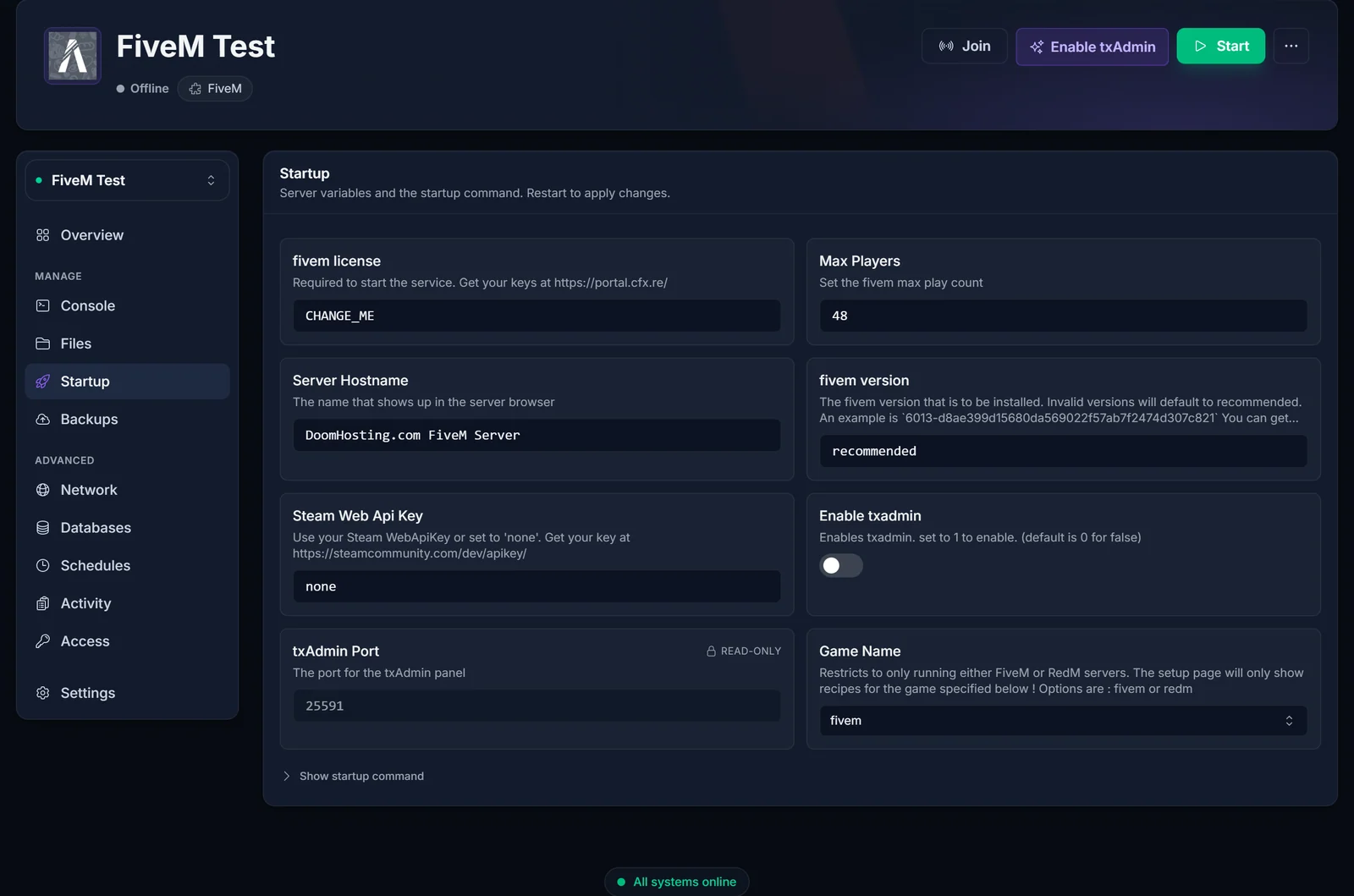
Then start (or restart) the server. When txAdmin is on, FXServer boots into txAdmin monitor mode instead of running your server.cfg directly, and txAdmin takes over starting your server.
How do I open the txAdmin web panel?
txAdmin runs on its own port, separate from the game port. Open the Network tab in the panel: the second allocation listed is your txAdmin port (the same value shows, read-only, as txAdmin Port on the Startup tab). Copy that address.
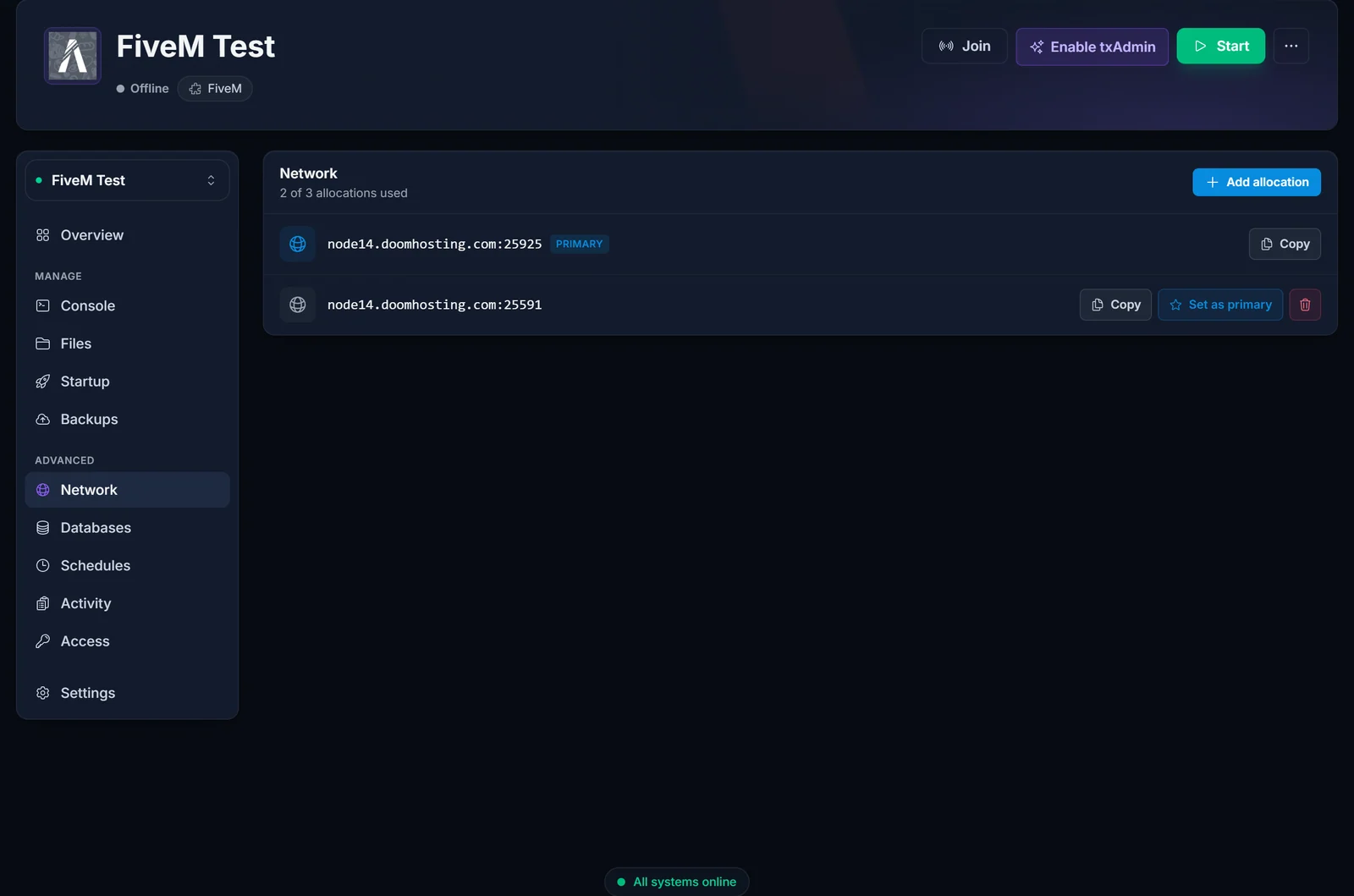
In your browser, go to http://your-server-address:txadmin-port using the address and port from the Network tab. That opens the txAdmin login page.
How do I link my txAdmin admin account (the PIN)?
The first time txAdmin starts, it prints a one-time setup PIN in the server console. Open the panel's Console tab right after starting the server and look for a line with a master-account PIN. Enter that PIN on the txAdmin web page to create your admin account. The PIN is only valid briefly and only appears on first setup, so if you miss it, restart the server to generate a new one.
Keep your txAdmin login private. Anyone with it can control your server.
How do I deploy a server with a recipe?
On first setup, txAdmin offers to deploy a server. A recipe is an automated build: it downloads a base server, its resources, and sets up the database for you. This is the fastest way to stand up an ESX or QBCore roleplay base, because the recipe imports the SQL and writes the server.cfg automatically. When it asks for database details, use the credentials from the panel's Databases tab. If you would rather install a framework by hand, see how to install ESX or QBCore on your FiveM server.
How do I schedule automatic restarts?
In the txAdmin dashboard, open Settings, then the Restarter section, and add restart times (for example every six hours). txAdmin warns players in-game before each restart and brings the server back up on its own. Scheduled restarts keep memory usage healthy on a busy roleplay server, so this is one of the best reasons to run txAdmin.
How do I manage players in txAdmin?
The Players page lists everyone online and your player history. From there you can warn, kick, or ban a player, and set ban durations, all from the browser. Bans are stored by txAdmin and enforced automatically on reconnect, which is far easier than editing ban lists by hand.
Does txAdmin back up my server?
txAdmin's backup features cover its own data (txData) and database. They are separate from the panel's own Backups tab, which snapshots your whole server files. For safety, use the panel Backups tab for full file backups and keep a copy of your database export from a MySQL client. Do not rely on a single backup method.
txAdmin or server.cfg: which should I use?
- Use txAdmin if you want a web dashboard, scheduled restarts, in-browser player moderation, and one-click recipe deploys.
- Stick with server.cfg and the panel if you prefer editing config files directly, want the lightest setup, or manage everything through Files and Console.
Both run the same FXServer underneath, so you can try txAdmin and switch back by turning the toggle off and restarting.
Common issues
- txAdmin page will not load: make sure the server is actually running with txAdmin enabled, and that you used the port from the Network tab, not the game port. txAdmin serves over
http://, nothttps://. - Missed the setup PIN: restart the server and check the Console tab immediately, a fresh PIN prints on each first-run setup.
- My server.cfg changes do nothing: with txAdmin enabled, txAdmin manages how the server starts. Edit your config through txAdmin, or turn txAdmin off to go back to the direct
server.cfgboot. - Forgot the game port: the primary allocation on the Network tab is your game connect address; the second is txAdmin.
Next steps
With txAdmin running, add content on top: install ESX or QBCore and add custom cars and scripts to your FiveM server. If your server will not start at all, it usually needs a license key first: how to get a FiveM license key.
txAdmin says an update is available? See how to update txAdmin on your FiveM server.
Looking for a server? See FiveM server hosting or the full game control panel.
