

You do not update txAdmin on its own. txAdmin is part of the FiveM server files (the artifacts), so you update it by updating the artifact your server runs. On a DoomHosting server that is a couple of clicks in the panel, and your server.cfg, resources, database and txAdmin settings are all kept.
This guide shows both ways to do it, how to check which txAdmin version you ended up on, and what to do when the update notice does not go away.
Why there is no update button in txAdmin
Since 2020 txAdmin has shipped inside FXServer. It is a system resource called monitor, stored with the rest of the server files:
/alpine/opt/cfx-server/citizen/system_resources/monitor
Every artifact build carries one specific txAdmin version. When txAdmin tells you an update is available, it means a newer artifact exists that contains a newer txAdmin. Installing that artifact is the update.
Your own txAdmin data is somewhere else. Admin accounts, settings, the player database and ban list live in the txData folder at the root of your server, outside the artifact. Replacing the artifact does not touch it.
Update from the Version tab
Use this when you want to move to the other channel, for example from Recommended to Latest to get the newest txAdmin right away.
- Open your server in the panel and click Version in the left menu, under the FiveM heading.
- Compare the build numbers on the two cards. A newer txAdmin always reaches Latest first, and sometimes both channels carry the same one.
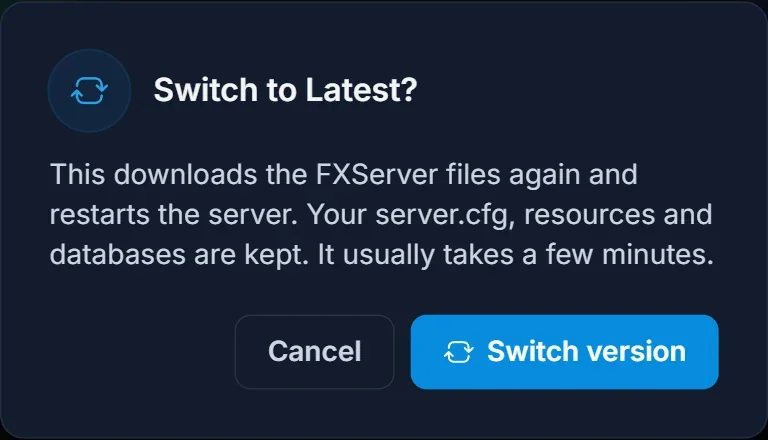
- Click the card you want, then confirm with Switch version.
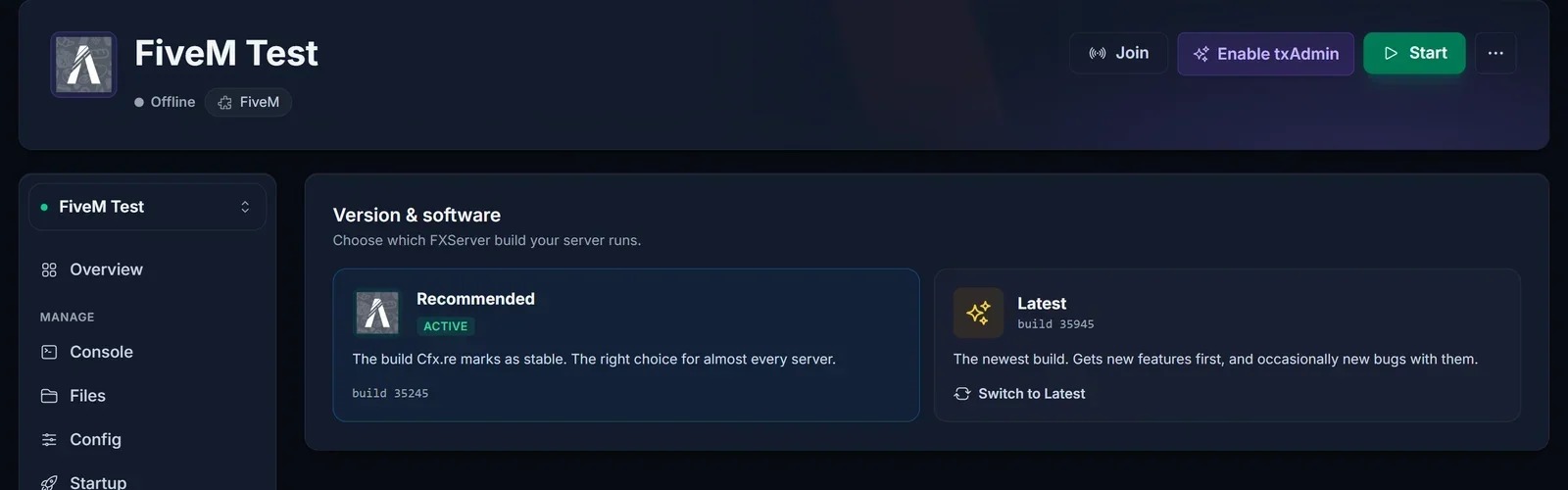
The panel downloads the FXServer files again and restarts the server. It usually takes a few minutes.
Already on Recommended? Reinstall to get the new build
The card for the channel you are already on cannot be clicked. That matters here, because most servers run Recommended, and Cfx.re moves Recommended to a newer build every so often. Your server stays on the build it was installed with until you reinstall.
- Open Settings and scroll to the Danger zone.
- Click Reinstall server.
- Leave the "also delete all current files" box unticked, then confirm.
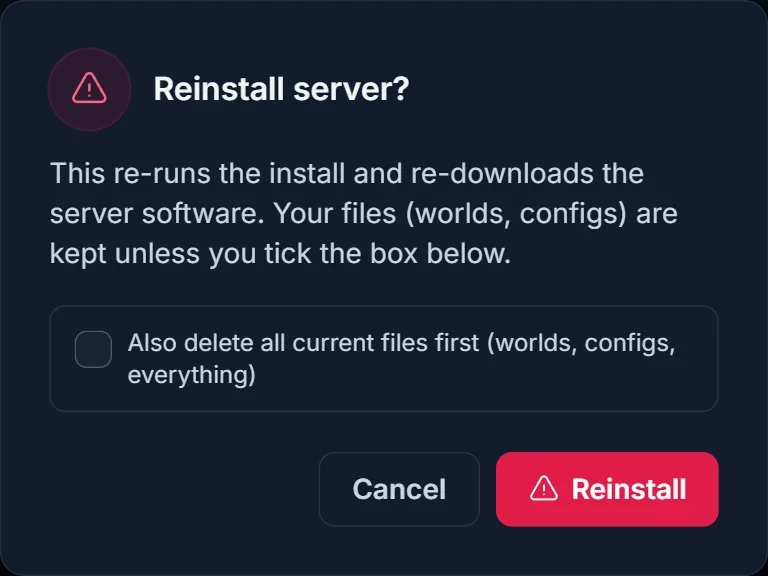
Unticked, the reinstall only replaces the FXServer files, which is where txAdmin lives. Your resources, server.cfg, databases and txData stay exactly as they were. Ticked, it wipes the server first, which you do not want.
When it finishes, start the server. It is now on the current Recommended build and the txAdmin that comes with it.
Check which txAdmin version you are on
- In txAdmin: the version is shown in the web panel, next to the FXServer build.
- In the console: txAdmin prints its version when the server starts.
- In the files: open
/alpine/opt/cfx-server/citizen/system_resources/monitor/fxmanifest.luain the Files tab. Theversionline is the txAdmin version.
Recommended or Latest for txAdmin?
Stay on Recommended unless you need a specific txAdmin fix or feature now. txAdmin may keep showing an update notice on Recommended, because the newest txAdmin reaches Latest first. That notice is information, not an error, and the server runs fine with it.
Move to Latest when the notice bothers you or a txAdmin release fixes something you are hitting. You can go back to Recommended from the same tab at any time.
What an update keeps
txData: admin accounts, txAdmin settings, the player database, bans and warnings.server.cfgand everything inresources/.- Databases. They are not part of the server files at all.
Every DoomHosting server includes backups, so take one from the Backups tab first if you want a way back.
Common issues
The update notice is still there after updating You are on Recommended and the newest txAdmin is only in Latest so far. Either switch to Latest or ignore the notice until Recommended catches up. If it also shows on Latest, that txAdmin release has not been bundled into an artifact yet, so there is nothing to install.
The Recommended card cannot be clicked It is the channel you are already on. Use the reinstall steps above to pull the newer Recommended build.
txAdmin asks me to set up the server again
That happens when txData is missing, which means the reinstall was run with the delete box ticked. Restore a backup from the Backups tab.
I replaced the monitor folder by hand and it changed back
The next artifact install overwrites monitor with the version that build ships. Hand-copied txAdmin files never last, which is why updating the artifact is the way to do it.
The server will not start on the new build Read the console. It names the resource that failed. If a script needs an older build, see how to change or downgrade your FiveM server artifacts and pin the last build that worked.
New to txAdmin? Start with how to set up txAdmin on your FiveM server. All of this is part of the DoomHosting game panel on every FiveM server.
