

Your FiveM server icon and banner are set with three lines in server.cfg: load_server_icon for the small logo next to your server name, and sets banner_detail plus sets banner_connecting for the wide banners. The icon is a file on your server. The banners are web links. Get either one wrong and FiveM quietly shows the default instead, with no error in the console.
This guide covers both, where the files go with and without txAdmin, and the mistakes that keep them from showing up.
What each image does
- Server icon: the square logo next to your server name in the FiveM server list and on your server's page. It has to be a 96x96 PNG.
- Detail banner (
banner_detail): the wide image at the top of your server's page when a player clicks it in the server list. - Connecting banner (
banner_connecting): the wide image players see while they are connecting to your server.
The recommended banner size is 1865x108 pixels. Other sizes still load, they just get scaled or cropped. PNG, JPG and animated GIF all work, and keeping the file under about 500 KB makes it load fast for players. You can use the same image for both banners.
Find the folder that holds your server.cfg
The icon has to sit in the same folder as the server.cfg your server actually runs, so find that first. Open your server in the panel and go to Files.
- Without txAdmin:
server.cfgis in the main folder you see when you open Files. - With txAdmin: the server runs from a profile folder inside
txData, named something liketxData/FiveMBasicServerCFXDefault_A5A2EA.base. That folder has its ownserver.cfg, and that is the one that counts.
If you have run the txAdmin setup more than once, there can be several .base folders in txData. Only one of them is live. In txAdmin, go to Settings, then FXServer, and the Server Data Folder field tells you which one. Editing an old copy is the most common reason changes "do nothing".
Add the server icon
- Make your logo exactly 96x96 pixels and save it as a PNG. A JPG renamed to
.pngdoes not count, export it as a real PNG. - In Files, open the folder from the previous step and upload it next to
server.cfg. Use a simple name without spaces, likelogo.png.
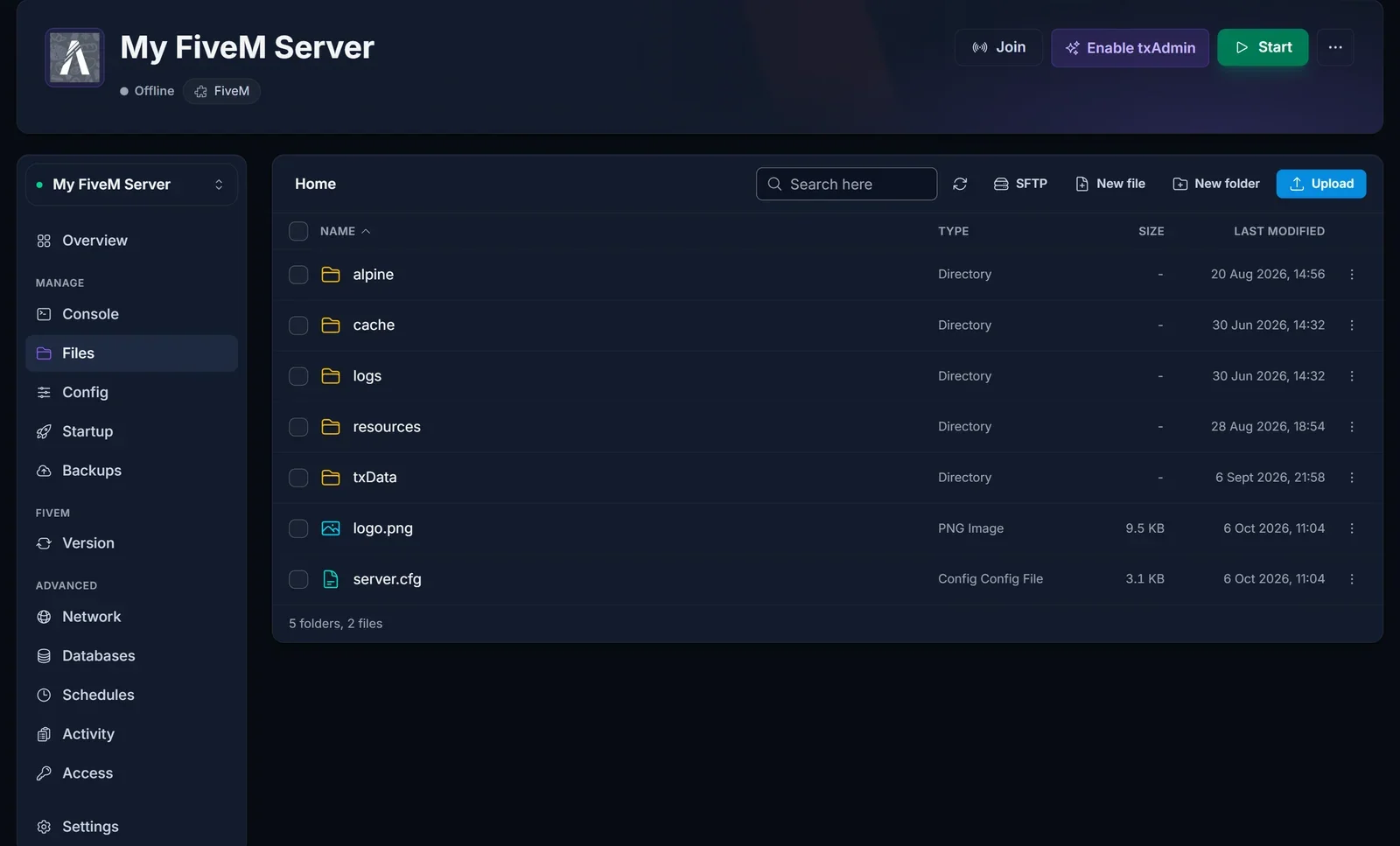
- Open
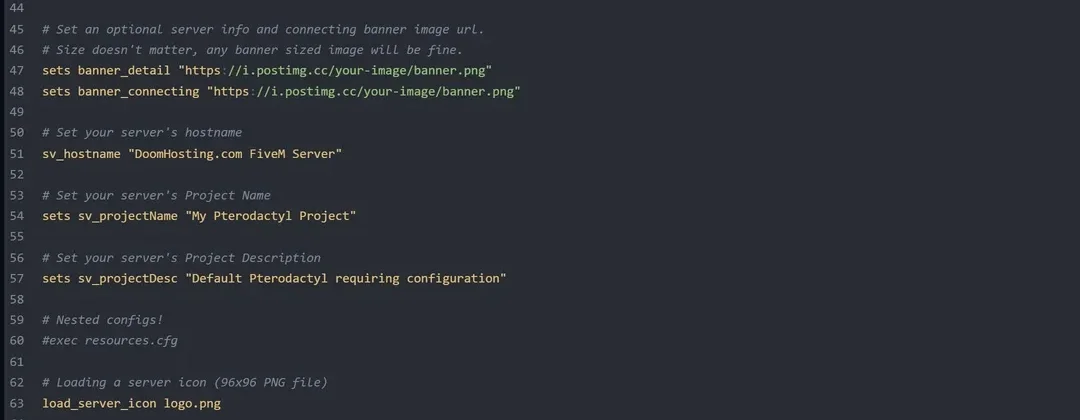
server.cfg. The default file already has a commented-out line for this,#load_server_icon myLogo.png. Remove the#and change the name, or add the line yourself:
load_server_icon logo.png
The name in the line has to match the file exactly, capitals included, because the server runs on Linux and Logo.png and logo.png are two different files. If you would rather keep the icon in a subfolder, write the path from the server.cfg folder, for example load_server_icon img/logo.png.
Add the banners
FiveM loads banners from a web address, not from your server files, so upload the image somewhere public first. The Cfx.re community guide suggests Postimages or FiveManage, and your own website works too. Copy the direct link to the image itself (it ends in .png, .jpg or .gif), not the link to a gallery page.
Then set the two banner lines in server.cfg. The default file has them commented out with a # and a placeholder link, so remove the # and paste your own link in, or add them yourself:
sets banner_detail "https://i.postimg.cc/your-image/banner.png"
sets banner_connecting "https://i.postimg.cc/your-image/banner.png"
Keep the quotes around the link. Avoid Discord attachment links: they expire after a while, and the banner disappears with them.
With txAdmin: edit the config in txAdmin
If your server runs through txAdmin, you can make the same edits in txAdmin itself: open CFG Editor, add the lines and save. It edits the server.cfg in the live profile folder, so you cannot end up in the wrong copy. The icon PNG still has to be uploaded through Files into that same .base folder, since the CFG Editor only edits text.
Restart and check
Restart the server. The icon and banners are only read at startup, so nothing changes until you do.
The server list does not update instantly. Give it a few minutes, then search for your server in FiveM, click it and check the banner on its page. Connect once to see the connecting banner.
Common issues
The icon does not show. Check three things in this order: the file is exactly 96x96, it is a real PNG, and the name in load_server_icon matches the file name letter for letter. Then restart, the icon is only read at startup.
I edited server.cfg but nothing changed. You are most likely editing a copy the server does not use. With txAdmin, check the Server Data Folder in txAdmin's FXServer settings and edit the server.cfg in that folder, or use the CFG Editor. Also make sure you restarted after saving.
The banner shows a broken image or the default. The link is not a direct image link, or the host blocks it. Open the link in a private browser window: you should see only the image, nothing around it. If you see a web page, right click the image and copy the image address instead.
Some server details show wrong or not at all. A sets line with a missing quote is not read the way you meant it. Every value needs one opening and one closing straight quote, for example sets "Discord" "https://discord.gg/yourinvite". A line like sets "website "coming soon" is missing one, so fix it or delete it.
My server is not in the server list at all. That is a listing problem rather than an image problem, and it has its own checklist: FiveM Server Not Showing in the Server List: How to Fix It.
Frequently asked questions
Can the server icon be animated? Not with a normal server. An animated icon (APNG) needs a Cfx.re Platinum subscription. Animated GIF banners work for everyone.
What size should the FiveM banner be?
1865x108 pixels is the recommended size for both banner_detail and banner_connecting. One image can be used for both.
Where does logo.png go on a txAdmin server?
In the active profile folder inside txData, next to that folder's server.cfg. Not in the main folder.
Is the loading screen the same thing as the connecting banner?
No. The connecting banner is the strip FiveM shows while connecting. A custom loading screen is a resource you install and start in server.cfg, see How to Add Custom Cars and Scripts to Your FiveM Server for how resources go in.
Do I need txAdmin for any of this?
No. Without txAdmin you edit server.cfg in the main folder through the panel's file editor. If you do want txAdmin, see How to Set Up txAdmin on Your FiveM Server.
Every FiveM server from DoomHosting comes with full file access, a built-in file editor and txAdmin support, all in the same game control panel.
