

How to OP Yourself on Your Minecraft Bedrock Server
Operator (OP) status is what lets you change the gamemode, teleport, set the time and run every other admin command on your Bedrock server. Bedrock handles operators very differently from Java Edition: the levels are named instead of numbered, the list lives in permissions.json instead of ops.json, and the op command only works while the player is standing on the server. This guide covers both the quick way and the offline way.
If you run Minecraft Java Edition instead, use How to OP Yourself on Your Minecraft Server. The commands there do not carry over.
The quick way: op yourself from the console
This is the method that works in under a minute, and it is the one to use for yourself and for anyone you trust.
- Join your Bedrock server in-game first. This step is not optional, see the next section for why.
- Open your server in the DoomHosting game panel and go to the Console tab.
- Type the command and press Enter:
op YourGamertag
- The console confirms it and the player immediately gains operator abilities. No restart needed.
Bedrock console commands are typed without a leading slash. Type op YourGamertag, not /op YourGamertag.
Gamertags with spaces need quotes
This trips up more Bedrock owners than anything else on this page. Xbox gamertags can contain spaces, and the Bedrock server splits your command on spaces, so an unquoted gamertag with a space is read as two separate arguments and the command fails:
op Test Player
Syntax error: Unexpected "Player": at " op Test >>Player<<"
Wrap the name in double quotes and it works:
op "Test Player"
The same rule applies to every command that takes a player name, including deop, kick and allowlist add. When in doubt, quote it: quotes around a name with no spaces are harmless.
Why "No targets matched selector" happens
If you run op SomeGamertag and the console answers:
No targets matched selector
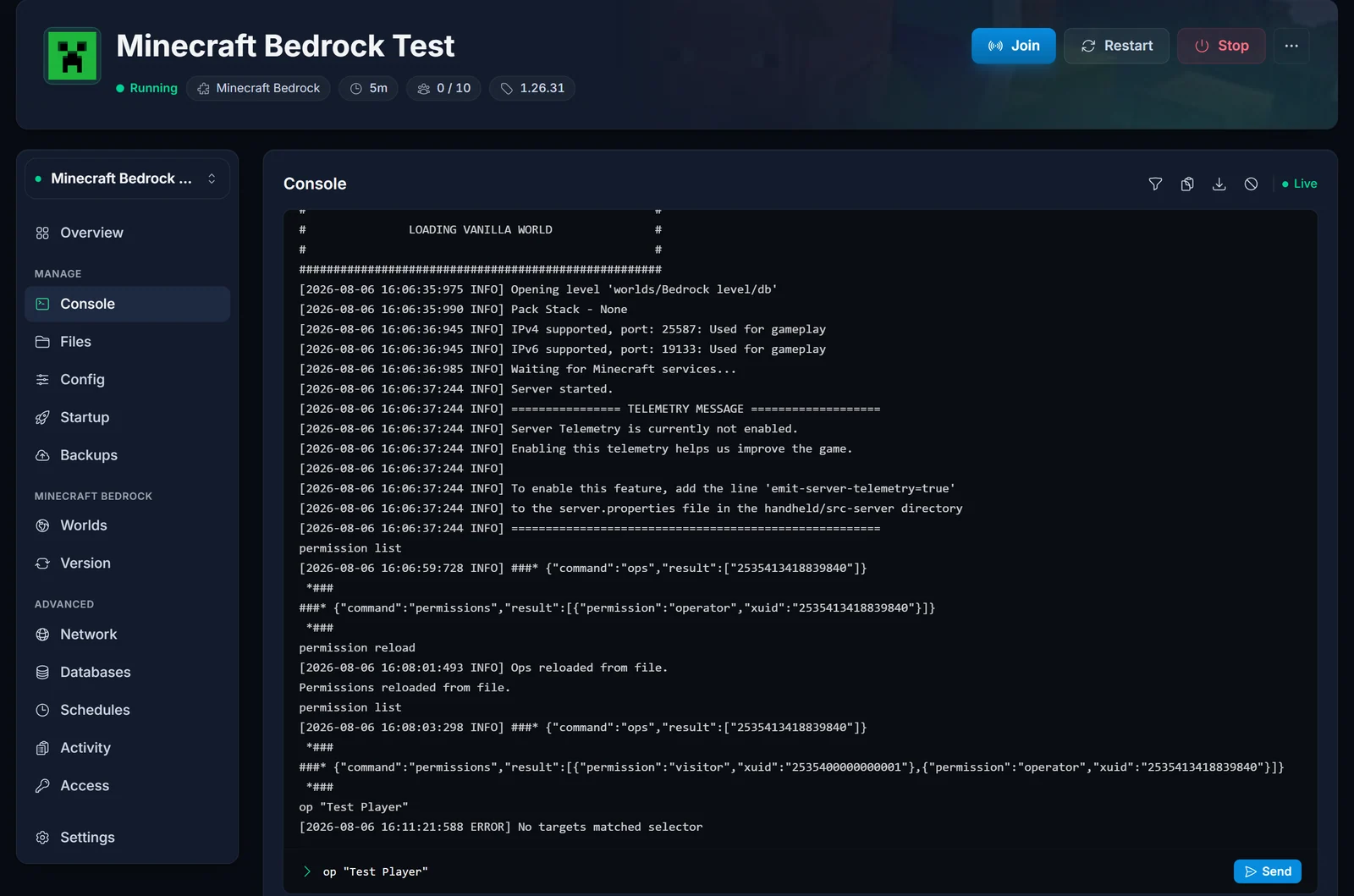
the player is not currently connected. Unlike Java Edition, which can look a username up against Mojang's servers, Bedrock resolves a gamertag to an Xbox Live XUID and it can only do that for a player who is online right now. There is nothing wrong with your spelling or your server.
Two ways around it:
- Have the player join, then run
opwhile they are in the world. This is the easy fix. - Add them to
permissions.jsonby XUID, which works with nobody online. That is the next section.
One related detail from Mojang's own server documentation: op only writes the change into permissions.json if the player is authenticated with Xbox Live. If they are not, the promotion lasts for the current server session only and is lost on the next restart.
The offline way: edit permissions.json
permissions.json sits in your server's root folder and is the permanent operator list. It is keyed by XUID, not by gamertag:
[
  {
    "permission": "operator",
    "xuid": "2535413418839840"
  },
  {
    "permission": "member",
    "xuid": "2535400000000001"
  }
]
To edit it:
- Go to the Files tab in the panel and open
permissions.jsonin the root folder. - Add an entry with the player's XUID and the permission you want.
- Save the file.
- Back in the Console tab, run
permission reload. The server answersOps reloaded from file.and applies the change without a restart.
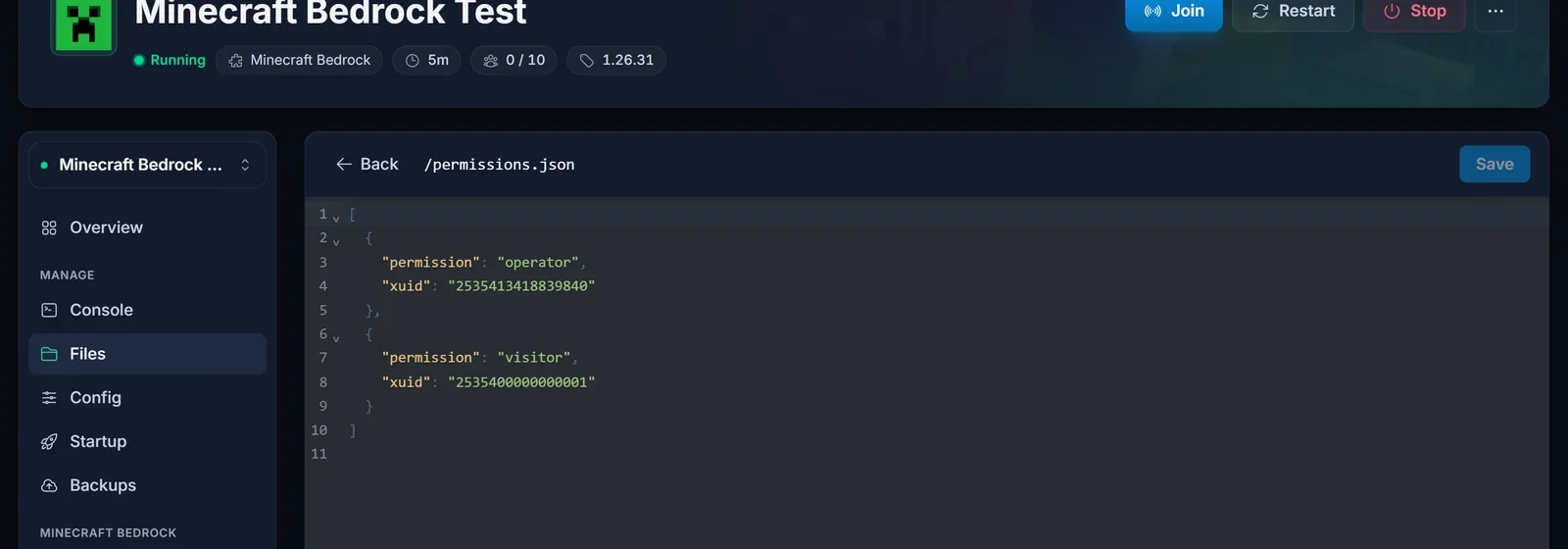
Two requirements: online-mode must be true in your server settings (XUIDs only exist for Xbox-authenticated players), and the JSON must stay valid. A stray trailing comma makes the server ignore the whole file.
Finding a player's XUID
The simplest reliable route uses the allowlist, because the server resolves the XUID for you:
- Run
allowlist add "Their Gamertag"in the console. - Have them connect once.
- Open
allowlist.jsonin the Files tab. Before their first connection the entry holds only the name; afterwards the server has written their XUID into it, ready to paste intopermissions.json.
Bedrock permission levels are not Java's 1-4
Java Edition has four numbered operator levels. Bedrock has three named ones, and they are the only valid values in permissions.json:
- visitor: can look around but not build or interact.
- member: the normal player level. This is the default.
- operator: full admin, all commands.
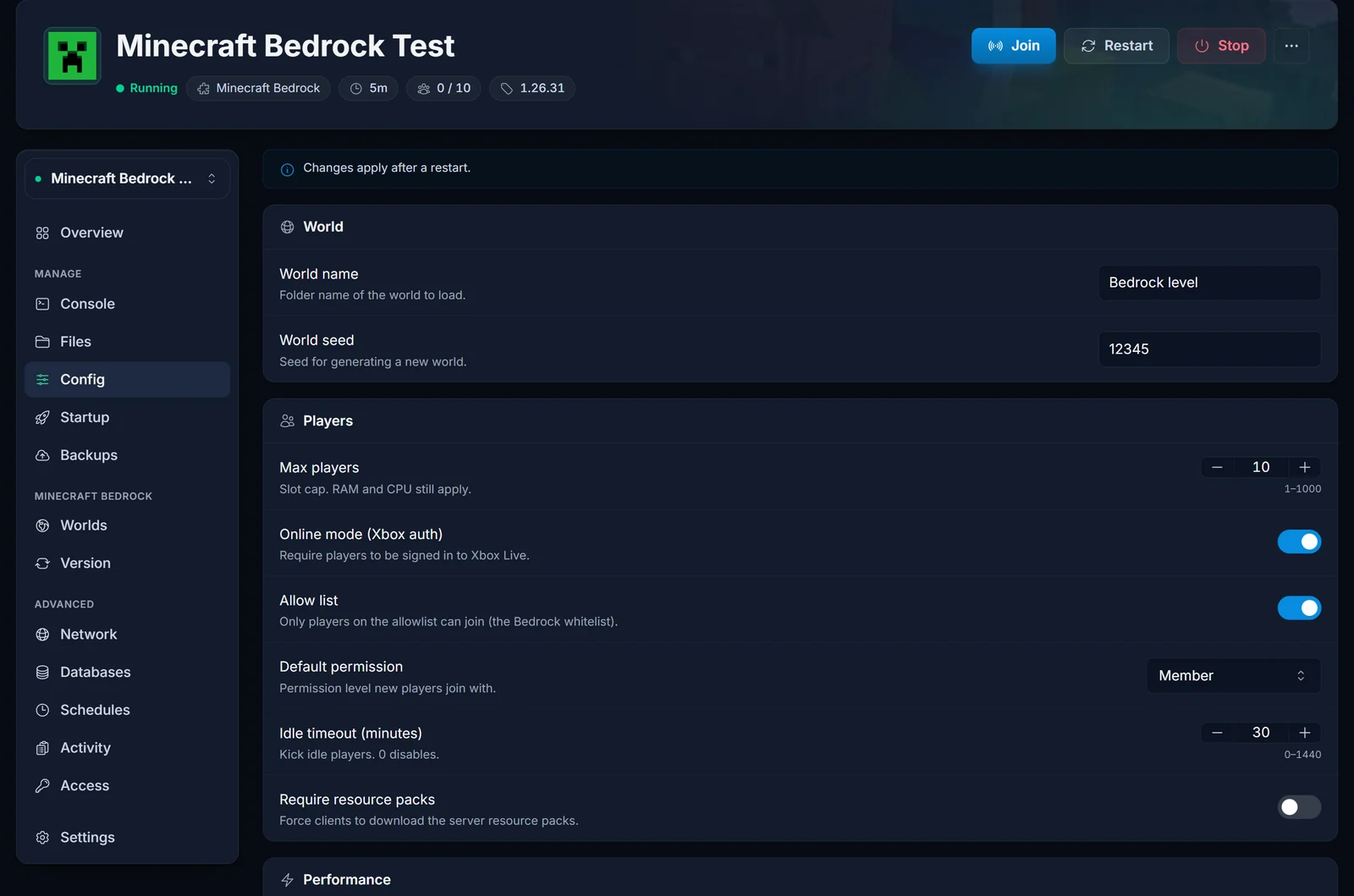
You can also set what everyone gets by default. In the panel, open the Config tab, find the Players section, and set Default permission. Leave this on member unless you have a specific reason: setting it to operator hands admin commands to every single person who joins.
For cheat-only commands such as /gamemode, the world also needs cheats enabled. You can flip that at runtime with changesetting allow-cheats true.
Removing operator status
deop "Their Gamertag"
Same rules as op: no slash, quotes if the name has spaces, and it persists to permissions.json for an Xbox-authenticated player. You can also change their entry to member in permissions.json and run permission reload.
To see who currently has operator status, run:
permission list
It prints the live operator list and the full contents of permissions.json, which is the fastest way to check that an edit actually took effect.
Common issues
The command did nothing and there is no error. Check for a leading slash. Console commands on Bedrock take no slash; in-game chat commands do.
"No targets matched selector". The player is offline. See the section above.
They had OP and lost it after a restart. The account was not authenticated with Xbox Live, so the promotion was session-only. Add them to permissions.json by XUID instead.
Edits to permissions.json are being ignored. Run permission reload, and check the file is valid JSON. Also confirm online-mode is true, since the XUID system depends on Xbox authentication.
Nobody can join at all. That is separate from permissions. Start with our guide to Minecraft Bedrock error code U-000.
Still stuck? Open a ticket from the panel and our team will take a look at your server directly. Not hosting with us yet? See our Minecraft Bedrock server hosting plans.
