
Minecraft Bedrock on Nintendo Switch, Switch 2, Xbox and PlayStation has no Add Server button. The Servers tab only lists Mojang's featured servers, so there is nowhere to type your own address. At the time of writing (September 2026) Mojang has not added one on any console. Two community workarounds do the job today, and this guide covers both, step by step, for every console.
Players on Windows, iOS and Android don't need any of this: they use Servers > Add Server, or the Open in Minecraft button on your panel.
Which method should I use?
| Console | Best method | Also works |
|---|---|---|
| Nintendo Switch and Switch 2 | BedrockConnect (DNS) | Friends tab (MCXboxBroadcast) |
| Xbox One and Xbox Series X|S | BedrockConnect (DNS) | Friends tab (MCXboxBroadcast) |
| PlayStation 4 and PlayStation 5 | BedrockConnect (DNS) | Friends tab (MCXboxBroadcast) |
What each method asks of you:
| BedrockConnect (DNS) | Friends tab (MCXboxBroadcast) | |
|---|---|---|
| Set up by | Each console player | The server owner, once |
| Extra PC or phone running | No | No on a Java server with GeyserMC. Yes on a Bedrock server: a PC has to run the tool |
| Separate Microsoft account | No | Yes, one for the tool to sign in with |
| Works on Switch | Yes | Yes |
| Change console settings | Yes, the DNS | No |
Pick BedrockConnect if you just want to get in tonight. Pick the Friends tab method if you run the server for a group of console players and don't want every one of them changing their network settings.
Both are free, open-source community projects. They are not made by Mojang or by DoomHosting, and they bend the console rules rather than follow them, so use them at your own risk.
Before you start: your address and port
Open your server in the panel. The Connection address card on the Overview tab shows the two values you need, in two separate boxes: the Connection address and the Port. Copy them exactly. Consoles ask for them in two fields, and a combined address:port in the address field won't connect.
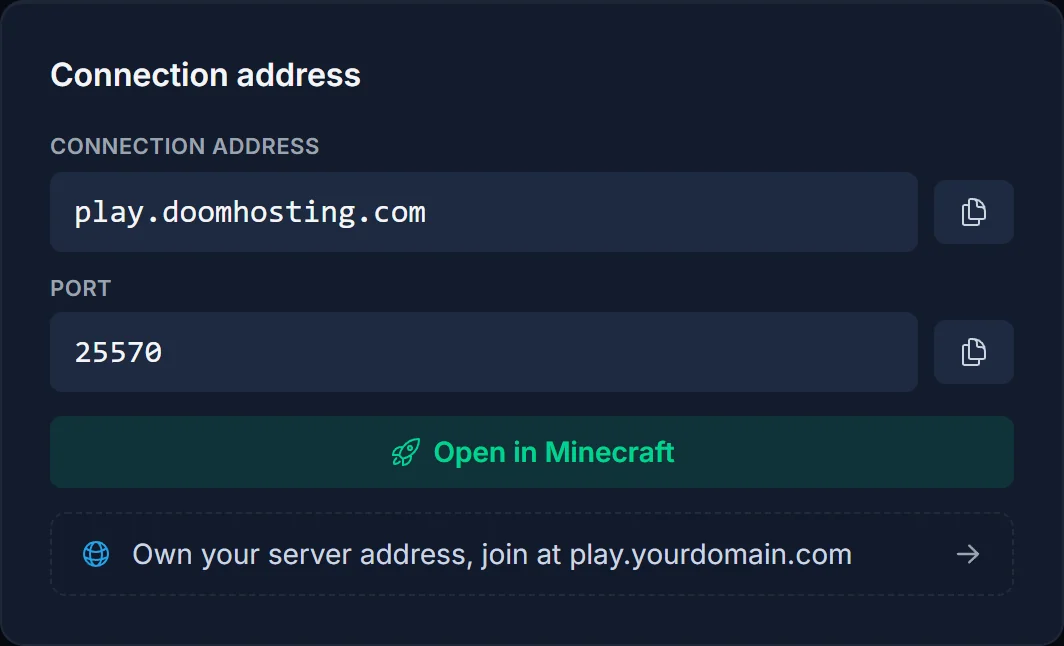
Running a Minecraft Java server with crossplay switched on? Console players use the Bedrock Edition block on that same card, which has its own Server Address and Port. That port is not your Java port. Bedrock also ignores custom domains and SRV records, so use the address shown in that block. Crossplay itself is covered in How to Enable Minecraft Crossplay with GeyserMC.
Every console also needs its online membership for multiplayer: Nintendo Switch Online on Switch, PlayStation Plus on PlayStation, and an Xbox Game Pass membership that includes online multiplayer on Xbox.
Method 1: BedrockConnect (DNS)
BedrockConnect swaps one featured server for a server list of its own. You point your console's DNS at BedrockConnect, and when you tap a featured server in Minecraft, BedrockConnect's list opens instead. There you type your address and port, and it hands you straight over to your server. Only that first menu goes through BedrockConnect; the game itself runs directly between you and your server.
Use these DNS values:
| Console | Primary DNS | Secondary DNS |
|---|---|---|
| Nintendo Switch, Switch 2, Xbox | 104.238.130.180 |
8.8.8.8 |
| PlayStation 4 and 5 | 45.55.68.52 |
8.8.8.8 |
If the main address is slow or blocked where you live, BedrockConnect also runs a German instance at 134.255.231.119. GeyserMC's console guide covers the same DNS method if you want a second source.
The secondary DNS is not optional. BedrockConnect's DNS only answers for Minecraft's featured servers and refuses everything else, so every other lookup your console makes (system updates, the eShop, other games) goes to the secondary.
Nintendo Switch and Switch 2
- From the HOME Menu, open System Settings > Internet > Internet Settings.
- Under Registered Networks, select the network you're connected to, then Change Settings.
- Scroll down to DNS Settings and set it to Manual.
- Select Primary DNS, hold the B Button to clear the zeros, and enter
104.238.130.180. - Select Secondary DNS, clear it the same way, and enter
8.8.8.8. - Select Save, then connect to the network again.
Xbox One and Xbox Series X|S
- Press the Xbox button and go to Profile & system > Settings > General > Network settings.
- Select Advanced settings > DNS settings > Manual.
- Enter
104.238.130.180as the primary DNS and8.8.8.8as the secondary. - Back out of the menu. The console saves the settings and runs a quick connection check.
PlayStation 5
- Go to Settings > Network > Settings > Set Up Internet Connection.
- Highlight the network you're connected to, press the Options button and choose Advanced Settings.
- Set DNS Settings to Manual.
- Enter
45.55.68.52as the primary DNS and8.8.8.8as the secondary, then select OK.
PlayStation 4
- Go to Settings > Network > Set Up Internet Connection and pick Use Wi-Fi or Use a LAN Cable.
- Choose Custom, then your Wi-Fi network if you're on Wi-Fi.
- IP Address Settings: Automatic. DHCP Host Name: Do Not Specify.
- DNS Settings: Manual. Enter
45.55.68.52as the primary DNS and8.8.8.8as the secondary. - MTU Settings: Automatic. Proxy Server: Do Not Use.
Join your server through BedrockConnect
- Open Minecraft and go to Play > Servers.
- Select one of the featured servers: The Hive, Mineville, Lifeboat, Galaxite or Enchanted, and join it.
- Instead of that network, BedrockConnect loads. If a message screen appears first, choose Continue to Server List.
- Choose Connect to a Server.
- In Server Address, enter your connection address. In Server Port, enter your port.
- Turn on Add to server list if you want to keep the server for next time, then submit. You are sent to your server.
Next time, repeat steps 1 to 3 and your saved server is waiting in the list. BedrockConnect's menus are in English whatever language your game runs in.
If the real featured server loads instead of BedrockConnect, the DNS change hasn't taken effect. See Common Issues below.
Method 2: Join from the Friends tab (MCXboxBroadcast)
MCXboxBroadcast signs in to a Microsoft account and shows your server as a game that account is playing. Every player who adds that account as a friend sees the server on their Friends tab and joins it like any friend's game. It works on every console, Switch included, because the friends list belongs to the Microsoft account, not to the console.
Before you begin:
- Use a separate Microsoft account for the tool, not your own. The project's authors recommend it because the tool imitates a game client, and Microsoft could ban the account it runs on.
- Where it runs depends on your server type. On a Minecraft Java server with GeyserMC, it runs on your DoomHosting server as a Geyser extension, so nothing has to stay on at home. A Minecraft Bedrock server runs Mojang's own server software, which can't load it, so there the tool runs on a PC of yours and players can only join while that PC is on.
On a Minecraft Java server with GeyserMC
- Make sure crossplay is on and your server runs Paper or Spigot. See How to Enable Minecraft Crossplay with GeyserMC.
- Download
MCXboxBroadcastExtension.jarfrom the project's releases page. - In the panel, open Files, go to
plugins/Geyser-Spigot/extensions(create theextensionsfolder if it isn't there) and upload the jar. - Restart the server and open Console. The extension prints a sign-in line with a code.
- Open microsoft.com/link in a browser, enter the code and sign in with the separate account.
- The extension picks up your server's public address and Bedrock port by itself.
On a Minecraft Bedrock server
- Install Java on a PC that can stay on while people play.
- Download
MCXboxBroadcastStandalone.jarfrom the releases page and start it withjava -jar MCXboxBroadcastStandalone.jar. - It prints a sign-in code. Enter it at microsoft.com/link and sign in with the separate account.
- Stop the tool and open the
config.ymlit created. In thesessionsection, undersession-info, setipto your connection address andportto your port. Leave these at their defaults and it sends your friends to Geyser's test server instead of yours. - Start the tool again and leave it running.
Join from a console
- Add the tool's account as a friend: in Minecraft, open Play > Friends > Add Friend and search for its gamertag.
- Your server now shows on the Friends tab under Joinable Friends. Select it and join.
Only the first join needs the friend request. After that the server is on the Friends tab whenever it is online.
Common Issues
The real featured server opens, not BedrockConnect. The console is still using its old DNS. Check the primary address for your console again, then fully close Minecraft and reopen it. A restart of the console often helps too. Some routers and internet providers force all DNS through their own servers; on such a network the DNS method can't work, and the Friends tab method is your way in.
No internet after changing the DNS. Check that the secondary DNS is filled in. BedrockConnect only answers for Minecraft, so without a secondary nothing else resolves. If 8.8.8.8 doesn't suit you, 1.1.1.1 works as well.
The Servers tab is empty or shows "Coming soon" (mostly Switch). That is a Minecraft bug, not a DNS problem. Sign out of your Microsoft account in Minecraft and back in, reload the Servers tab, or restart the game.
"Unable to connect to world" after entering the address. Check that the server is running in the panel, and that you typed the address and port into their own fields without a :. On a Java server with crossplay, use the port from the Bedrock Edition block, not the Java port. If the error mentions NetherNet, see Minecraft Bedrock NetherNet Error: Can't Join Your Server.
Error code U-000. See Minecraft Bedrock Error Code U-000.
It stopped working right after a big Minecraft update. BedrockConnect and MCXboxBroadcast both need an update for each new Minecraft version, which can take a few days. Your server also has to run the same version as the console; you can check and change it on the Version tab.
The server doesn't show on the Friends tab. Make sure the player sent the friend request to the tool's account and that the tool is running (on a Bedrock server, the PC has to be on). If friends land on a "Geyser Test Server", the ip and port in the standalone config.yml were never changed.
Other online games act up. Set DNS Settings back to Automatic when you're done. You can switch it to BedrockConnect again next time you play.
Still stuck? Open a ticket from the panel and tell us which console you're on and which method you tried. Not hosting yet? See our Minecraft Bedrock server hosting plans, all managed from our control panel.
