
GeyserMC lets Minecraft: Bedrock Edition players join your Java Edition server, so friends on Windows, mobile, Switch and Xbox can play on the same world as everyone on Java. On a DoomHosting server you do not have to download jars or edit config files: there is a checkbox that installs GeyserMC and Floodgate for you. This guide covers that one-click route, the manual route for a server that is already running, and the checks to run when a Bedrock player still cannot connect.
What GeyserMC and Floodgate do
GeyserMC is a translator. It sits inside your Java server and converts the Bedrock network protocol into the Java one, so a Bedrock client thinks it is talking to a Bedrock server.
Floodgate is the companion plugin that lets Bedrock players in without a Java Edition account. Without it, every Bedrock player would need to own Java Edition as well. Our installer sets Geyser's auth-type to floodgate for you, so this works out of the box.
Geyser works best on vanilla-style servers. Bedrock players cannot see custom Java-only content, so heavily modded servers are a poor fit. Utility plugins (WorldEdit, WorldGuard, permissions) are fine.
Turn on Bedrock crossplay in one click
This is the fastest route and it works on Paper and Spigot. Vanilla, Forge, NeoForge and Fabric cannot load Geyser as a plugin, so the option is hidden for them. If you are on one of those, see our server types guide first.
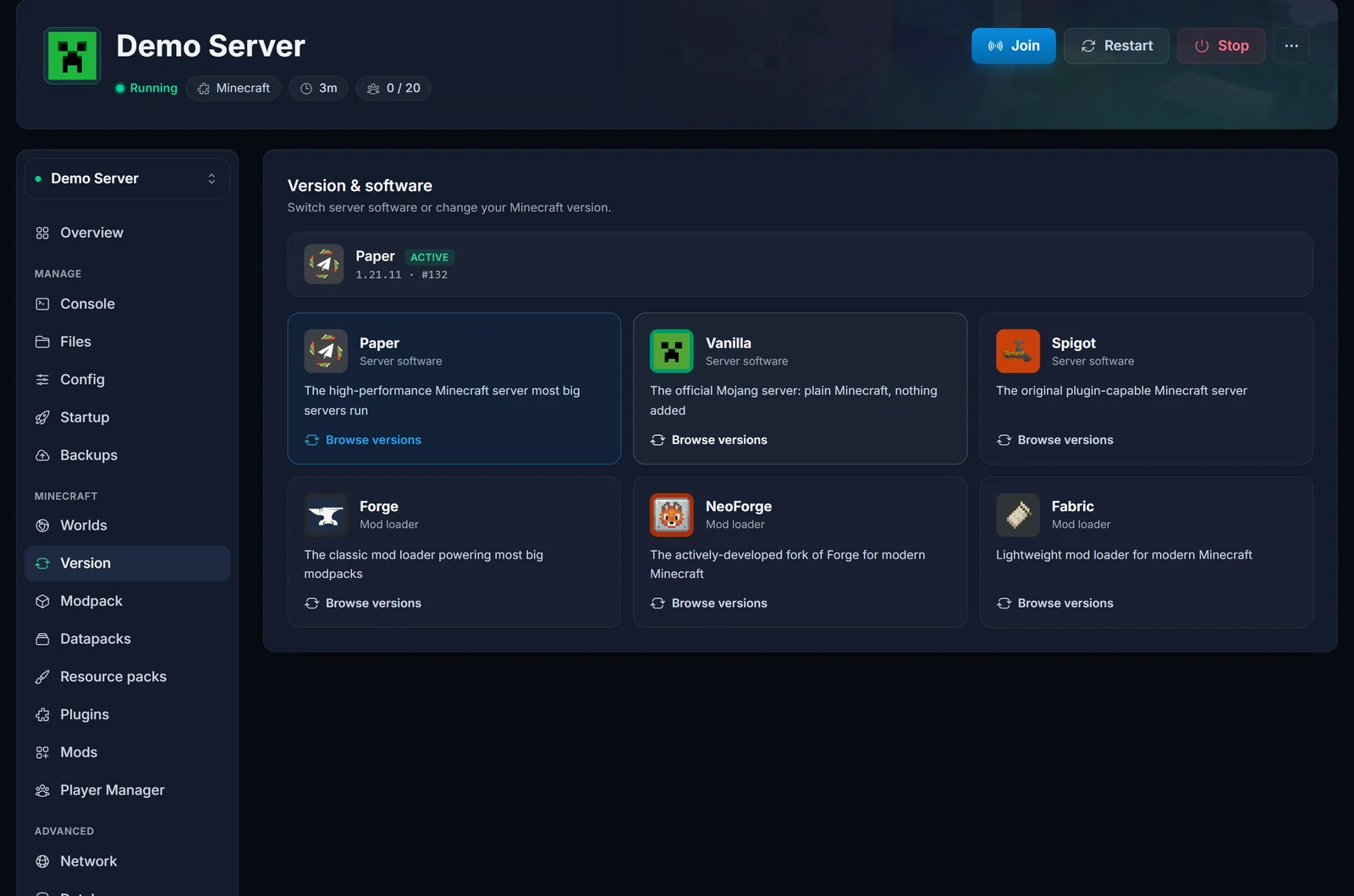
- Open your server in the control panel and go to the Version tab.
- Click Paper (or Spigot if that is what you run).
- Leave the version as it is, tick Allow Bedrock players (GeyserMC), and click Change version.
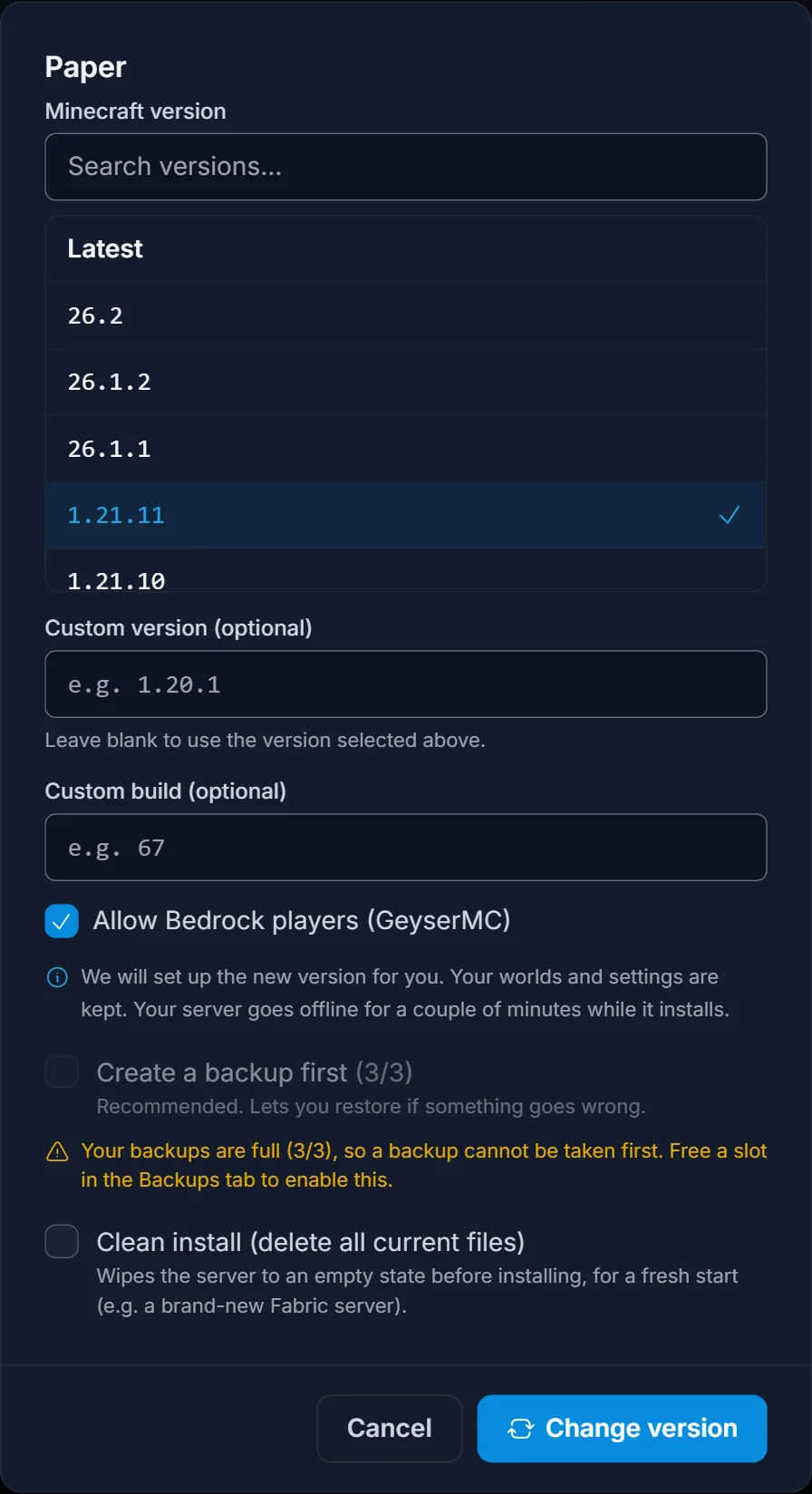
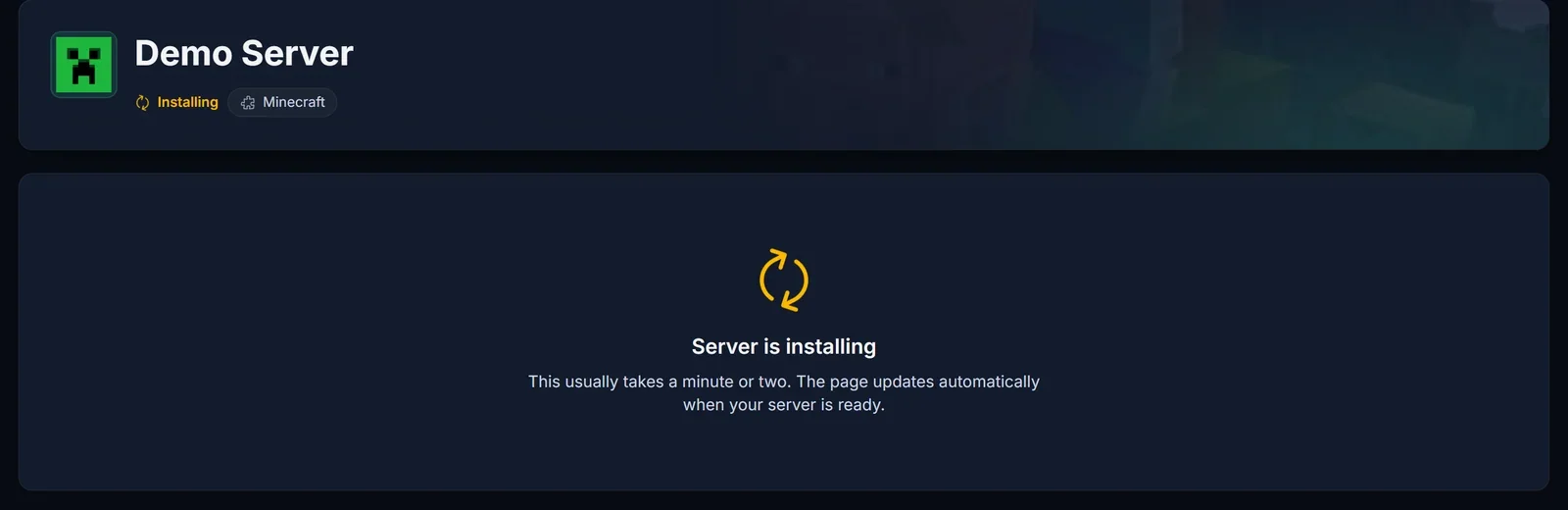
Your worlds, plugins and settings are kept. The server goes offline for a couple of minutes while it reinstalls, then starts again with GeyserMC and Floodgate in the plugins folder.
What Bedrock players type to join
Geyser listens on the same port as your Java server, so there is no second address to hand out. Copy the address from the Connection address card on the Overview tab.
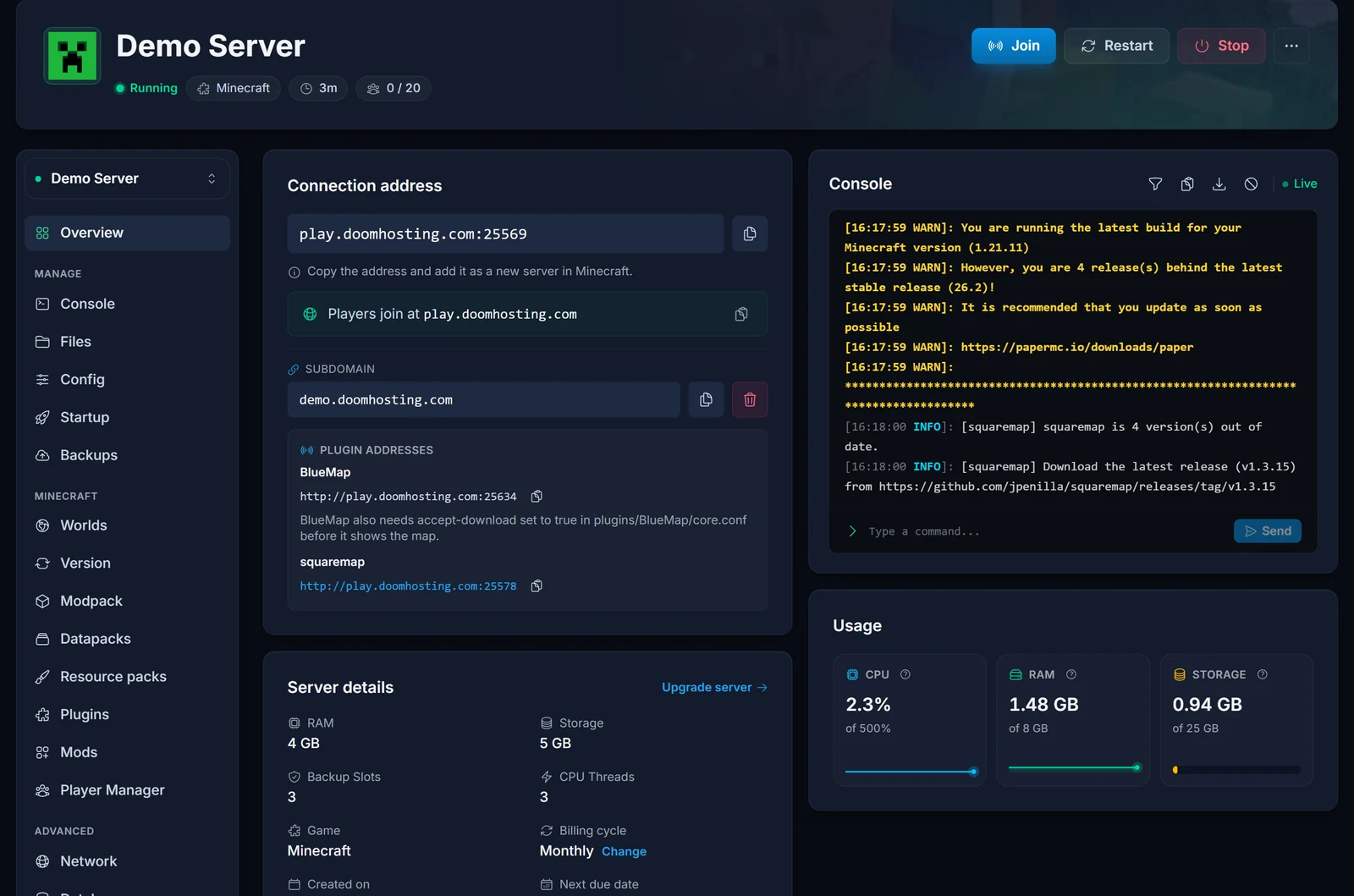
In Minecraft Bedrock, go to Play, then Servers, scroll to the bottom and choose Add Server. Fill in:
- Server Name: anything you like
- Server Address: the address part, with no port and no colon
- Port: the number after the colon
One thing to know if you use a subdomain: Bedrock ignores SRV records. Java players can type a bare yourname.doomhosting.com because the SRV record carries the port, but Bedrock players have to enter the address and the port in separate boxes. When in doubt, give Bedrock players the raw address and port shown on the connection card.
Add Geyser to a server that is already running
If you would rather not reinstall, or you want to add Geyser addons, install the plugins yourself from the Plugins tab. Search for what you need and click Install. A server that already has Geyser shows it as Installed.
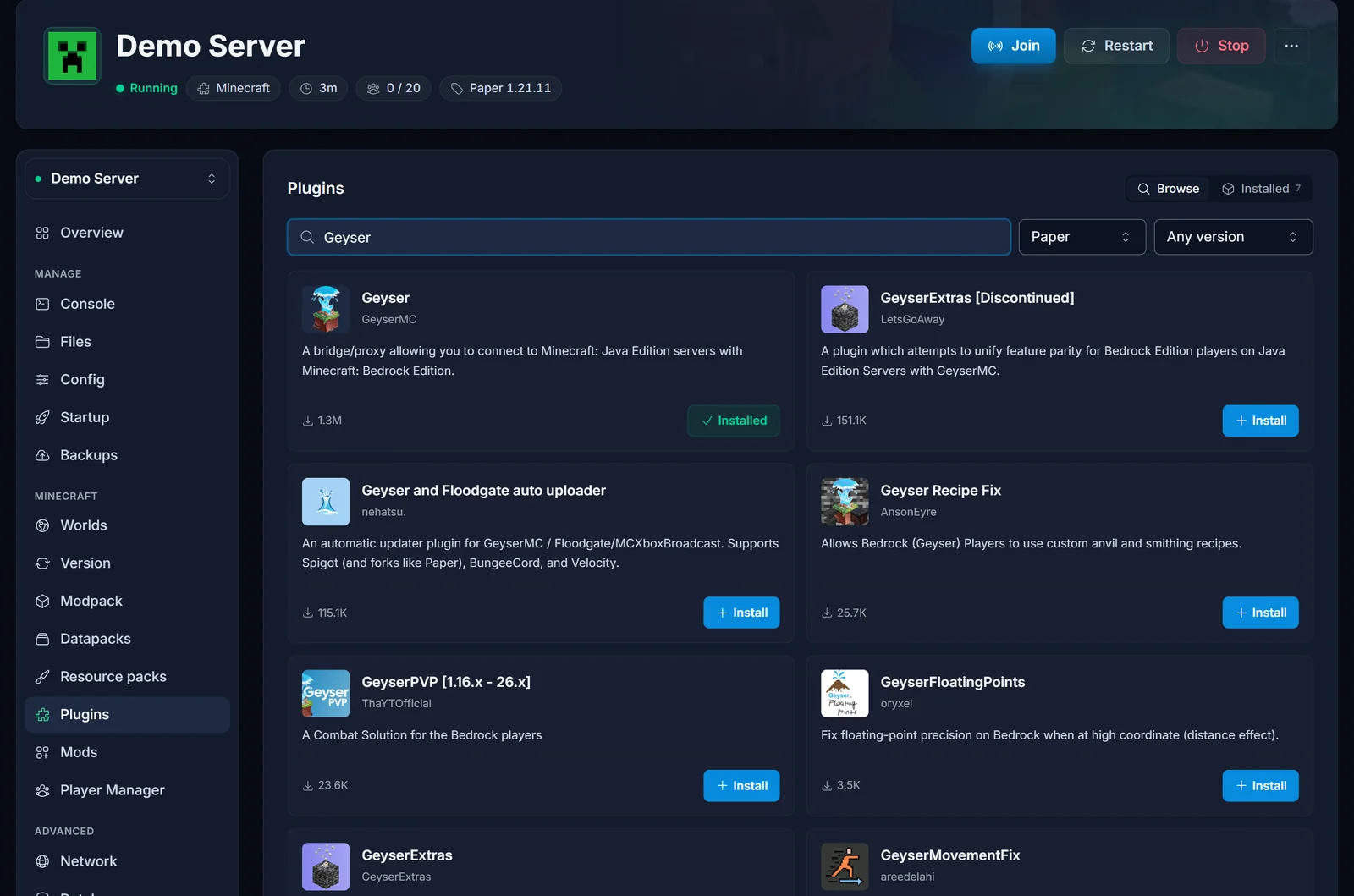
For a manual setup you want Geyser and Floodgate. Restart the server after installing them, and set auth-type: floodgate in plugins/Geyser-Spigot/config.yml if you installed Geyser by hand, so Bedrock players do not need a Java account. You can also drop the jars into the plugins folder over FTP, the same way as any other plugin.
Check that it worked
Start the server and watch the Console tab. A healthy start prints the Geyser banner and the port it claimed:
[Geyser-Spigot] Started Geyser on UDP port 25569
[Geyser-Spigot] Done (2.1s)! Run /geyser help for help!
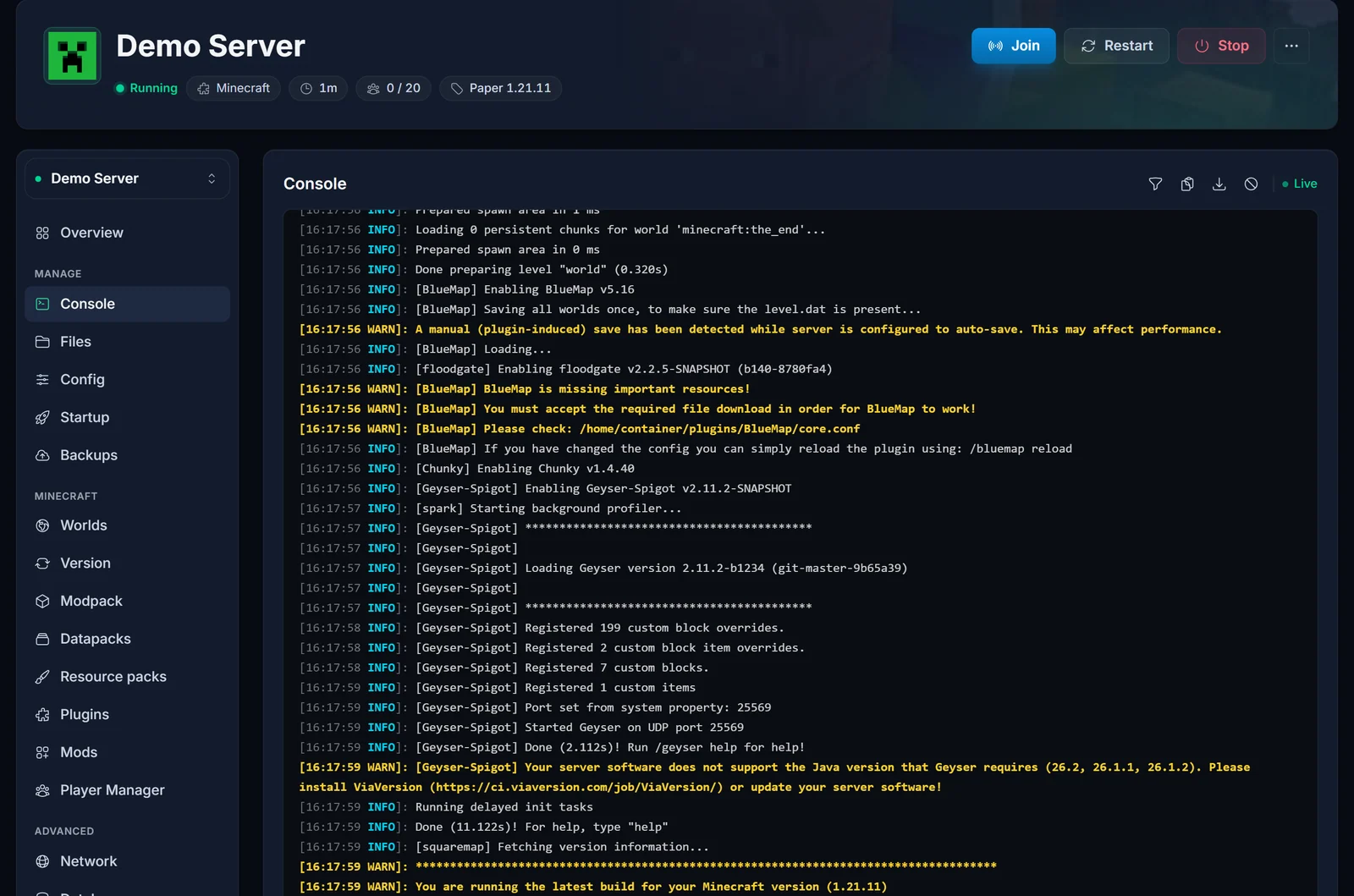
Geyser also ships a self-test. Type this into the console command box, using your own address and port:
geyser connectiontest yourserver.doomhosting.com 25569
A working server answers with Your server is likely online and working as of 0 seconds ago!. The address and the port are two separate arguments: geyser connectiontest on its own returns an "Unknown or incomplete command" error.
Which Bedrock platforms can join
- Windows (Minecraft for Windows), Android, iOS and Fire tablets: add the server directly, as described above.
- Nintendo Switch, Xbox and PlayStation: these consoles do not let you type in a server address. Players use the DNS method, which points the console at a featured server slot, or a companion app. That is a client-side workaround, not something we can switch on for you.
Troubleshooting
The console says "Please install ViaVersion". This is the most common one. It looks like:
[Geyser-Spigot] Your server software does not support the Java version that Geyser requires
(26.2, 26.1.1, 26.1.2). Please install ViaVersion or update your server software!
It means the Bedrock client Geyser supports maps to a newer Java version than your server runs. Two fixes: update the server to a current Minecraft version from the Version tab, or install ViaVersion (and ViaBackwards, which the newest server versions also need) from the Plugins tab.
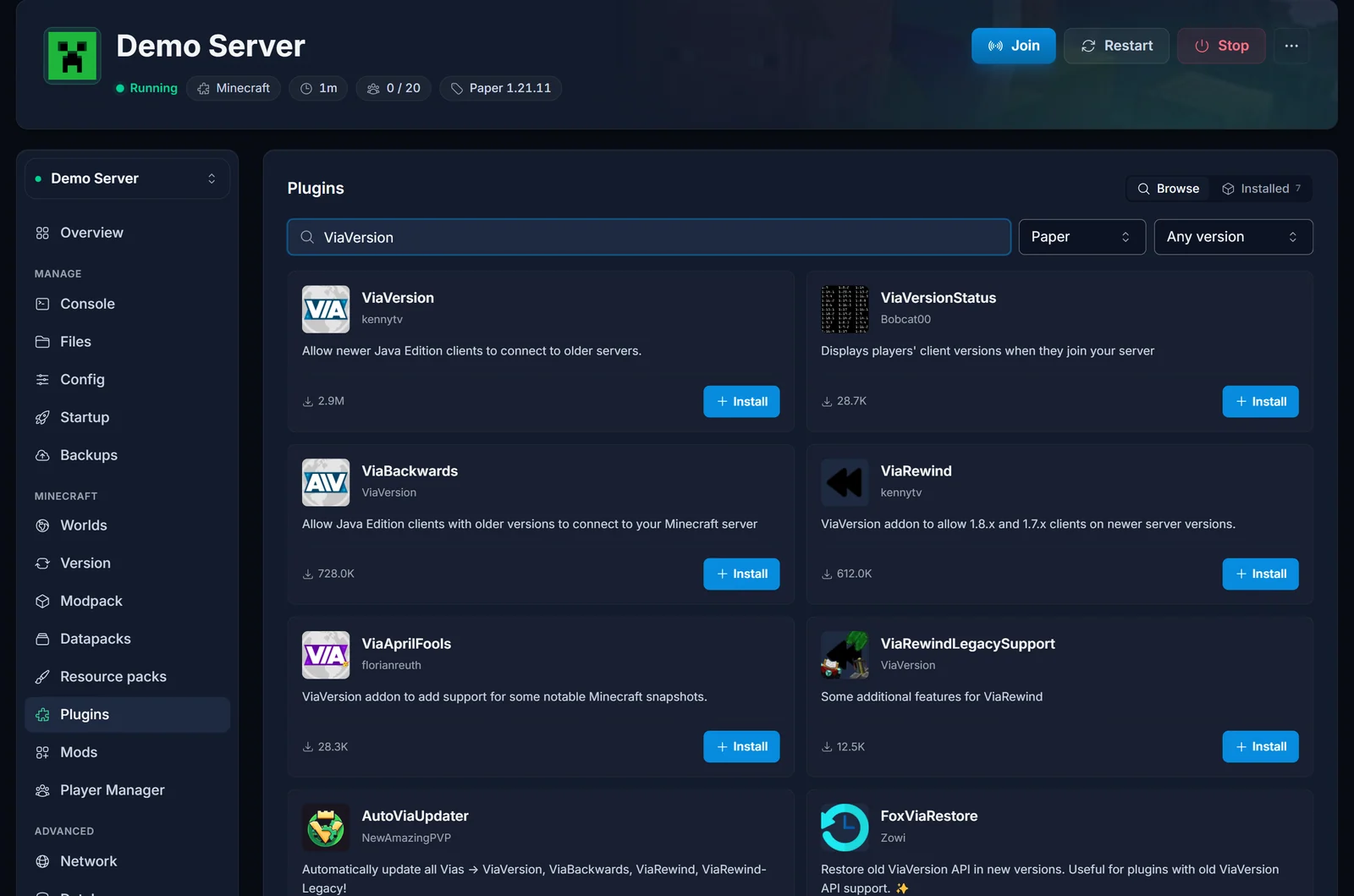
"Unable to connect to world". Check that the server is Running, that the Bedrock player put the port in the Port box instead of gluing it onto the address, and that they are not using a subdomain without the port. Then run the geyser connectiontest above.
Bedrock players are asked for a Java account. Floodgate is missing, or auth-type is not set to floodgate. Reinstalling with the checkbox above sets both for you.
Bedrock players are kicked by the whitelist. Bedrock names carry a prefix (a dot by default), so they have to be whitelisted in that exact form. See our whitelist guide.
Skins or blocks look wrong on Bedrock. Some Java-only content has no Bedrock equivalent. That is a limit of the protocol translation, not a fault on your server.
Frequently asked questions
Does Geyser slow the server down? It costs some CPU and RAM per Bedrock player, because every packet is translated. On a normal survival server that is not noticeable. If you already run close to your RAM limit, plan an upgrade before opening the door to more players.
Can Bedrock and Java players see each other? Yes. They share one world, one chat and one player list.
Do I need a second port? No. Geyser is started with your server's own port, so Bedrock traffic arrives on the same address and port as Java traffic.
Can I run Geyser as a standalone proxy instead? Yes, but it needs a second server for the proxy, and it only pays off for large networks. The plugin setup above is the right choice for a single server.
Every Minecraft server we host has the crossplay checkbox, the Plugins tab and the console shown here.
