Joining a Palworld dedicated server takes about 30 seconds once you know where to click, but if it's your first time, the menu names are not obvious and the platform you play on changes the path. This guide walks through every method that works in Palworld 1.0, covers password-protected and console servers, and ends with fixes for every connection error players actually run into.

What You Need Before You Start
Before launching Palworld, gather four pieces of info. Most reputable hosts give you all of this on the dashboard the moment your server boots:
- Server IP address: looks like
192.168.1.100or a hostname likepal.yourserver.com - Game port: 8211 on a server you host yourself. Rented servers are normally given their own port, so use whatever the host panel shows
- Server password: only needed if the host enabled one
- Your platform: Steam, Microsoft Store / Game Pass, PS5, or Xbox. This decides which connection method works.
The combined connection string looks like 192.168.1.100:8211. That is the exact format you paste into the game.
Method 1: Join a Palworld Server via Direct IP (Fastest)
This is the primary method on PC and works on the Steam version. Most servers, including those from DoomHosting's Palworld hosting, give you the IP and port immediately after purchase.
Step 1: Launch Palworld and open the multiplayer menu
- Start Palworld from Steam
- On the main menu, click "Join Multiplayer Game (Dedicated Server)"
Step 2: Enter the server address
- A list of community servers loads first. Ignore it for now
- Look at the bottom of the screen for the connection field labelled with a Connect button on the right
- Type your
IP:portcombination, like192.168.1.100:8211 - Click Connect
Step 3: Create or load your character
- First time on this specific server? Palworld asks you to create a new character. Saves are per-server, not global.
- Returning players load their existing character automatically.
Step 4: Spawn into the world
- The game loads the server world (15–60 seconds depending on save size)
- You spawn at the default starting beach on first join
Pro tip: once you've connected to a server once, Palworld remembers your last-used IP and pre-fills it the next time you open the menu.

Method 2: Join via the Community Servers List
Useful when your server is public or you don't have the IP at hand.
Browsing the community list
- From the Join Multiplayer Game (Dedicated Server) screen, the upper portion of the page is the community list
- Each server shows name, player count, ping, region, and a lock icon for password servers
- Use the search bar at the top to filter by name
- Click a server row, then click Connect
When to use this method
- Your host has set the server to public in
PalWorldSettings.ini(bIsPublic=True) - You don't remember the IP but know the server name
- You want to discover community servers: modded, PvP, themed, region-specific
If the server is private, it won't appear here. Use Method 1 with the direct IP instead.
Method 3: Join from Console (PS5 and Xbox)
Console players cannot enter an IP directly. Sony and Microsoft don't allow arbitrary network input in retail titles. The flow becomes:
- Open Palworld → Join Multiplayer Game (Dedicated Server)
- The community list is the only path: scroll or search by server name
- Crossplay between Xbox and PS5 works within the same server
- Crossplay is on by default since 1.0. A Steam player and an Xbox player can share one server, unless the host has narrowed the allowed platforms. See the section below.
If your console can't see a server you know exists, the host must set bIsPublic=True and restart the dedicated server.
Joining a Password-Protected Palworld Server
If the host enabled a password, the connect flow has one extra step:
- Pick the server (Method 1 or 2)
- After clicking Connect, a password prompt opens
- Type the password exactly as shared: it is case-sensitive
- Click Confirm to join
Wrong password returns you to the server list with a generic error. Triple-check capital letters, zeroes versus the letter O, and any special characters.
Cross-Platform Compatibility in Palworld 1.0
Palworld 1.0 turned crossplay on by default. A dedicated server declares which platforms it accepts, and a server rented from DoomHosting ships with all of them enabled:
| Platform | Can join a crossplay server |
|---|---|
| Steam (PC) | Yes |
| Microsoft Store / Game Pass (PC) | Yes |
| Xbox Series X|S | Yes |
| PlayStation 5 | Yes |
| Mac | Yes |
The host decides. If a server has been narrowed to a single platform, players on the others will not see it in the community list and cannot join. On a DoomHosting server this is visible and editable on the Overview tab:
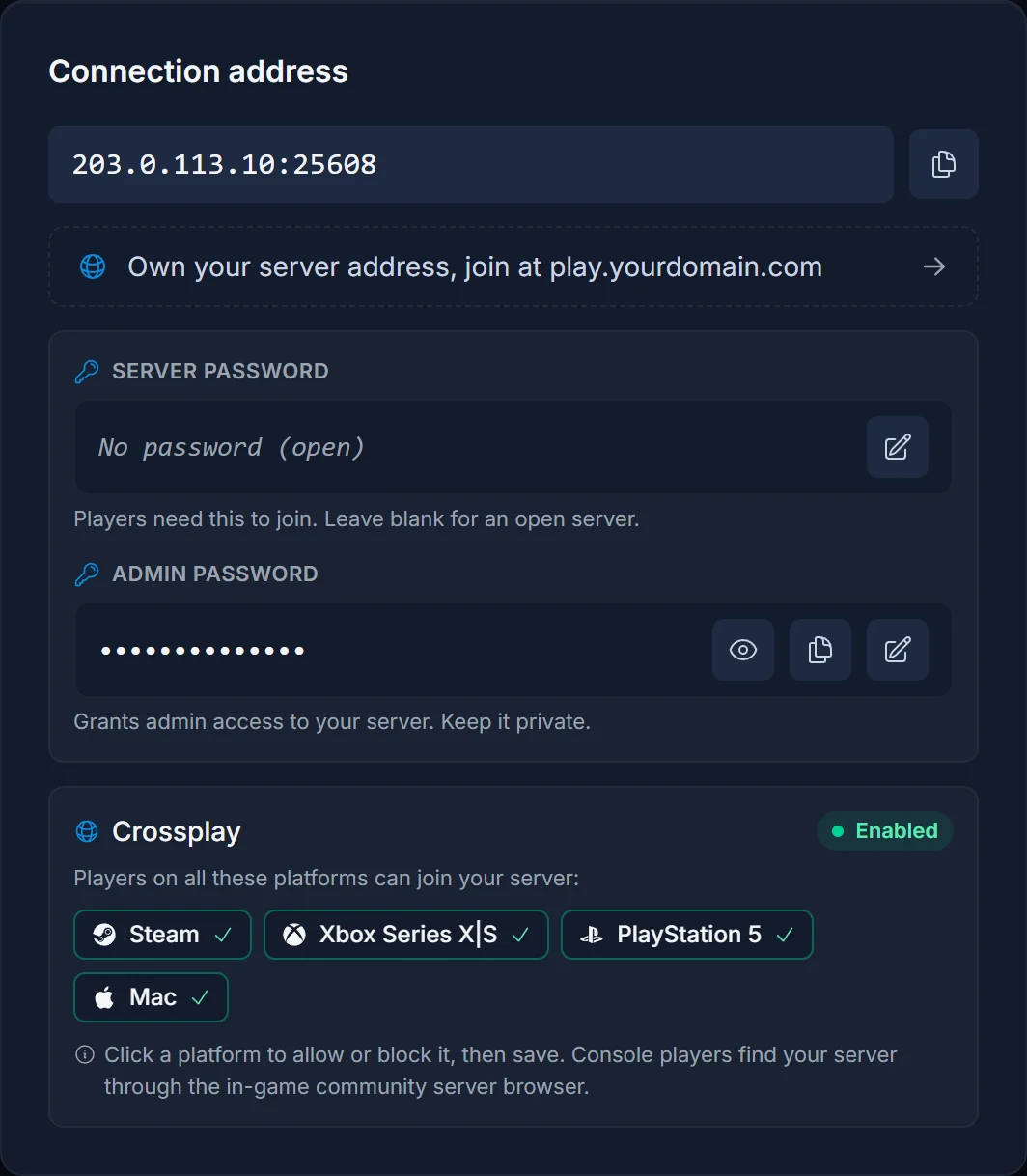
If you read elsewhere that Steam and Xbox players can never share a server, that advice predates 1.0. It was right then and is wrong now.

Troubleshooting: Why You Can't Join a Palworld Server
"Connection Failed" or "Couldn't Connect to Server"
Most common causes:
- Server is offline, restarting, or saving
- Wrong IP or port: typos cause this 80% of the time
- Server's port 8211 (UDP) isn't open on the host's firewall
Fixes:
- Verify status from your host's panel
- Re-paste the IP: never type it by hand if you can copy
- Wait 60 seconds and retry (server may be in the middle of an autosave)
"Failed to Reach Server" / Timeout
Causes:
- Network firewall blocking UDP traffic to port 8211
- ISP-level UDP throttling (rare but real on some networks)
- Server geographically far from you with a degraded route
Fixes:
- Disable Windows Firewall briefly to test, then re-enable
- Try mobile-hotspot tethering: if it works on mobile, it's your home network
- Pick a host in your region (EU players → EU host, NA → NA)
"Game Version Mismatch"
Cause: your Palworld client is on a different patch than the server. After every Pocketpair update both sides must be on the same version.
Fix:
- Update Palworld via Steam: let the auto-update finish before reconnecting
- If you host the server, update the dedicated server build via SteamCMD before clients return
- Major version bumps require both sides to update; minor hotfixes sometimes work cross-version
"Lost Connection to Host"
Causes:
- Server crashed or restarted
- Your internet dropped briefly
- Server hit its memory ceiling and got OOM-killed (common on 8 GB hosts running large bases)
Fixes:
- Wait 30 seconds and reconnect: most managed hosts auto-restart on crash
- Ask your host to check server logs and RAM usage
- Upgrade your plan if RAM is consistently maxed (16 GB is the sweet spot for 4–8 player bases)
Server Doesn't Appear in the Community List
Causes:
bIsPublic=FalseinPalWorldSettings.ini: the server is private- Outbound port 9777 (Steam master-server registration) blocked on host
- Server crashed and isn't reporting a heartbeat
Fixes:
- Use Method 1 with the direct IP: works regardless of public flag
- Host: confirm
bIsPublic=True, restart, wait two minutes for re-registration
Stuck on "Loading World" Forever
Causes:
- Save file is large (50+ hours of gameplay) and the client is loading every chunk
- Network MTU mismatch causing packet fragmentation on initial sync
Fixes:
- Wait it out: first join on a mature save can take 2–3 minutes
- Restart your router if loading stalls past 5 minutes
- Ask your host to check server CPU usage during your join
Optimizing Your Palworld Multiplayer Connection
- Pick a host in your region. EU host for EU players, NA host for NA. Cross-continent ping above 200 ms makes Pal-catching laggy.
- Use a wired connection for the host machine if you self-host. Wi-Fi adds 20–50 ms of jitter that snowballs once 4+ players are active.
- Limit background bandwidth. Cloud sync, Steam downloads on other PCs, and 4K streaming on the same network compete for upload bandwidth and tank server responsiveness.
- Enable UPnP carefully. UPnP can auto-forward port 8211 but also exposes you to unwanted traffic. Manual port forwarding is safer for self-hosting at home.
Conclusion: Join a Palworld Server in Under a Minute
The fastest reliable method is direct IP via the Multiplayer menu: paste IP:port, hit Connect, create your character, play. The community list is great for discovery but assumes the host has set the server public. Console players are stuck with the community list. When something goes wrong, 90% of it traces back to a port-8211 firewall block or a client/server version mismatch, both quick to diagnose with the steps above.
Running your own Palworld server is the cleanest way to control all of this: you set the password, choose the version, decide who joins. DoomHosting's Palworld hosting gives you instant setup, full FTP for save backups, DDoS protection, and 24/7 support, so when the next patch drops and your friends need to update, you are not stuck reading forum threads.