


Datapacks are the easiest way to change how your Minecraft server plays without asking anyone to install anything. They add custom recipes, loot, mob behaviour, world generation, and gameplay tweaks using vanilla's own systems, so they run on a plain Vanilla or Paper server and need nothing on the player's side. On a DoomHosting server you browse and install them in one click from the panel. Here is the whole workflow.
What a datapack is (and is not)
A datapack is a folder of vanilla data files, functions, loot tables, recipes, predicates, advancements, and worldgen, packed into a .zip. Minecraft loads it per world. Because it only uses mechanics the game already ships, a datapack has three properties that make it beginner-friendly:
- Server-side only. Players join with a normal, unmodified client. No loader, no mods folder, nothing to download.
- No Forge or Fabric. Datapacks work on Vanilla and Paper alike.
- Per world. A datapack lives inside one world's
datapacksfolder, so it travels with that world.
The trade-off is scope. A datapack cannot add genuinely new code, rendering, or systems the way a mod can. If you want new machines, dimensions with custom rendering, or a full tech tree, you want mods (see How to Install Mods on Your Minecraft Server). For quality-of-life and gameplay changes, datapacks are perfect.
Browse and install datapacks from the panel
Open the Datapacks tab. It searches Modrinth and CurseForge together and installs straight into your active world, no FTP required.
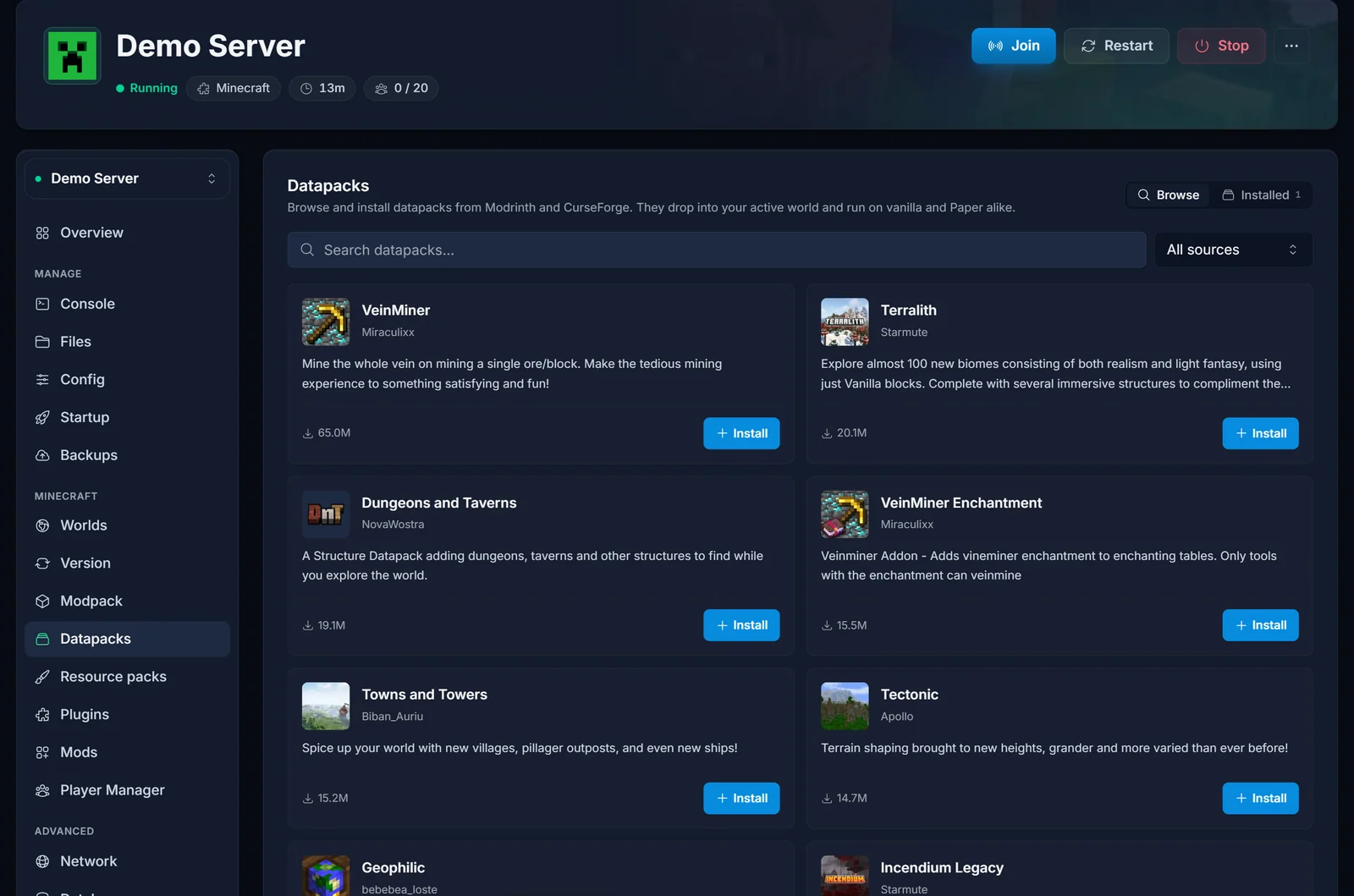
Search for what you want, for example "multiplayer sleep" so one player can skip the night, or a custom-recipe or mob pack. Press Install and choose the version that matches your Minecraft version.
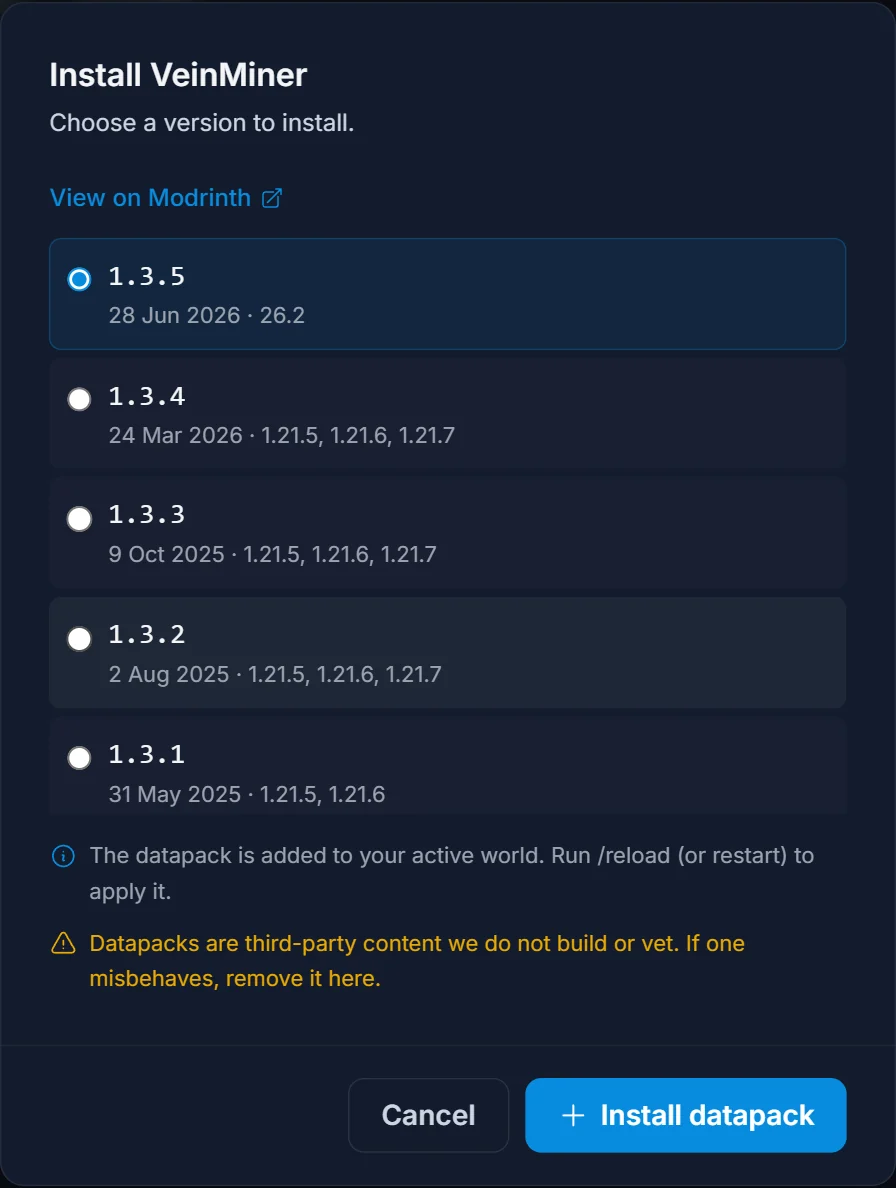
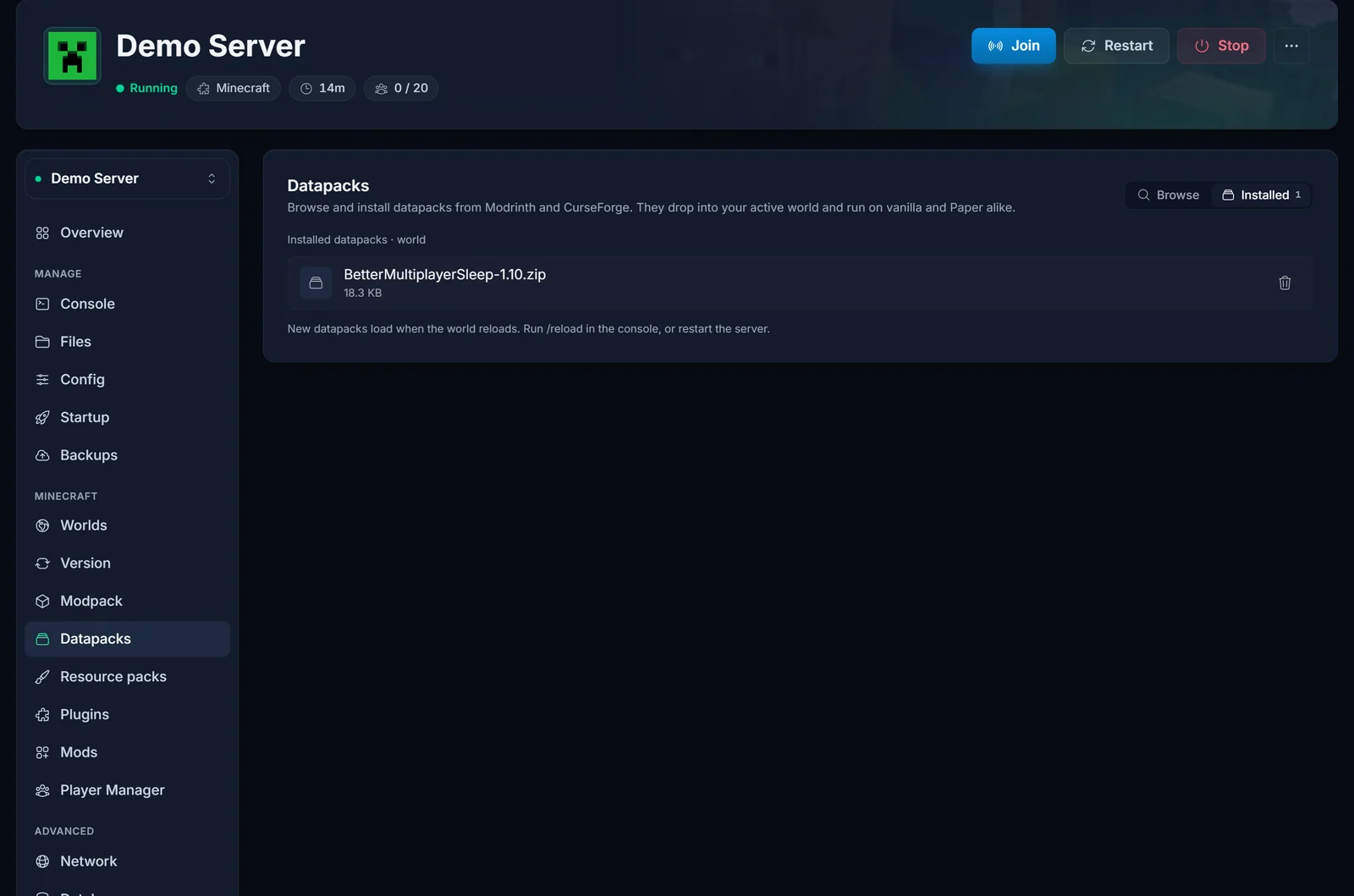
The panel downloads the .zip into your active world's datapacks folder. Switch to the Installed view to see everything applied to the current world, with the world name shown so you always know which world you are editing.
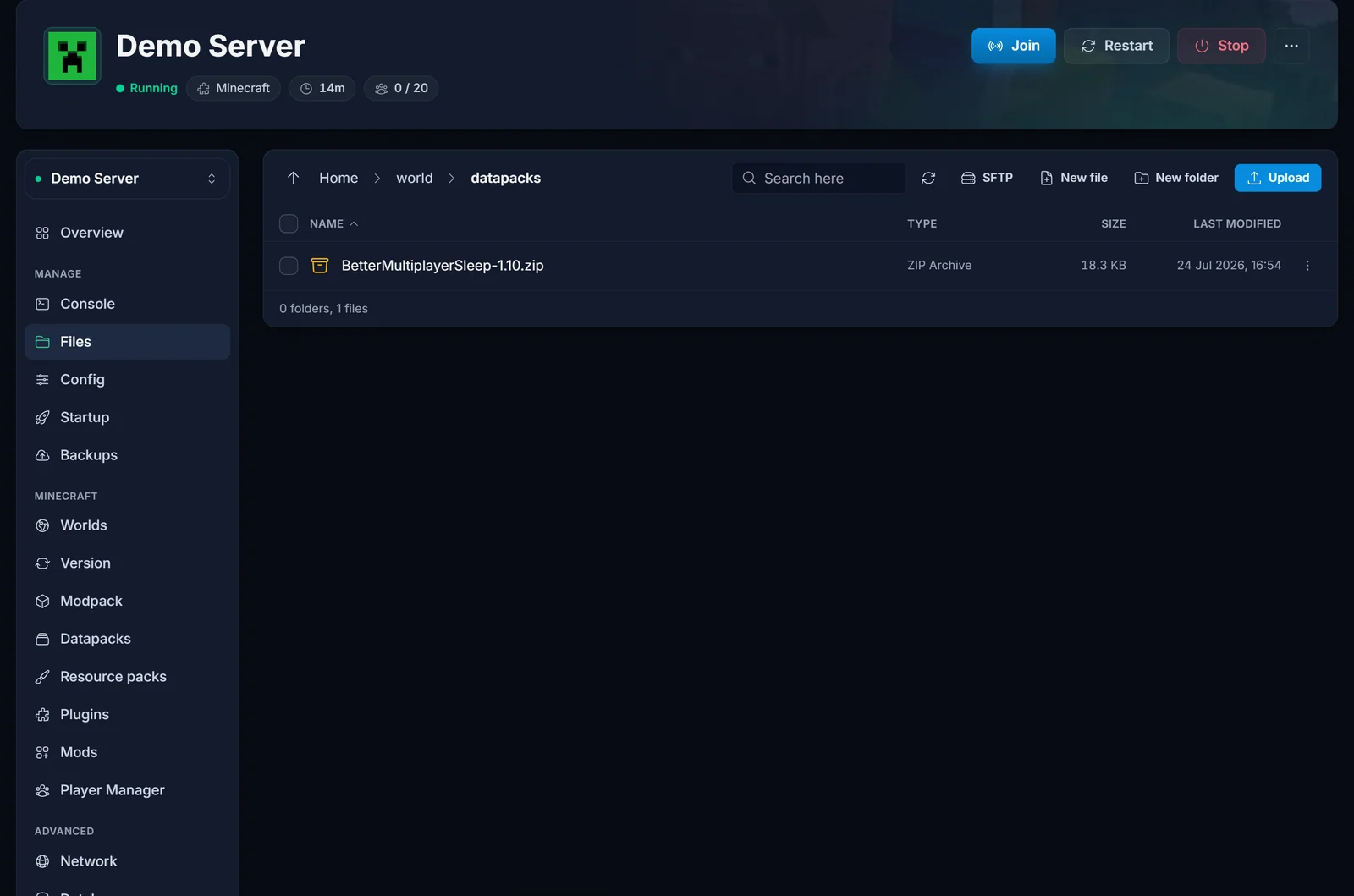
Under the hood, every installed pack is just a file. Open the Files tab and go into world then datapacks to see them.
Enabling on a new world vs an existing world
When a datapack becomes active depends on the world.
- New world. If the pack is in the
datapacksfolder before the world is generated, it is enabled from the very first tick. This is the cleanest option: worldgen datapacks in particular only affect chunks generated after they load, so a fresh world gives you a consistent result. Starting over is covered in How to Start Fresh on Your Minecraft Server. - Existing world. Install the pack, then restart the server. On boot, Minecraft finds the new pack and loads it automatically. If it does not enable on its own, run the enable command below.
Confirm and control packs with /datapack
From the server console (or in-game as an operator) you can inspect and toggle datapacks:
/datapack list
This prints every enabled and available pack. An installed pack shows up like [file/YourPack.zip (world)], which confirms it is live on the current world. To turn one on or off without deleting it:
/datapack enable "file/YourPack.zip"
/datapack disable "file/YourPack.zip"
After enabling worldgen or recipe changes, a /reload refreshes functions, loot, and recipes without a full restart. Note that /reload does not retroactively change already-generated terrain.
Datapacks vs mods vs plugins
It is easy to mix these up. Quick guide:
- Datapack: vanilla data files, server-side only, no player install, works on Vanilla and Paper. Best for recipes, loot, gameplay rules, and worldgen tweaks.
- Mod (Forge/Fabric): real new code and content, must be on the server and every player's client at the same version. Best for new blocks, mobs, dimensions, and machines. See How to Install Mods on Your Minecraft Server.
- Plugin (Paper/Spigot): server software extension, server-side only, players join vanilla. Best for permissions, economy, protection, and admin tooling. See Installing Plugins on Your Minecraft Server.
Not sure which server software you are on? Read Understanding Minecraft Server Types.
A note on textures
Some datapacks reference custom item models or textures. Those visuals come from a matching resource pack, which is optional and lives on the client (or is served by your server so it downloads automatically). The datapack itself still runs server-side. See How to Add a Resource Pack to Your Minecraft Server.
Troubleshooting
Installed pack does not do anything. Restart the server so it loads, then run /datapack list to confirm it shows as enabled. If it is listed but disabled, enable it with the command above.
Worldgen datapack only changes some areas. Worldgen applies to newly generated chunks only. Explore fresh terrain or start a new world for a consistent result.
Pack is on the wrong world. Datapacks are per world. Check the world name shown in the Installed view and make sure it matches the world your server actually loads (the level-name in your settings).
Custom items look like missing textures. The datapack needs its companion resource pack on the client. Install or serve that pack.
Wrapping up
Datapacks give you server-side gameplay changes with zero hassle for your players: browse, one-click install, and they drop into the active world's datapacks folder. Enable them on a fresh world for the cleanest result, confirm with /datapack list, and reach for mods or plugins when you need something datapacks cannot do. Questions? Our team is on live chat 24/7. Learn more about Minecraft server hosting at DoomHosting.
