
A modpack turns a vanilla Minecraft server into a curated experience: hundreds of mods, quests, and a tuned progression, all bundled together. On a DoomHosting server you don't upload anything or touch FTP. The Modpacks tab browses Modrinth and CurseForge directly and installs the pack for you in one click. Popular packs like RLCraft, All the Mods, SkyFactory, and Better MC all install the same way. This guide covers installing a modpack, connecting to it, and updating it later.
Before you start: a modpack replaces your server
Installing a modpack is a whole-server operation, not an add-on. The panel swaps your server over to the modpack's loader (Forge, Fabric, NeoForge, or Quilt) and the pack's exact mod list. Two things follow from that:
- A new pack starts on a fresh world by default. An old world from a different setup usually won't load and can crash the server, so a clean install is the safe default. If you have a world worth keeping, take a backup first (the install dialog has a one-tick Back up first option, or use the Backups tab).
- Every player needs the same modpack on their PC. A modded server only accepts clients running the matching pack and loader. Vanilla Minecraft cannot join. The easy way is to install the same pack from the CurseForge or Modrinth app, or a launcher like Prism.
Install a modpack
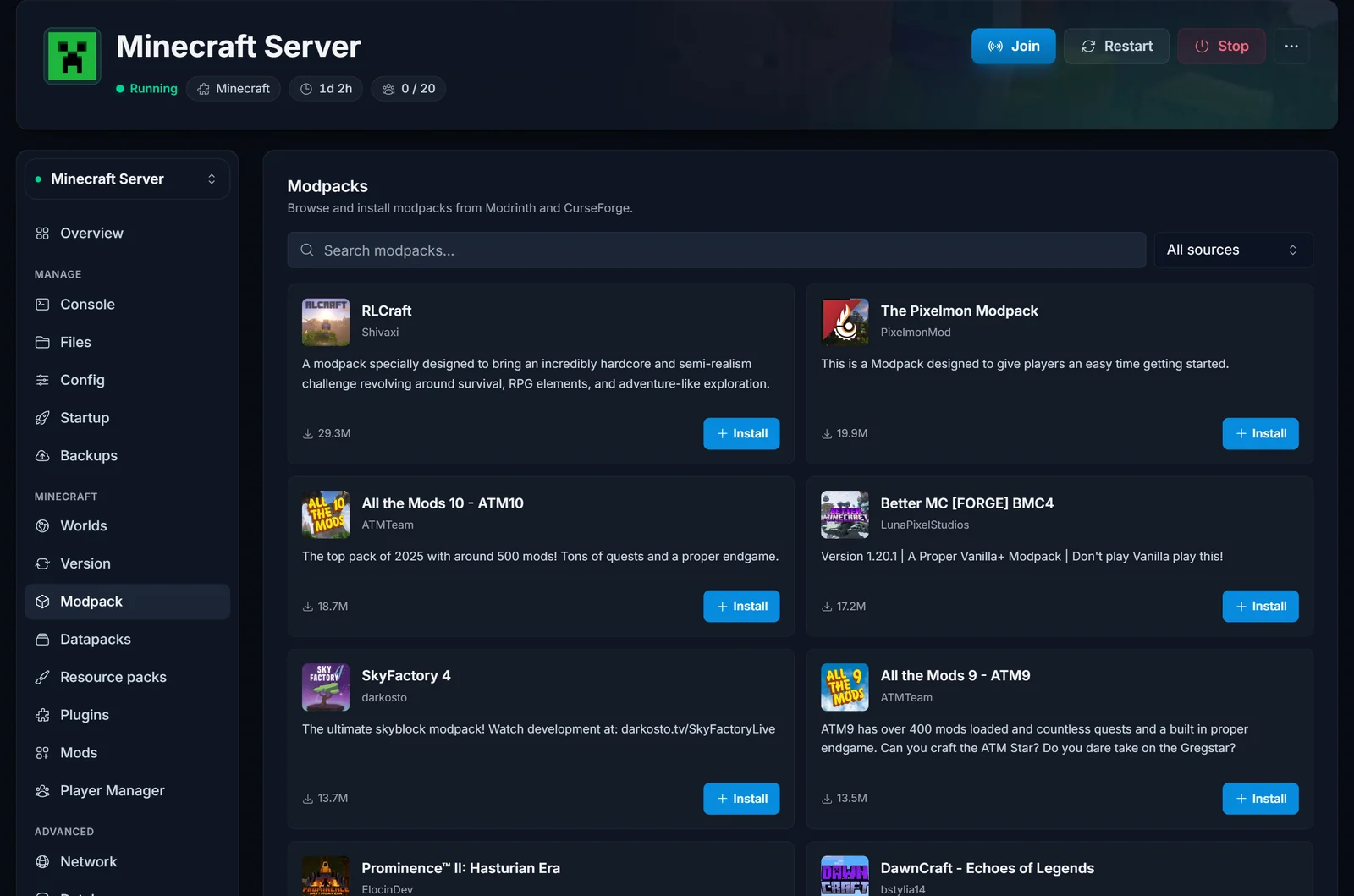
- Open your server in the panel and click Modpack in the section menu.
- Search for a pack by name, or browse the popular ones. Use the source filter to limit to Modrinth or CurseForge.
- Click Install on the pack you want.
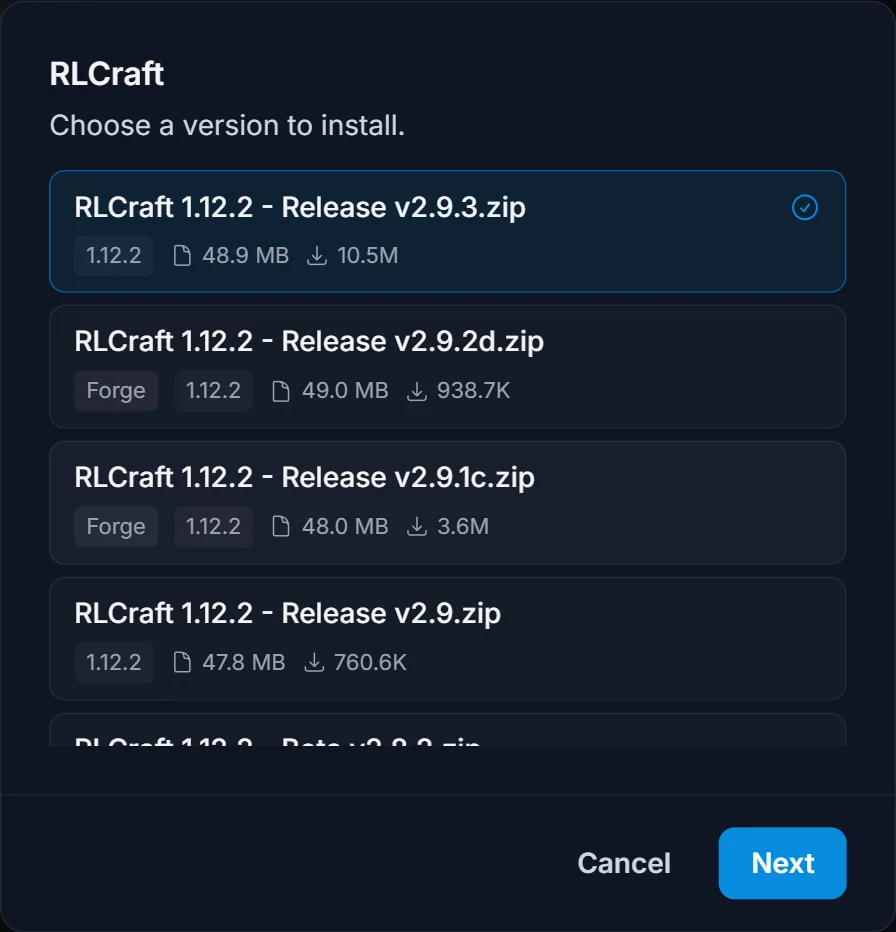
- Pick a version. Each version shows its loader (Forge, Fabric, etc.) and Minecraft version, so you can match what your players expect. The latest is selected by default. Click Next.
- Choose whether to keep your world. Leave it off for a brand new pack (recommended, a fresh world), or tick it when you're updating the same pack. Optionally tick Back up first.
- Click Install modpack and confirm.
The server reinstalls with the pack (this can take several minutes while it downloads everything), then starts on its own. You'll see the progress on the server's install screen.
Connect to your modded server
Once the server is back up, join it the same way as any Minecraft server, but from a client running the same modpack and loader:
- Install the same pack on your PC (the CurseForge app, the Modrinth app, or a launcher like Prism Launcher all do this in a click).
- Launch that pack's profile.
- Add your server's address under Multiplayer and connect.
If you join with vanilla Minecraft or the wrong loader, the server will reject you. That's normal: the versions have to match.
Update a modpack
When the pack author ships a new build, the Modpacks tab shows it at the top with a one-click update.

- Update keeps your world and moves to the newer version. Only same-loader builds are offered, because a cross-loader jump would break the world.
- Reinstall re-applies the current version if something got into a bad state.
Always take a backup before a big update, and be aware that a version that also changes the Minecraft version (for example 1.21.4 to 1.21.5) can stop an existing world from loading.
Troubleshooting
- Players can't join: they're almost certainly on vanilla or the wrong loader. Everyone needs the exact same pack and version as the server.
- The server won't start after install: the pack may need more RAM than your plan allows. Big packs (300+ mods) want a higher RAM tier. Check the Modpacks tab shows the pack installed, then look at the Console for the error.
- My old world is gone: a fresh install starts a new world by design. Restore from the Backups tab if you took a backup, then reinstall with Keep my world ticked.
Frequently asked questions
Do I need to upload anything or use FTP? No. The Modpacks tab installs straight from Modrinth and CurseForge. You never download or upload a pack yourself.
Do my players need the modpack too? Yes. A modded server only accepts clients running the same pack and loader. Install it from the CurseForge or Modrinth app on each player's PC.
Can I switch packs later? Yes. Install a different pack from the Modpacks tab. A different pack starts a fresh world (keeping an old one across a pack switch usually crashes), so back up anything you want to save first.
Will updating wipe my world? No. An Update of the same pack keeps your world. A fresh install of a new pack does not.
Need a server first? Rent a Minecraft server and install modpacks, plugins, and worlds from one panel. New to the panel? See what it does on the game server control panel page.
