

Mods change what your Minecraft world actually does: new biomes, machines, mobs, and mechanics that vanilla never ships. On a DoomHosting server you pick a mod loader, browse Modrinth and CurseForge, and install with one click, all from the panel. This guide walks the whole path for both Forge and Fabric, and covers the one rule people miss: your players have to run the same mods you do.
Forge or Fabric: pick a loader first
Vanilla and Paper cannot load mods. Before anything else you have to put your server on a mod loader. The two that matter are Forge and Fabric.
- Forge is the older, heavier ecosystem. Most big "kitchen sink" content mods and long-running modpacks target it. NeoForge is a newer fork of Forge that many modern packs have moved to.
- Fabric is lightweight and updates to new Minecraft versions fast. Performance mods (Lithium, FerriteCore) and a growing share of content mods live here.
Neither is "better". Pick the one your mods are built for, because a Forge mod will not load on Fabric and vice versa. If you are following a specific mod list or video, use whatever loader it names.
Switch loaders on the Version & software tab. Each loader is a card. Server software (Vanilla, Paper, Spigot) sits alongside the mod loaders (Forge, NeoForge, Fabric), so the difference is clear at a glance.
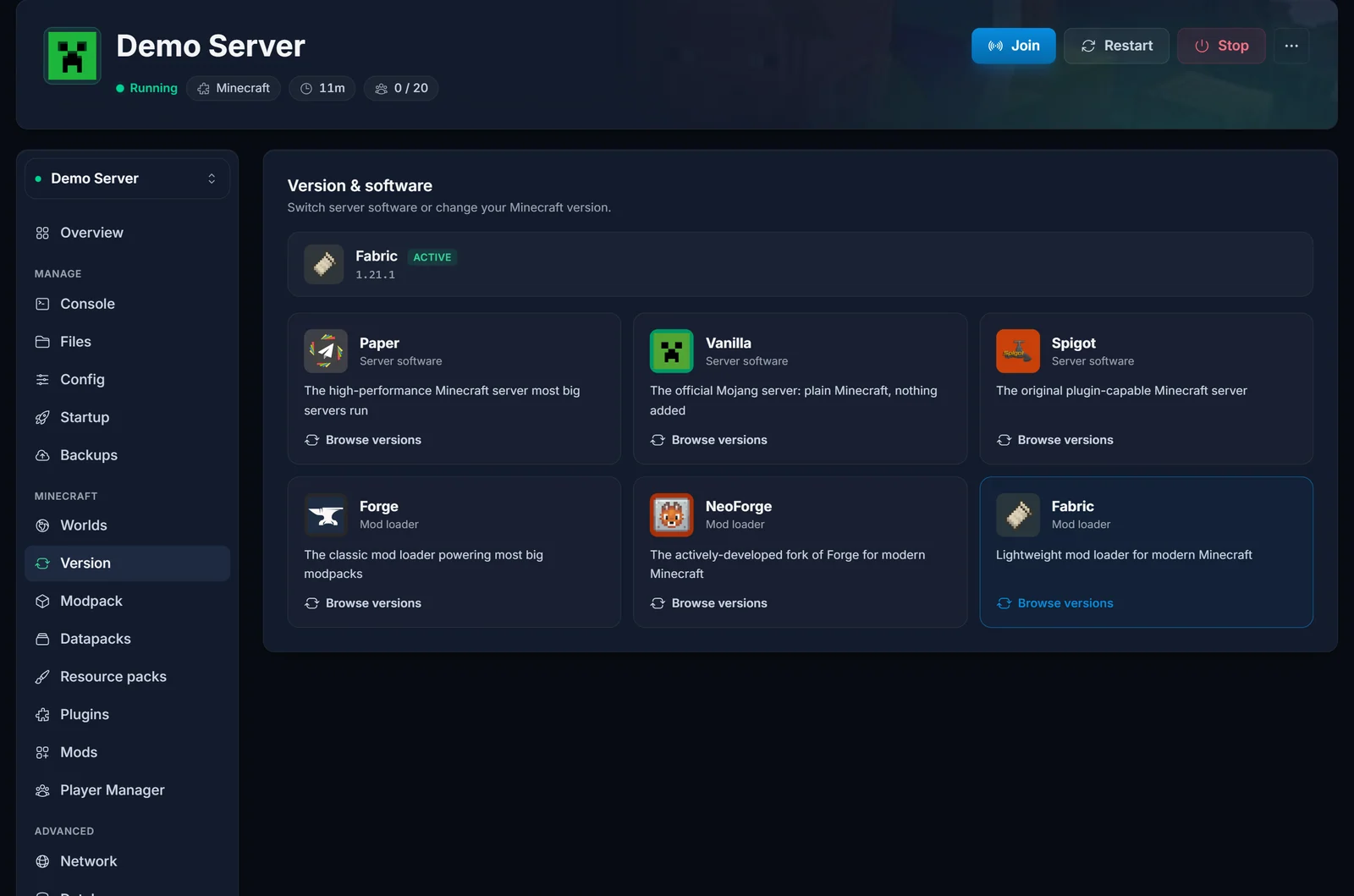
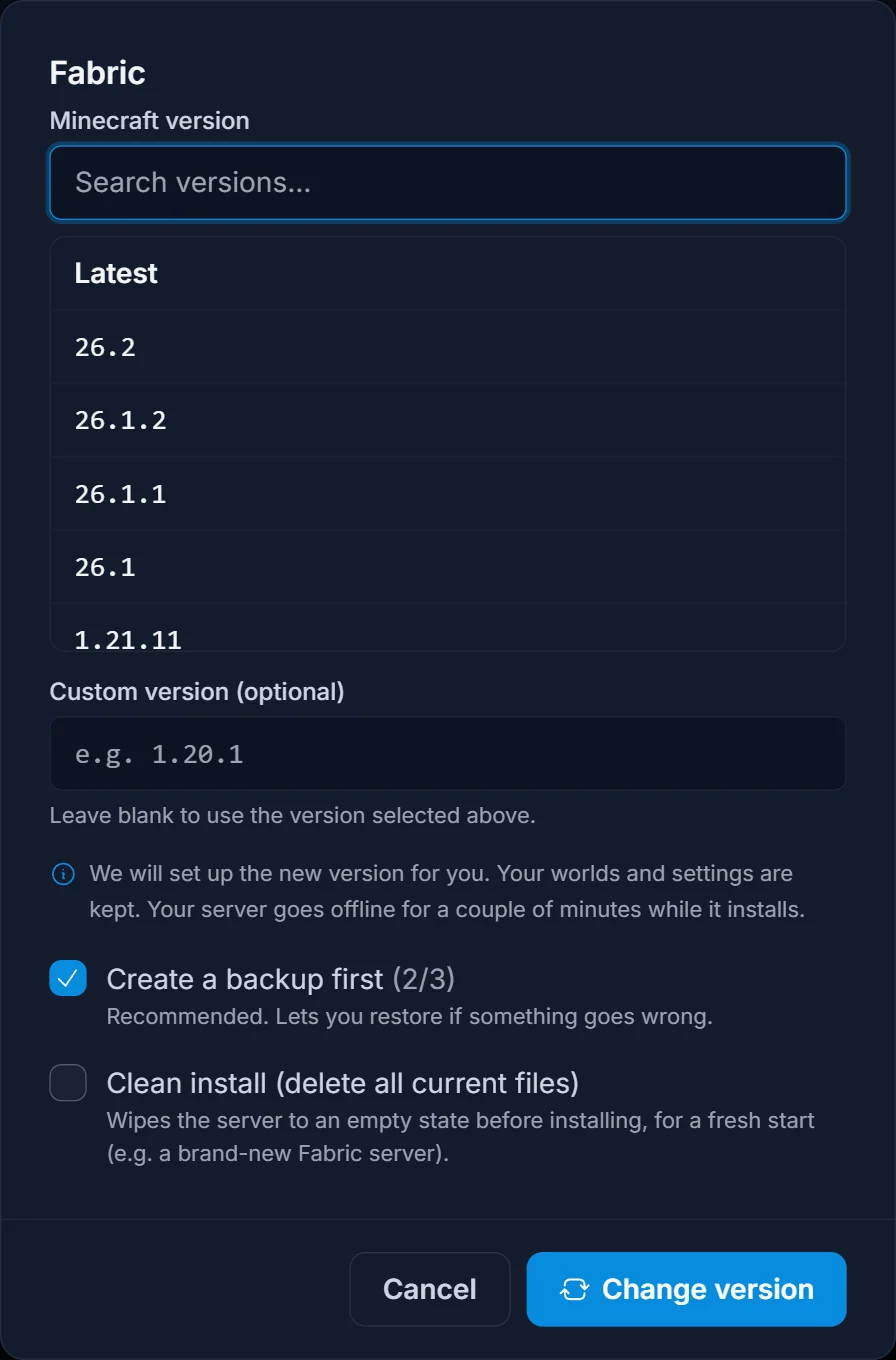
Click the loader you want, choose a Minecraft version in the dialog, and apply. By default the server reinstalls onto that loader and your world folder is kept. Before you apply, leave Create a backup first ticked in the dialog, or take one yourself from the Backups tab with Create backup.
Warning: the same dialog also offers Clean install (delete all current files). Ticking it permanently deletes your worlds and configs. Leftover Paper files confusing the new loader is the one case where it earns its place, so use it only if you are willing to lose the world, and only once the backup has finished.
That backup earns its keep for a second reason: even when you keep the world, one generated by Paper or Spigot will not always open on Vanilla, Forge, or Fabric. If your server refuses to start after the switch, see How to Migrate a Paper World to Vanilla, Forge, or Fabric.
Find and install mods from the panel
Once the server is on Forge or Fabric, open the Mods tab. It searches Modrinth and CurseForge together, and the panel already knows your loader and Minecraft version, so results are filtered to what fits.
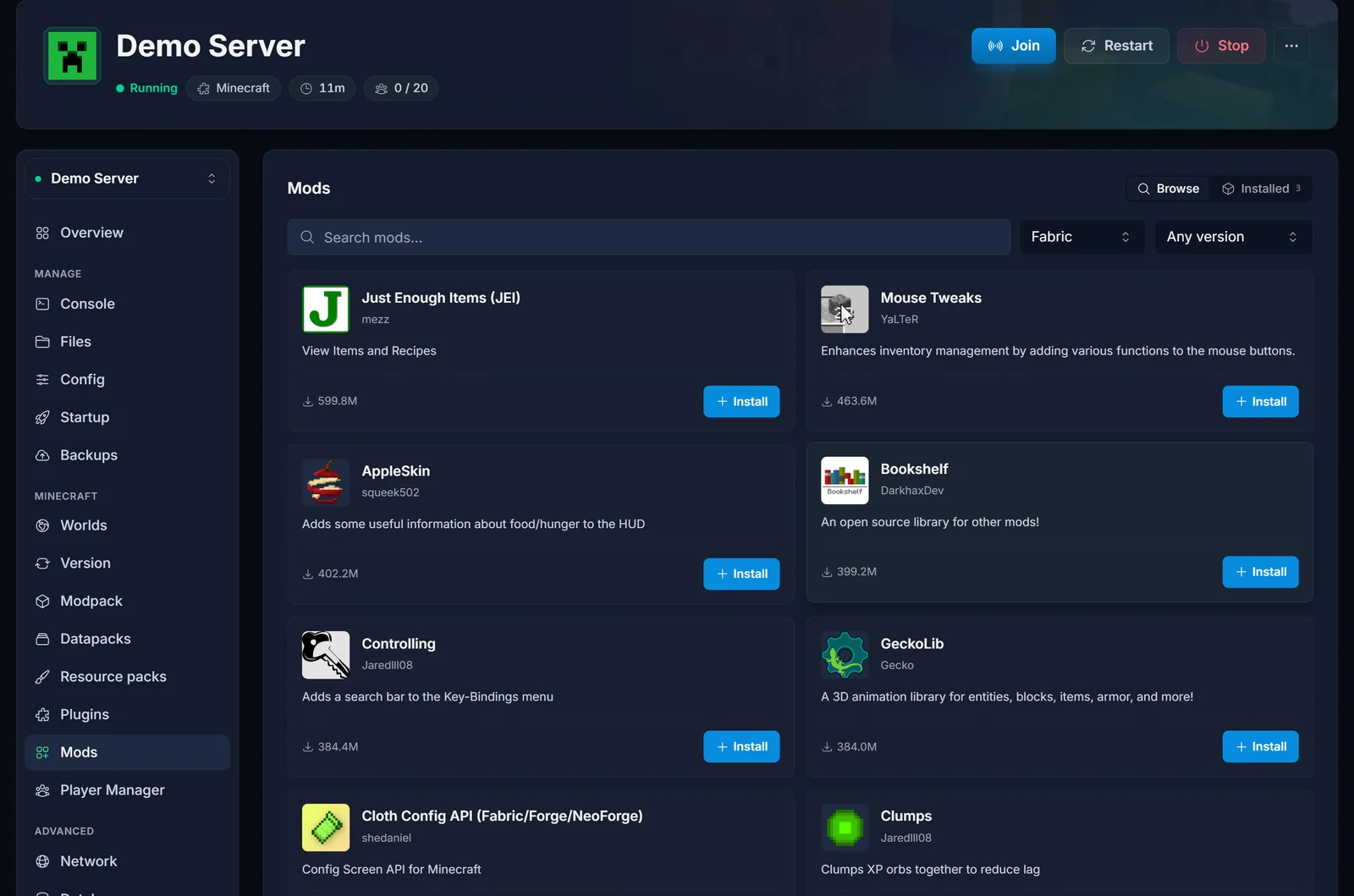
Search for a mod, press Install, and pick the version that matches your Minecraft version. The panel downloads the jar straight into your server's mods folder. No FTP, no manual upload.
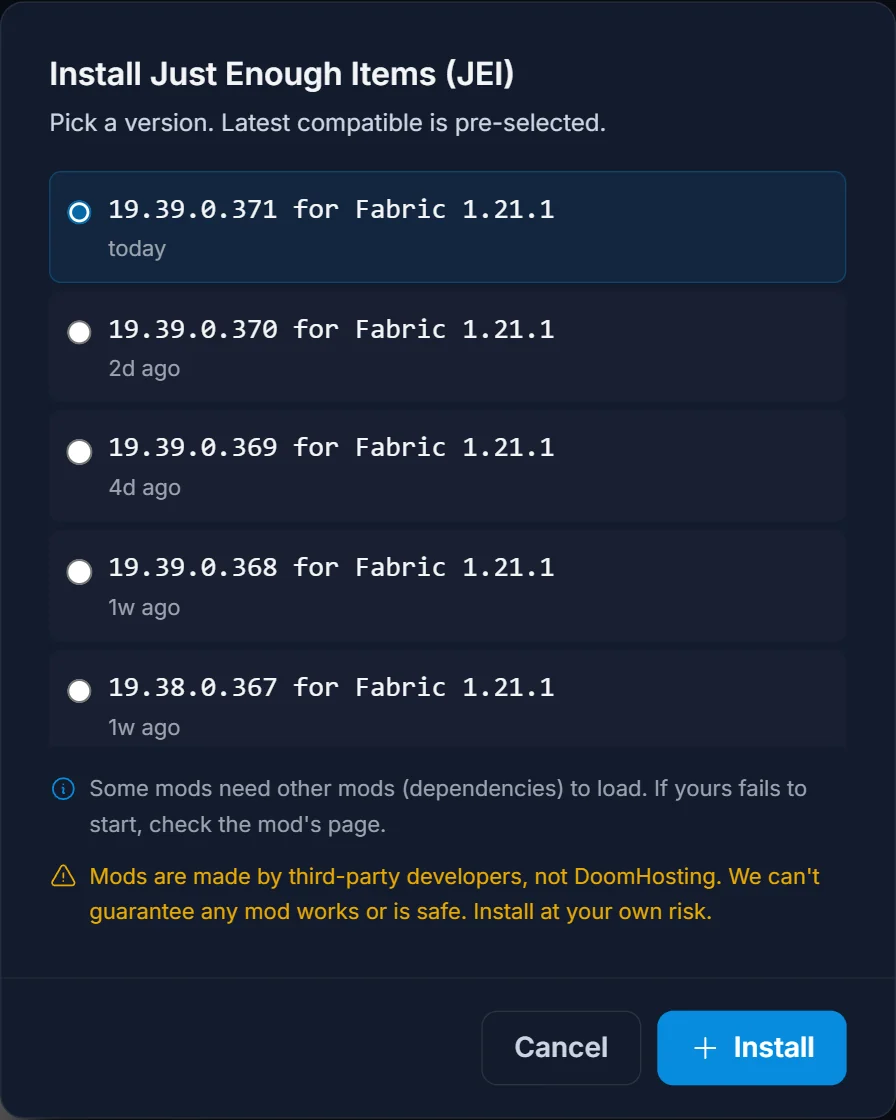
The Installed view lists everything currently in your mods folder, with an update badge when a newer build exists.
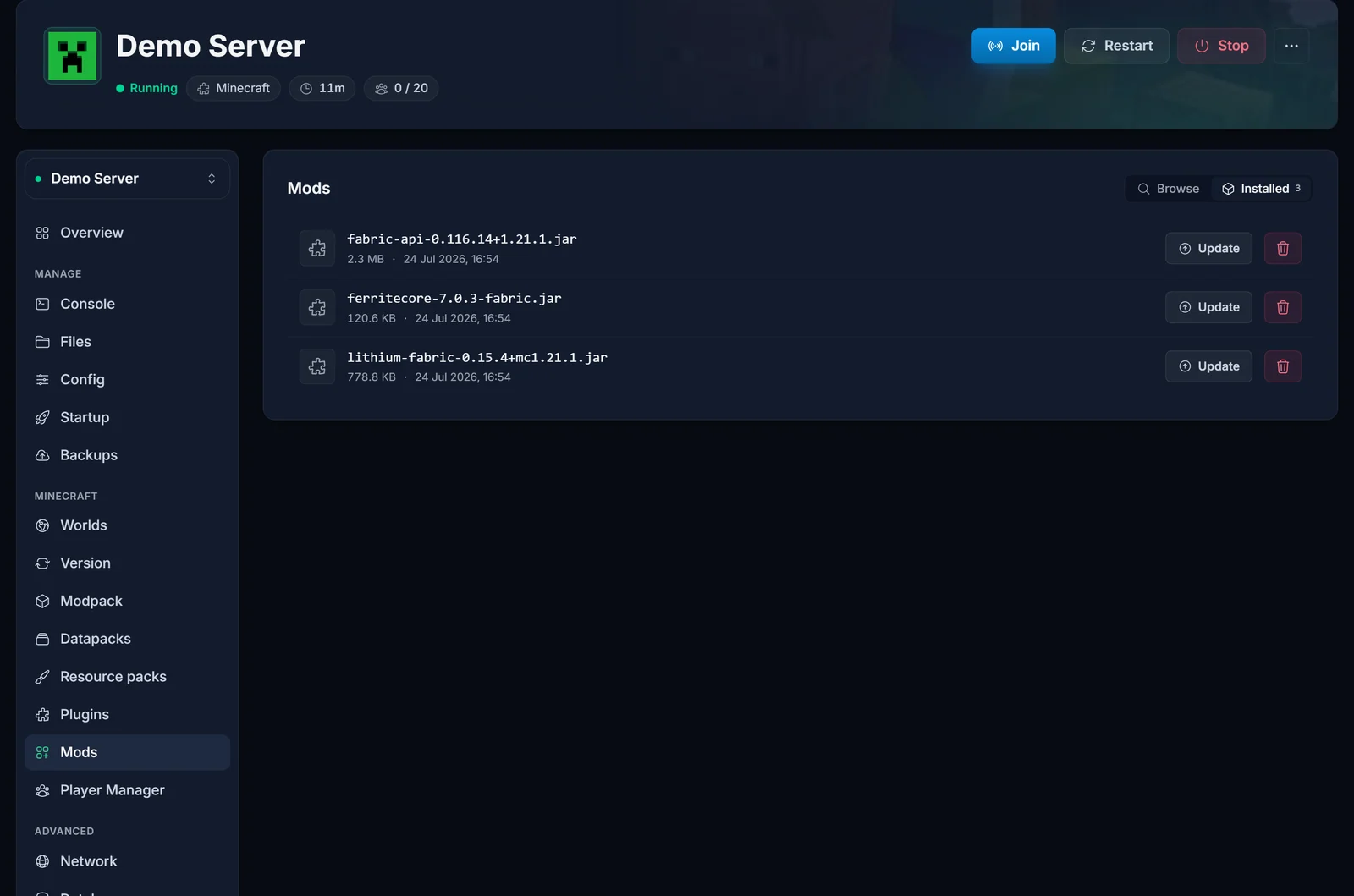
Install the API mod first
Most Fabric mods depend on Fabric API, and many Forge content mods depend on a library mod. Install the dependency before the mods that need it. If you skip it, the server crashes on boot with a message like "requires Fabric API". The panel's search finds Fabric API under that exact name.
Mods not on Modrinth or CurseForge
For a jar you downloaded elsewhere, upload it by hand. Open the Files tab, enter the mods folder, and drag the jar in (or use SFTP with the details on the Access tab). It loads on the next restart exactly like a one-click install.
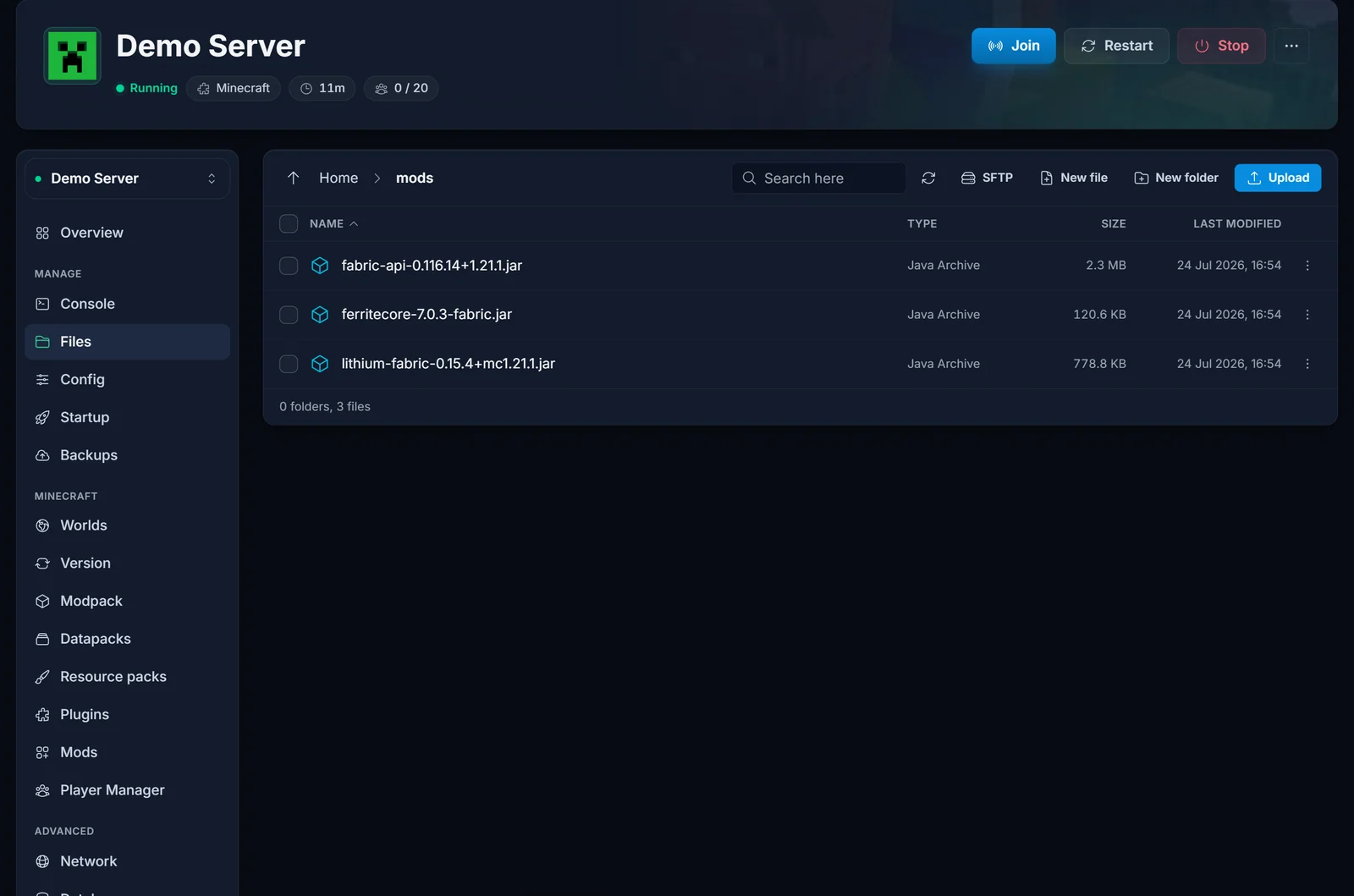
Always restart the server after adding or removing mods so it rebuilds its mod list.
Client-side, server-side, and matching your players
This is where most "it won't work" reports come from. Not every mod belongs on the server, and the ones that do usually belong on your players' clients too.
- Server-side only. Performance and utility mods like Lithium or FerriteCore run on the server and do nothing on a client. Players do not need them to join.
- Client-side only. Mods like Sodium, a shader loader, or a minimap improve one player's game. Installing them on the server does nothing (it will not crash, it just has no effect). These belong in the player's own mods folder.
- Both sides. Any mod that adds content, new blocks, items, mobs, dimensions, or mechanics, has to be on the server and on every player's client, at the same version. This is the golden rule of modded Minecraft.
If a content mod is on the server but not on a player's client, that player is kicked at login (usually "mismatched mod list" or a missing-mod error). To join a modded server, each player installs the matching loader with the Fabric or Forge installer, then drops the same mods into their own mods folder. The simplest way to hand players a ready-made, matched set is a modpack. See How to Install a Modpack on Your Minecraft Server.
Mods vs plugins: do not mix them
Mods (Forge/Fabric) and plugins (Paper/Spigot, .jar files in a plugins folder) are different worlds and cannot run on the same server. A Fabric mod will not load on Paper, and a Bukkit plugin will not load on Fabric. If your goal is server-side features (permissions, economy, protection) without asking players to install anything, you probably want plugins instead: Installing Plugins on Your Minecraft Server.
Troubleshooting
Server will not start after installing a mod. Almost always a version or dependency problem. Check that every mod is built for your exact Minecraft version and loader, and that dependencies (Fabric API, library mods) are present. The crash log names the culprit; see Find and Share Your Minecraft Server Logs.
"Requires Fabric API" (or another mod) on boot. A dependency is missing. Install the named mod, then restart.
Players cannot connect to a modded server. They are missing a content mod, or their version does not match. Give them the exact mod list and versions, or a modpack, and confirm they are on the same loader.
A mod does nothing. It may be client-side only (Sodium, minimaps, shaders). Those go in the player's client, not on the server.
More RAM needed. Content-heavy mod lists use far more memory than vanilla. If the server stutters or crashes with out-of-memory errors, size it with the Minecraft RAM Calculator and add RAM from the panel.
Wrapping up
Choose Forge or Fabric to match your mods, switch to it on the Version & software tab, then browse and one-click install from the Mods tab. Install API and library dependencies first, restart after changes, and make sure every content mod lives on both the server and your players' clients at the same version. Need a hand? Our team is on live chat 24/7. Learn more about Minecraft server hosting at DoomHosting.
