
Moving your single player farm to a dedicated server takes one step: zip up your local savegame folder and upload it. Farming Simulator 25 accepts a savegame only as a single .zip archive, either through the FS25 web admin panel or straight into data/savegame1 in your control panel's Files tab.
Where your local savegame lives
On the PC you played on, your saves are here:
Documents/My Games/FarmingSimulator2025/savegame1
Every save has its own numbered folder (savegame1, savegame2, and so on). Open the one you want to move and confirm it holds the usual files: careerSavegame.xml, farms.xml, items.xml, vehicles.xml, environment.xml and the rest. If you are not sure which number is the right farm, open careerSavegame.xml in a text editor and look at the <savegameName> line.
Now zip it, and pay attention to this part, because it is where most uploads go wrong. Select the contents of the savegame folder, not the folder itself, and compress those into a .zip. Opening the finished archive should show careerSavegame.xml at the top level. If you see a single savegame1 folder instead, the server will not find the save.
On Windows: open the savegame folder, press Ctrl+A, right click, then choose Send to > Compressed (zipped) folder.
Method 1: upload through the FS25 web admin panel
Farming Simulator ships its own browser based admin interface, and its Savegames section is built exactly for this.
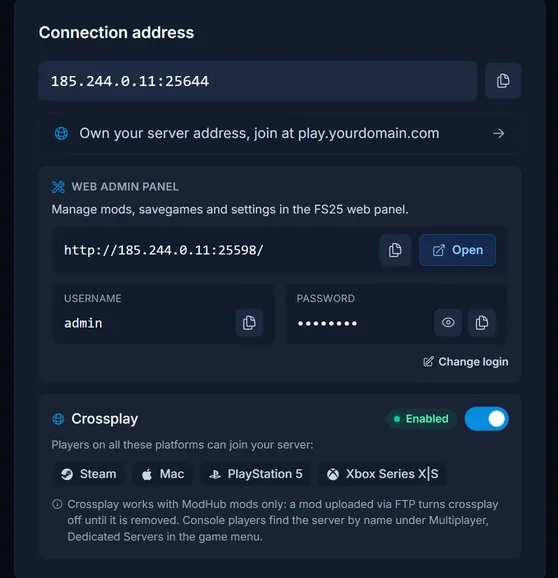
- Open your server in the control panel and start it. On the Overview page, find the Web admin panel card.
- Wait for the Open button to become clickable. The web panel only answers once the server has finished booting, so the button stays greyed out as Starting for a few minutes.
- Click Open, then log in with the Username and Password shown on the same card. Both have a copy button next to them.
- In the web interface, go to Savegames.
- Pick the slot you want to write into. Slot 1 is the one your server loads by default.
- Choose your
.ziparchive and upload it. The interface unpacks the archive into that slot. - Back in the control panel, restart the server. Your farm loads on the next boot.
The web interface refuses anything that is not a zip archive, so this route quietly enforces the correct format for you.
Method 2: upload through the panel Files tab
If the server has not booted far enough for the web interface, or you prefer working with files directly, upload the save yourself. Our Files tab has no file type restrictions, so this always works.
- Stop the server first. Farming Simulator writes the running save back to disk periodically and will overwrite whatever you upload underneath it.
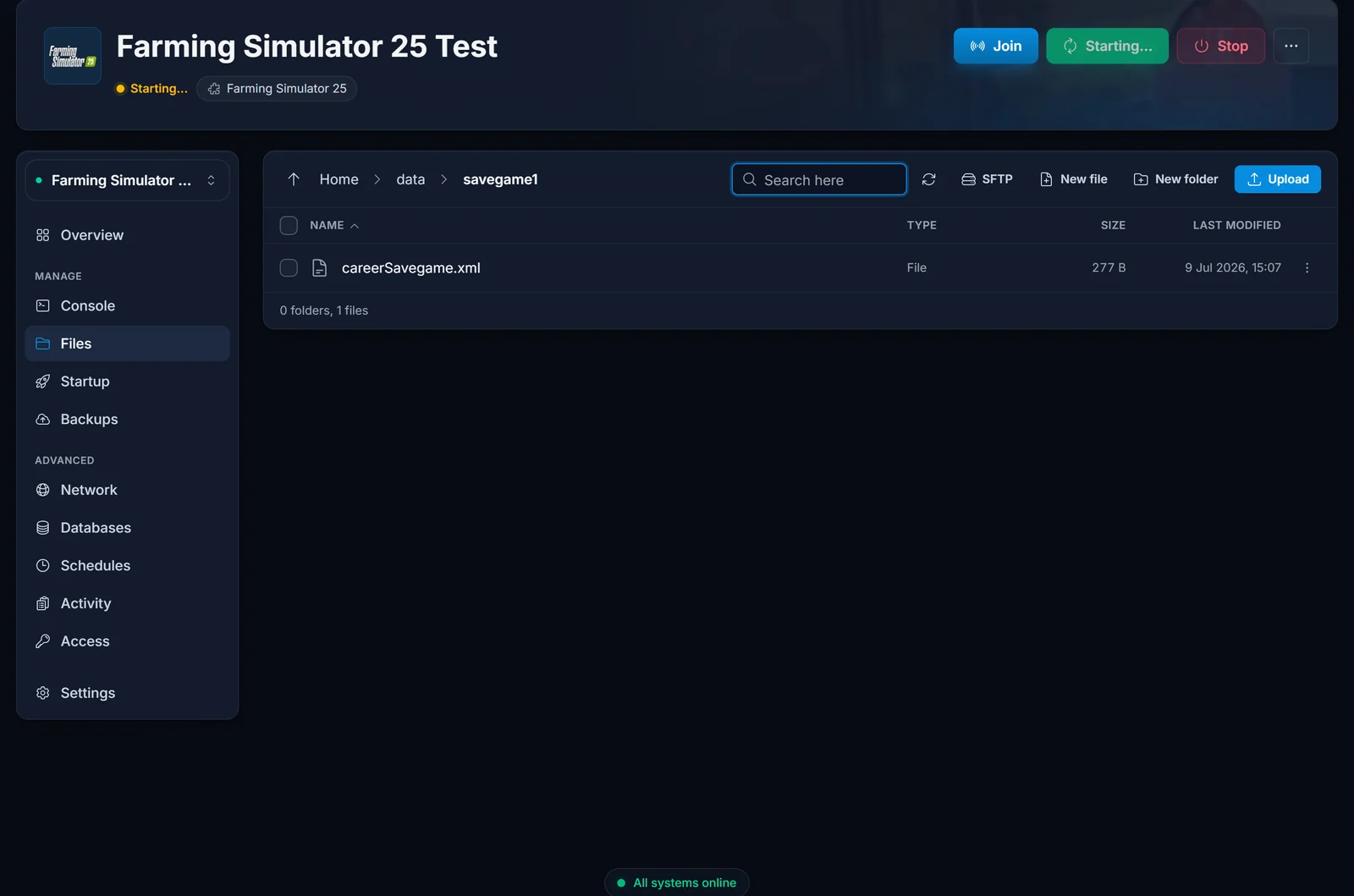
- Open the Files tab and browse to
data/savegame1. - Delete the files already in that folder if you are replacing an existing farm.
- Drag your unzipped savegame files into the folder, or use Upload. Upload the individual files, not the parent folder.
- Start the server and watch the console for the world loading.
Your server reads which slot to load from data/dedicated_server/dedicatedServerConfig.xml, in the savegame_index attribute. It is set to 1, which is why data/savegame1 is the folder that matters. Uploading into savegame2 without changing that value does nothing.
If your save uses mods
A savegame remembers every mod it was created with. Any mod your farm depends on, and especially a mod map, has to exist on the server before the save will load. Install the same mods on the server first, then upload the save. The mod versions should match too: a save built on an older version of a large mod can fail to load against a newer one.
Our Farming Simulator 25 mods guide covers installing mods into data/mods, both from the web interface and by hand.
Troubleshooting
Unable to open savegame archive 'careerSavegame.xml' for extraction
You uploaded a loose XML file instead of an archive. The web interface only accepts one .zip per upload, and it tries to extract whatever you hand it. Zip the savegame contents and upload the archive.
Could not open temporary file .../temp/upload/<id>/ for file upload
You dragged a folder into the web interface. Browsers submit folders as a set of separate files, which the upload handler cannot stage. Compress the folder's contents into a single .zip and upload that one file.
The save uploads, but loading stops at 100%.
Almost always a missing or mismatched mod. The server has finished reading the save and is waiting on content it does not have. Check the console for the mod name it is asking for, install that mod into data/mods, and restart.
The server starts with a brand new farm instead of your save.
The files went into the wrong place. Check data/savegame1 in the Files tab: careerSavegame.xml should sit directly in that folder, not inside another folder one level down. A nested folder is the usual cause, and it comes from zipping the savegame folder instead of its contents.
Your farm loads but the map is empty of your vehicles.
Part of the save is missing. vehicles.xml, items.xml and placeables.xml carry everything you built and bought, so a partial upload gives you the money and the farm but none of the world. Re-upload the complete set of files.
FAQ
Can I upload just careerSavegame.xml? No. That single file holds your money, farm name and progress, but not your vehicles, buildings, fields or animals. A save is the whole folder, and the web interface will reject a lone XML with an extraction error. Always upload the complete set.
Which savegame slot does the server load?
Slot 1, which is data/savegame1 on the server. The value comes from savegame_index in data/dedicated_server/dedicatedServerConfig.xml. Change it only if you deliberately want to keep several farms on the server and switch between them.
Will uploading overwrite my old server save?
Yes, if you write into the slot that is already in use. Download the current contents of data/savegame1 first if you want to keep it, or upload into a different slot and point savegame_index at it when you want to switch. Your local copy on your own PC is untouched either way.
Do my players need to do anything? No. Players only need the same mods your server runs. The save itself lives entirely on the server and downloads nothing to them.
Can I take the server save back to single player?
Yes. Download the contents of data/savegame1 from the Files tab into an empty savegameX folder under Documents/My Games/FarmingSimulator2025, and it appears in your single player save list.
New to your server? Our Farming Simulator 25 setup guide walks through the first boot and the settings worth changing. Everything above applies to every Farming Simulator 25 server hosted with DoomHosting, and happens in our game control panel.
