
Mods on a Farming Simulator 25 server are zip files that live in the server's /data/mods folder. Upload the zip exactly as you downloaded it, restart the server, and enable the mod for your savegame in the Web Admin Panel.
Get the mod from the GIANTS ModHub
Every official FS25 mod comes from the GIANTS ModHub, either through the in-game ModHub or the website at farming-simulator.com/mods.php. Download the mod's zip file to your PC.
Do not unpack it. The server reads mods as zip archives, so an extracted folder is ignored. If you have not set your server up yet, work through the Getting Started guide first.
Upload the zip with the Files tab or SFTP
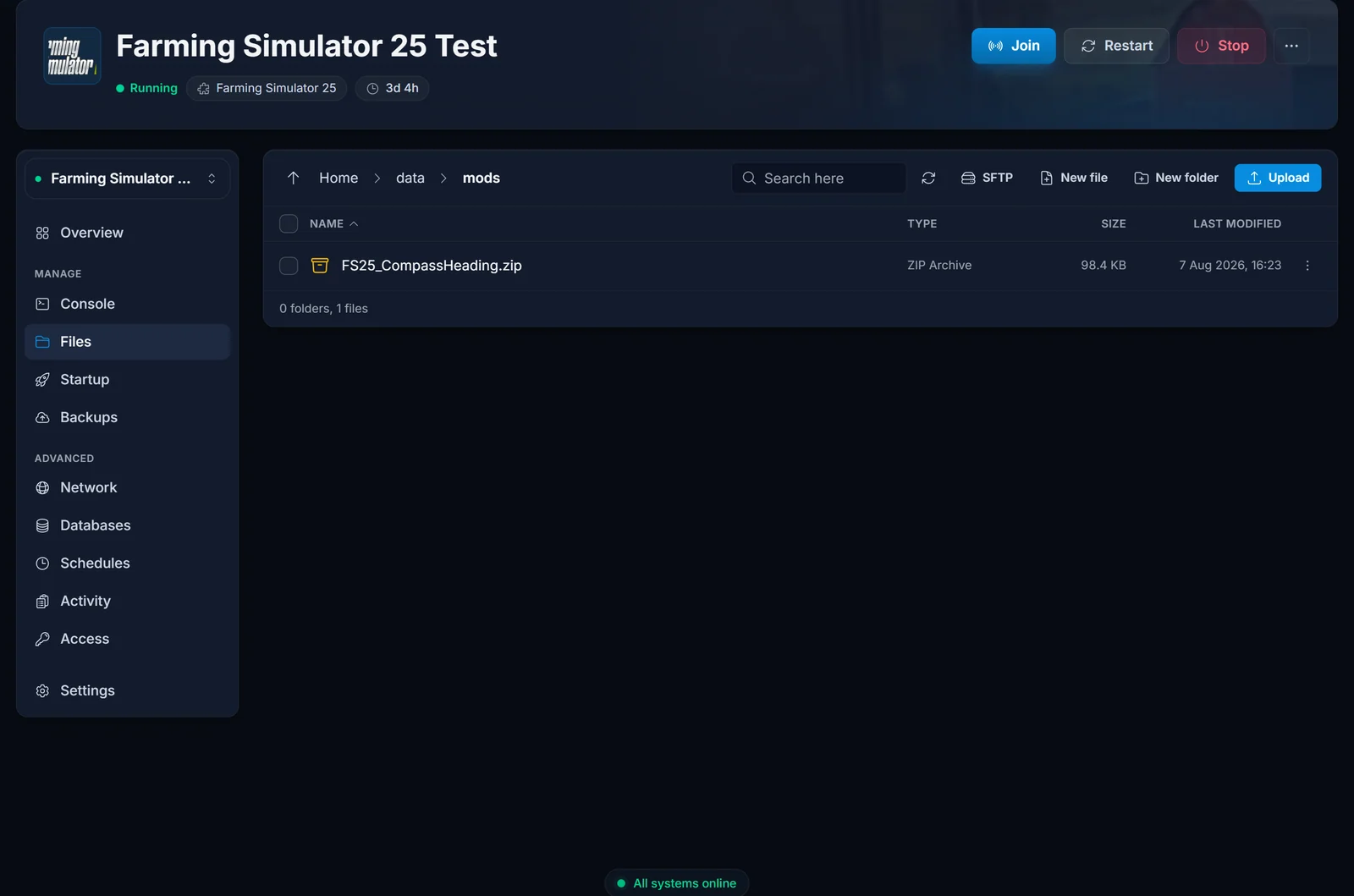
Open your server in the DoomHosting control panel and go to the Files tab. Navigate to Home > data > mods, click Upload, and drop the zip file in. That is the whole install: the file sits in the mods folder as-is.
For a batch of mods, SFTP is quicker. Your SFTP host, username and password are on the Settings tab. Connect with FileZilla or any SFTP client and copy the zip files straight into /data/mods.
Upload from the FS25 Web Admin Panel
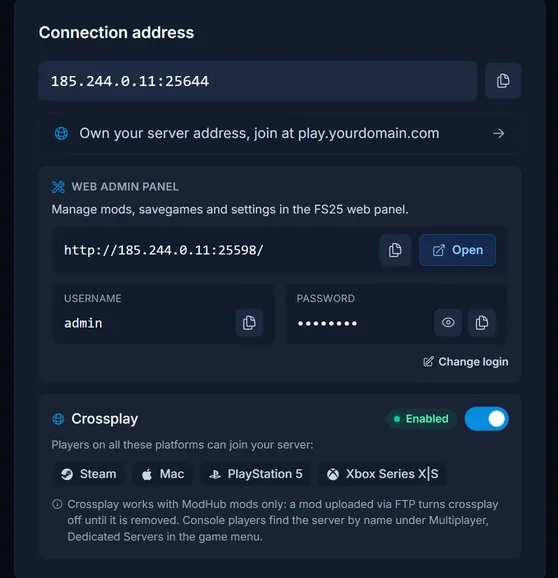
Farming Simulator 25 also ships its own browser-based admin. Its address, username and password sit on a card on the server's Overview tab, with an Open button next to them. The Web Admin Panel has a Mods page with an Upload Mods form that writes to the same folder, which is handy when you are away from your usual SFTP client.
Restart, then enable the mod
A freshly uploaded mod appears on the Web Admin's Mods page immediately, so you can confirm the upload worked without touching anything else. The game itself only reads the mods folder at startup, so restart the server before you expect the mod to work.
After the restart, enable the mod for your savegame in the Web Admin. A mod that is uploaded but never enabled does nothing in the running game.
What your players need to do
Nothing at all. When a player joins your server, the game downloads the server's mods automatically. There is no manual install step and no file to send around.
Crossplay works with ModHub mods only
FS25 dedicated-server crossplay covers PC, Mac, PlayStation 5 and Xbox Series X|S, but only while every mod on the server comes from ModHub. Upload a mod from anywhere else, an external site or a custom zip you built yourself, and crossplay switches off until you remove that mod. Console players cannot use non-ModHub mods under any circumstances.
The Crossplay card on the Overview tab spells this out, so check there if you run a mixed group of PC and console players. If crossplay matters to your server, stick to ModHub.
Maps are mods too
A custom map installs the same way: download the map mod's zip from ModHub and put it in /data/mods. The difference is how you switch to it. A new map is picked when you create a new savegame in the Web Admin, not by editing an existing one.
Keep an eye on disk space
Mod zip files count against your server's disk allowance, and large maps and vehicle packs add up quickly. Delete the zip from /data/mods for anything you no longer run, then restart so the server stops loading it.
Common Issues
A player gets a Mod Mismatch error when joining. They have an older copy of the same mod installed locally, and their version does not match the server's. Deleting the local copy or updating it to the same ModHub version fixes it. The server's copy then downloads normally.
The mod does not show up after uploading. Check that you uploaded the zip file itself and not an extracted folder, and that it landed in /data/mods rather than a subfolder. If it is listed in the Web Admin but has no effect in game, you have not restarted the server or the mod is not enabled for your savegame.
Crossplay stopped working. There is a mod on the server that did not come from ModHub. Remove that zip from /data/mods and restart, and crossplay comes back.
Still stuck? Open a ticket from your Farming Simulator 25 server control panel. Our support team is available 24/7.
