

To unclaim a Satisfactory dedicated server, stop it, delete the file ServerSettings.<port>.sav from .config/Epic/FactoryGame/Saved/SaveGames/ and start it again. The server comes back unclaimed, so you can claim it with a new name and admin password, and your world saves stay exactly where they were.
When You Need This
- You forgot the admin password. Satisfactory has no password reset button, and nobody can change server settings or load saves without it.
- You are handing the server to someone else. Unclaiming lets the new owner set their own name and admin password.
- The wrong person claimed it. A friend got to the claim screen first, or you claimed it from an account you no longer use.
What the File Holds (and What It Does Not)
The dedicated server keeps its claim in a single small file, ServerSettings.<port>.sav, where <port> is your server's game port (the number after the colon in your connect address). It is created the first time the server boots, so it exists even on a server nobody has claimed yet.
Deleting it resets:
- the server name
- the admin password, so the old one stops working
- which save the server loads automatically on boot
- the server's security certificate (a new one is generated on the next start)
Deleting it does not touch:
- your world saves in the
SaveGames/server/folder - server options such as the autosave interval, which live in a separate config file
Step 1: Back Up the File
If you only want to reset the password, a backup lets you undo the change. Pick one:
- In the panel, open Files, click the ⋮ menu next to
ServerSettings.<port>.savand choose Download. Uploading that file again (with the server stopped) restores the old claim. - Or open Backups and create a full backup. This also covers your saves.
Step 2: Stop the Server
Open your Satisfactory server in the panel and click Stop. Wait until the status reads Offline before you change any files. A running server keeps its claim in memory.

Step 3: Delete ServerSettings..sav
- Go to Files. You start in the server's home folder.
- Open
.config, thenEpic,FactoryGame,Savedand finallySaveGames. - You will see the
serverfolder (your world saves) and the fileServerSettings.<port>.sav.
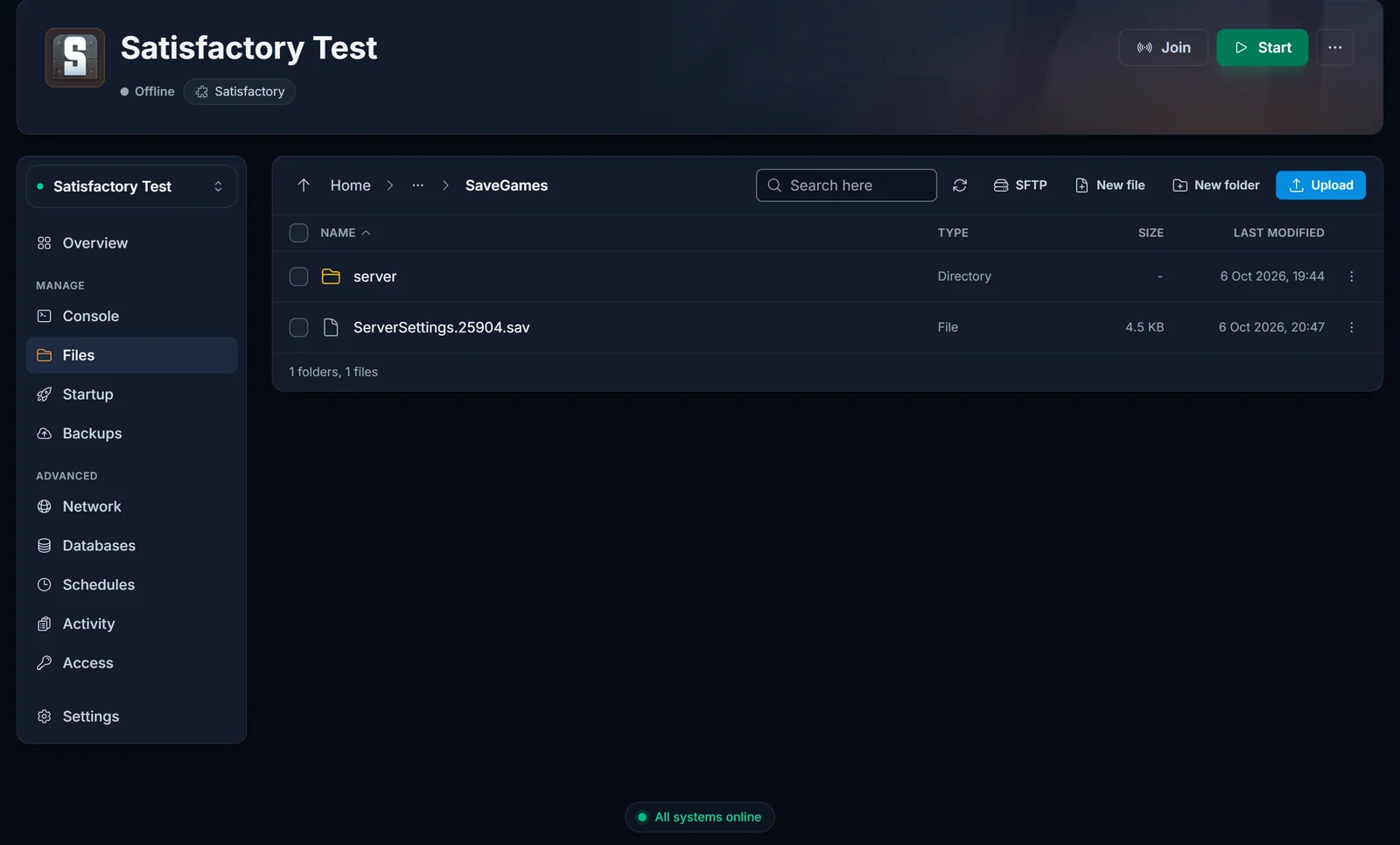
- Click the ⋮ menu on the
ServerSettings.<port>.savrow and choose Delete, then confirm.
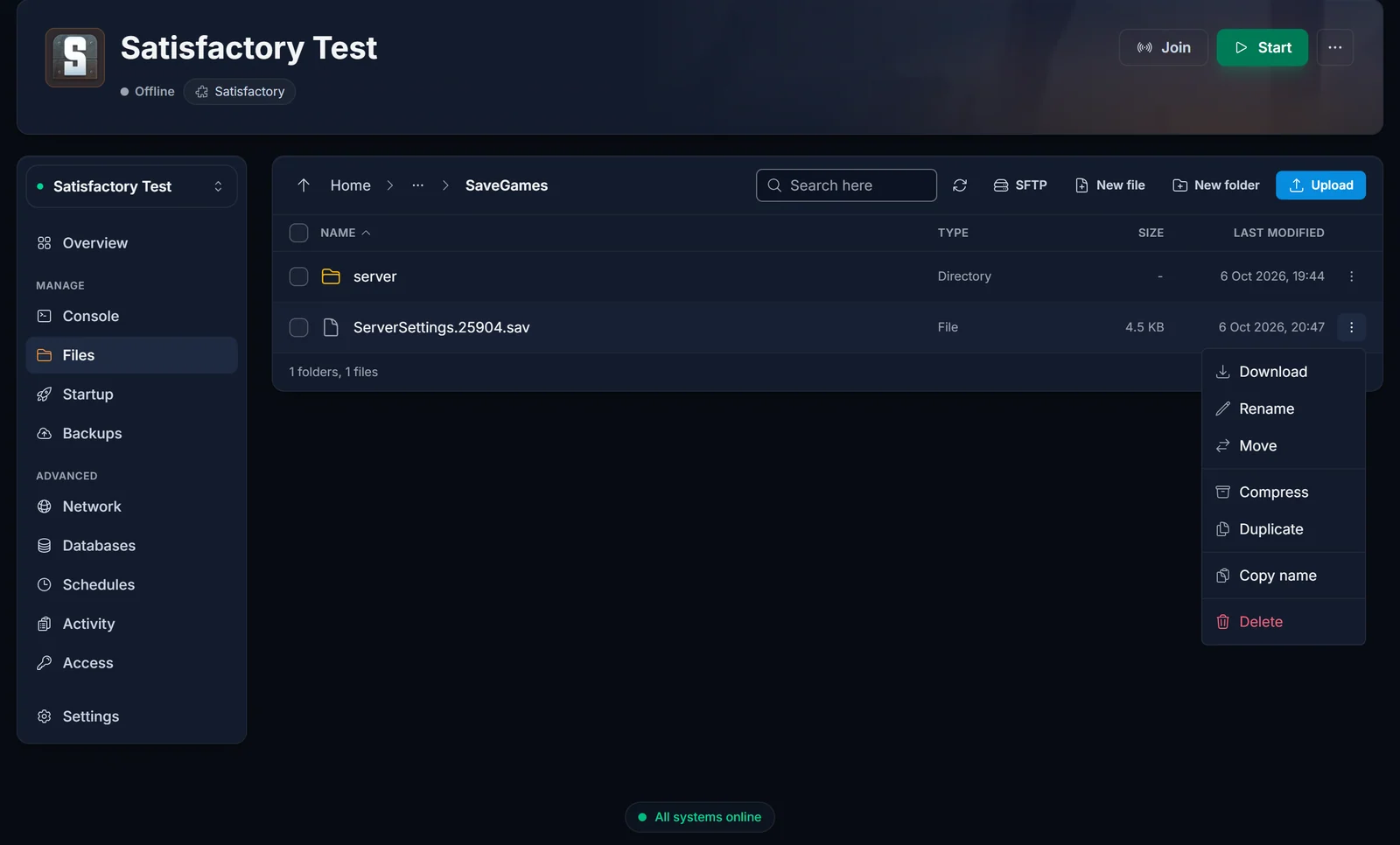
Leave the server folder alone. That is where your worlds are.
If you prefer SFTP, the full path is /home/container/.config/Epic/FactoryGame/Saved/SaveGames/. The .config folder starts with a dot, so turn on hidden files in your SFTP client if you cannot see it.
Step 4: Start the Server and Claim It Again
- Click Start in the panel and wait for the server to finish booting.
- In Satisfactory, open Server Manager. Your server now shows as unclaimed. If you never added it, follow our join guide first.
- Enter a server name and a new admin password, then click Claim Server. The full walkthrough is in How to Claim Your Satisfactory Server.
Step 5: Load Your Existing World
After a fresh claim the server does not load any world on its own, because the auto-load setting was reset with the file. Your saves are still there:
- In Server Manager, select your server and open Manage Saves.
- Pick your session and its newest save, then load it.
From then on the server loads that session automatically on every restart, just like before. Server options such as the autosave interval are kept, so you do not need to set them again.
Common Issues
- The old password still works, or the server is still claimed: the server was probably still running when you deleted the file, or you deleted the wrong file. Stop it, check that
ServerSettings.<port>.savis gone, and start it again. - There are several ServerSettings files: each one belongs to a game port. This happens if the server's port changed at some point. Delete the one whose number matches your current game port.
- I deleted the file but my world is gone: it is not. The world only stops loading automatically. Load it from Manage Saves. If the session list is empty, check that your
.savfiles are insideSaveGames/server/, and see how to upload a save if you need to put one back. - Server Manager warns about the certificate: deleting the file also creates a new security certificate for the server. Confirm it to keep connecting.
- "Failed to claim server": usually your game and the server run different versions. Make sure your Steam branch matches the server's, see switching to the Experimental branch.
Running your own factory with friends? See Satisfactory server hosting for plans.
