

Satisfactory's modding scene runs through one hub: ficsit.app, also known as the Satisfactory Mod Repository (SMR). Quality-of-life tweaks, new buildables, larger storage, map additions, and full automation overhauls all live there. A dedicated server loads those mods from a single folder, FactoryGame/Mods, and the easiest way to fill that folder is the Satisfactory Mod Manager (SMM), which connects straight to your DoomHosting server over SFTP and installs each mod, its dependencies, and the matching Satisfactory Mod Loader (SML) version for you.
This guide covers the recommended SMM method and a manual fallback, plus the two rules that cause almost every "it didn't work" message.
Before you start: two rules that save you a headache
Read these first. They are behind most mod problems people run into.
1. Only install mods marked Server compatible. On ficsit.app every mod lists its compatibility. A green checkmark in the Server column means it runs on a dedicated server. A red cross means it is client-only and will do nothing, or break startup, if you put it on the server. Check this before you install anything.
2. Your game and your server must run the exact same mods. Satisfactory checks mods when you connect. If your PC has a different mod list, or different versions, than the server, you cannot join. The clean way to handle this with friends: one person builds the mod list in their own SMM, exports it as a profile, shares the file, and everyone imports it. That keeps every client identical to the server.
What you need
- The Satisfactory Mod Manager, downloaded from ficsit.app and installed on your PC.
- Your server's SFTP details from the DoomHosting panel (host, port, username, password). We grab those in Method 1.
- Two minutes to stop and restart the server.
Method 1: Satisfactory Mod Manager over SFTP (recommended)
SMM does the whole job: it downloads each mod, pulls in dependencies, installs the correct SML build for your game version, and writes it all to the right folder on your server. No unzipping, no folder names to get wrong, no manual SML.
Step 1: Get your SFTP details from the panel
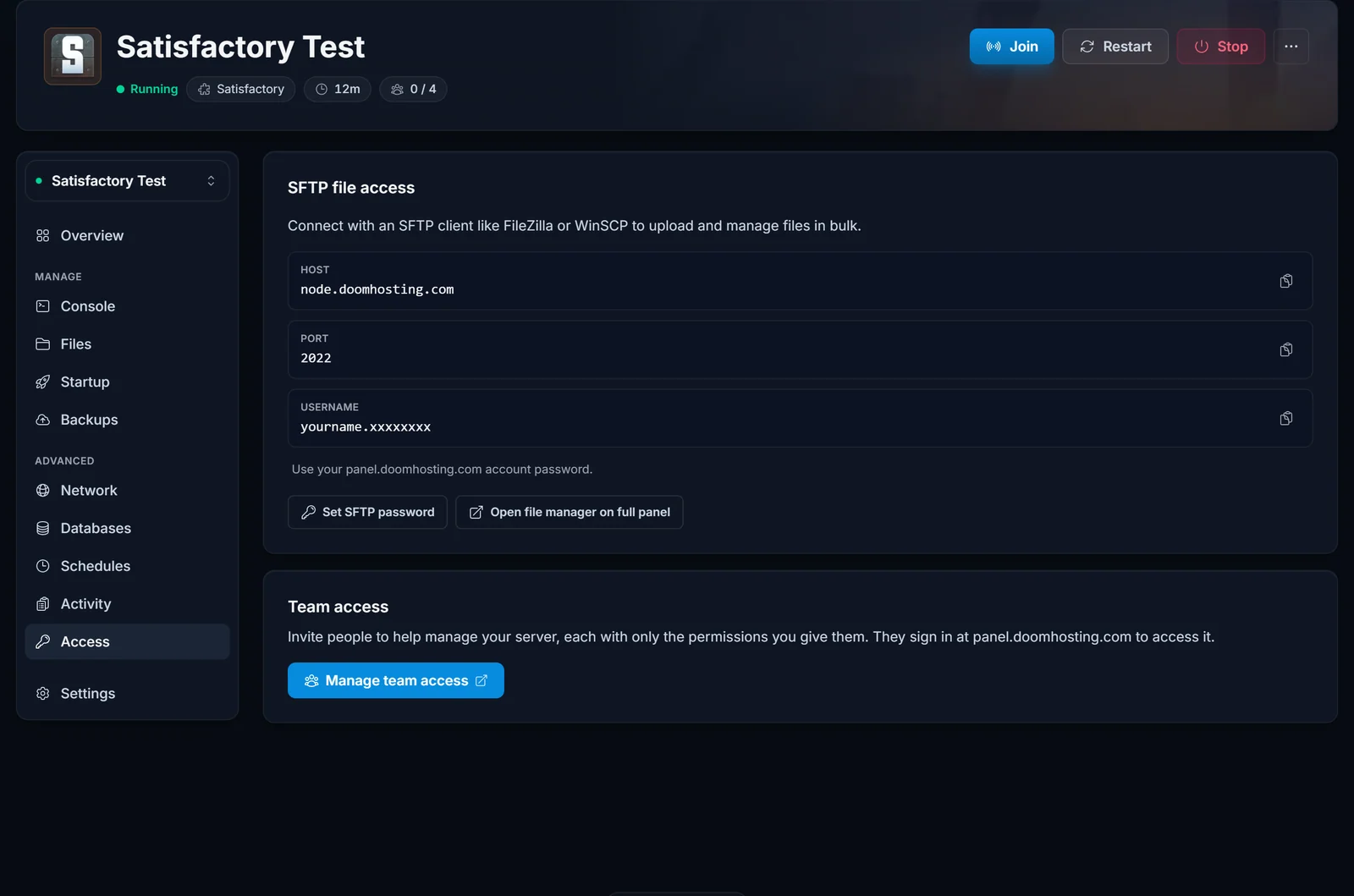
Open your server in the panel and click Access in the section menu. The SFTP file access card shows your Host, Port, and Username. The password is your own panel.doomhosting.com account password. If you have never set one, click Set SFTP password first.
Step 2: Stop the server
Mods should be added while the server is offline. Open Console and stop the server before you connect SMM.
Step 3: Add your server in SMM
- Open Satisfactory Mod Manager and click Manage Servers in the left sidebar.
- Add a new server and choose SFTP as the protocol.
- Enter the Host, Port, Username, and Password from Step 1.
- When asked for the install path, point SMM at the folder that contains the
FactoryServer.shfile (the root of your server files), then confirm. SMM verifies the connection and reads your current mod list.
Step 4: Install mods
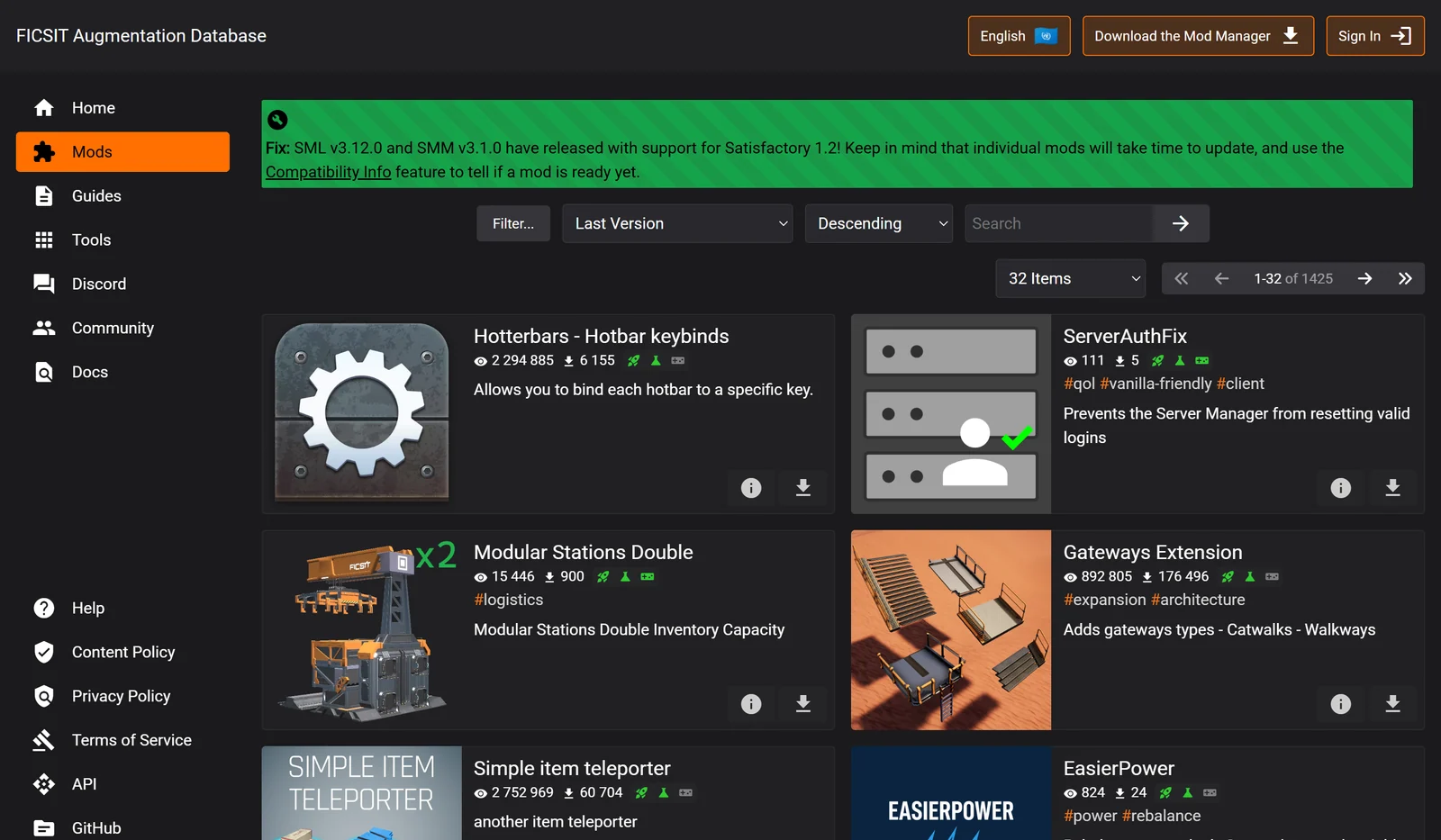
Browse the mod list in SMM, or find a mod on ficsit.app and open it in SMM, and click Install on each Server-compatible mod. SMM downloads the mod, every dependency it needs, and the right SML version, and writes them to FactoryGame/Mods on your server in one step.
Step 5: Start the server and verify
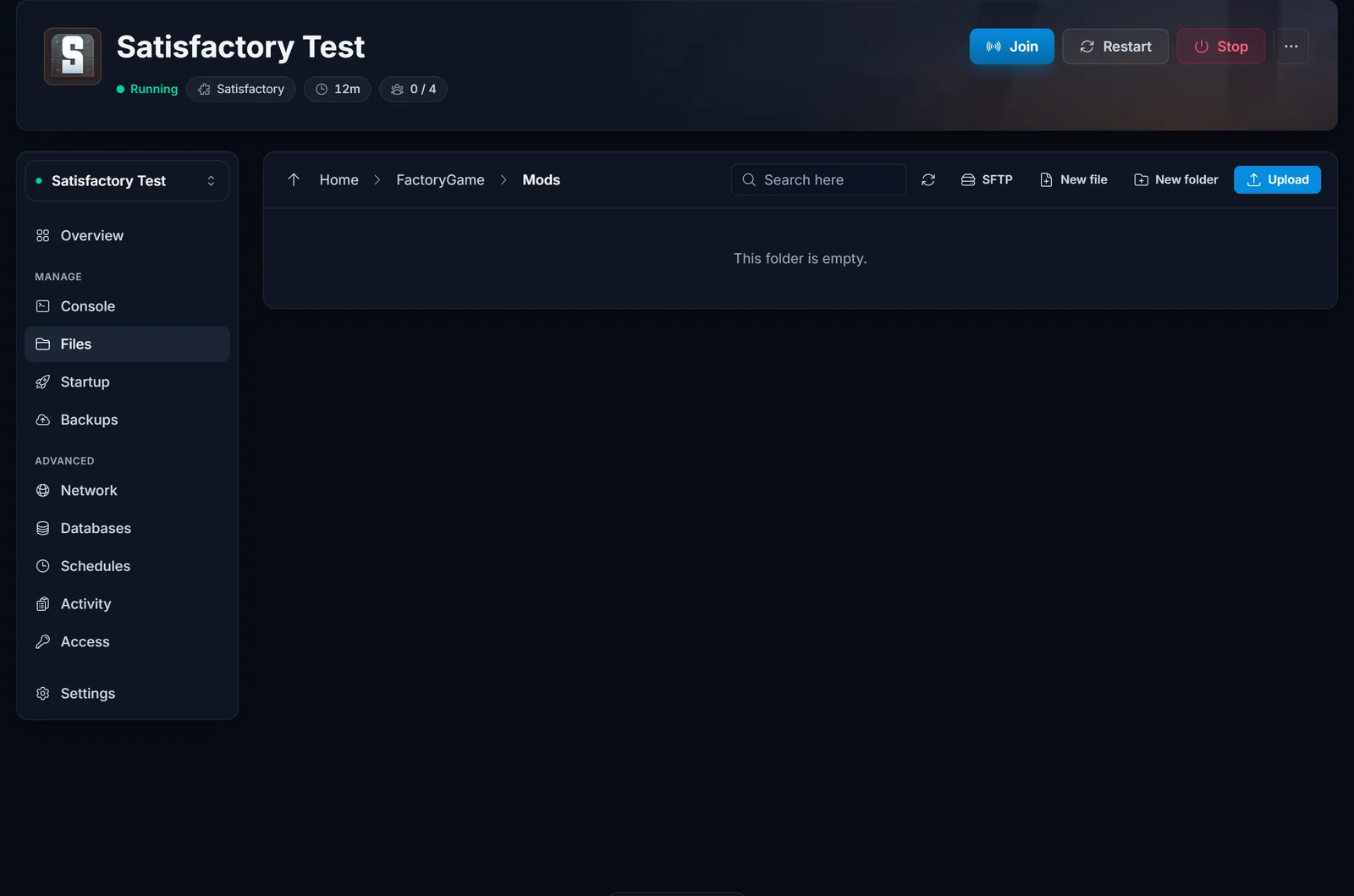
Start the server again from the Console. To double-check the install, open Files and browse to FactoryGame/Mods. You should see a folder for each mod plus an SML folder.
Then install the same mods in your own game through SMM (see rule 2) and connect.
Method 2: Manual upload with the File Manager
Use this only if you cannot use SMM, or for a mod you were handed directly. It is more work because you manage SML and every dependency by hand.
- On ficsit.app, download SML and each mod you want. Note each mod's dependencies and download those too.
- Unzip each download. Every mod becomes a folder. The folder name must match the mod exactly, and SML's folder must be named exactly
SML. - In the panel, open Files and go to
FactoryGame/Mods. If theModsfolder does not exist yet, create it. - Upload each mod folder, and the
SMLfolder, intoFactoryGame/Mods. - Restart the server from the Console.
Folder names and nesting matter here. If a mod's folder is misnamed or a dependency is missing, the server refuses to load it, which is exactly why SMM is the recommended route.
Match your game to your server
Worth repeating because it is the number one reason people cannot connect: your PC needs the same mods as the server. The simplest workflow:
- In your own SMM, build the same mod list you installed on the server.
- Open the profile menu and export it to a file.
- Share that file with everyone who plays on the server.
- Each player imports it in their SMM before connecting.
Now every client matches the server and joins cleanly.
Popular kinds of Satisfactory mods
If you are new to modding and not sure where to begin, these categories are consistently popular on ficsit.app. Always confirm the Server checkmark first:
- Quality of life: map and minimap improvements, better build tools, and inventory helpers.
- Building and decoration: extra buildables, walls, and cosmetic pieces for nicer factories.
- Logistics and power: larger storage, modded belts and pipes, and power tweaks.
- Information: tools that surface production rates and statistics in game.
Troubleshooting
- Server will not start after adding a mod: the mod or its SML version probably does not match your current Satisfactory version. Remove the last mod you added (in SMM, or by deleting its folder from
FactoryGame/Mods) and start again. - You cannot join the server: your client mod list does not match the server. Import the shared profile so both sides are identical.
- A mod does nothing: confirm it is Server compatible on ficsit.app, and make sure you restarted the server after installing.
- SMM cannot connect: recheck the host, port, and username from the Access tab, confirm you set an SFTP password, and make sure the server is fully stopped.
Frequently asked questions
Do I need to install mods on my own PC too? Yes. Satisfactory requires your game and the server to run the same mods and versions, or you cannot connect. Install them in your own SMM and use an exported profile to keep everyone in sync.
Where do Satisfactory mods go on the server?
In FactoryGame/Mods. SMM writes them there for you. With the manual method you upload them yourself.
Which mods work on a dedicated server? Only mods with the green Server compatibility checkmark on ficsit.app. Client-only mods belong on each player's PC, not the server.
Do I need to install SML separately? No, not with SMM. It installs the correct SML version automatically alongside your mods. You only handle SML by hand if you use the manual method.
Will mods affect my save? Adding mods will not wipe your world, but large overhaul mods can change save data in ways that are hard to reverse. Take a backup from the Backups tab before adding anything major, and be careful about removing a mod that has already changed your factory.
Can I install mods without a desktop app? Yes, through Method 2 in the File Manager, but SMM is strongly recommended because it handles SML and dependencies for you.
Ready to start? Rent a Satisfactory server and manage mods, saves, and settings from one panel. New to the control panel? See everything it can do on the game server control panel page.
