

What You Need
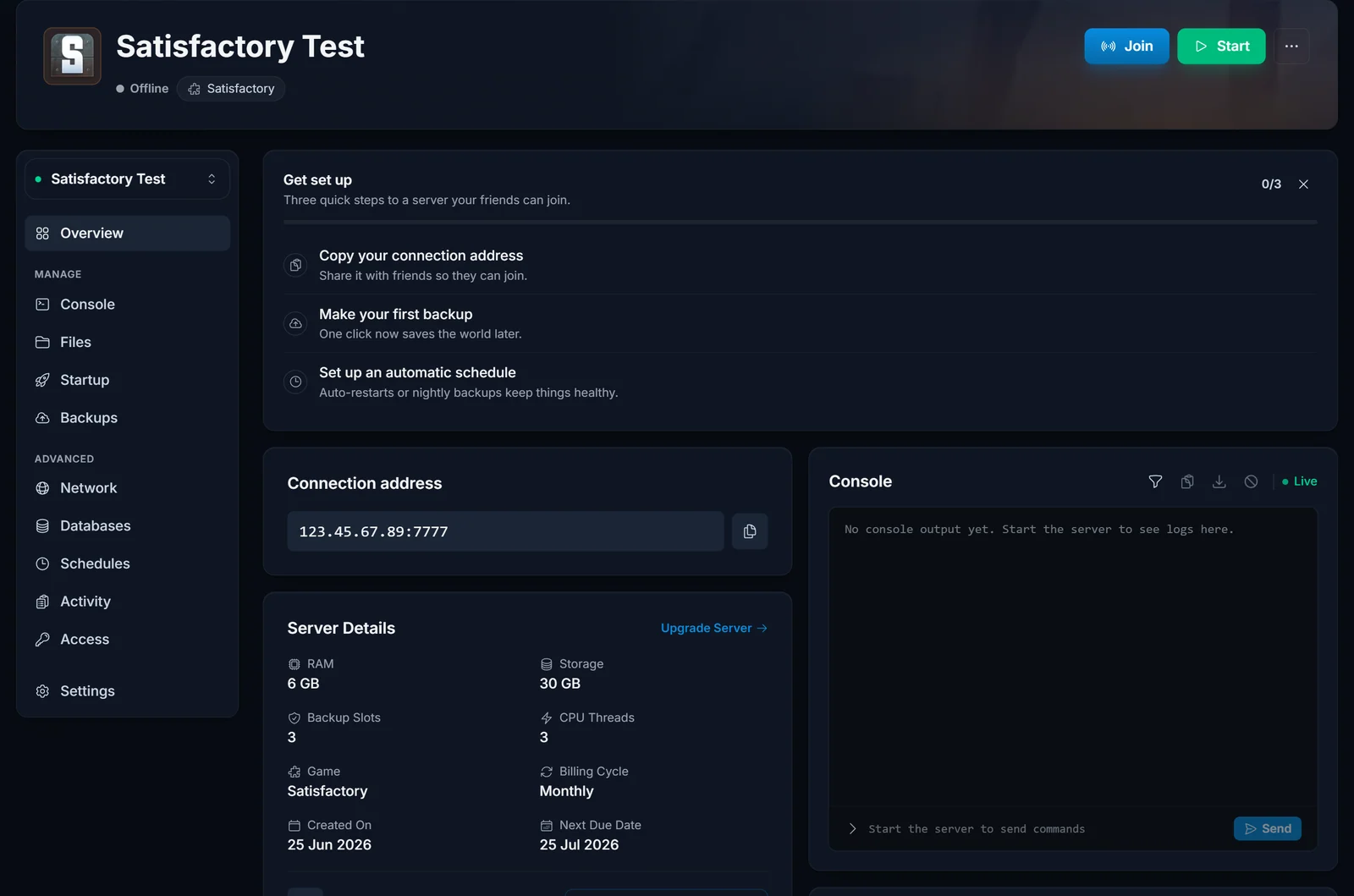
One thing from your DoomHosting panel: your server's connection address. Open your server and it sits on the Overview page under Connection address, written as IP:PORT, for example 123.45.67.89:7777. Use the copy button next to it.
Your port is assigned when the server is created, so do not assume Satisfactory's default of 7777. Always copy the exact address the panel shows.
Step-by-Step: Join via the In-Game Server Manager
Satisfactory dedicated servers don't appear in the Steam server browser. You add them manually through the in-game Server Manager.
- Launch Satisfactory and stay on the main menu.
- Click Server Manager.
- Click Add Server in the bottom-left corner.
- Paste your server address (
IP:PORT) and click Confirm. - The server appears in your list. Click it to open the management panel.
- If the server is already set up, switch to the Sessions tab, pick a save or start a new game, and click Load Save or Create Game.
- Once the world is loaded, click Join Game at the bottom right.
That's it. You're in.
First-Time Server? Claim It First
A brand-new DoomHosting Satisfactory server is unclaimed the first time it boots. The very first player who connects must claim it and set the Server Name and Admin Password. See our guide on claiming your server and becoming admin.
Optional: Set a Player Password
By default anyone with your IP can connect. If you want to keep your server private:
- Open Server Manager and select your server.
- Go to the Settings tab.
- Enable Require password to join and set a password.
Share the password with friends. They'll be prompted for it when joining.
Telling Friends How to Join
Send your friends:
- The server address (
IP:PORT) - The player password, if you set one
Have them follow the same steps above. Server Manager → Add Server → paste address. Tell them not to use the "Join Game" shortcut from the main menu; that bypasses the Server Manager and skips the version compatibility check.
Troubleshooting
- "Encryption token missing": the address was pasted into Join Game on the main menu instead of being added in Server Manager. Only the Server Manager flow performs the token handshake, so Join Game can never reach a dedicated server. Add the server in Server Manager (steps above) and join from there. Every player has to do this on their own machine, not just the owner. If the error survives that, select the server in Server Manager, remove it, then add the address again so the client requests a fresh token.
- "Connection timed out" / server not found: double-check the IP and port from the panel. Make sure the server status is Running (green), not Offline or Starting.
- "Wrong version" or version mismatch: your client and server are on different branches. See our guide on switching to the Experimental branch. Match the server's branch in Steam → Satisfactory → Properties → Betas.
- "Server is full": the default max is 4 players. The owner can raise it in the server's Startup variables. The Max Players variable on the panel's Startup tab controls this.
- Can connect to the lobby but can't load a save: usually a save written on a different branch, or a mod mismatch. Check both.
