


The easiest way to add a Rust admin is the Player Manager tab in your DoomHosting control panel: paste a player's SteamID or Steam profile link and they are added as an admin (ownerid) or moderator (moderatorid) live, while the server runs. This guide covers the panel, the difference between an owner and a moderator, how to find a SteamID64, and the classic console commands if you prefer them.
Admins vs moderators: ownerid vs moderatorid
Rust has two admin levels, and choosing the right one matters.
- Admin (ownerid) is auth level 2, the highest. Owners can use every admin command, including noclip, spawning items, teleporting, and god mode, plus kick and ban. Give this only to people you fully trust, because an owner can wipe progress or hand out items.
- Moderator (moderatorid) is auth level 1. Moderators can kick, ban, mute, and use moderation tools, but they cannot use the full cheat commands like item spawning or teleport. This is the right level for community staff who police the server without touching gameplay.
In the panel these map to the Admins list (ownerid) and the Moderators list (moderatorid). A player only needs to be on one of them.
Finding a player's SteamID64
Every Rust admin command is keyed to a 17-digit SteamID64. To find one:
- Open the player's Steam profile in a browser.
- Copy the full profile URL. If it looks like
steamcommunity.com/profiles/7656..., the number is already the SteamID64. - If it is a custom URL like
steamcommunity.com/id/somename, paste that whole link into the panel and it resolves the SteamID64 for you, or use a lookup site such as steamid.io.
You can also read a connected player's SteamID64 straight from the server console output when they join.
How to add admins and moderators in the DoomHosting panel
The Player Manager resolves each SteamID into a Steam avatar and name so you can confirm you added the right person, and it applies the change live over RCON while the server runs (a server that is offline picks it up on the next start).
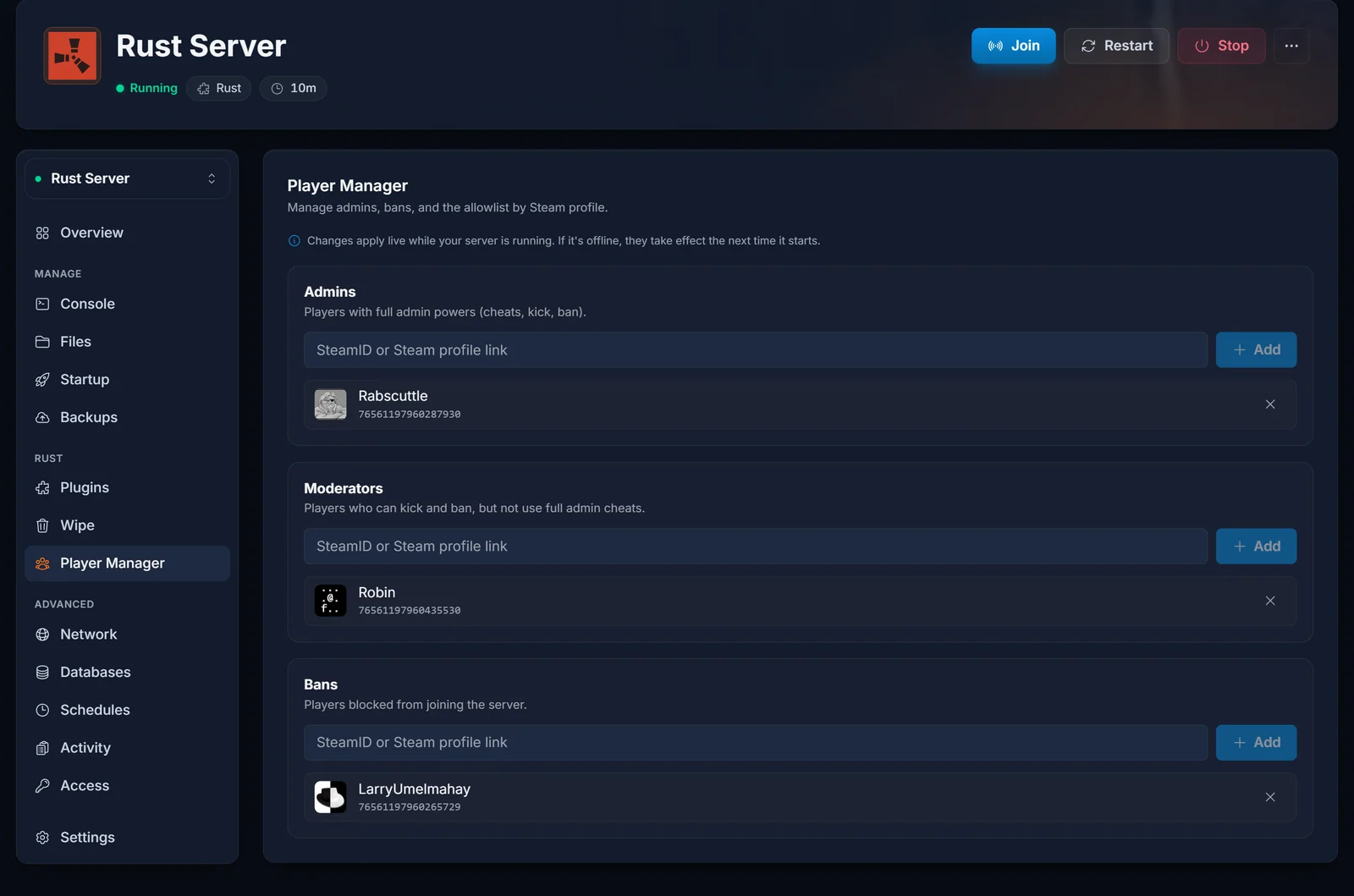
- Open your Rust server in the control panel and select the Player Manager tab.
- Find the list you want: Admins for full owners, Moderators for staff.
- Paste the player's SteamID or Steam profile link into the add field for that list.
- Click Add. The player appears as an avatar and name chip once their profile resolves.

To remove someone, click the remove icon on their chip. That drops them from the list and revokes their powers live.
Banning and unbanning players
The same tab has a Bans list. Add a SteamID or profile link there to block that player from joining, and the ban applies live so they are kicked immediately if they are online. Remove them from the list to unban. Bans are stored separately from admins, so banning a player never affects your admin lists.
The console alternative: ownerid, moderatorid, and writecfg
If you prefer to work in the console (or you are scripting), you can manage admins with commands from the Console tab, the in-game F1 console, or any RCON client. This does exactly what the Player Manager does under the hood.
ownerid 76561198000000000 "Owner name"
moderatorid 76561198000000000 "Mod name"
Replace the number with the player's SteamID64 and the quoted text with a note for your own reference. To remove someone:
removeowner 76561198000000000
removemoderator 76561198000000000
To ban and unban from the console:
banid 76561198000000000 "Name" "Reason"
unban 76561198000000000
After changing lists from the console, run server.writecfg to save them to disk so they survive a restart. The Player Manager writes the files for you, so you only need writecfg when you edit from the console directly.
Common questions
What is the difference between ownerid and moderatorid? ownerid grants full admin (auth level 2, all cheat commands plus moderation). moderatorid grants moderation only (auth level 1, kick and ban but no item spawning or teleport).
Do admins need to reconnect for it to work? With the Player Manager the change applies live over RCON, so a connected player gets their powers right away. If you added them from a config file while the server was off, it takes effect on the next start.
Where are the admin lists stored? In cfg/users.cfg (ownerid and moderatorid) and cfg/bans.cfg (banid) in your server's identity folder. These live outside the world files, so they survive a map or full wipe.
Can I whitelist my server to specific players? Vanilla Rust has no Steam whitelist. Locking a server to an allowlist is done with an Oxide plugin. See Installing Oxide on Your Rust Server.
Need a server to manage? See our Rust server hosting plans, or open the control panel for a server you already run.
