

To change or update the Minecraft version on your server, open the Version tab in the panel, pick the version you want and confirm. The server takes a backup, reinstalls itself on the new version and starts again by itself, with your worlds and settings kept. Restarting the server never changes its version, so that is the one step that always has to go through the Version tab.
This guide covers Java and Bedrock servers, going back to an older version, and what to do when the server runs a modpack.
Change the version on a Java server
- Open your server in the DoomHosting game panel and click Version in the left menu.
- The card at the top shows what the server runs right now, marked Active. Below it are the server software options: Paper, Vanilla and Spigot for plain or plugin servers, Forge, NeoForge and Fabric for mods.
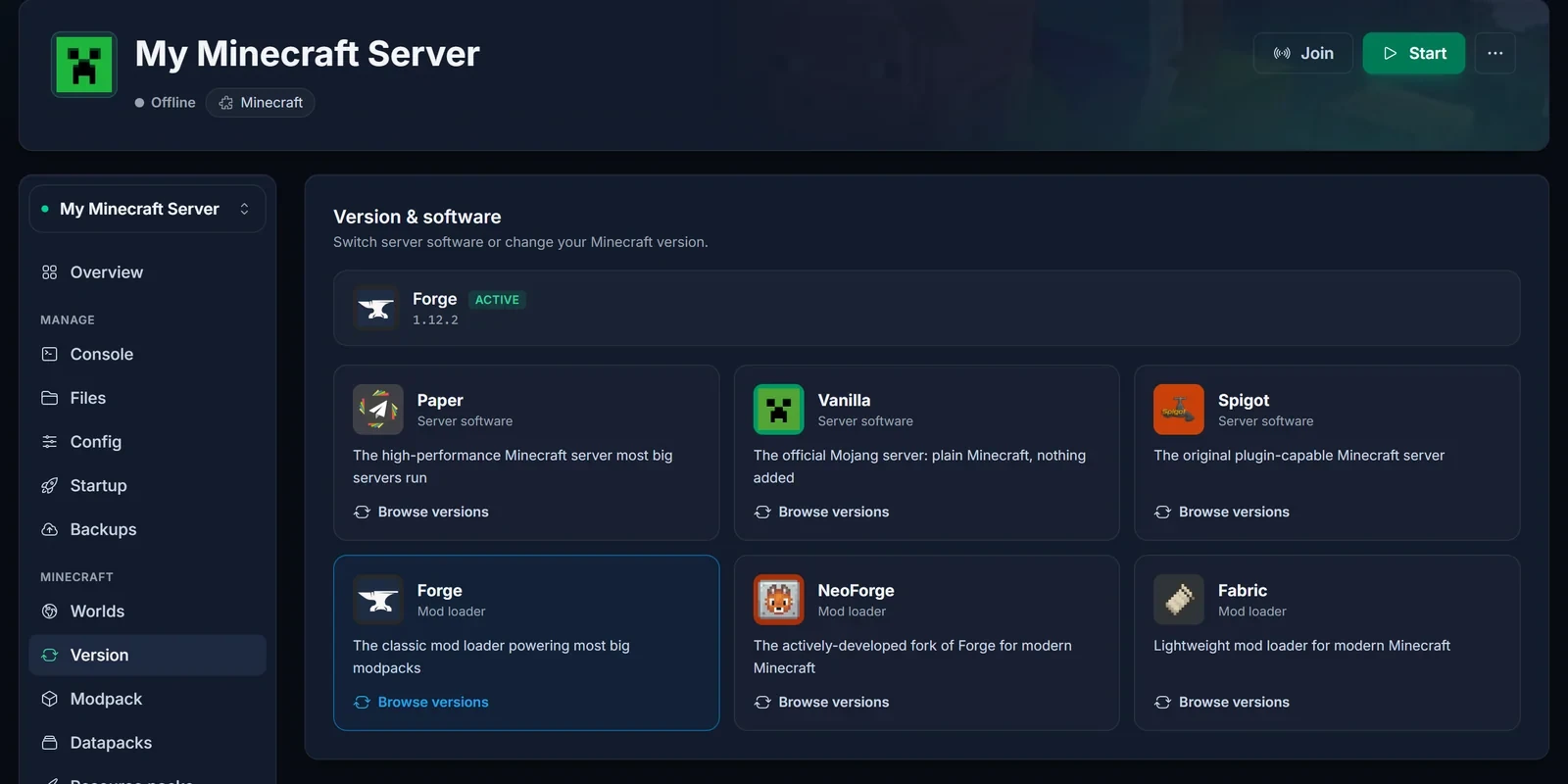
- Click Browse versions on the card you want. To keep your current software and only change the Minecraft version, pick the card that matches the Active one.
- Pick a version from the list. Latest always installs the newest release. You can also search the list, or type an exact version into Custom version if it is not listed.
- Leave Create a backup first ticked. It costs one backup slot and lets you undo the change in a minute if something goes wrong.
- Click Change version.
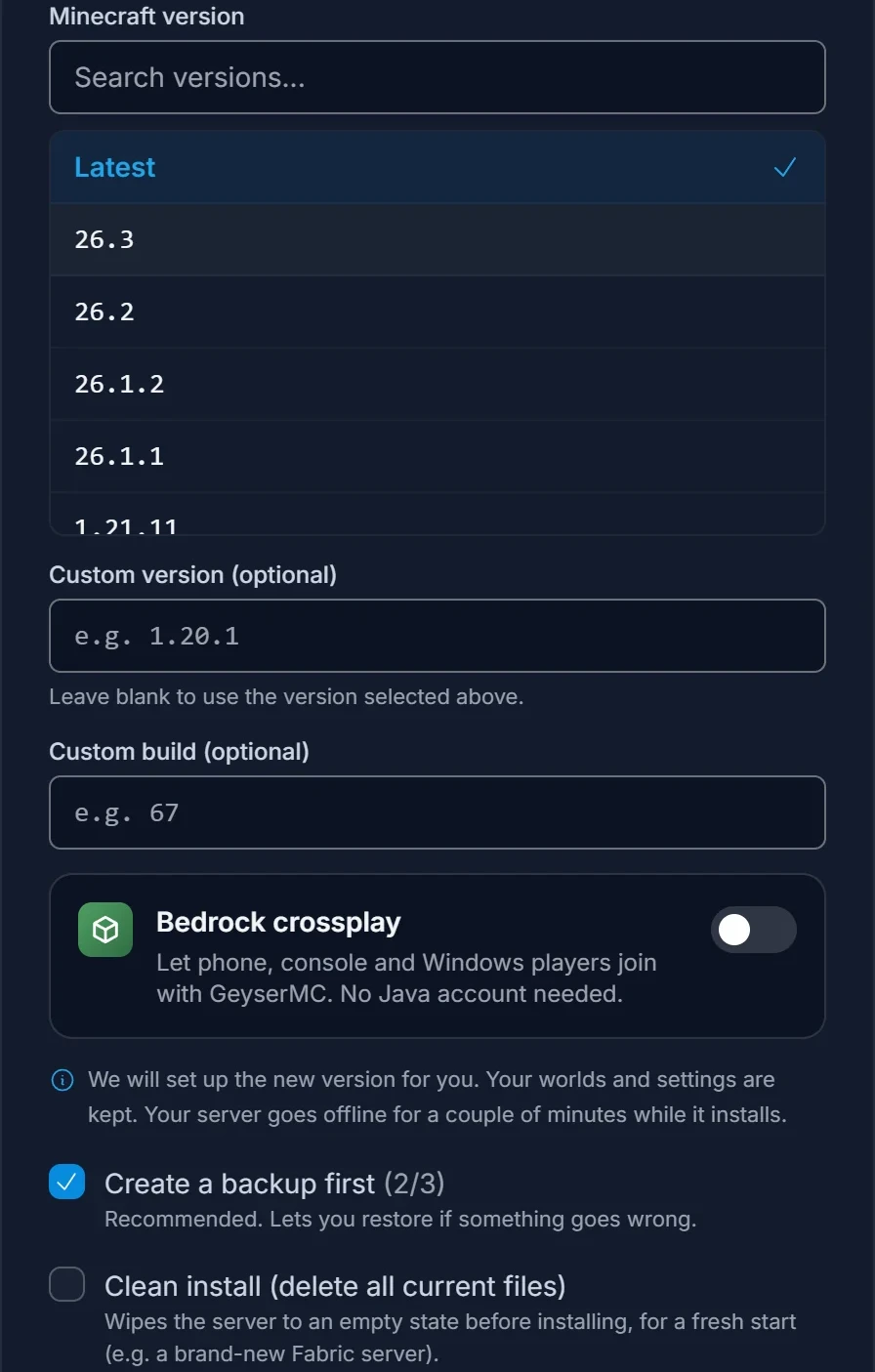
The server goes offline for a couple of minutes while it installs, then comes back on its own. Leave Clean install unticked unless you want an empty server: it deletes your worlds and configs before installing.
Update to the newest Minecraft release
Your server does not update itself when Mojang releases a new version, and a restart does not download anything. Your players' game launchers do update automatically, so after a new release they can suddenly be on a newer version than the server.
To update, open Version, click Browse versions on your Active card, pick Latest (or the exact new version) and confirm. When a newer release is out for Vanilla, Paper or Spigot, the panel also shows an update button that opens the same dialog with the new version already picked.
A brand-new Minecraft release can take a few days to reach Paper, Spigot and the mod loaders. If the newest version is not in the list for your software yet, it is not built yet. Check back in a few days, or use Vanilla in the meantime.
Changing the version field on the Startup tab does not work on its own either. That value is only read during an install, so the Version tab is the reliable way.
Switch to different server software
The same tab switches between server software, for example from Vanilla to Paper to get plugins, or to Fabric for mods. Click Browse versions on the new card and confirm like above. Your world carries over, but plugins and mods do not move between software types: Paper plugins do not load on Fabric, and Fabric mods do not load on Paper.
Not sure which to pick? Understanding Minecraft Server Types explains each one. Moving a Paper world to Vanilla, Forge or Fabric also needs a few folders merged, covered in How to Migrate a Paper World to Vanilla, Forge, or Fabric.
To let Bedrock players join your Java server, switch on Bedrock crossplay in the same dialog. See How to Enable Minecraft Crossplay with GeyserMC for the details.
Change the version on a Bedrock server
Bedrock servers have no server software to choose, only the version.
- Open your Bedrock server and click Version. The top card shows the version it runs now.
- Click Browse versions on the Release card.
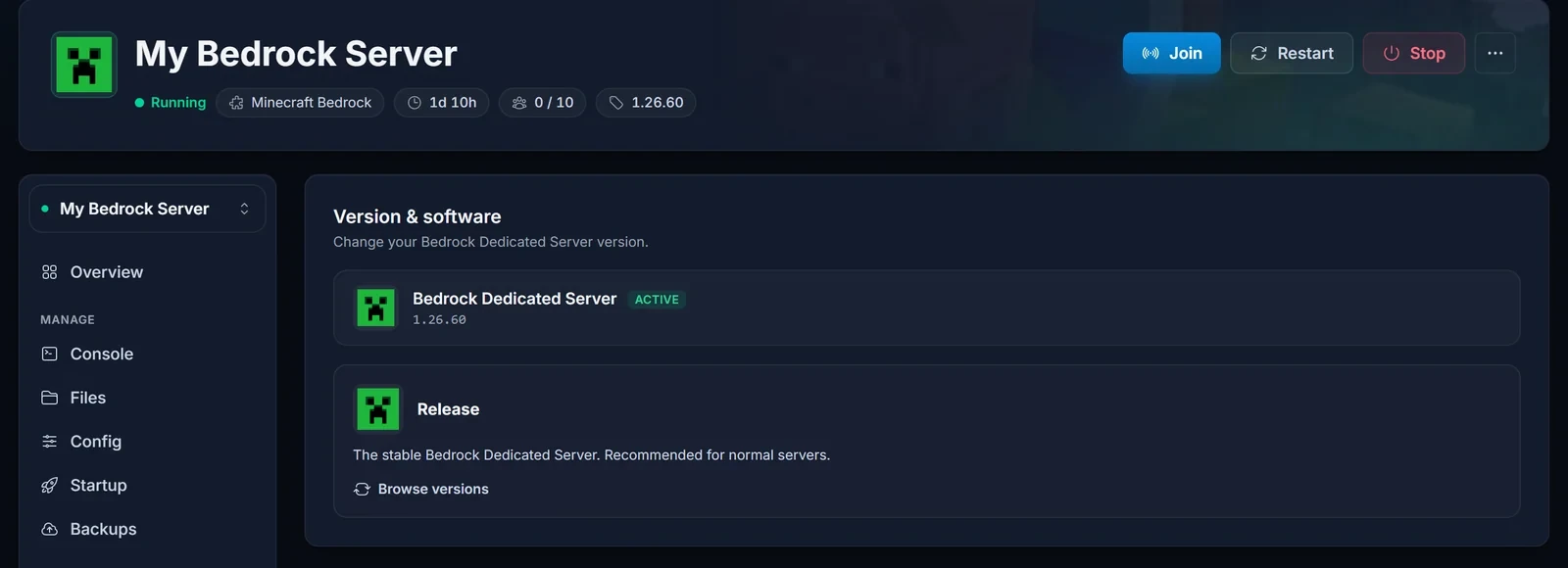
- Pick Latest or a specific version, keep Create a backup first ticked and click Change version.
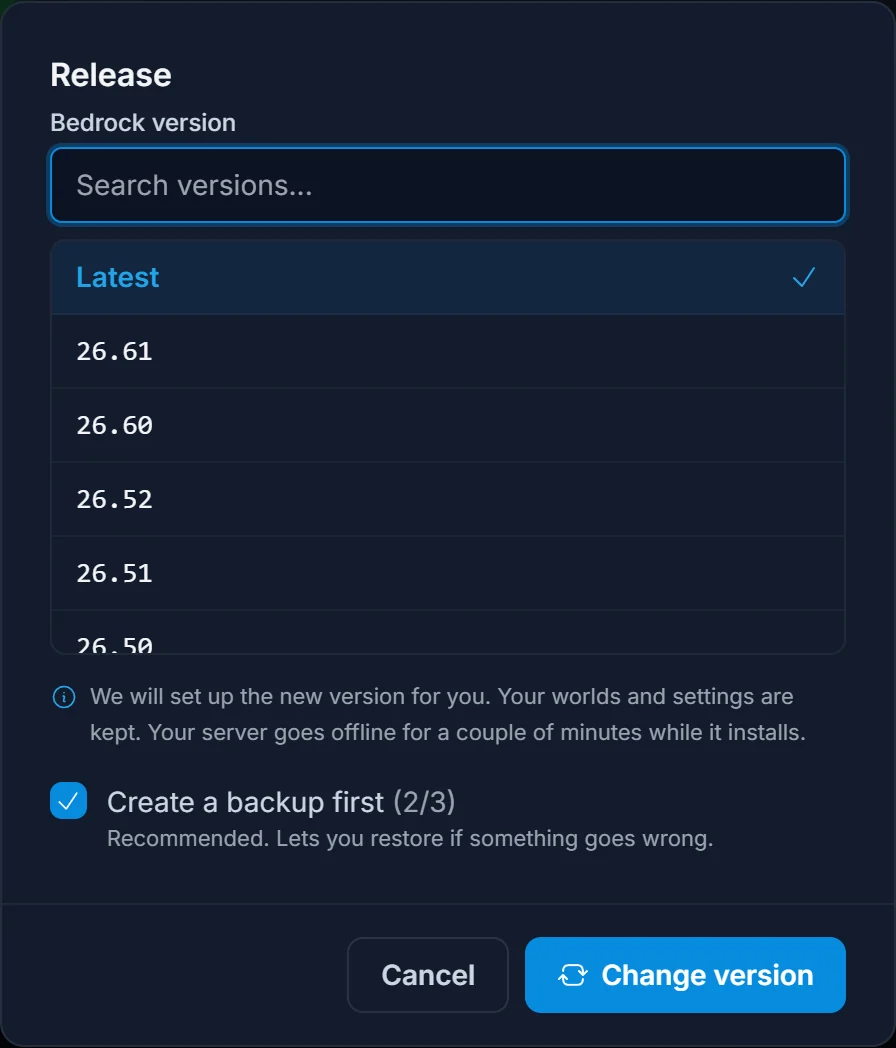
Bedrock needs this more often than Java. Phones, consoles and Windows update the game automatically, and a Bedrock client cannot join a server on an older version. When your players suddenly get "Outdated server" or cannot connect after a game update, update the server to Latest and they can join again. Players on a console that has not updated yet get the opposite message, "Outdated client", and need to update their game.
Going back to an older version
You can pick an older version in the same list, and the panel warns you first. The catch is your world: Minecraft cannot load a world that was saved by a newer version. A world played on a newer version will fail to load or get damaged on an older one.
So to go back, you have two safe options:
- Restore the backup taken before the update. That brings back the old version's world exactly as it was.
- Start a new world on the older version. How to Start Fresh on Your Minecraft Server shows how, without losing the old world.
If the server keeps showing the newer version after a downgrade, or will not start, this is almost always the reason.
Servers with mods or a modpack
Mods are built for one exact Minecraft version and one loader. When a modpack or mods are installed, the dialog shows a warning, and you have to tick the box before it lets you change anything.
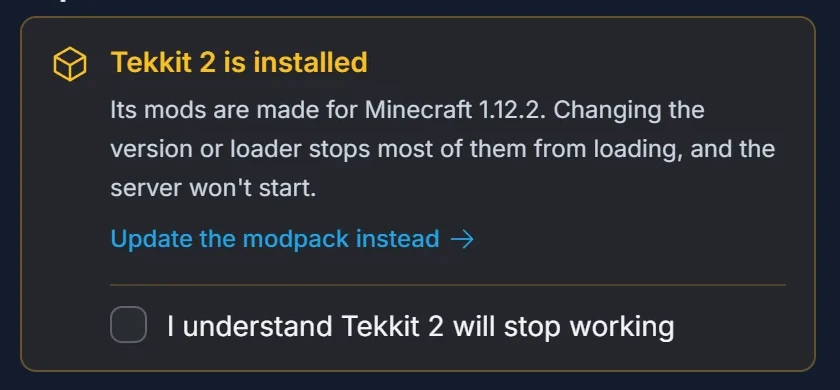
If you want a newer version of the pack, click Update the modpack instead. That installs the pack's own matching version and loader, so the mods keep working. See How to Install a Modpack on Your Minecraft Server for how the Modpack tab works.
Snapshots and pre-releases
Java servers can also run Minecraft's weekly test builds. They are on the Snapshots side of the version list. A world opened in a snapshot may not open in a normal release again, so read How to Run a Minecraft Snapshot Server before you try one on a world you care about.
Common issues
I restarted but the version did not change. A restart never updates the server. Change the version on the Version tab instead.
The version shows "Latest" instead of a number. The exact version only appears while the server is running. Start it and the number shows up.
My world is gone after changing version. Check that Clean install was not ticked. If you went to an older version, the world may simply be unreadable by it: restore the backup from the Backups tab, or go back to the newer version.
The server will not start after the change. Usually a plugin or mod that does not support the new version. Open the console to see which one, or follow Find and Share Your Minecraft Server Logs and send the log to our support. The backup from before the change gets you running again in the meantime.
