

Running a snapshot server means putting your Minecraft server on one of Mojang's weekly development builds instead of a finished release. On a DoomHosting server you do it from the Version tab in two clicks: pick Vanilla, switch the list from Releases to Snapshots, and choose a build.
What a Minecraft snapshot server is
Snapshots are the builds Mojang publishes most weeks while the next version is being made. They come in three flavours and the panel names each one: a plain snapshot such as 26.3-snapshot-10, a pre-release such as 26.3-pre-2, and a release candidate such as 26.2-rc-2. Older builds you may still see quoted around the web use the week-number format instead, like 24w33a. All of them are unfinished software, so features arrive, change and disappear between builds, and any of them can simply fail to boot.
One thing catches people out more than anything else: snapshots are vanilla only. Paper, Spigot, Fabric, Forge and NeoForge all build against finished releases, so there is no snapshot build of them to install. That is why the Snapshots option in the panel appears on the Vanilla card and nowhere else. If you want plugins or mods, stay on a release version.
Before you start
Back up your world first, every time. A world that has been opened in a snapshot is often converted to a newer data format, and an older release will then refuse to load it. There is no supported way to convert it back, so the backup is the only route home. Our guide on backing up your Minecraft world covers doing it from the Backups tab, and the panel can also take one for you as part of the switch.
Java version matters too. The 26.3 cycle snapshots require Java 25 according to Mojang's own manifest, and older Java simply will not start them. On DoomHosting you do not have to think about this: the panel reads the required version from the manifest and picks the matching Java image when it installs the build. If you self-host, check the Java version on the snapshot's download page before you download anything.
Finally, plan for downtime and for things breaking. The switch reinstalls the server software, which takes a couple of minutes, and a snapshot can crash on start with no warning at all. Do not put a world you care about on one.
Install a snapshot from the DoomHosting panel
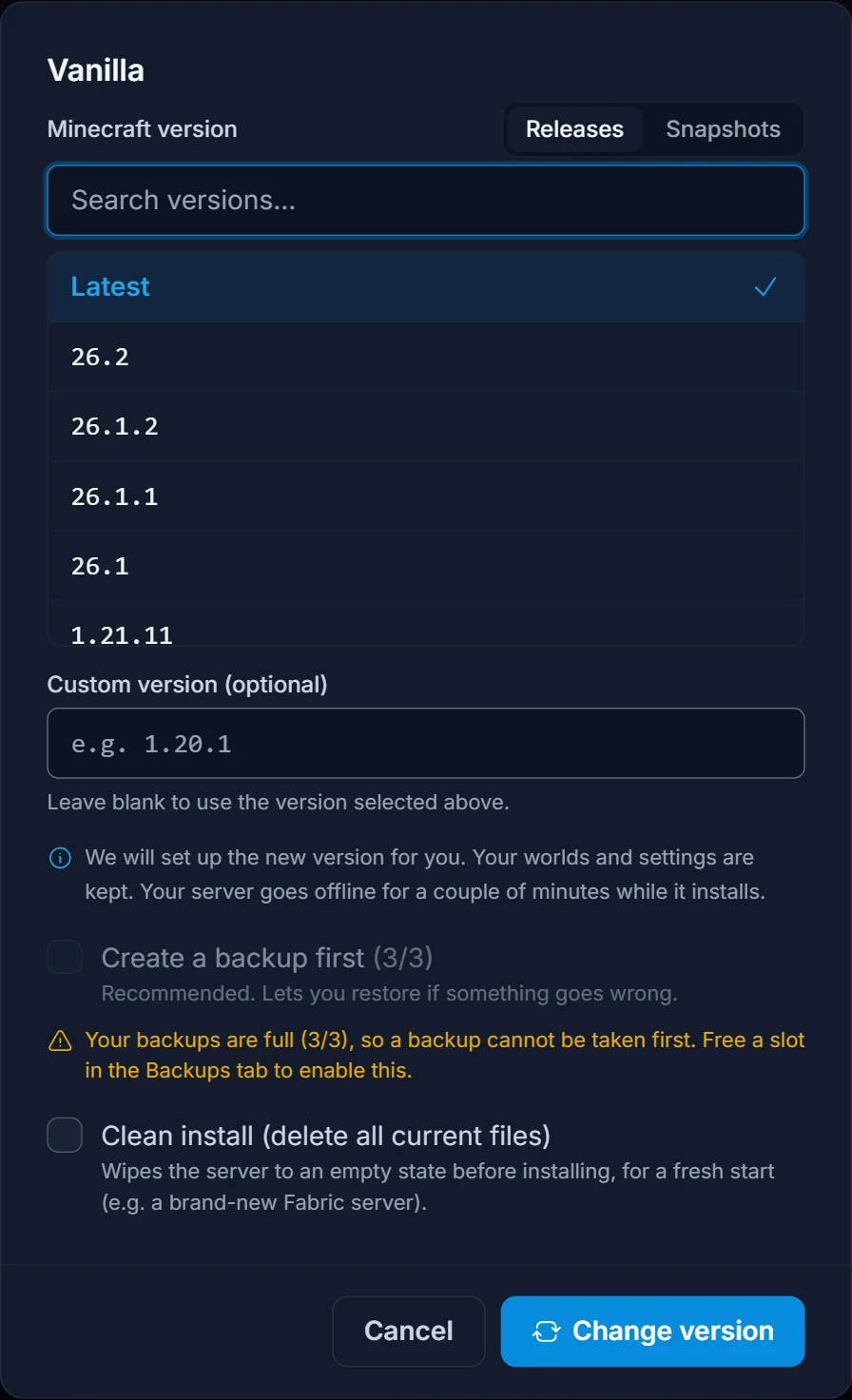
Open your server in the panel, go to the Version tab and click the Vanilla card. The version dialog opens on the Releases list, with a Releases and Snapshots pill above it.
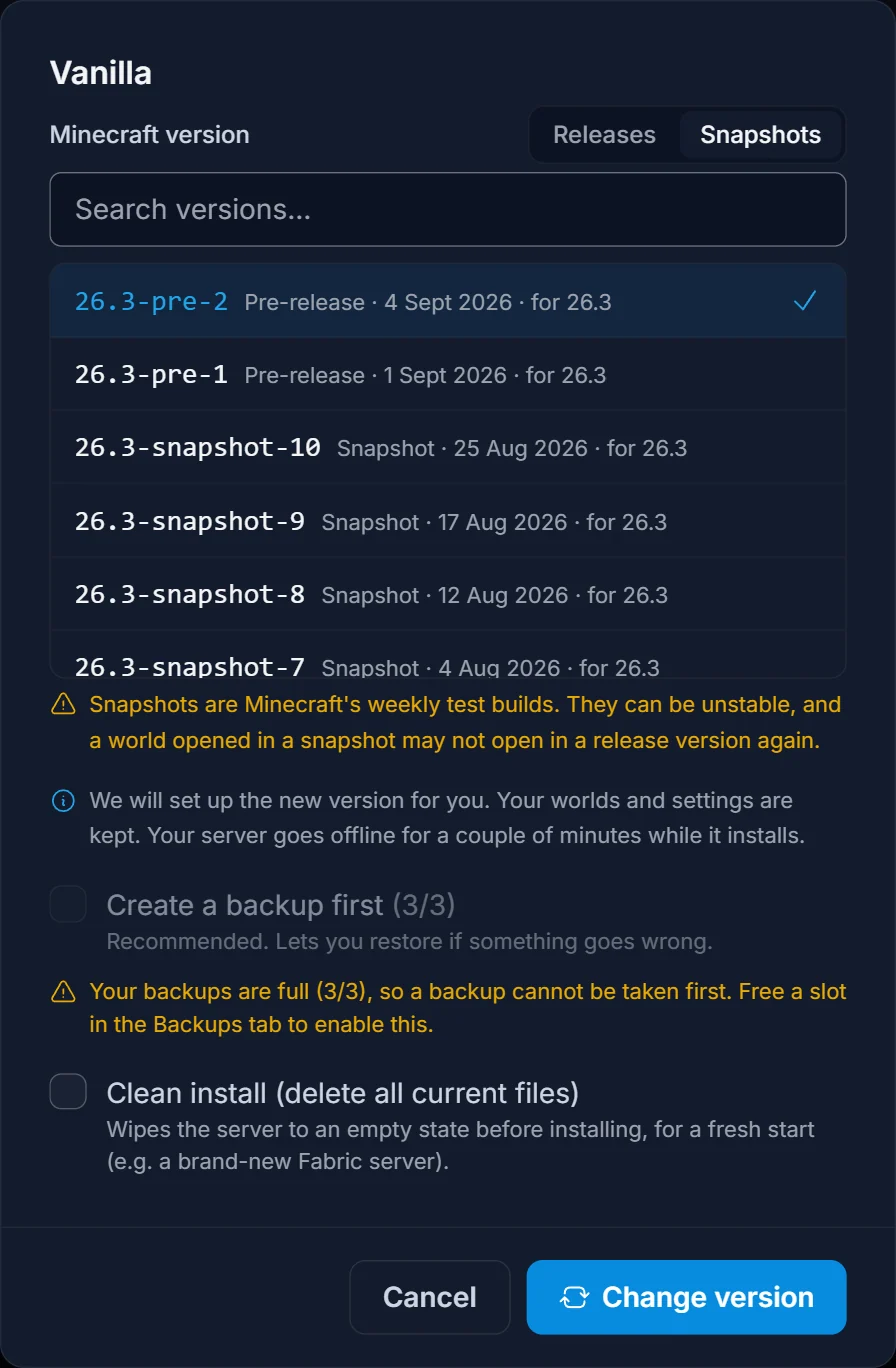
Click Snapshots. The list swaps to Mojang's development builds, newest first. Each row shows the kind of build, the date it was published and the release it is building towards, so you can tell a fresh pre-release from a snapshot that is weeks old. A warning under the list repeats the world-format risk.
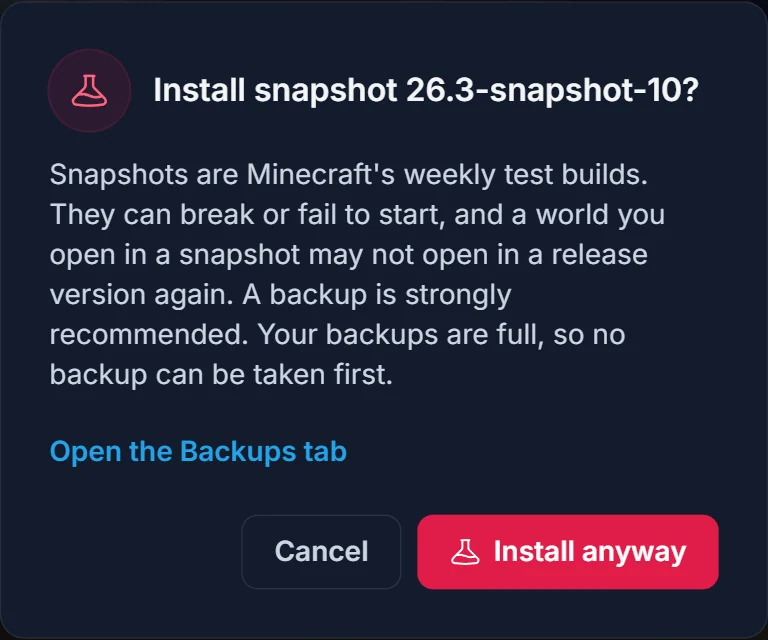
Pick the build you want and click Change version. A confirm dialog names the exact build, for example "Install snapshot 26.3-snapshot-10?", and its main button is Back up and install, which takes a fresh backup before the reinstall runs. If your backup slots are already full the button says Install anyway instead and links to the Backups tab, so free a slot there first if you want that safety net.
Confirm and the server reinstalls and restarts on its own. When it comes back, the running version on the Version tab carries a Snapshot, Pre-release or Release candidate badge, so you always know your server is on a development build.
Download the snapshot server JAR yourself
If you run Minecraft on your own machine, our download hub at /minecraft-server-download/snapshot lists every published snapshot. Each build gets its own page with the release date, the file size, the SHA-1 checksum and the Java version it needs, plus what changed in it.
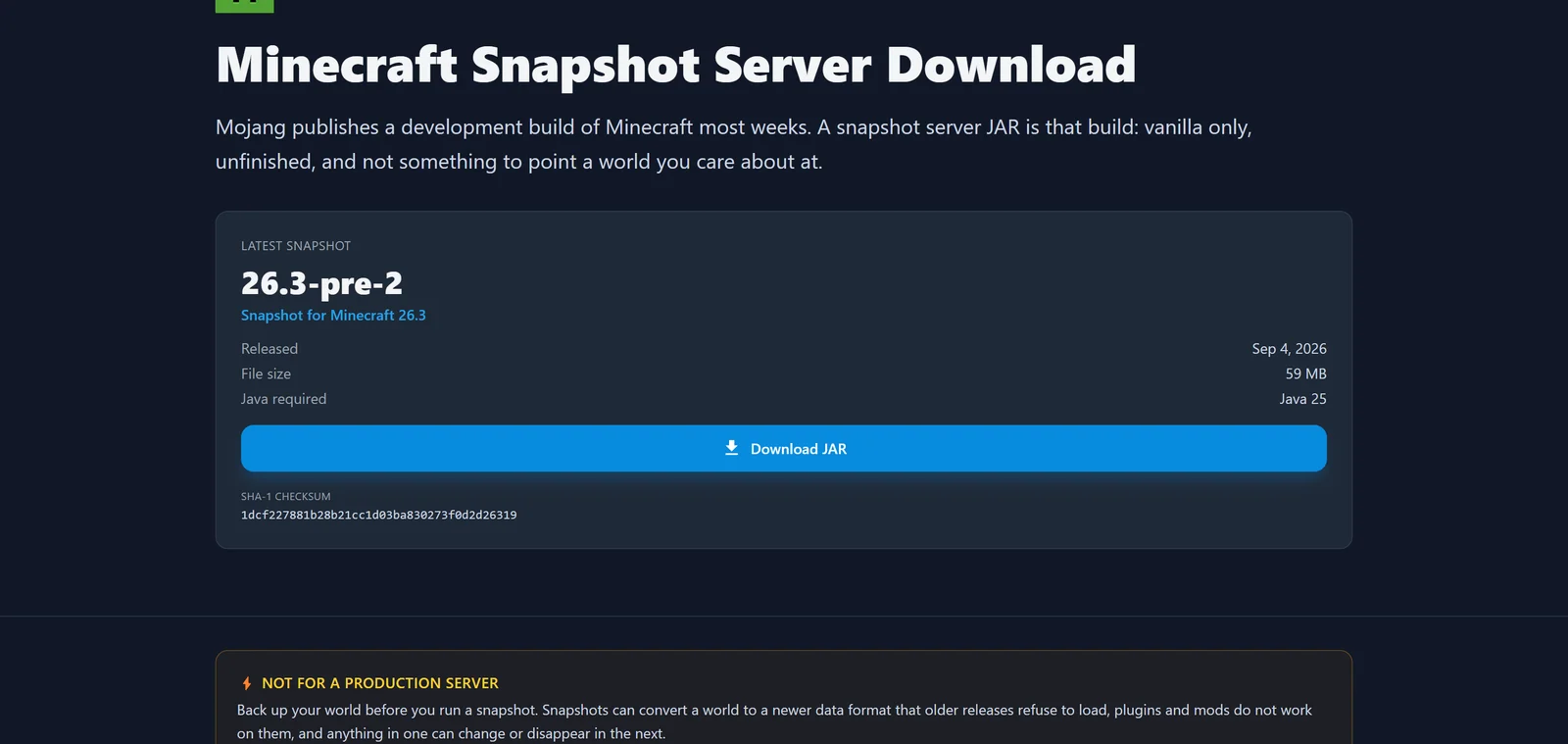
Put the JAR in an empty folder of its own, never on top of an existing server, and start it:
java -Xms2G -Xmx4G -jar server.jar nogui
The first run stops immediately and writes eula.txt. Open it, set eula=true, save, and start the server again. Our guide on accepting the Minecraft server EULA walks through that if you have not done it before. For the memory numbers, run your player count and world size through the Minecraft RAM calculator rather than guessing.
Go back to a release version
Use the same Version tab: open the Vanilla card, leave the pill on Releases and pick the version you want. Because you are leaving a development build, the panel treats it as a downgrade and asks you to confirm, with the backup option on. That confirm exists for a reason. The world on the server was last saved by a snapshot, so the release you are moving to may refuse to open it. If that happens, restore the backup you took before you went to the snapshot in the first place.
Common issues
The world will not open on a release version. The snapshot upgraded the save to a newer data format and releases only read formats they know. Restore the pre-snapshot backup from the Backups tab, or stay on a snapshot at least as new as the one that converted the world.
The server crashes on start. Snapshots ship broken sometimes, and that is normal. Read the console output, then try the previous snapshot in the list. If every build fails the same way, switch back to a release and wait for the next snapshot.
Plugins and mods are gone. Switching to Vanilla replaces the server software, so Paper plugins and Forge or Fabric mods stop loading. Nothing was deleted, the files are still there, and they load again the moment you switch back to the loader they belong to.
Wrong Java version. A snapshot built for Java 25 will not run on older Java, usually with an UnsupportedClassVersionError in the console. The panel picks the right Java image for you; on your own machine, install the version the build's download page lists.
Everything above lives in one place in your Minecraft server control panel, and if you do not have a server yet you can start one on Minecraft server hosting and be on a snapshot a few minutes later.
