

The 1.0 release turned RuneScape: Dragonwilds into a crossplay game. A dedicated server now accepts players from Steam, the Epic Games Store, the Jagex Launcher, PlayStation 5, Xbox Series X|S and Nintendo Switch 2 in the same world, and your DoomHosting server has that turned on from the moment it boots.
This guide explains what changed, where the panel shows your current crossplay state, what the underlying PlatformPolicy setting does, and how to lock a server to PC only if that is what you want.
What the 1.0 update changed
Before 1.0, dedicated servers were a PC affair. The console versions did not exist, so there was no platform policy to speak of and every player arrived over the same PC networking path.
On 1.0 the server writes a platform policy into its own configuration on first boot and defaults it to Crossplay. It then registers a session that console players can reach, and mints an invite code as the way in for players who have no way to type an address. Nothing about this needs configuring on our side. A freshly ordered server is crossplay-enabled before you ever open the panel.
One thing does need your attention: a server that was already running when 1.0 landed keeps running the older build until it restarts. Automatic updates are on for our egg, so a single restart in the panel pulls the new build and switches the server into a crossplay session. Until you do that, console players cannot see or join it.
The Crossplay card on your Overview
Open your server in the DoomHosting panel and look at the Overview page. The Crossplay card lists every platform that can currently join, with a status badge showing whether crossplay is enabled.
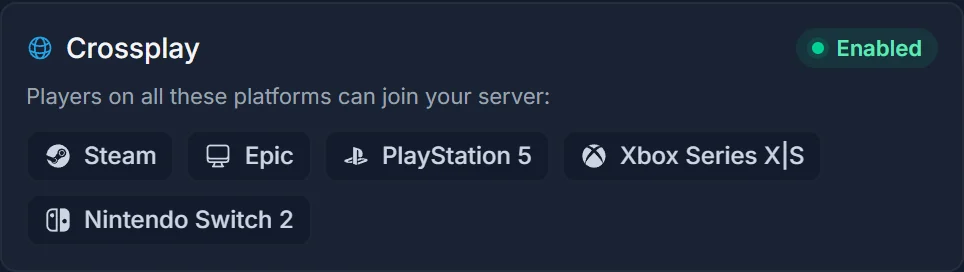
The Invite code block directly above it carries a smaller On or Off pill of its own. That one is not a copy of the card: it reports what the running session actually negotiated, read live from the server's own log, rather than what the configuration file asks for. On a healthy server both agree. If the card says enabled and the pill says off, the server is running with a different policy than you expect, which usually means the file was edited by hand.
There is no toggle on this card for Dragonwilds. The game exposes the setting only through its configuration file, and our Pterodactyl egg has no startup variable for it, so the panel shows it rather than switching it.
PlatformPolicy and its five values
The setting lives in the server's own configuration file, which the game writes and rewrites itself:
RSDragonwilds/Saved/Config/LinuxServer/DedicatedServer.ini
Inside it, under the dedicated server settings section:
[/Script/Dominion.DedicatedServerSettings]
PlatformPolicy=Crossplay
Exactly five values are accepted:
Crossplayaccepts every platform. This is the default and what your server ships with.PCaccepts PC players only, across Steam, Epic and the Jagex Launcher.PlayStationaccepts PlayStation players only.Xboxaccepts Xbox players only.Nintendoaccepts Nintendo players only.
The value is case sensitive and there is no tolerance for anything else. Type crossplay in lower case or PC Only with a space, and the server refuses to boot with a message like "The [PlatformPolicy] value [x] is invalid" in the console. If a server stops starting right after you edited this file, that is the first line to look for.
How to make your server PC only
Work in this order, because the game rewrites the file on every boot and an edit made while it is running is simply lost:
- Stop the server in the panel and wait for the state to go offline. Do not use Restart, because the running process rewrites the file on its way out.
- Open the Files tab and navigate to
RSDragonwilds/Saved/Config/LinuxServer/. - Edit
DedicatedServer.iniand change thePlatformPolicyline toPlatformPolicy=PC. - Save, then start the server.
- Open the Console tab and confirm the server reaches its usual startup lines without an invalid-value error.
Console players are now turned away, and the invite code only lets PC players in. To go back, repeat the same steps with PlatformPolicy=Crossplay. Because our panel does not manage this setting, an edit you make here survives a normal restart and a reinstall will reset it along with the rest of the configuration.
Invite codes are how console players get in
Crossplay being on is only half of what a console player needs. They also need the invite code, because a console cannot type an IP address at all. The code is eight characters with a hyphen in the middle, is shown on the Overview page whenever the server is running, and is regenerated on every single boot.
That last point matters more than it sounds. A group that plays across platforms needs the current code every time the server has restarted, including after a nightly scheduled restart. The panel always shows the live one, so make checking it part of the routine rather than pinning an old code somewhere.
The per-console walkthrough is in How to Join a RuneScape: Dragonwilds Server on PS5, Xbox and Switch 2.
Troubleshooting
Console players cannot find the server. The most common cause by far is a server still running the pre-1.0 build. Restart it in the panel, wait for it to come back up, then read the fresh invite code. Only after that restart does it register a session consoles can reach.
The server will not boot after an ini edit. Check the console output for the invalid PlatformPolicy message and compare your value against the five listed above, letter for letter.
The edit keeps reverting. You edited the file while the server was running. The game holds its settings in memory and writes them back over your change. Stop the server fully, edit, then start.
The Crossplay card and the invite-code pill disagree. The card describes the platforms the game supports, the pill reports the live session. Stop the server, check the actual PlatformPolicy value in the file, and start again.
Everything is on but a specific player still cannot join. Check the world password on the Overview page and the six-player cap. Neither is related to crossplay, and both look identical to a platform problem from the player's side.
Next steps
For PC join routes in detail, see How to Join a RuneScape: Dragonwilds Server.
For first-time setup and the rest of the panel, see Getting Started with Your RuneScape: Dragonwilds Server, or browse plans on our RuneScape: Dragonwilds server hosting page.
