

A RuneScape: Dragonwilds world picks its type (Normal, Creative, Custom or Hardcore) and every one of its settings at the moment you create it, and those choices live inside the save file itself. So the way to run a Custom or Creative server is to create that world once on your own PC, then upload the .sav file in your server's Worlds tab and make it active.
Why you cannot switch an existing world to Creative or Custom
World type is not a server setting. There is no line in a config file, no startup variable and no console command that turns a Normal world into a Creative one, and the dedicated server has no world creation screen where you could pick difficulty, resource rates or any of the Custom sliders. All of that is written into the save when the world is generated, and the server only ever loads a save that already exists.
That is not a limitation of our hosting. Every Dragonwilds host documents the same route, because the game itself offers no other one. The single player client is the only place that can create a world, so it is the only place those settings can be chosen. Once you understand that, the rest is simple: build the world you want once, then hand the finished save to the server.
If you want a fresh Normal world instead, you do not need any of this. Delete or rename nothing, just point the server at a world name that does not exist yet and it generates a new Normal world under that name on the next start.
Create the world on your PC
You need the game installed on a PC. A world made in single player carries its type and settings with it, and the dedicated server will happily load it.
- Start RuneScape: Dragonwilds and choose to create a new world.
- Pick the type you actually want on the server: Normal, Creative, Custom or Hardcore. If you pick Custom, set every slider and toggle now, because this is your only chance to set them.
- Give the world a name you are happy to keep. This name is the one your server will use, so make it something you will recognise in the Worlds tab.
- Enter the world and play for a minute or two. A world that is created but never entered may not have a usable save on disk yet.
- Leave the world through the in game menu and wait for the save to finish. Do not kill the game from Task Manager, and do not copy the file while the game still has the world open.
Now find the save. Press Windows + R, paste the path below and press Enter:
%LOCALAPPDATA%\RSDragonwilds\Saved\SaveGames
That folder holds one .sav file per world, named after the world. You may also see .sav.backup files sitting next to them. Those are the game's own rolling copies, not worlds, so leave them alone and take the plain .sav.
Upload the world in the Worlds tab
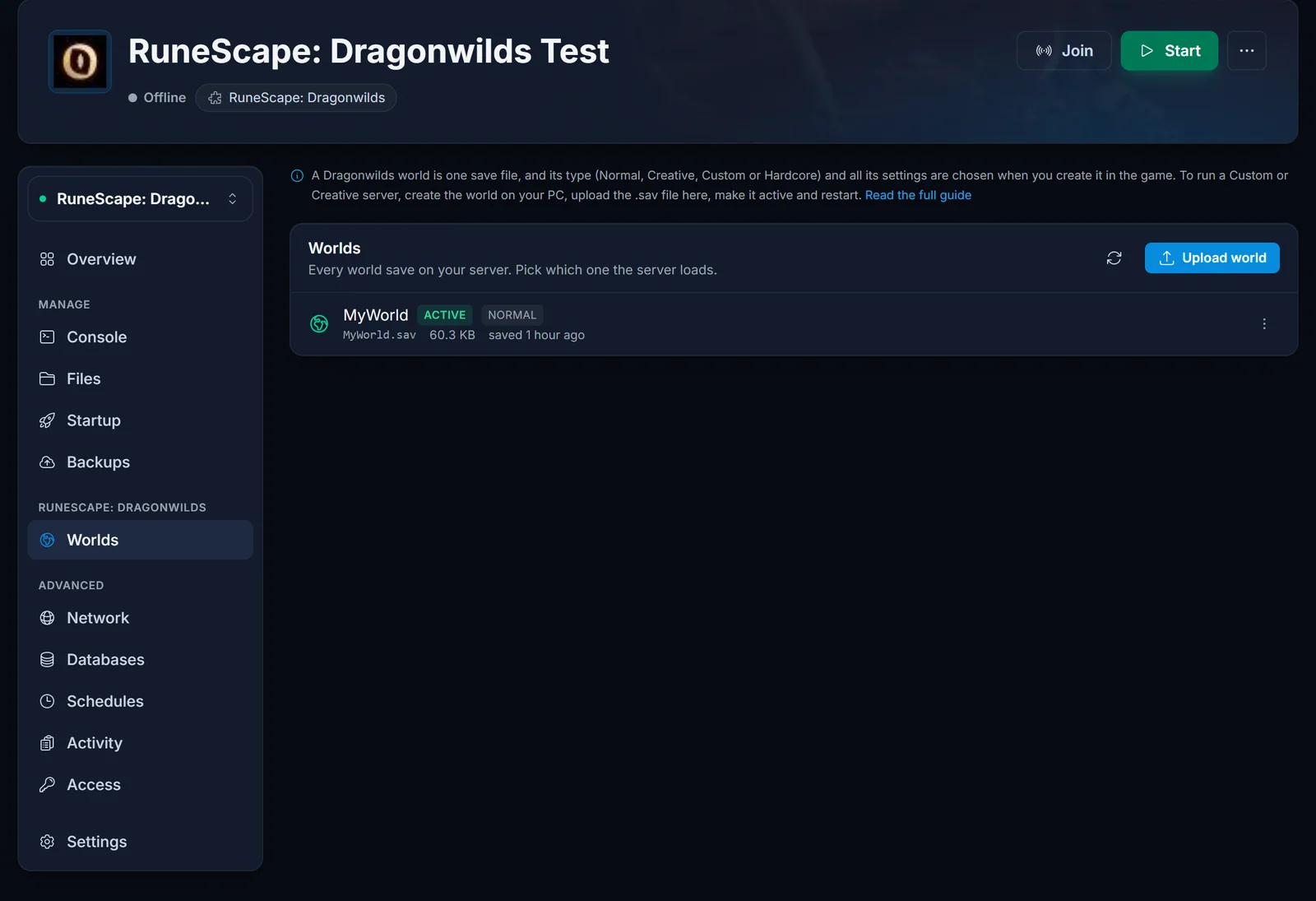
Open your server in the panel and go to the Worlds tab under the RuneScape: Dragonwilds heading in the server menu. Click Upload world, pick the .sav file you just found, and confirm.
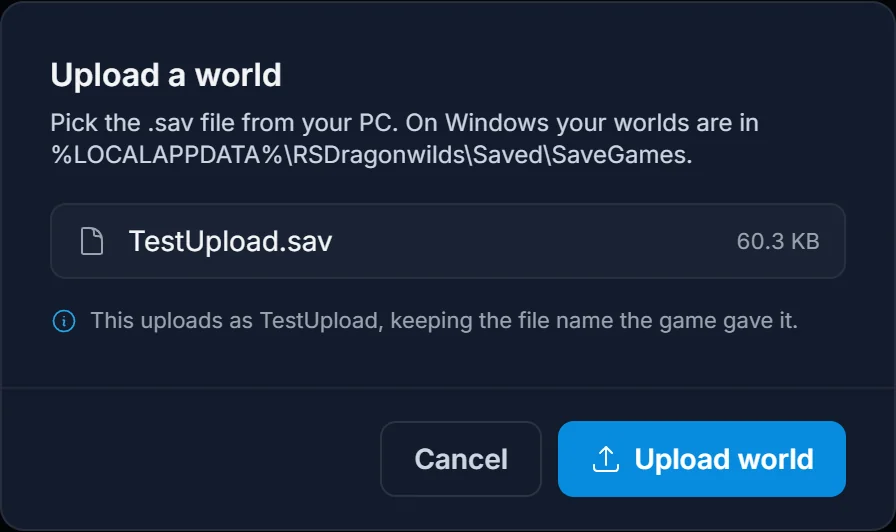
Two things matter here. The upload keeps the file name the game gave it, and you should let it. The server does not find a world by file name, it reads the world name stored inside the save, so renaming the file only makes the panel and the game disagree about what the world is called.
The other one is timing. Never upload over the world your server is currently running. The running server holds that world in memory and writes it back to disk on its next save, which would wipe whatever you just uploaded. The panel blocks that case for you, but the safe habit is to stop the server first if you are replacing a world rather than adding one.
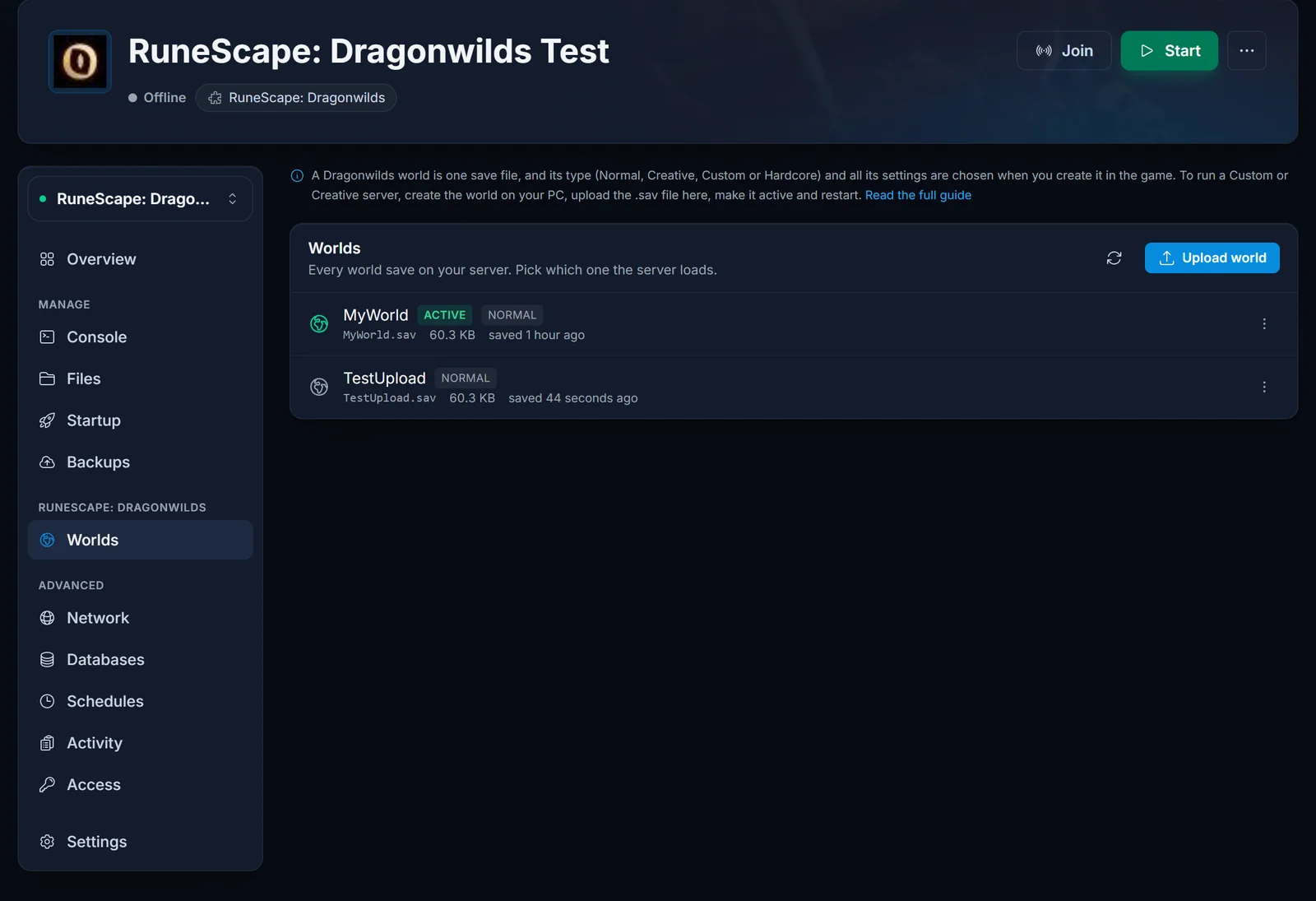
When the upload finishes, both worlds are listed and you can see which one the server loads.
Make it active and restart
Open the menu on the right of the world you uploaded and choose Set active. The panel asks you to confirm, because switching worlds disconnects anyone who is playing right now.
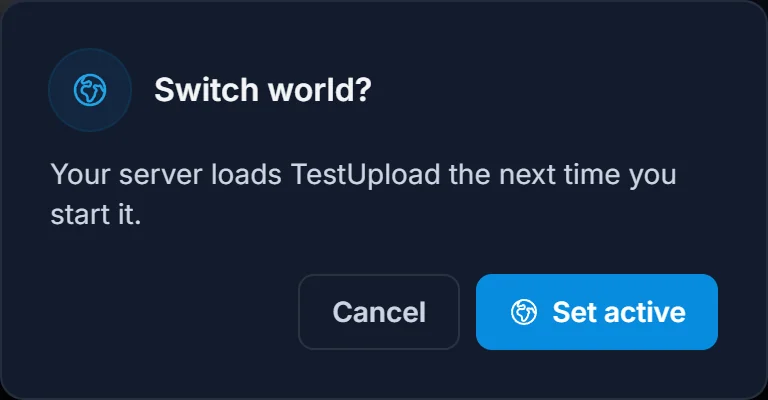
After you confirm, the world you picked carries the Active marker and a banner appears asking you to restart. Click Restart now (or Start now if the server is stopped) and the server boots into your uploaded world.
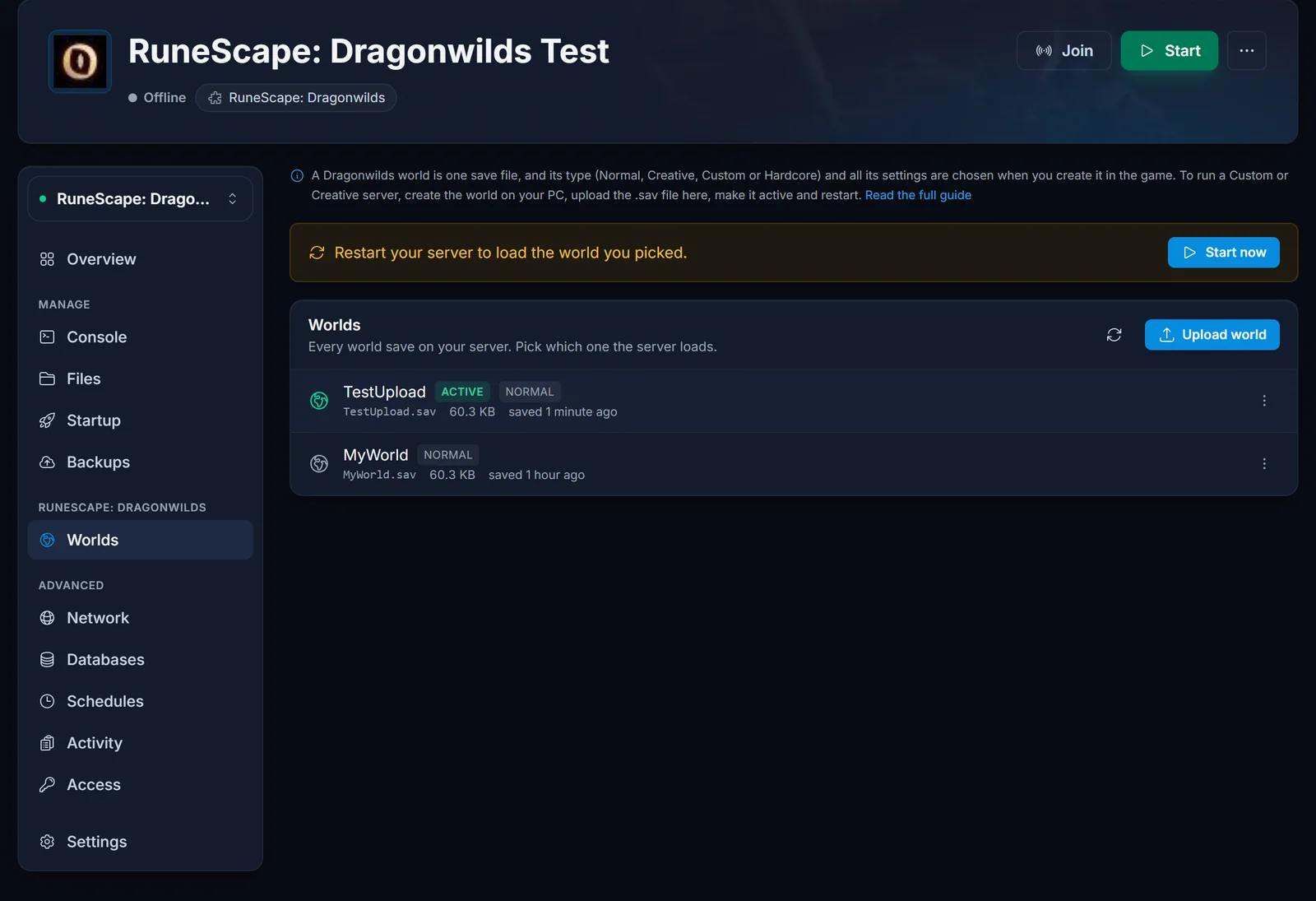
The restart is not optional. A running server has its current world open and will not pick up a different one until it starts again, so if your friends are still in the old world after you switched, the restart has not happened yet.
Your old world is not gone
Setting a new world active does not touch the old one. It stays in the list, it keeps its save file, and switching back is the same two clicks in the other direction. That makes it safe to try a Creative world for an evening and put the survival world back afterwards.
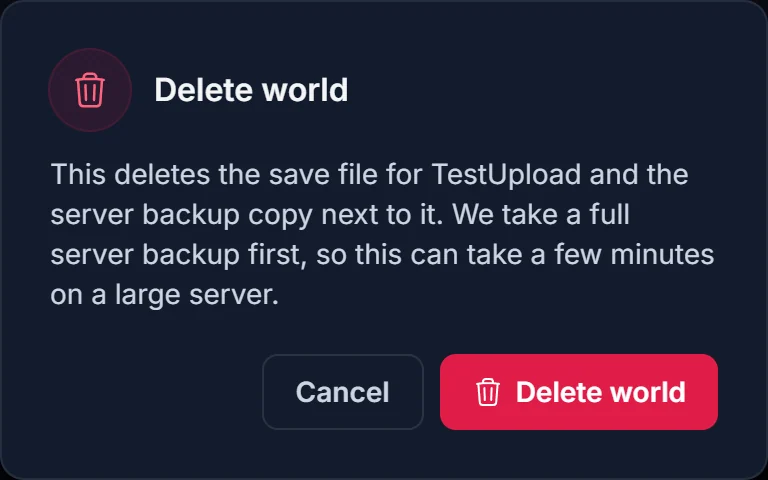
The menu on each world also gives you Download, which pulls that .sav back to your PC so you can keep a copy or open it in single player, and Delete world for the ones you no longer want. Delete only works on a world that is not active, and the panel takes a full server backup before it removes anything, so a delete on a large server can take a few minutes. That backup lands on the Backups tab.
How the Default World Name setting on the Startup tab fits in
The Worlds tab is a friendly front end for one startup variable. Your server has a Default World Name value on the Startup tab, and Set active simply writes the chosen world's name into it. You can edit it by hand if you prefer, and both routes end up in the same place.
What matters is what the server does with that value. On boot it compares Default World Name against the world name stored inside each save on disk, not against the file names. If it finds a match it loads that save. If it finds none, it treats the value as a request for a brand new world and generates a fresh Normal one under that name. That is why an uploaded Custom world has to keep its original in game name, and why a typo in Default World Name gets you an empty world instead of an error.
Common issues
The server started an empty Normal world instead of mine. The active Default World Name does not match the world name inside any save on the server. Go back to the Worlds tab, use Set active on the world you actually want so the name is written exactly as the game stored it, and restart. If a stray empty world was generated, you can delete it afterwards.
A world shows a warning that it was renamed. The file name and the world name inside the save no longer agree, usually because someone renamed the .sav over FTP. The game still knows the world by its original name, and that is the name the server loads. The warning tells you which one that is, so use Set active on that entry rather than trying to fix the file name.
The upload is blocked because the server is running. That is the safety check doing its job. You are uploading over the world the server currently has open, and it would be overwritten on the next autosave. Stop the server, upload, then start it again.
A world has no type chip next to its name. The panel reads the type from the start of the save, and on a large world it does not read far enough to be sure. A missing chip says nothing about the world itself. Your Custom settings are intact.
My friends are still in the old world. They joined before the restart, so they are on the server's previous session. Restart the server and have them reconnect. If you are not sure the restart happened, the Worlds tab shows the restart banner until it does.
I only see .sav.backup files on my PC. Those are the game's rolling copies. Close the game properly, let it finish saving, and the plain .sav will be there. Uploading a backup copy is rejected on purpose, since it is not a world file.
Next steps
- Getting Started with Your RuneScape: Dragonwilds Server covers the first boot, passwords and the basics of the panel.
- How to Join a RuneScape: Dragonwilds Server walks through connecting from PC once your world is live.
- Crossplay on Your RuneScape: Dragonwilds Server explains how console players reach the same world.
Not hosting with us yet? See RuneScape: Dragonwilds server hosting, or take a look at the game control panel the Worlds tab lives in.
