

A RuneScape: Dragonwilds server rented from DoomHosting gives PC players three ways in: search the exact server name in the world browser's Public tab, enter the invite code the server mints at boot, or connect straight to the IP address and port. All three lead to the same world, so pick whichever suits the person joining.
This guide walks through each route, shows where the details live in your panel, and covers the reasons a join fails.
Find your connection details in the panel
Open your server in the DoomHosting panel. The Overview page carries everything a player needs: the connection address at the top of the Connection address card, and the current invite code in the block below it. Both have a copy button, so nothing has to be typed twice. The Join button at the top of the page opens the same details in a popover if you would rather not scroll.
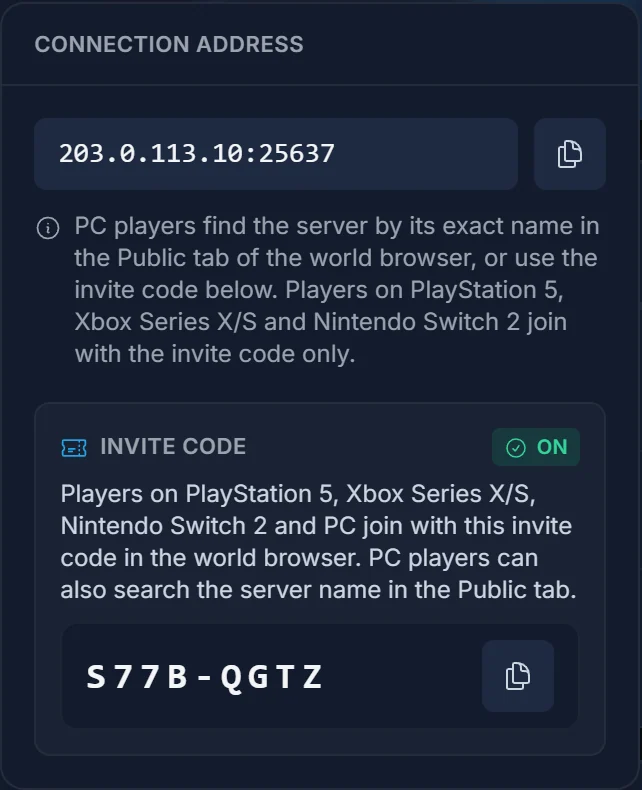
If the server is stopped, the address is still there but the invite code is not. Codes only exist while the server is running, so start it first and the code appears on its own.
Join by server name in the Public tab
Launch RuneScape: Dragonwilds, open the multiplayer world browser and switch to the Public tab. Type the server name into the search box and your server should come back in the list. Select it, enter the world password if you set one, and you are in.
One detail decides whether this works: the search matches the server name exactly, including capital letters and spacing. A server called Dragon Keep will not come back if you search dragon keep or DragonKeep. Copy the name out of the panel rather than typing it from memory, and keep the name short and distinctive when you set it, because a generic name buried among hundreds of public worlds is hard to pick out.
Join with the invite code
The invite code is the fastest route, and the reliable one for friends on PlayStation 5, Xbox Series X|S and Nintendo Switch 2. Copy the eight-character code from the Overview page, open the world browser in game, choose to join with a code, and paste or type it in.
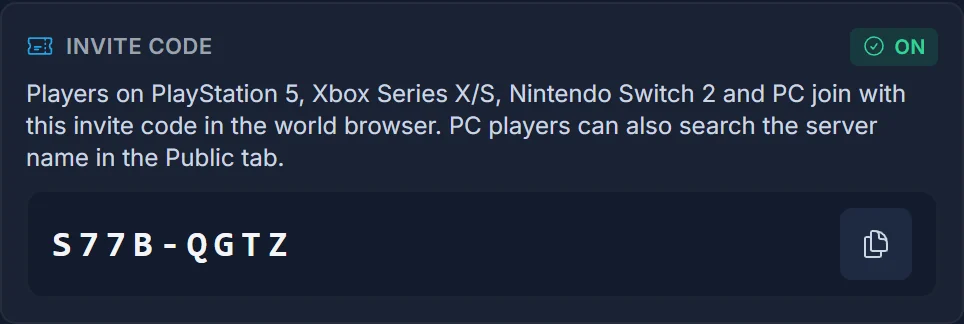
Remember that a new code is generated every time the server boots. If your group has a fixed weekly session and the server restarts nightly, the code they saved last week is dead. Read the current one off the panel before you share it.
Join by direct IP
PC is the only platform that can connect to an address directly, and it is the most reliable route when the public list is slow or crowded. Copy the full address from the Connection address card, including the port after the colon, and use the game's direct connect field in the multiplayer menu.
Direct IP ignores the Public tab entirely, so it still works when your server is not appearing in the browser for some reason. That makes it the first thing to try when you are diagnosing a join problem, because a successful direct connect proves the server itself is fine and the fault sits with the listing.
The server password
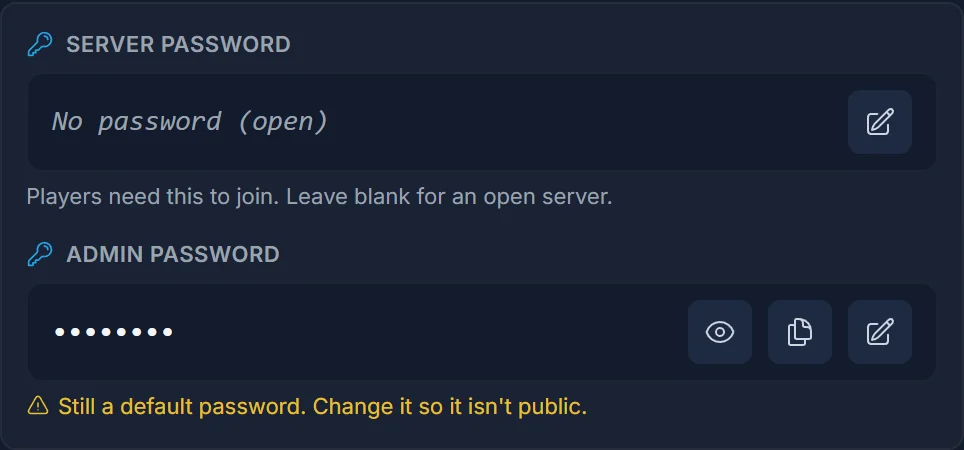
If you set a Server password on the Overview page, every player is prompted for it after they pick your server, whichever of the three routes they used. Leave the field blank if you want an open server. The Admin password is a separate value and is not what players type to get in, so do not hand that one out.
Playing with friends on console
Since the 1.0 release, console players can join a dedicated server. They cannot type an IP, so the invite code is the reliable route for them. The full walkthrough for each console is in How to Join a RuneScape: Dragonwilds Server on PS5, Xbox and Switch 2.
If your server has not restarted since 1.0 went live, restart it once in the panel before you invite anyone on console. It picks up the new build automatically on boot, and until it does, console players cannot reach it at all.
Common issues
The server does not appear in the Public tab. Check the spelling and capitalisation of the name first, then confirm the server is actually running in the panel. Public listings also take a short while to propagate after a restart, so wait a minute before deciding something is wrong. Direct IP works during that window.
The invite code is rejected. The server has restarted since you read the code. Refresh the Overview page and use the code shown now.
Connection timed out on a direct IP. Confirm you copied the port as well as the address. The port is not the default one you might remember from another game, and an address without it will never connect.
Wrong password. The Server password is the one players need, not the Admin password. If you recently changed it, restart the server so the new value is actually in use.
The world is full. Dragonwilds worlds cap at six players. The sixth player in is the last one, and everyone after that is refused regardless of address, code or password.
Next steps
To see which platforms your server accepts and how to restrict it to PC, read Crossplay on Your RuneScape: Dragonwilds Server.
For first-time setup, world settings and backups, see Getting Started with Your RuneScape: Dragonwilds Server. More on what the control panel does is on the game control panel page, and plans are on our RuneScape: Dragonwilds server hosting page.
