

Since the 1.0 release, players on PlayStation 5, Xbox Series X|S and Nintendo Switch 2 can join a rented RuneScape: Dragonwilds server, but they cannot type in an IP address. The reliable way in from a console is the server's invite code, which your DoomHosting panel shows on the Overview page as soon as the server is running.
This guide covers where that code lives, how to enter it on each console, why it changes every time the server restarts, and what to do when a console says the server cannot be found.
Where to find your invite code in the panel
Open your server in the DoomHosting panel and stay on the Overview page. Under the connection address you will see an Invite code block with the current code in large type and a copy button next to it. The format is eight characters split by a hyphen, for example S77B-QGTZ. The same block appears in the Join popover at the top of the page, so you can grab the code without scrolling.
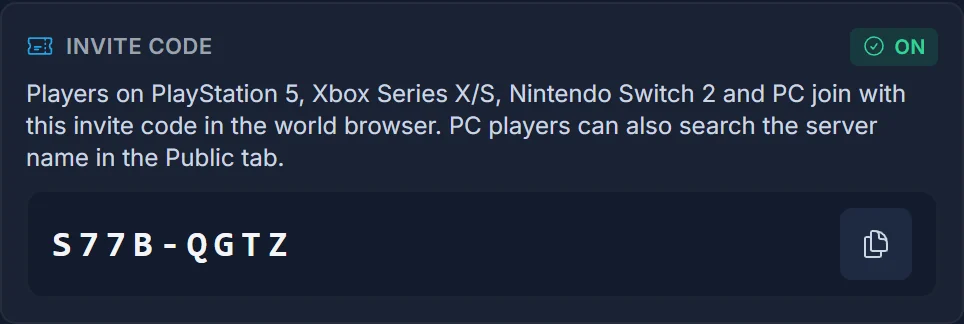
If the server is stopped, the block reads "Start the server to generate an invite code" instead. That is expected: the code does not exist until the server boots and registers its session. Press Start, wait for the state to go green, and the code appears on its own without a page refresh.
Anyone who is already inside your world can also read the code from the in-game pause menu, which is the quickest way for a friend to pass it on to someone else without you being at a computer.
Joining from PlayStation 5
Launch RuneScape: Dragonwilds on your PS5 and go to the multiplayer world browser from the main menu. The browser has an option to join a world with a code rather than picking one from the list. Choose it, enter the eight characters exactly as the panel shows them, and confirm.
The button labels come from the game and Jagex can rename them in a patch, so treat the wording as a guide rather than a script. We cannot screenshot a console here, but the flow is always the same: world browser, then the code entry field, then confirm. Type the code exactly as the panel shows it, in capitals, including the hyphen.
Joining from Xbox Series X|S
The Xbox version uses the same world browser as PlayStation. Open the multiplayer menu, pick the option to join with a code, and type the invite code from your panel. If your server has a world password set, you will be asked for it immediately after the code is accepted.
Xbox players sometimes land on the Public tab first and start scrolling for the server name. The invite code is the reliable route, so reach for that rather than hunting through the list. If your server does not show up by name, it is usually still on the pre-1.0 build: restart it and use the code.
Joining from Nintendo Switch 2
Switch 2 joins the same way. Open the world browser, choose to enter a code, and type the invite code. The Switch 2 on-screen keyboard makes typos easy, so copy the code from the panel into a message to yourself if you are entering it for someone else, and double check the character before and after the hyphen.
Nothing on our side is different per console. All three platforms hit the same session the server registers at boot, which is why one code works for everyone at once.
Your world password still applies
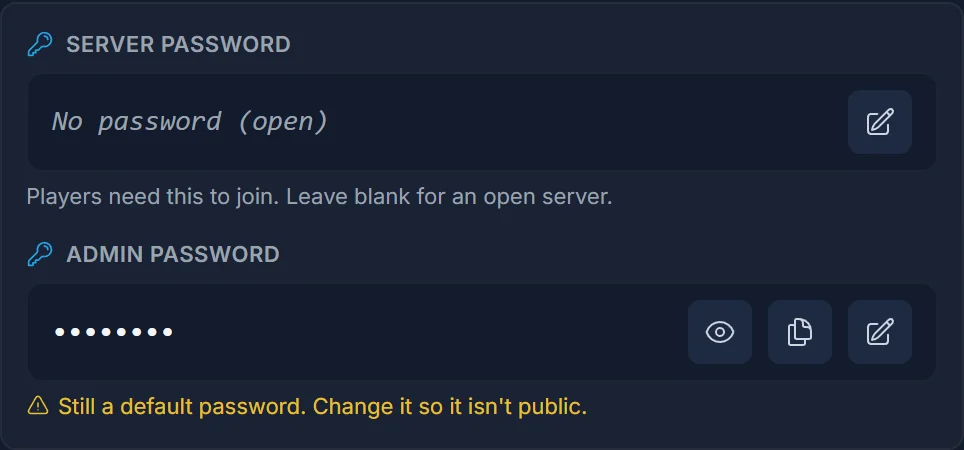
The invite code gets a player to your world, it does not let them past a password. If you set a Server password on the Overview page, console players are prompted for it after the code, exactly like PC players are. Leave the field blank if you want an open server, and remember that an open server with a shared code is effectively public once someone posts the code somewhere.
The invite code changes on every restart
This is the single thing that catches people out. The server mints a fresh code every time it boots. A restart, a crash recovery, a scheduled nightly restart, a settings change you applied with Restart now: all of them produce a new code and retire the old one.
You cannot choose the code and you cannot pin it to a fixed value. So do not put it in a Discord channel topic and forget about it. Check the panel after every restart and share the current code, or give your friends the panel-free route and have one PC player join by name first, then read the code out of the pause menu for everyone else.
An older server has to restart to reach 1.0
If your server was running before the 1.0 release, it is still on the pre-1.0 build until it restarts. Our egg has automatic updates enabled, so the update downloads and installs on the next boot with nothing for you to configure. Until that happens, console players cannot see your server at all: no name in the browser, no working invite code, because the old build never registered a crossplay session.
Press Restart in the panel, watch the Console tab until the server reports it is up, then read the new invite code off the Overview. This one restart is the fix for most "my friend on PlayStation cannot find the server" reports we see.
Common issues
The server is not found by name on a console. The invite code is the reliable route, so use that first. If the server does not show up by name, it is usually still on the pre-1.0 build: restart it as described above and use the code.
The code is rejected as invalid. The server restarted since you read it. Reload the Overview page in the panel and use the code shown now. Also check for a mistyped character: the code mixes letters and digits, so 0 and O, and 1 and I, are worth a second look.
The world is full. A Dragonwilds world holds six players at once, so a seventh player is turned away no matter how valid the code is. Somebody has to leave before the next player can join.
The code block says "Waiting for the invite code". The server is up but has not registered its session yet. Give it a minute after a cold start. If it never appears, open the Console tab and look for errors during startup.
Everything looks right but nobody can join. Check the Server password field on the Overview page. A password you set months ago and forgot is the usual culprit, and the prompt on console is easy to dismiss by accident.
Next steps
PC players have more ways in than a code, including the exact server name in the Public tab and a direct IP. Those are covered in How to Join a RuneScape: Dragonwilds Server.
To see which platforms your server currently accepts and how to lock it to PC only, read Crossplay on Your RuneScape: Dragonwilds Server.
New to the panel? Start with Getting Started with Your RuneScape: Dragonwilds Server, or see what a rented server includes on our RuneScape: Dragonwilds server hosting page.
