

Started your Enshrouded adventure in singleplayer or local co-op and want to keep building with friends on a rented server? You can move your existing world onto your DoomHosting server in a few minutes. An Enshrouded world is a small set of files named after its save slot (slot 1 is called 3ad85aea), and your server always loads slot 1 from its savegame folder. Upload your files under that name and the server continues your world exactly where you left off.
Note: These steps were written for the Early Access save format. Enshrouded 1.0 (October 15, 2026) introduces a new save system, so the file names in your save folder may differ from the ones shown here.
Find your world save on your PC
Enshrouded stores your local saves in one of two places, depending on whether Steam Cloud is enabled:
- Steam Cloud on (default): open Steam, right-click Enshrouded, choose Manage then Browse local files, then go up to the
Steamfolder and openuserdata\<YourSteamID>\1203620\remote. - Steam Cloud off: press
Win + R, paste%USERPROFILE%\Saved Games\Enshrouded, and press Enter.
Inside you will see files named with a short hex ID per save slot, with no file extension:
3ad85aea            <- slot 1 world data (the big one, this is your world)
3ad85aea-index      <- version pointer
3ad85aea_info       <- menu metadata
3ad85aea_info-index <- metadata pointer
Slot 1 is 3ad85aea, slot 2 is 3bd85c7d, slot 3 is 38d857c4, and so on. If you are not sure which slot your world is in, sort by date modified and check which set changed the last time you played. The only file the server truly needs is the main world-data file (the largest one, no suffix): it rebuilds the index files on its own. Copy the whole set to a folder on your desktop anyway, that copy doubles as your backup.
Stop your server
Open your server in the DoomHosting panel and press Stop. This matters: Enshrouded writes its save on shutdown, so uploading into a running server means your files get overwritten a few minutes later.
Rename the files to slot 1
The dedicated server only loads slot 1, so the uploaded world file must be named 3ad85aea. If your world was in slot 1 already, skip this step. Otherwise rename the files in your copied set, keeping any suffix:
3bd85c7d            -> 3ad85aea
3bd85c7d-index      -> 3ad85aea-index
The name must match exactly, with no file extension. Windows hides extensions by default, so double-check the file is not secretly 3ad85aea.txt.
Upload the files to the savegame folder
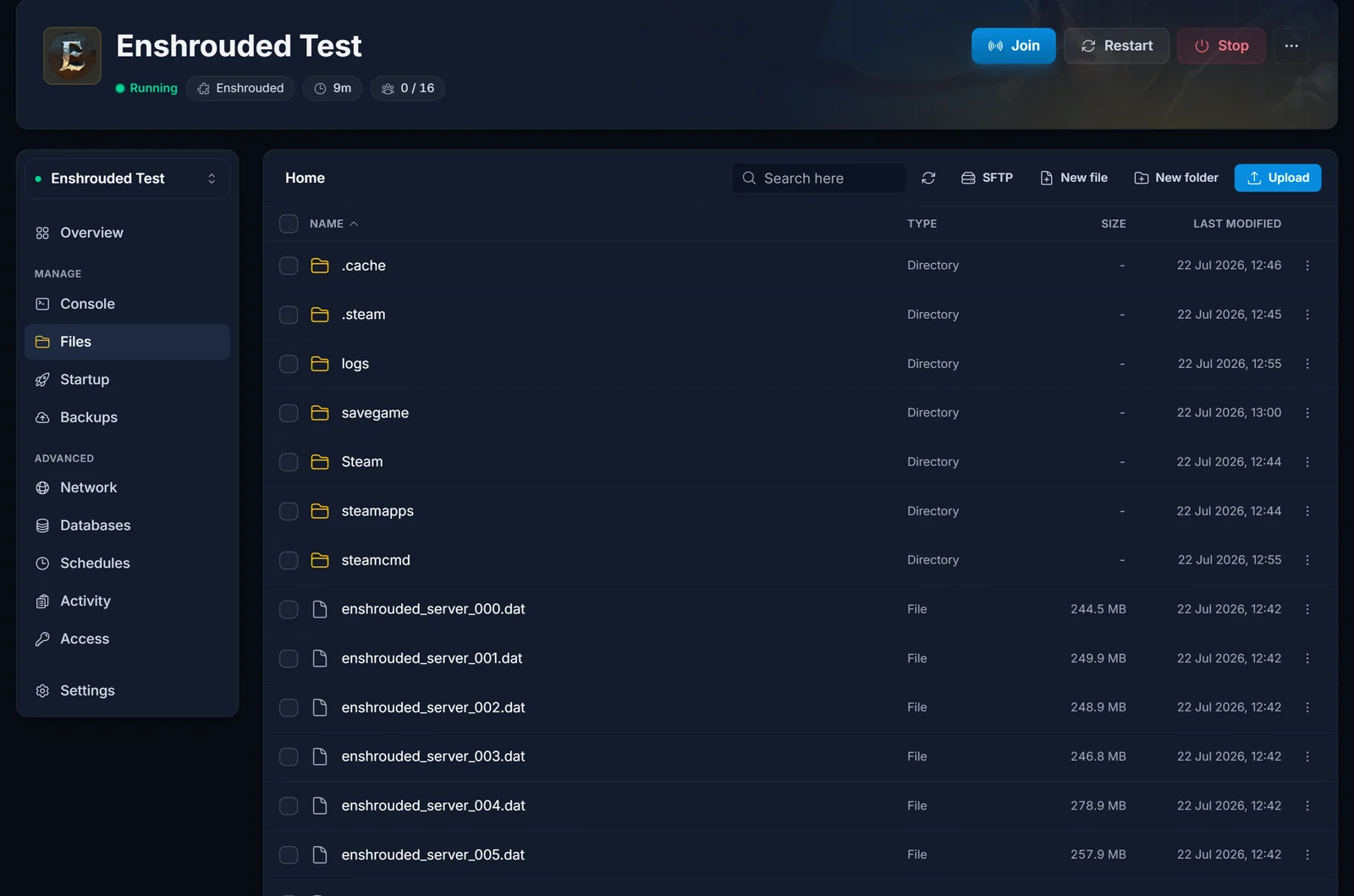
In the panel, open the Files tab. The savegame folder sits in the root of your server:
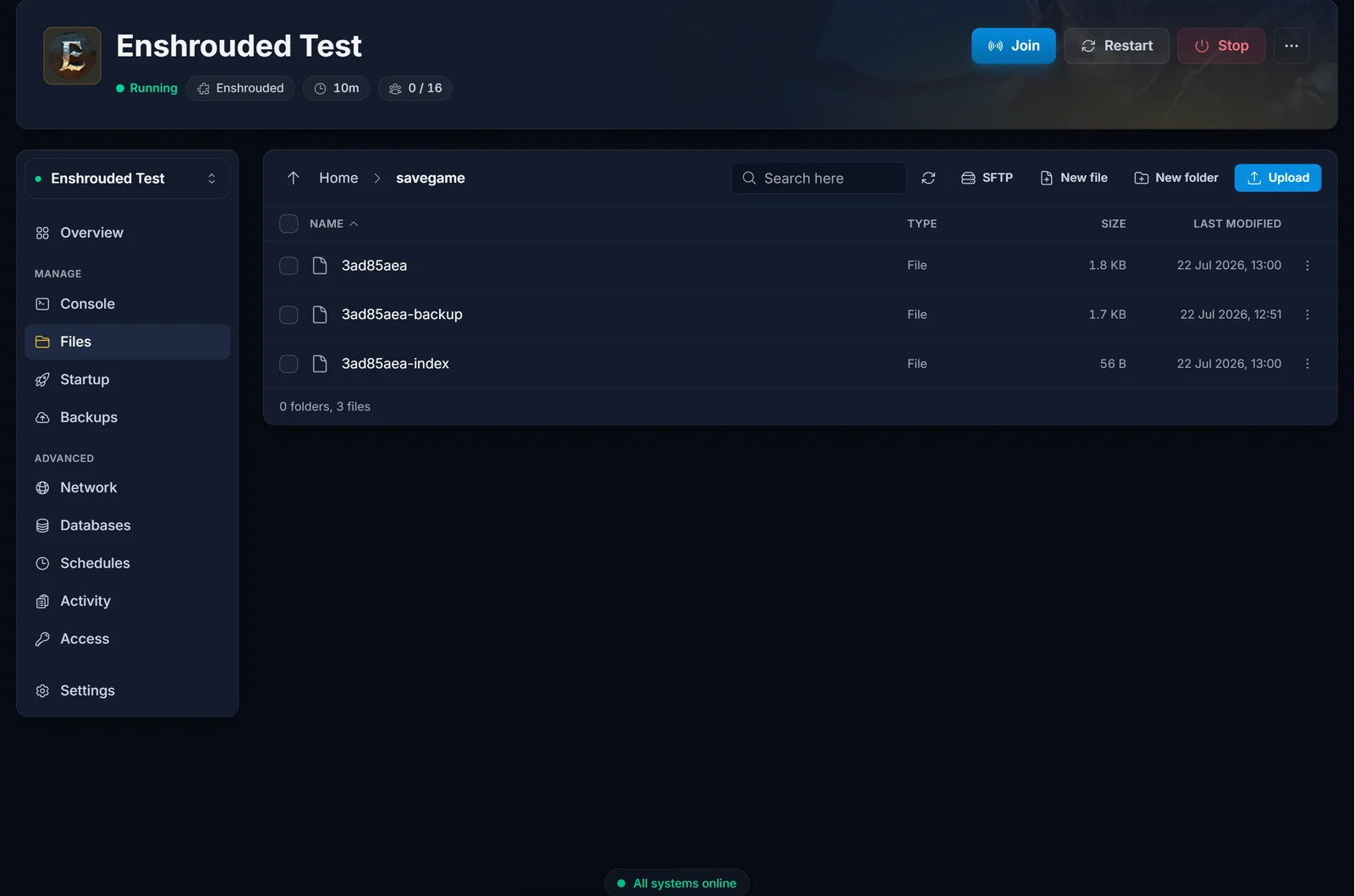
Open savegame. If your server has already run, there is an existing 3ad85aea in here. Your world should replace it, but keep a backup first: rename the old 3ad85aea to something like 3ad85aea-backup (the three-dot menu on the file row), or download it. Delete the old 3ad85aea-index so the server rebuilds it for your world.
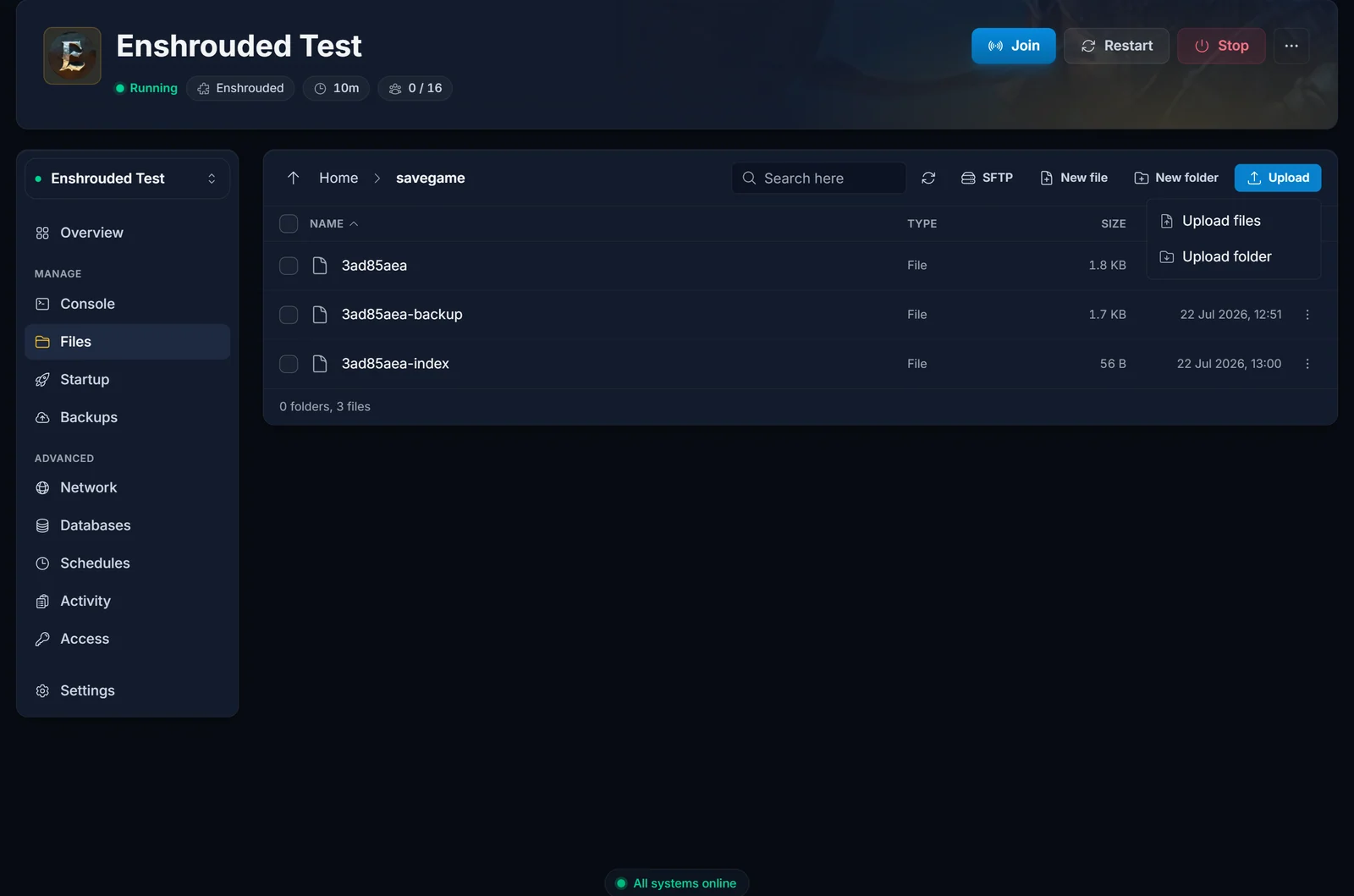
Then press Upload, choose Upload files, and pick your renamed world file (you can also drag and drop it into the window):
For a handful of small files the built-in file manager is the easiest way. If you prefer FTP, see how to connect via SFTP: upload into the same savegame folder.
Start the server and join
Press Start. The server picks up 3ad85aea and boots straight into your world. Join through the in-game server browser or the connect details shown on your panel, and everything is where you left it: your base, your flame altars and the terrain you shaped. Your character is not in the world file. It lives on your own PC and comes along when you join with the same Steam account.
Going the other way works too: download the 3ad85aea set from savegame, rename it to a free slot ID, and drop it into your local save folder to keep playing solo.
Common issues
- The server generated a brand-new world instead of loading yours. The file name is off. It must be exactly
3ad85aeawith no extension, directly insidesavegame(not in a subfolder, not zipped). Stop the server, fix the names, start again. - Your old server world came back. The server was still running when you uploaded, so it saved over your files on shutdown. Always stop the server first, then upload.
- The upload seems too small. Compare file sizes: the main
3ad85aeafile should match the size of the one on your PC. If it is a few bytes, you copied the tiny-indexpointer instead of the world data. - The world loads, but an older state of it. A leftover
3ad85aea-indexfrom the previous world can point at the wrong version. Stop the server, delete3ad85aea-index, and start again: the server rebuilds it from your world file. - Version mismatch. A world saved on a newer game version than the server cannot load. Enshrouded servers on DoomHosting update automatically on restart, so simply restart the server to get it on the latest version before uploading.
- Your character is missing. Characters live on your PC, not in the world file. Join from the same PC and Steam account you played on and your level, skills and inventory come with you. The upload only carries the world: bases, Flame Altars and terrain.
Do not have a server yet? Grab one on our Enshrouded server hosting page and your world can be back online in minutes.
