
You can switch your game server to a different game from the control panel without ordering a new server. Open the server, go to Settings, click Switch game and pick the new game. What you pay now carries over as RAM on the new game, and we back up your current files before anything is changed.
What happens when you switch games
Switching keeps your server, your plan and your billing date. It replaces the game that runs on it:
- Your current files are removed. The old game's world, configs, mods and plugins are deleted when the new game installs. Worlds can't be converted between games, so you start fresh.
- A full backup is taken first. The switch only starts once that backup has finished, and you can download it from the Backups tab any time.
- Your price becomes RAM. What you pay each month is shown as RAM on every game in the list. Some games need more memory to start than others, so the amount you get depends on the game.
- Your address usually stays the same. If the new game needs extra ports, the new address shows on the Overview tab.
- The new game installs by itself. That usually takes a few minutes. If the server was running before the switch, it starts again on its own when the install is done.
How to switch your server to another game
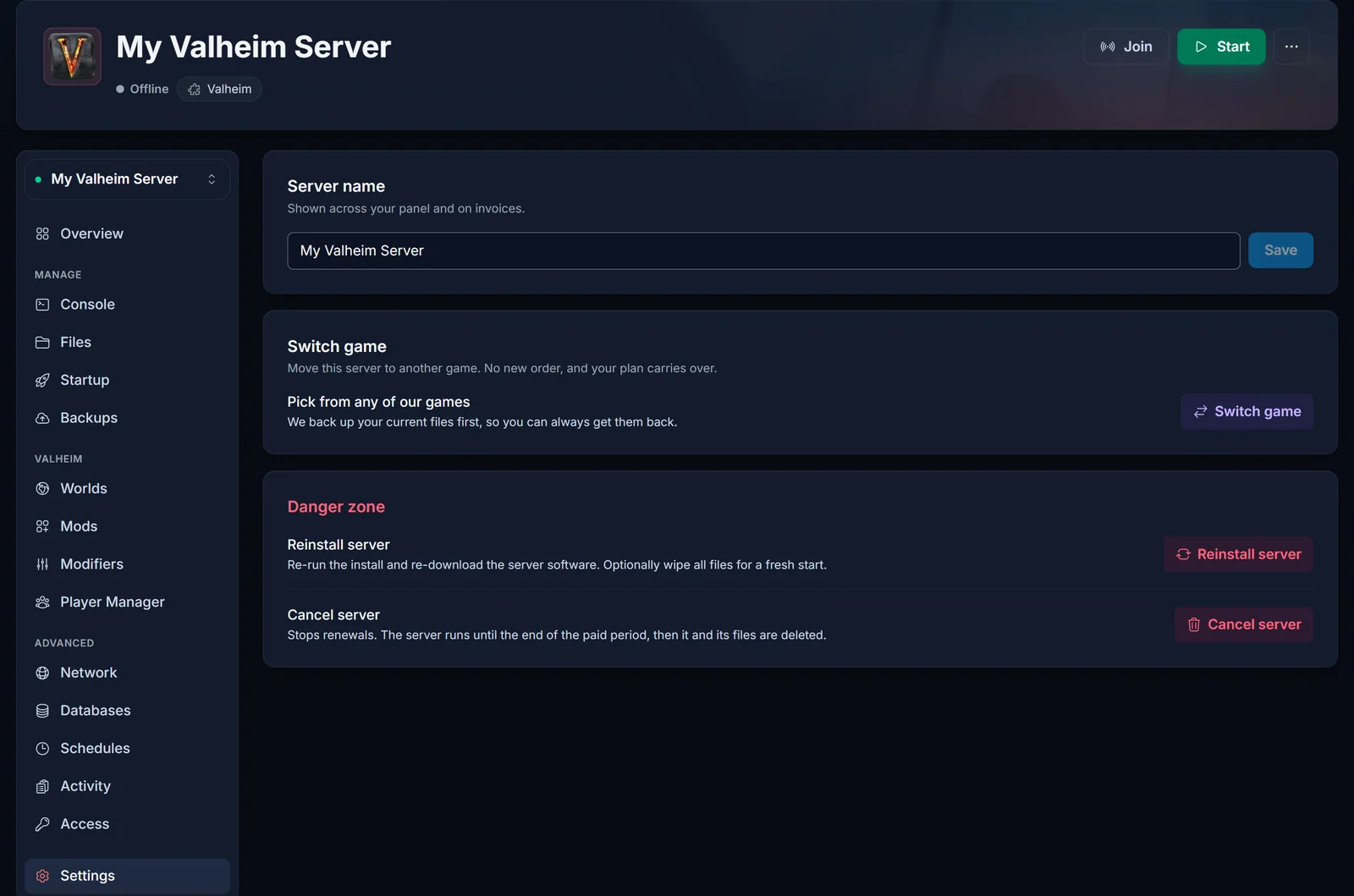
- Open your server in the control panel and go to the Settings tab.
- In the Switch game section, click Switch game.
- Pick the game you want. Every card shows how much RAM you get for your current price. A green chip means more RAM than you have today, a yellow one means the game costs a little more each month. You can search by name or sort the list by Popular, Most RAM or A-Z.
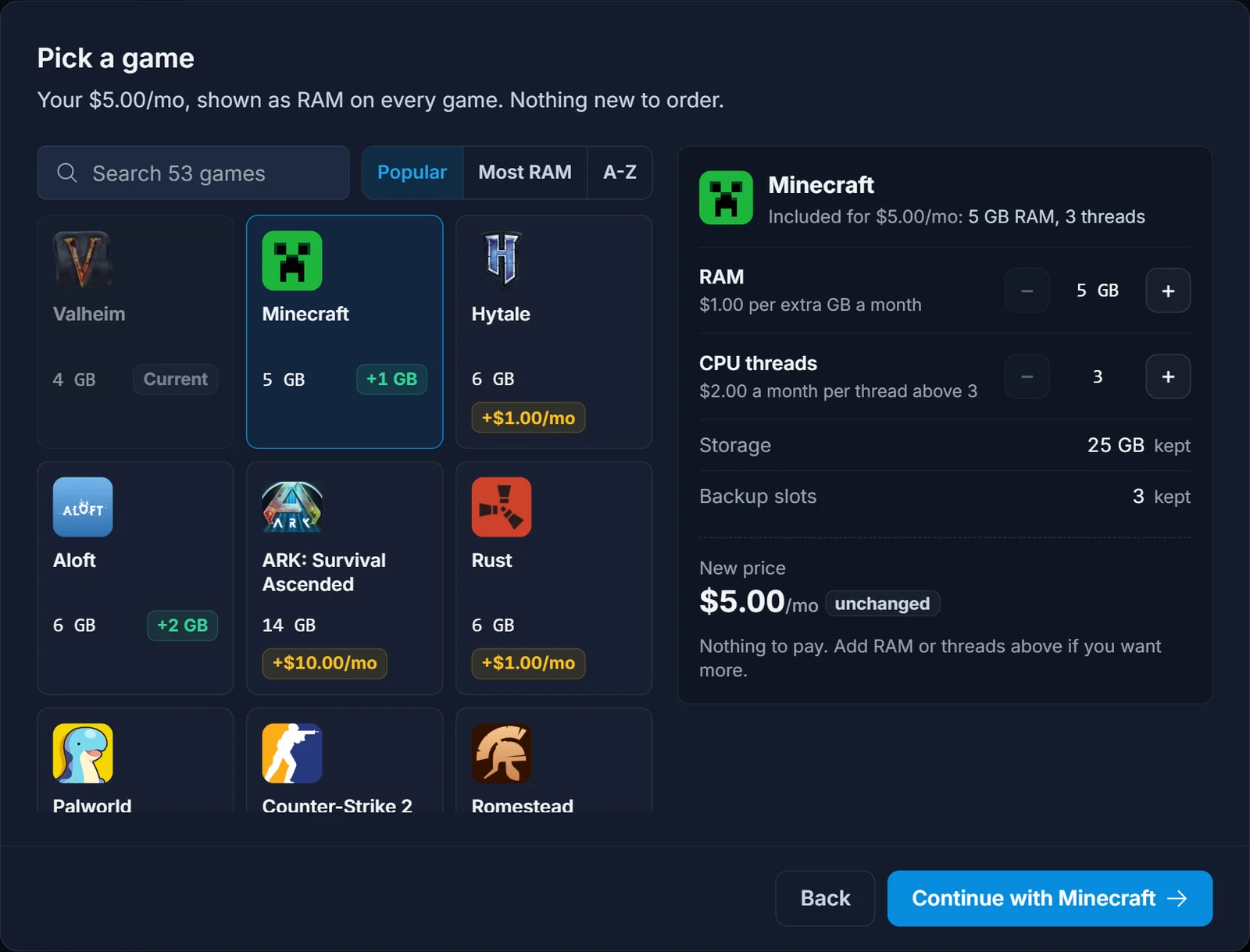
- Check the summary on the right. Use + and - to add RAM or CPU threads if you want more. If you pay for more than the 3 included CPU threads, taking threads away gives you more RAM for the same price. Storage and backup slots you already pay for come with you.
- Click Continue with and the game's name.
- Read the confirm screen, tick I understand my world won't carry over, and click Switch to and the game's name. If the new setup costs more, the button says Pay and the amount instead.
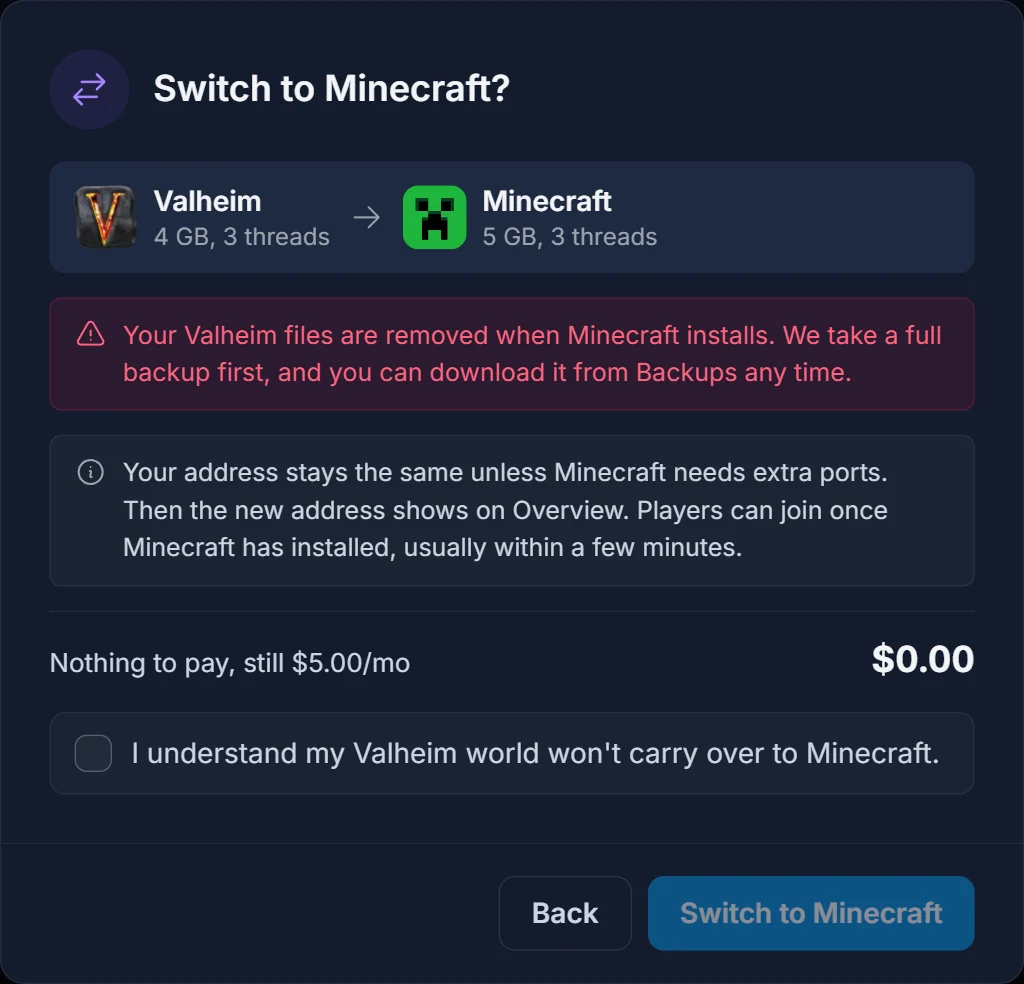
The panel now takes the backup. Keep the window open until it finishes; a big world can take a few minutes. Once the backup is done, the switch starts and the server is rebuilt for the new game. The controls are paused while that runs, and they come back by themselves when the install is finished.
The prices in these screenshots are an example. The panel always shows your own price in your own currency.
What it costs
Most switches cost nothing extra. Your monthly price stays the same and turns into RAM on the new game.
You pay more only when you add RAM or threads, or when the game you pick needs more memory than your price covers. In that case you pay the difference for the days left in your current billing period, and the new price applies from your next renewal. The picker shows both amounts before you confirm.
A switch never lowers your bill. If you want to pay less afterwards, you can downgrade the server as usual.
When you can't switch yet
The Switch game window tells you why when a switch isn't possible right now:
- An invoice is still open. Pay it first, then you can switch right away.
- You switched in the last 7 days. Each server can switch games once every 7 days. The window shows the date you can switch again.
- Your backup slots are full. The switch needs room for one backup. The window offers to delete your oldest backup, or you can remove one yourself in the Backups tab.
- The server is set to be cancelled. The Switch game section isn't shown while a cancellation is pending.
If you had a downgrade scheduled, switching games cancels it. You can schedule it again once the switch is done.
Getting your old world back
The backup from before the switch stays in the Backups tab. Download it there to keep a copy on your PC. To play the old world again on this server, switch back to the old game once the 7 days have passed, then restore the backup from the Backups tab.
Frequently asked questions
Can I switch from Minecraft Java to Bedrock? Yes. Java and Bedrock count as different games, so you can switch between them like any other pair.
Can I move from Minecraft Budget to Premium this way? No. That's the same game on a different plan, so it's an upgrade rather than a switch.
Will my players need a new address? Usually not. The address only changes when the new game needs extra ports, and the new one is shown on the Overview tab.
What if I'd rather stop playing altogether? Our guide on how to cancel your game server walks through it. The cancel window also offers a game switch first, in case another game would suit you better.
You can browse every game we host on the games page before you pick one.