
Every ASKA island is generated from a seed. On a dedicated server that seed is decided exactly once, at the moment the world is first created, and it lives in a single file: server properties.txt. This guide shows where to set it in your DoomHosting panel before the first start, how to start a fresh world with a new seed on a server that already has a save, how to read the seed of a world you are already playing, and the one formatting slip that stops the server from creating a world at all.
How seeds work on a dedicated server
Three rules explain everything else on this page:
- The seed only matters when a new save is created. ASKA reads the
seedline fromserver properties.txtwhile it generates the world, bakes the result into the save, and never looks at the line again. Changing the seed on a server with an existing world does nothing to that world. - The
save idline decides whether a new save is created. When it is empty, the server generates a new world the next time the session opens and writes the new save's ID back into the file, followed by a space (it looks like31533_220826170807). On every later start it loads that save and ignores the seed, the display name and the other new-session settings in the file. - Leave the seed empty and you get a random one. Type anything, a word or a number, and you get that world instead. The same seed on the same game version with the same terrain settings produces the same island, which is how seeds are shared between players. A game update can change world generation, so a seed from an older version is not guaranteed to look the same today.
When the world is actually generated depends on one Startup tab setting: with Keep Server World Alive off (the default) it happens the moment the first player joins; with it on, the server generates the world as soon as the session opens, player or not. Either way the seed has to be in the file before that.
Set the seed before the first start
On a brand new server the save id line is still empty, so all you have to do is fill in the seed:
- Open your server in the DoomHosting panel and go to the Files tab.
server properties.txtsits in the root folder (Home).
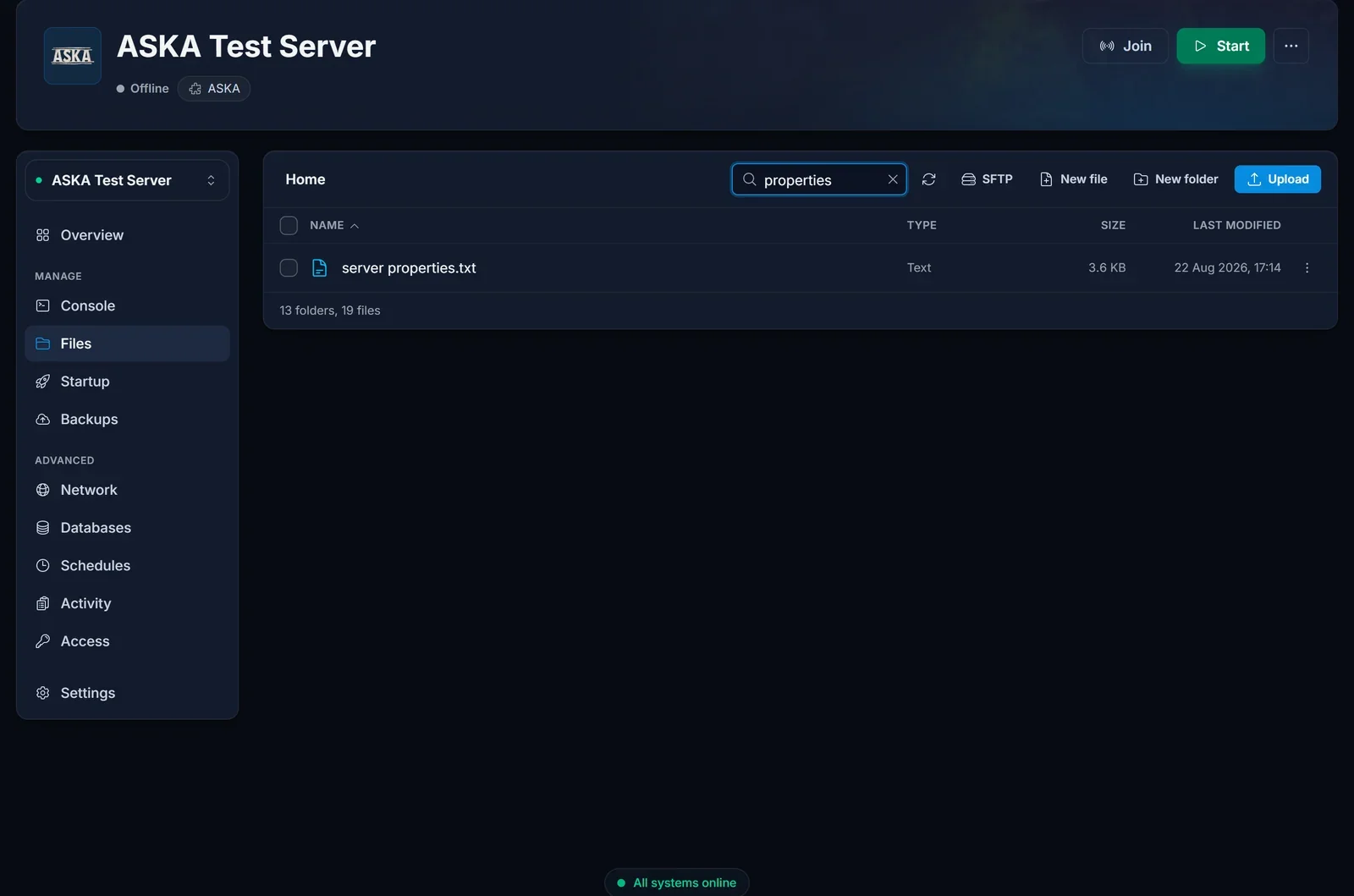
- Click the file to open it in the editor. The
seed =line is near the top, right under the display name and server name. - Type your seed after the equals sign, for example
seed = doomhosting. - Click Save in the top right corner of the editor.
- Start the server. The world is generated with your seed on the first join (or immediately if Keep Server World Alive is on), and the server fills in the
save idline by itself.
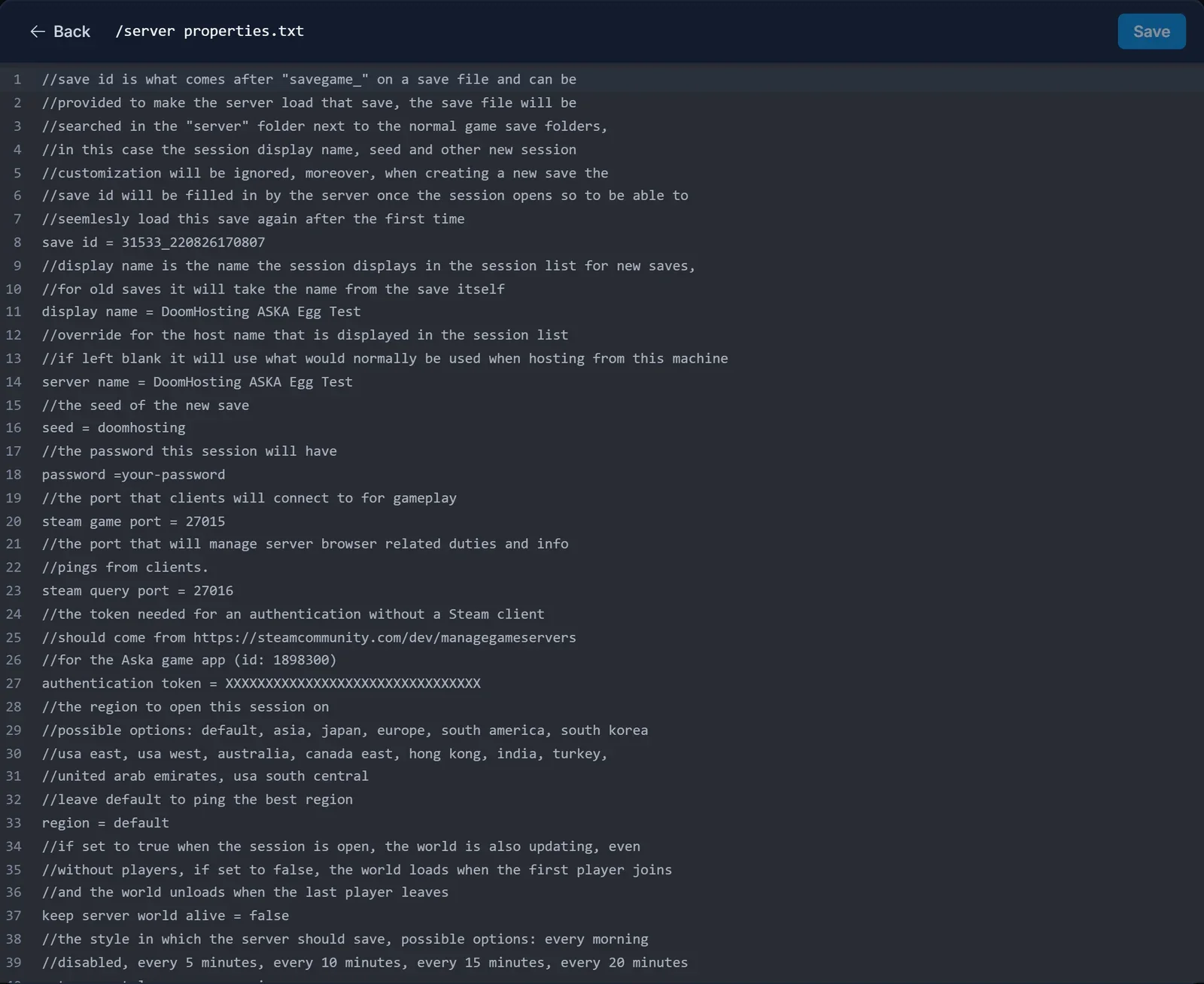
One thing to know about this file: the Display Name, Server Name, Server Password, Server Region, Keep Server World Alive and GSLT lines are rewritten from the Startup tab on every boot, so change those on the Startup tab, not here. Everything else in the file, the seed included, is edited here and survives restarts.
Start a fresh world with a new seed
If the server already has a save and you want a different island, you start a new save. The old one is not deleted, so this is reversible.
- Stop the server from the Console tab. The file is read at boot, and you do not want a running session writing into it while you edit.
- Optional but sensible: take a backup on the Backups tab first.
- Open
server properties.txtin the Files tab. - Set the
seedline to the seed you want. - Clear the
save idline: delete the ID itself so the line readssave id =again, with the space after the equals sign still in place (the line must always end with a space, more on that below). - Save the file and start the server. A new world is generated on the first join (or straight away with Keep Server World Alive on). You can confirm it worked in the file: the
save idline now holds a new ID, and a newsavegame_<id>folder has appeared in the save folder.
The save id line must always end with a space. Two things go wrong without it, and we hit both on our own servers. If the line ends up as save id = with nothing after the =, not even a space, the server logs Count cannot be less than zero followed by a NullReferenceException right after Loading game world..., no world is created, and the session never opens, so nobody can find the server in the list even though the panel shows it running. And if the line holds an ID without a space after it, the world loads fine once, but when the server writes the line back it doubles the last character of the ID (31533_220826170807 becomes 31533_2208261708077), that ID matches no save folder, and the next restart generates a brand-new empty world. So whenever you type into this line, finish with a space: save id = for a new world, save id = 31533_220826170807 to load that save. The server's own writes always include the space, so the rule only bites when a person edits the line.
Get the old world back
Every save lives in its own folder under .wine/drive_c/users/container/AppData/LocalLow/Sand Sailor Studio/Aska/data/server/, named savegame_<id>. To return to an earlier world, stop the server, set save id = followed by that folder's ID (the part after savegame_) and a trailing space, for example save id = 31533_220826170807 , save the file, and start. The seed line is ignored again because an existing save is being loaded, and players see the old world's name in the server list, since old saves carry their own name.
Find the seed of your current world
If you left the seed empty and now want to share the island or recreate it later, the seed is stored inside the save. In the Files tab, open the save folder above, enter the savegame_<id> folder for your world, and download the file called worldgen. Open it in any text editor: the seed is the readable text right at the beginning of the file, followed by binary data you can ignore. The meta file in the same folder holds the session name and the last save time, which helps tell several saves apart.
Custom world settings
Below the seed, the file has mode = normal. Change it to mode = custom and the block of settings underneath comes alive: terrain aspect (smooth, normal, rocky), terrain height (flat, normal, varied), starting season, year length, day length, precipitation (0 sunny to 6 soggy), structure and clothing decay, invasion difficulty, and the monster, wulfar, herbivore and bear populations. In normal mode every one of those lines is ignored, which is exactly what the comments in the file say.
Terrain aspect, terrain height and starting season shape the island together with the seed, so they belong to the same new-world moment: set them before the world is created. And when you share a seed, share the mode and the terrain settings with it, or your friend gets a different island from the same seed.
Common issues
I changed the seed and restarted, but the world is the same. The save id line was still filled in, so the server loaded the existing save and ignored the seed. Follow the fresh-world steps above and clear the save id.
I cleared the save id and now nobody can find the server. Check the Console tab for Count cannot be less than zero after Loading game world.... The save id line lost the space after the equals sign. Make it save id = (with the space), save, restart.
A new world appeared out of nowhere. Open server properties.txt and look at the save id line. If it is empty, the file was reset (a reinstall does that). If it holds an ID that is one character longer than any savegame_ folder name, the line was edited without a trailing space and the server doubled the last character, which is the most common cause. Either way your old save is still in the save folder: put its ID back, with the trailing space, as described under Get the old world back, and restart.
My edit to the display name or password in the file was undone. Those lines are rewritten from the Startup tab on every boot. Change them there.
A friend used my seed and got a different island. Either a different game version, or different terrain settings. Match the mode and the terrain lines, and make sure both servers run the current build (restarting a DoomHosting server pulls the latest version).
Frequently asked questions
Can I change the seed without losing my world? No. The seed is baked in when the world is generated. A new seed always means a new save, and the old one stays on disk if you want it back.
Does the seed have to be a number? No. Any text works; doomhosting is a valid seed. Player-shared seeds are often long random-looking strings, and those work too.
Do I have to stop the server to edit the file? The file is read at boot, so a change only takes effect on the next start. Stop the server first when you are starting a fresh world so the running session does not write its own save id back into the file while you edit.
Does Keep Server World Alive affect the seed? Only the timing. Off, the world is generated when the first player joins; on, it is generated as soon as the session opens. The seed has to be in the file before either of those happens.
Where to go next
Getting the server online in the first place, including the Steam token it needs, is covered in How to Set Up Your ASKA Server, and getting your tribe onto the new world is in How to Join an ASKA Server. If you do not have a server yet, see the plans on the ASKA server hosting page, size it with the ASKA RAM calculator, and take a look at what the game control panel does.
