


Voice chat runs on your normal server address
Install Simple Voice Chat from the panel and there is no port to open. The panel writes port=-1 into the plugin's own config before the server ever starts it, and -1 is Simple Voice Chat's documented value for "use the same port number that is used by the Minecraft server".
That works because every port on a DoomHosting Minecraft server carries both TCP and UDP. The Network tab in your panel at /panel says it in as many words: "Every port works for both TCP and UDP." Voice chat is UDP and Minecraft Java is TCP, so the two sit on one port without arguing. No extra port gets used, and players connect with the address they already have.
Install it from the Plugins or Mods tab
- Open your server at /panel.
- On Paper, Purpur or Spigot, open the Plugins tab. On Fabric, Forge or NeoForge, open the Mods tab.
- Search for Simple Voice Chat and install it.
- Restart the server if it was already running.
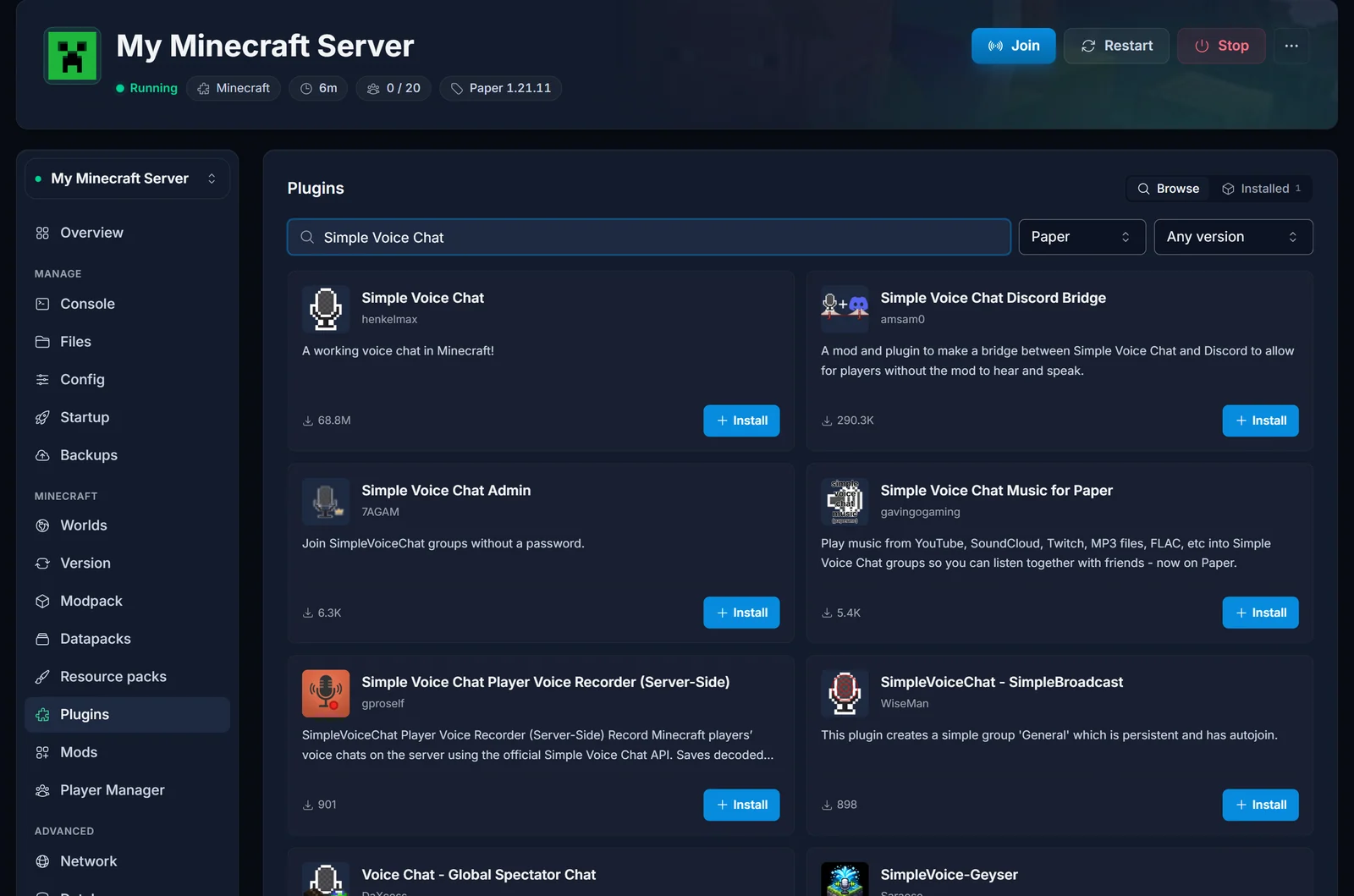
The panel says what it did with the port as soon as the install finishes: "Simple Voice Chat uses your server address", "No extra port is needed. It runs on the same address players already use."
Everyone who wants to talk still needs the Simple Voice Chat client mod in their own game. That is the only thing they have to add.
Check that it worked
Open the Console tab and start the server. The line to look for:
[voicechat] Voice chat server started at 0.0.0.0:25565
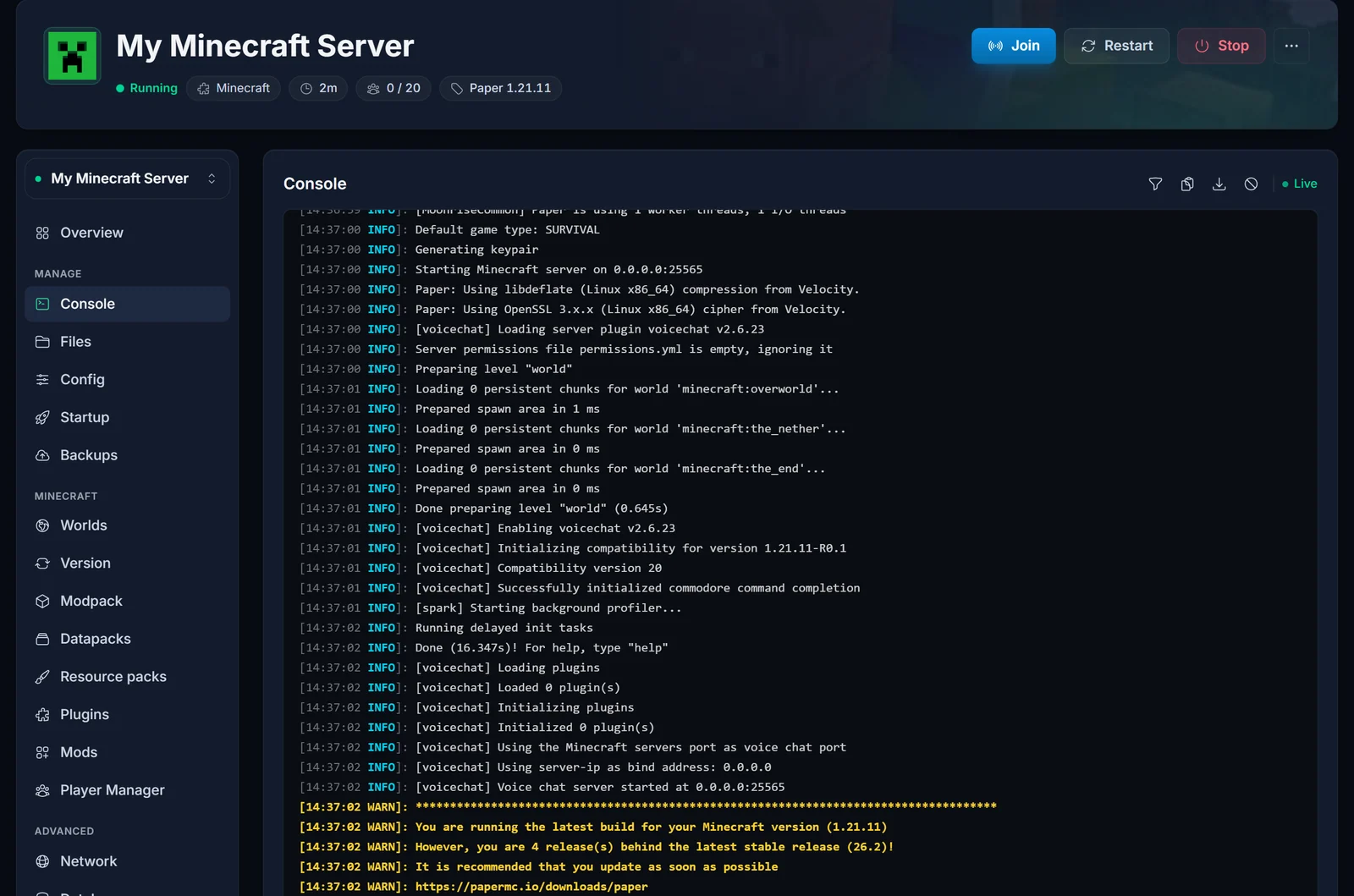
The number at the end should be your own server port, the one players connect to.
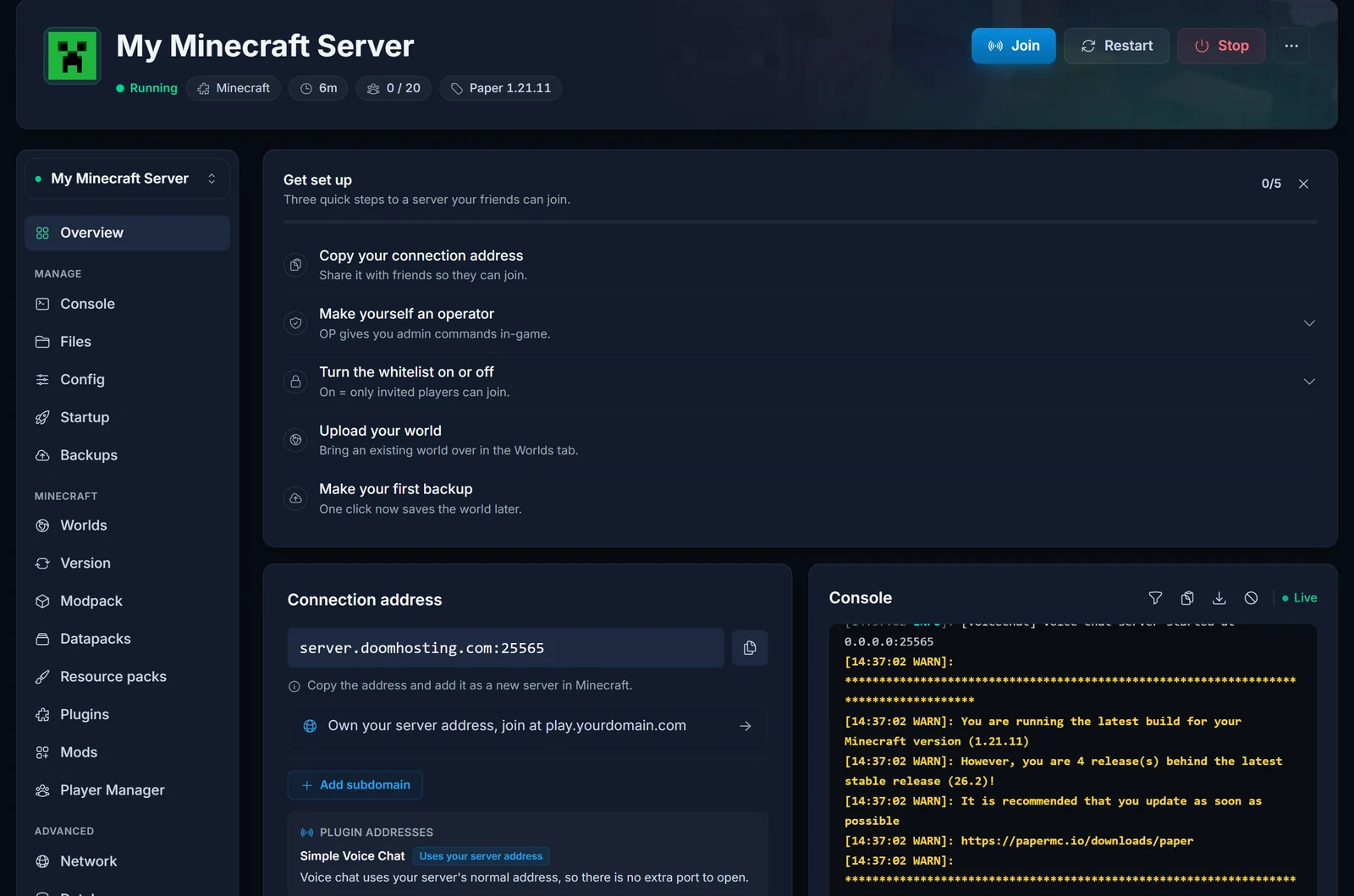
The Overview page shows the same thing without reading logs. Under Plugin addresses, Simple Voice Chat carries the Uses your server address badge and the line "Voice chat uses your server's normal address, so there is no extra port to open."
When voice chat gets a port of its own
Two things take the UDP side of your main port, and voice chat cannot share with either:
enable-query=trueinserver.properties.- Bedrock crossplay, when GeyserMC is running on the main port. See how to enable Minecraft crossplay with GeyserMC.
Sharing anyway ends like this, with the Minecraft server itself still running:
[voicechat] Failed to run voice chat at UDP port 25565, make sure no other application is running at that port
java.net.BindException: Address already in use
So the panel does not try. On a server in either state it gives voice chat a port of its own at install time: it reuses a spare port your server already has, otherwise it adds one. If your server is at its port limit it tells you ("Simple Voice Chat needs a port of its own") instead of failing the install. Players notice none of this. They keep using the same address, whatever port voice chat ended up on.
If the port is not open
A jar you uploaded into the folder yourself never went through the install flow, so Simple Voice Chat keeps its own default, 24454. That is not one of your server's ports, so nobody outside can reach it, and the console gives you no hint:
[voicechat] Voice chat server started at 0.0.0.0:24454
The panel catches it anyway. The Overview shows a Port not open badge with "Listening on port 24454, which is not open on your server, so nobody can reach it.", and the diagnostics offer "A plugin is using a port that is not open" with a one-click Open a port for it. Take that fix, then restart.
Set the port by hand
The config file only exists after the plugin has booted once:
- Paper, Purpur, Spigot:
/plugins/voicechat/voicechat-server.properties - Fabric, Forge, NeoForge:
/config/voicechat/voicechat-server.properties
Stop the server first, then open the file in the Files tab. To share the Minecraft port:
port=-1
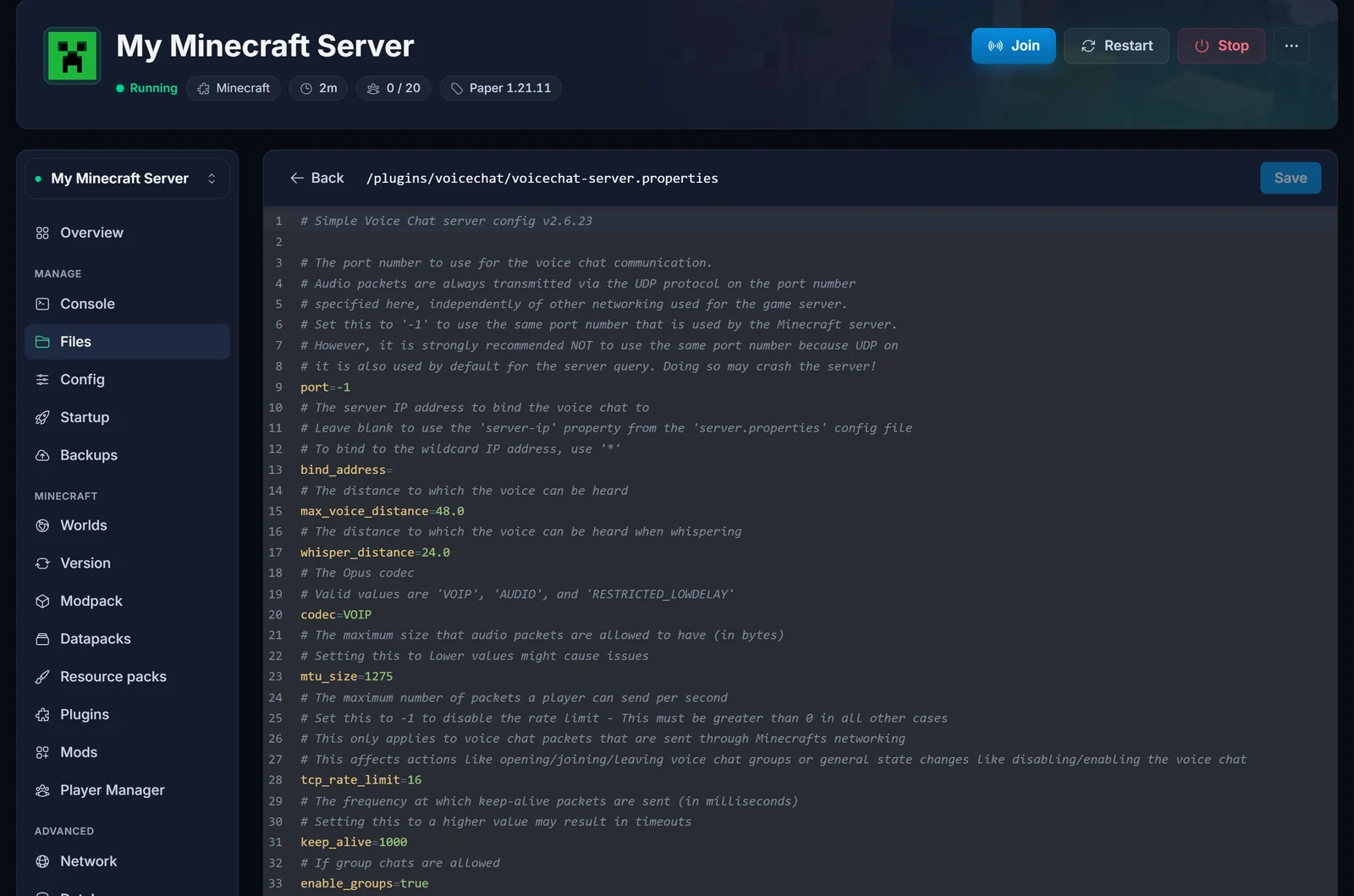
To give voice chat a port of its own, go to the Network tab, click Add port, and write that number in:
port=25566
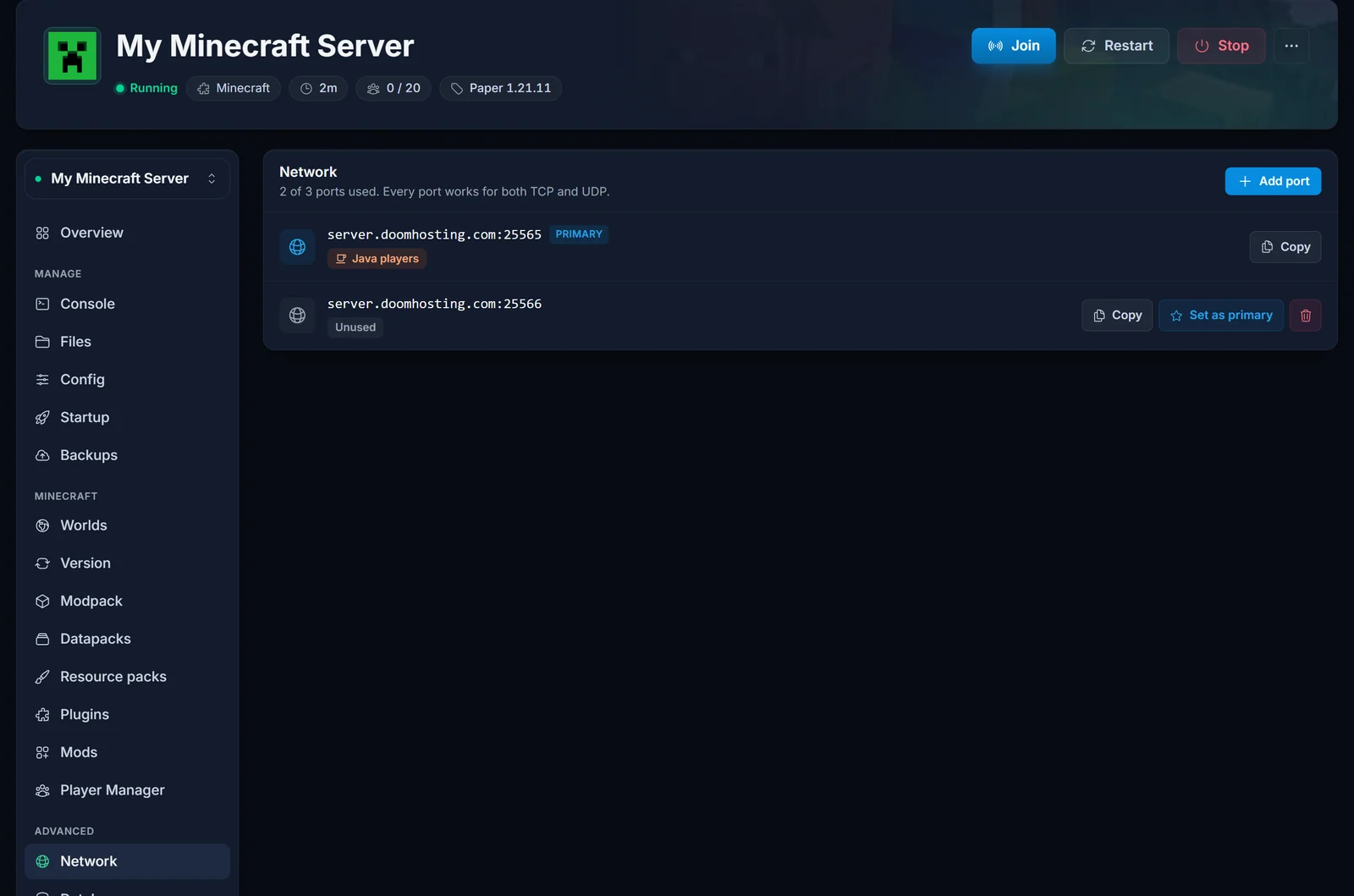
Start the server, then check the console line.
Common issues
Players are on the server but nobody hears anyone Each player needs the Simple Voice Chat client mod. Without it their game has no voice at all, however the server is set up.
The voicechat folder is not there The plugin writes it on the first start after it is installed. Start the server once, then look again.
Voice chat worked and then stopped Something else claimed the UDP port, usually server query being switched on, or Bedrock crossplay being turned on. The diagnostics call this "Voice chat could not start" and the fix is Give voice chat its own port.
Voice chat only works at close range
That is proximity audio doing its job. Adjust the range with max_voice_distance and whisper_distance in voicechat-server.properties.
