

Lag is the number one complaint on any Minecraft server, and most of the time it is fixable in a few minutes from the panel. The trick is knowing which kind of lag you have before you start changing things. This guide shows you how to tell them apart, then walks the fixes that actually move the needle, from a one-click optimization toggle to view distance, chunk pregeneration, and knowing when more RAM will (and will not) help.
First, identify the lag
There are three completely different problems that all get called "lag". Fixing the wrong one wastes your time.
- Server lag (low TPS). The server itself is falling behind. Minecraft runs at 20 ticks per second (TPS); when that drops, everyone lags at once: blocks break slowly, mobs freeze, hits do not register. This is the only kind you fix on the server, and it is what most of this guide is about.
- Client lag (low FPS). Only one player has choppy frames. That is their graphics card, render settings, or a client-side mod, not your server. A client-side performance mod like Sodium helps them; nothing on the server will.
- Network lag (high ping). One player rubber-bands and teleports back. That is the connection between them and the server: their WiFi, their distance to the server region, or their ISP. Everyone else is fine.
If everyone lags together, it is TPS, keep reading. If it is one person, it is their client or their connection.
Turn on optimized JVM flags
The fastest win is the Optimized JVM flags toggle on the Startup tab. It applies Aikar's flags, a well-known, battle-tested set of Java garbage-collector settings that smooth out the periodic lag spikes caused by memory cleanup.
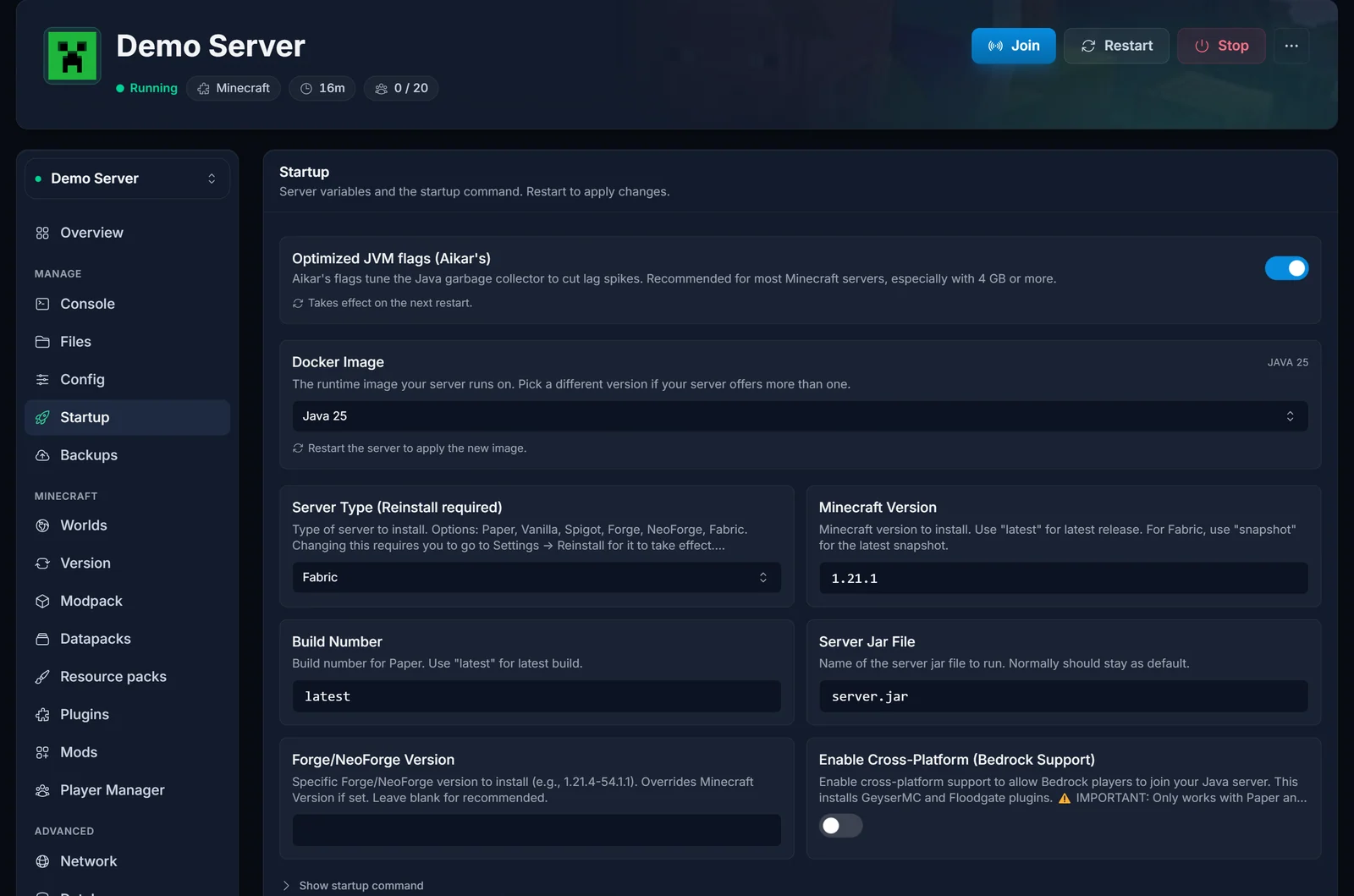
Two things to understand about this toggle:
- It tunes how Java collects memory, which reduces stutter. It does not change how much memory your server has, that is your plan's RAM.
- The flags are scaled to your server's RAM automatically. It is recommended for essentially every Minecraft server, and the benefit grows at 4 GB and above.
Flip it on and restart. This alone often clears up the "every few seconds it hitches" pattern.
Lower view distance and simulation distance
After the optimize toggle, view and simulation distance are the single biggest TPS levers you control. Both live on the Config tab under the Server section.
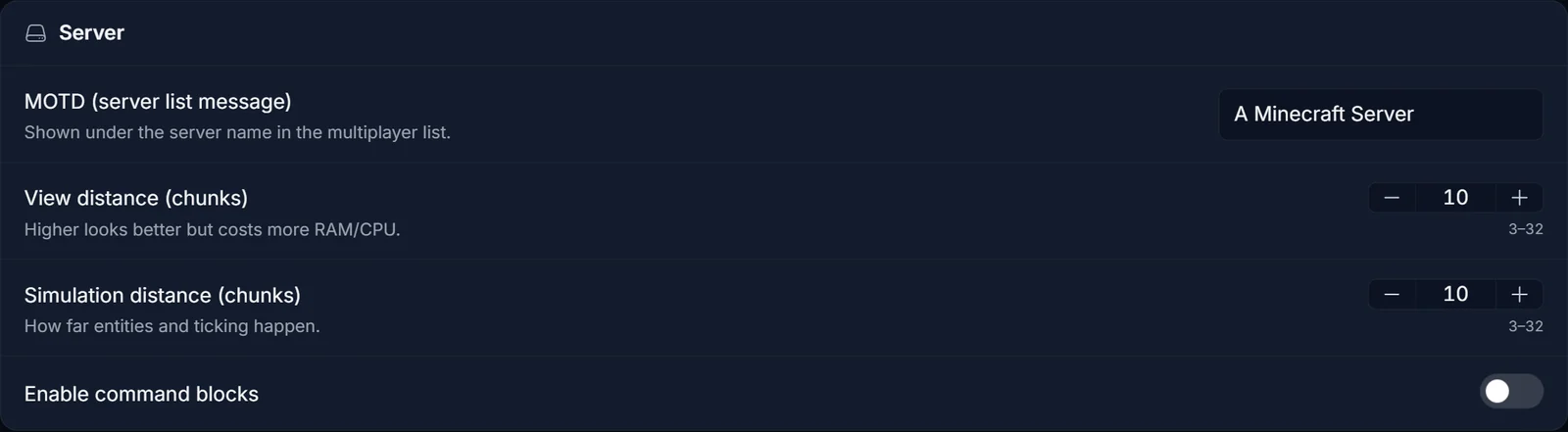
They are not the same thing, and the difference matters:
- View distance is how many chunks the server sends to players to render. Higher means players see further, at a cost in bandwidth and memory.
- Simulation distance is how far out the world actually ticks: mob AI, redstone, crop growth, physics. This is the expensive one for CPU. A single ticking area full of mobs and farms is a common TPS killer.
Sensible starting points: view distance 8 to 10, simulation distance 4 to 6. Dropping simulation distance from the default 10 to 6 can noticeably improve TPS on a busy server with almost no gameplay downside, because entities far from players do not need to tick. Restart after changing them.
Pregenerate your world
A huge amount of server-side lag comes from generating new terrain while players explore. Every time someone walks into fresh chunks, the server has to build them on the spot, which is one of the heaviest things it ever does.
The fix is to pregenerate the world's chunks ahead of time so exploration just loads ready-made terrain. Use the Chunky plugin (on Paper/Spigot) or the Chunky mod (on Fabric/Forge). Set a radius, let it run while nobody is playing, and border the world at that radius. Installing add-ons is covered in Installing Plugins on Your Minecraft Server and How to Install Mods on Your Minecraft Server.
Cut down entities and laggy farms
Ticking entities are one of the most common hidden causes of low TPS:
- Giant mob farms and mob switches that keep hundreds of entities loaded.
- Item drops piling up (a broken auto-farm dumping items on the ground).
- Too many hoppers, minecarts, or spawned mobs in one loaded area.
Reduce the mob spawn caps, cap how many items and entities can pile up, and redesign or switch off the worst farms. If you cannot find the source by eye, profile it (next section) rather than guessing.
Use Paper, and profile with spark
If you are on Vanilla and struggling, switching to Paper is one of the biggest single upgrades you can make. Paper reimplements the server with heavy performance work and adds a config full of anti-lag options, and it keeps full plugin support. On Fabric, the equivalent performance mod is Lithium. See Understanding Minecraft Server Types for how the options compare.
When you need to know exactly what is eating your ticks, install spark (available as a plugin and as a mod). Then run:
/spark tps
/spark profiler start
Let it record while the lag happens, then read the report. spark tells you which entities, chunks, or plugins are actually responsible, so you fix the real cause instead of changing settings at random.
When more RAM helps (and when it does not)
A common myth is that adding RAM raises TPS. It usually does not. RAM only helps when your server is genuinely running out of memory, in which case Java spends its time frantically collecting garbage (or crashes with an out-of-memory error). That happens with large modpacks, big worlds, high view distance, and lots of loaded chunks.
So the order is: fix TPS with the steps above first. If you see out-of-memory errors in your logs, or you are running a heavy modpack, then more RAM is the right move. Size it with the Minecraft RAM Calculator, then upgrade from the panel using the Upgrade button on your server page. To read your logs for memory errors, see Find and Share Your Minecraft Server Logs.
Quick checklist
- Confirm it is server lag (everyone lags together), not one player's client or connection.
- Turn on Optimized JVM flags (Startup tab) and restart.
- Set view distance 8 to 10 and simulation distance 4 to 6 (Config tab).
- Pregenerate the world with Chunky.
- Cut back entities and farms.
- Run Paper (or Lithium on Fabric) and profile with spark.
- Add RAM only if you are actually out of memory.
Work through those in order and the vast majority of Minecraft server lag disappears. Still stuck? Our team is on live chat 24/7 and happy to look at your server. Learn more about Minecraft server hosting at DoomHosting.
