

Your Hytale server is ready the moment your order goes through. This guide walks you through your first boot, the settings worth knowing on day one, and how to get your server listed in Hytale's in-game server browser.
Log In to Your Control Panel
Head to your control panel and log in with the account you used at checkout. Your Hytale server appears on the dashboard as soon as provisioning finishes, which normally takes under a minute.
Start Your Server for the First Time
Press Start on the server overview, then open the Console tab. On the very first boot, the server runs the official Hytale downloader, and it needs a one-time link to your Hytale account before it can fetch the game files:
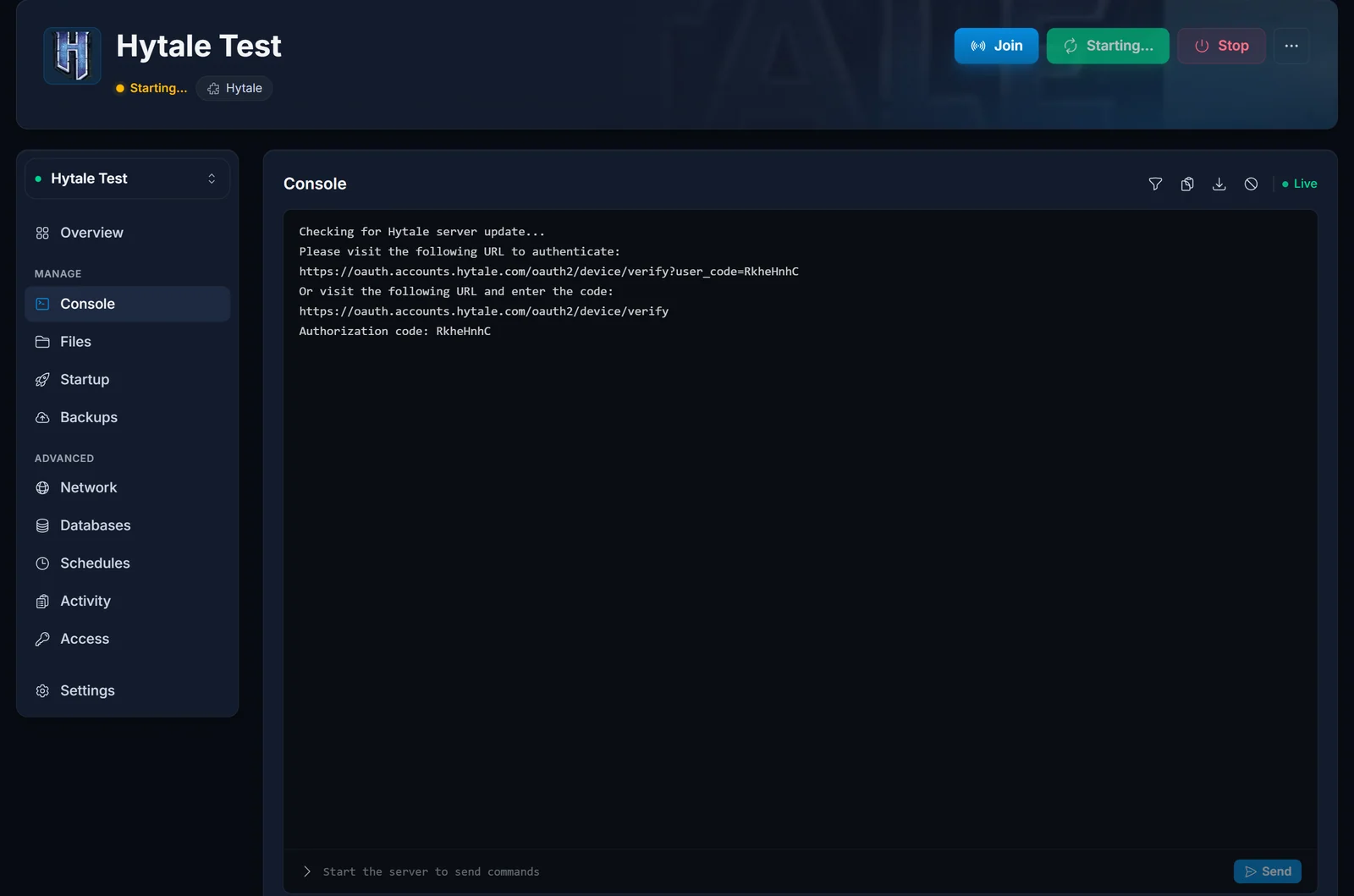
- The console prints an
oauth.accounts.hytale.comURL together with an authorization code. - Open the URL in your browser, log in with your Hytale account, and enter the code if the page asks for it.
- The downloader detects the approval automatically and starts pulling the server build and asset pack. Expect a few extra minutes on this first run.
The server stays in the Starting state until you complete this step, so if your fresh server seems stuck on the first boot, the console is where to look. Later restarts skip the whole download and are much faster. When the console settles and reports the world is ready, your server is live.
Find Your Server Address
Your connection details sit on the Overview tab in the connection card: the address is your server IP and port. Copy it with one click and share it with your players.
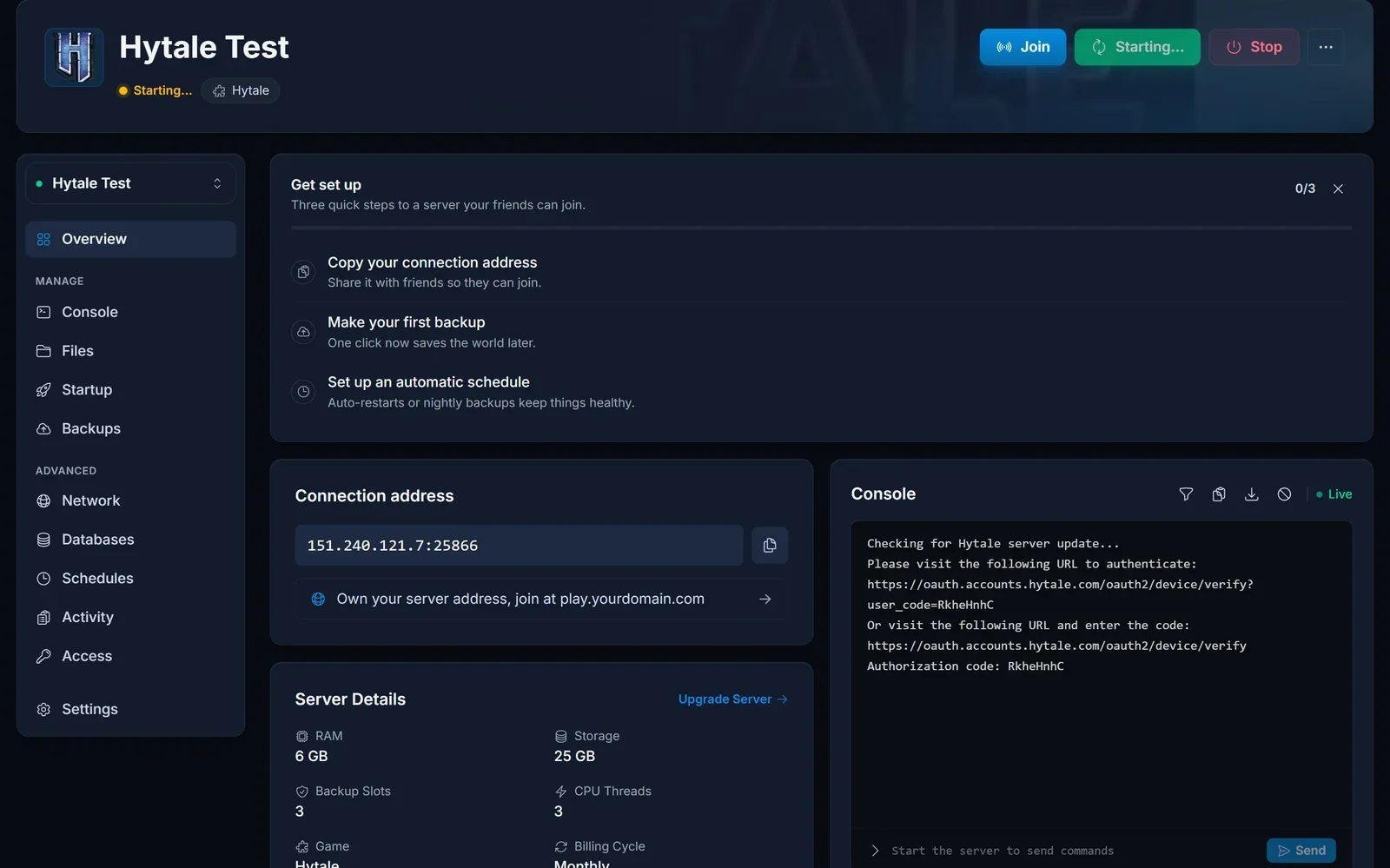
For the in-game steps (direct connect and adding the server to your list), see How to Join Your Hytale Server.
Key Server Settings
The settings most owners touch live on the Startup tab:
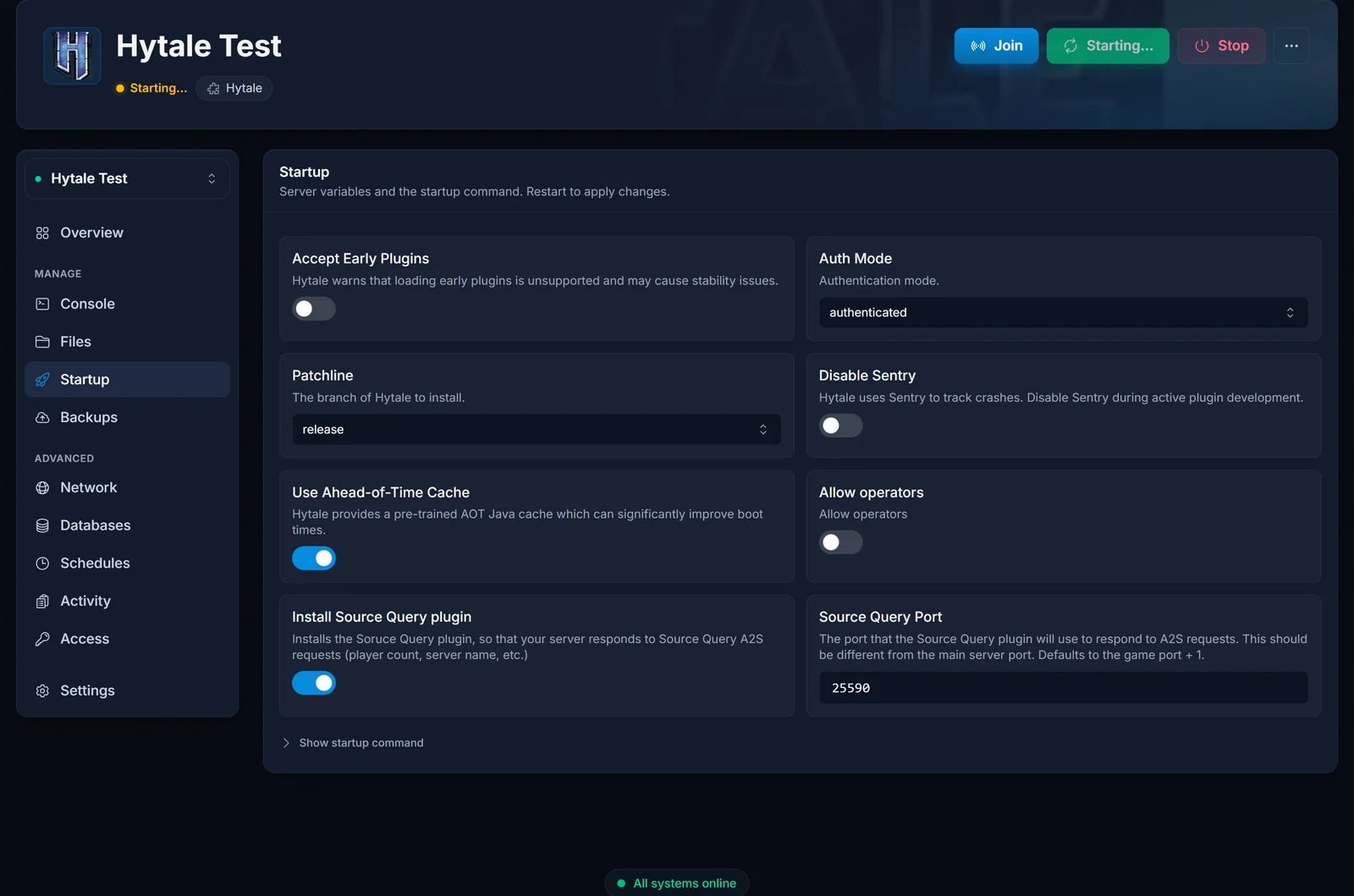
- Auth Mode:
authenticatedis the default and verifies every player against the Hytale account service. Leave it as is for a public server.offlineskips verification and is only meant for private testing. - Patchline:
releaseruns the stable build,pre-releaseruns the public test branch. Your players' clients must be on the same patchline as the server, so only switch topre-releaseif your whole group plays there. - Allow operators: enables in-game operator commands. Turn it on before following How to Add Admins to Your Hytale Server.
- Accept Early Plugins: opts your server into the early plugin API. Leave it off unless a plugin you want to run specifically asks for it.
Changes on the Startup tab apply on the next restart.
Get Listed in the In-Game Server Browser
Since Update 5, players can find community servers from the main menu. Getting listed happens on Hytale's side, not in our panel:
- Open the Hytale Account Manager and go to Server Profiles.
- Create a listing with your server's name, description, type, audience, and region.
- Verify your domain with a TXT record and submit the listing for review.
- Once accepted, your server sends a heartbeat every two minutes. If heartbeats stop for more than two minutes, the listing hides automatically until the server is back.
That last rule matters: uptime is now a discoverability feature. A server that stays online stays visible in the browser. For the full walkthrough of the listing flow, read our Update 5 server discovery guide.
Upload Mods, Scripts, and Worlds
Hytale ships with a built-in modding and scripting toolkit. To get your own content onto the server, use the Files tab or connect over SFTP with the credentials from the Settings tab. Upload your mod or script files, restart the server, and they load with the world.
Back Up Your Server
Before bigger changes (switching patchline, installing plugins, world edits), take a backup on the Backups tab. You can restore any backup with one click, so experiments are never one-way doors.
Common Issues
The server is stuck in Starting on the first boot. Almost always the account link: the downloader is waiting for you to open the authentication URL from the Console tab. Once you approve it, the download begins. After the download, later starts are fast.
Players cannot connect after an update. Check the patchline. A pre-release client cannot join a release server, and the other way around. Keep the server and your players on the same branch.
The server dropped out of the in-game browser. The listing hides automatically when heartbeats stop, usually because the server was offline or restarting. It reappears on its own a couple of minutes after the server is back up. You can check your server's status any time with our Hytale server status checker.
Still stuck? Our support team is around 24/7 from your control panel.
