
An Avorion server from DoomHosting boots into a galaxy called Avorion with nobody set as admin, so the first jobs are making yourself admin, naming the server and deciding how the galaxy should play. This guide covers those, plus where the galaxy lives on disk and how to add Steam Workshop mods.
Start the server and check it is listed
Open the server in your DoomHosting panel and press Start. The Overview page shows the server state, the live player count and the connection address on the connection card.
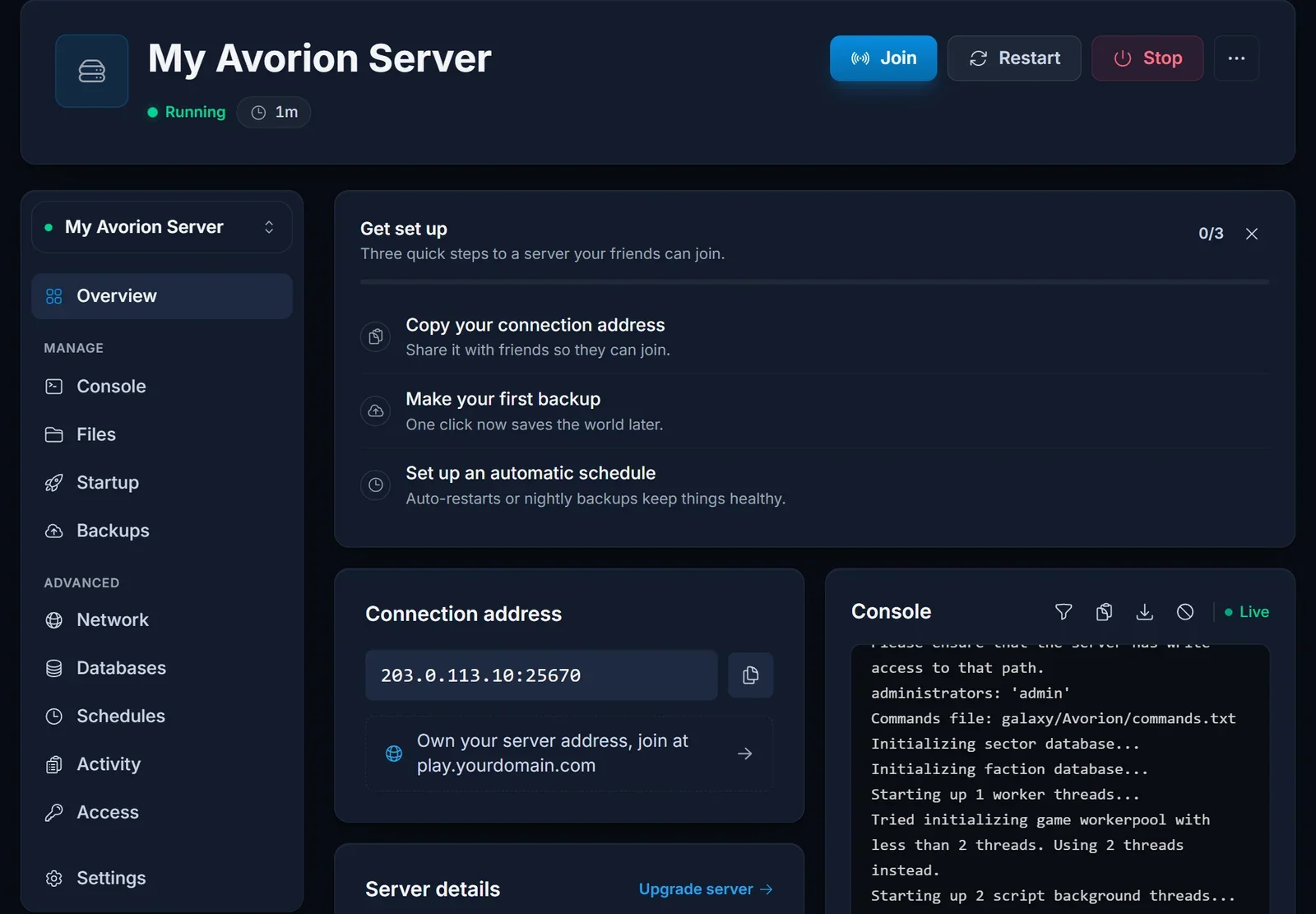
Your players will not type that address into the game. Every Avorion server we host gets its own query port, and on a custom query port the game only finds the server through its public server list, where players search for your Server Name. Our guide on how to join an Avorion server walks them through it, so send them that link once the server is up.
The settings on the Startup tab
Most of what makes your server yours is on the Startup tab. Change a value, restart, and the server boots with it.
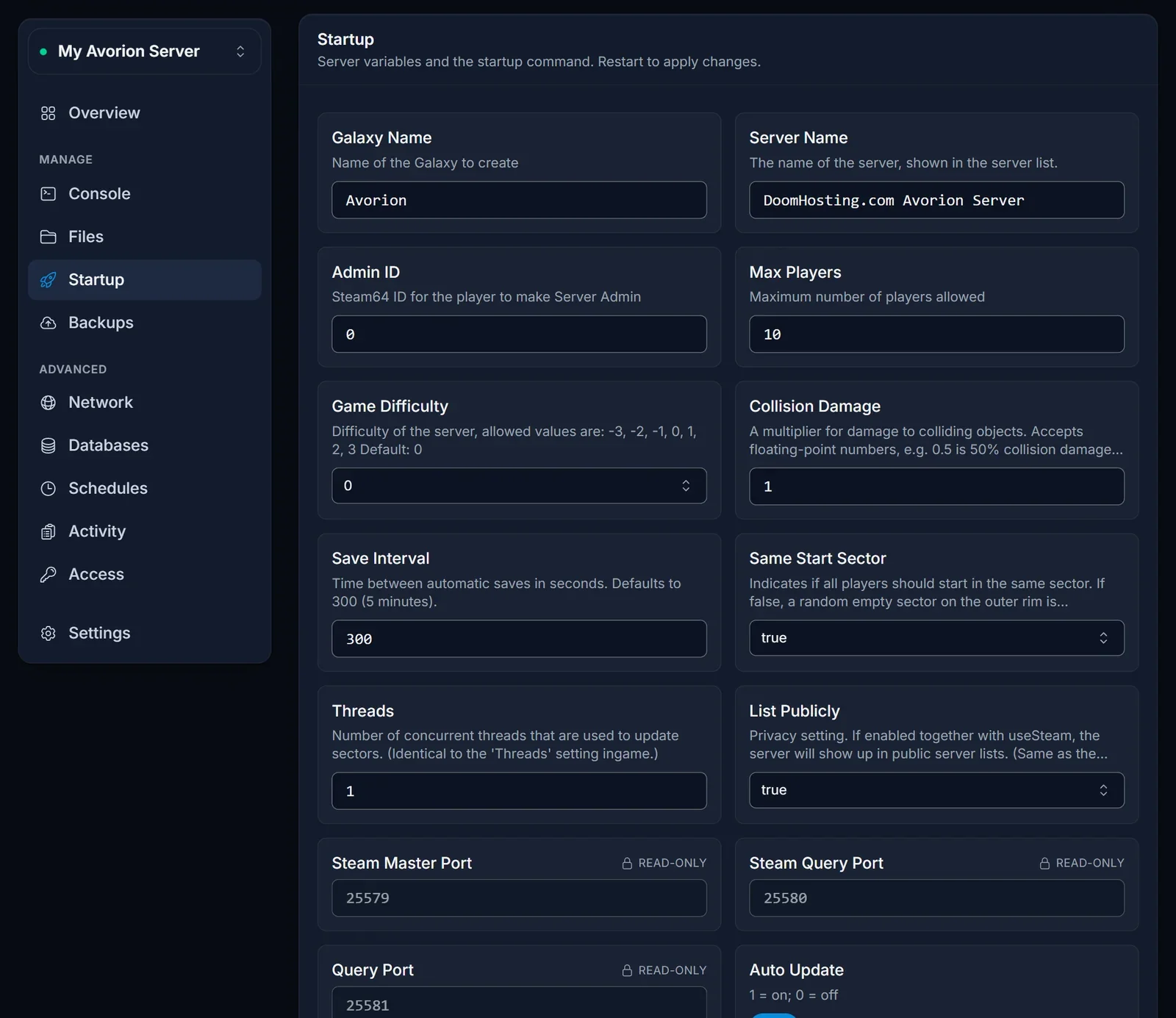
| Setting | What it controls |
|---|---|
| Galaxy Name | the folder the galaxy is saved in, Avorion by default |
| Server Name | the name shown in the server list, and what players search for |
| Admin ID | the SteamID64 of the server admin, 0 means nobody |
| Max Players | player slots, 10 by default and 64 at most |
| Game Difficulty | from -3 (easiest) to 3 (hardest), 0 by default |
| Collision Damage | a multiplier for damage when objects collide, 1 is full damage and 0.5 is half |
| Save Interval | seconds between autosaves, 300 by default |
| Same Start Sector | true starts every player in the same sector, false gives each one a random empty sector on the outer rim |
| Threads | how many threads update sectors at the same time |
| List Publicly | true shows the server in the public server list |
| Auto Update | updates the server files on every boot |
Steam Master Port, Steam Query Port and Query Port are marked read-only. They are assigned to your server and there is nothing to change there. Leave List Publicly on true: with it off, players have no way to find the server.
Further down, the beta branch field takes either nothing (the normal release) or beta to run the game's beta branch. Your players then need the same branch in Steam, or their client will not match the server.
Make yourself admin
Admin rights in Avorion are tied to a Steam account. Put your SteamID64, the 17-digit number that starts with 7656, into Admin ID and restart the server.
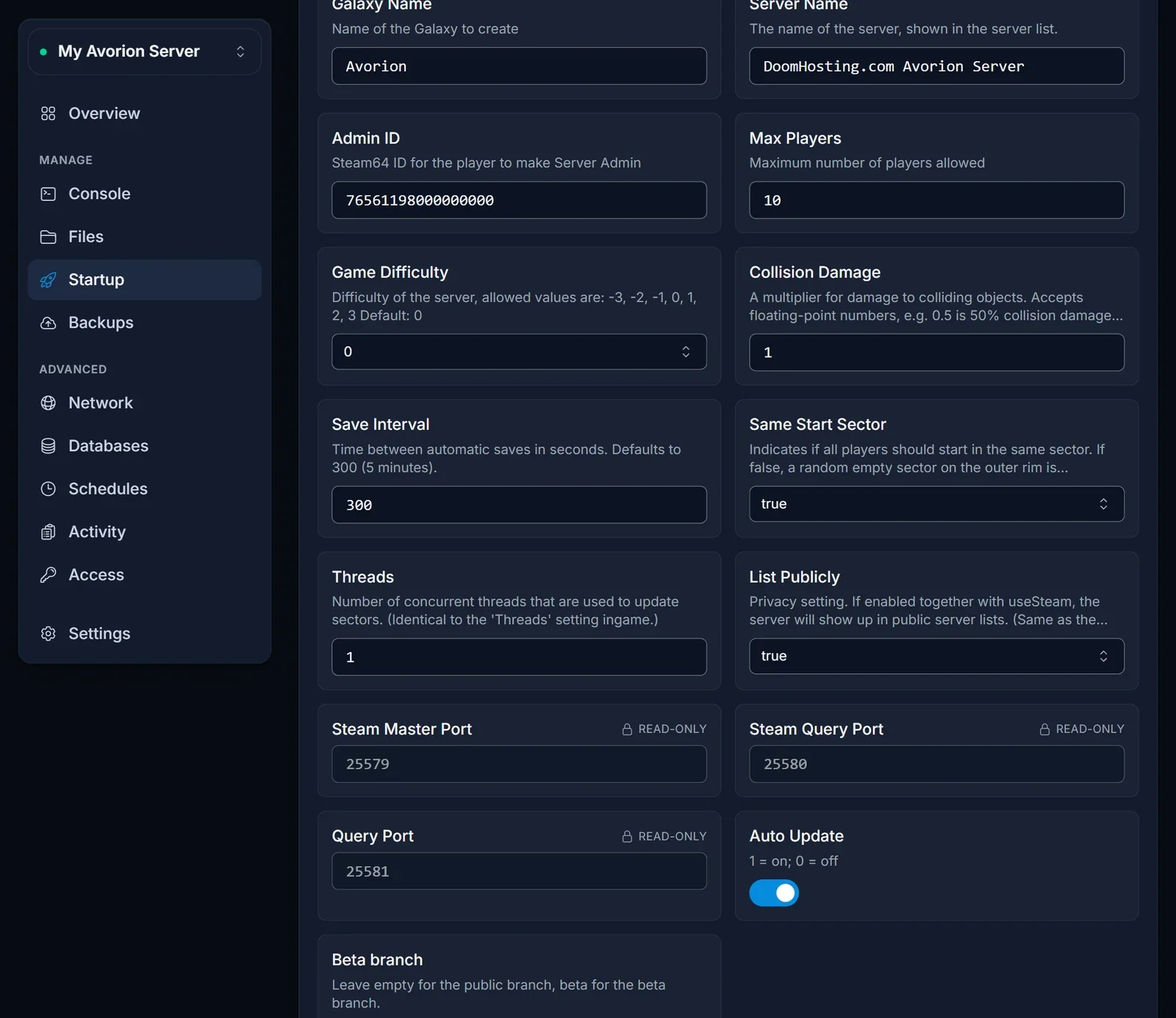
Not sure what yours is? Our guide on how to find your SteamID64 shows the quickest ways to look it up. A Steam profile name or a custom profile URL will not work here, only the number.
Where your galaxy lives
Everything about a galaxy is saved in /galaxy/<Galaxy Name>/, so on a new server that is /galaxy/Avorion/. Open it from the Files tab and you will find:
server.ini, the full list of game settings for that galaxysectors/,players/andfactions/, the saved state of the galaxywhitelist.txt,blacklist.txt,ipblacklist.txtandgroup-whitelist.txt, the access lists
Changing Galaxy Name on the Startup tab does not rename anything. The server creates a brand new galaxy under the new name on its next boot, and the old one stays on disk under /galaxy/<old name>/. Set Galaxy Name back and restart to return to it. That also makes it a clean way to start a fresh galaxy without deleting the old one.
The server autosaves every Save Interval seconds, and pressing Stop in the panel writes the galaxy to disk before the server shuts down. The game's own server backups are written to /backups. For a copy you can restore from the panel, use the Backups tab.
Change game rules in server.ini
server.ini holds the settings that are not on the Startup tab: whether players can damage each other, whether the barrier to the galaxy core is in place, building and docking rules, and more.
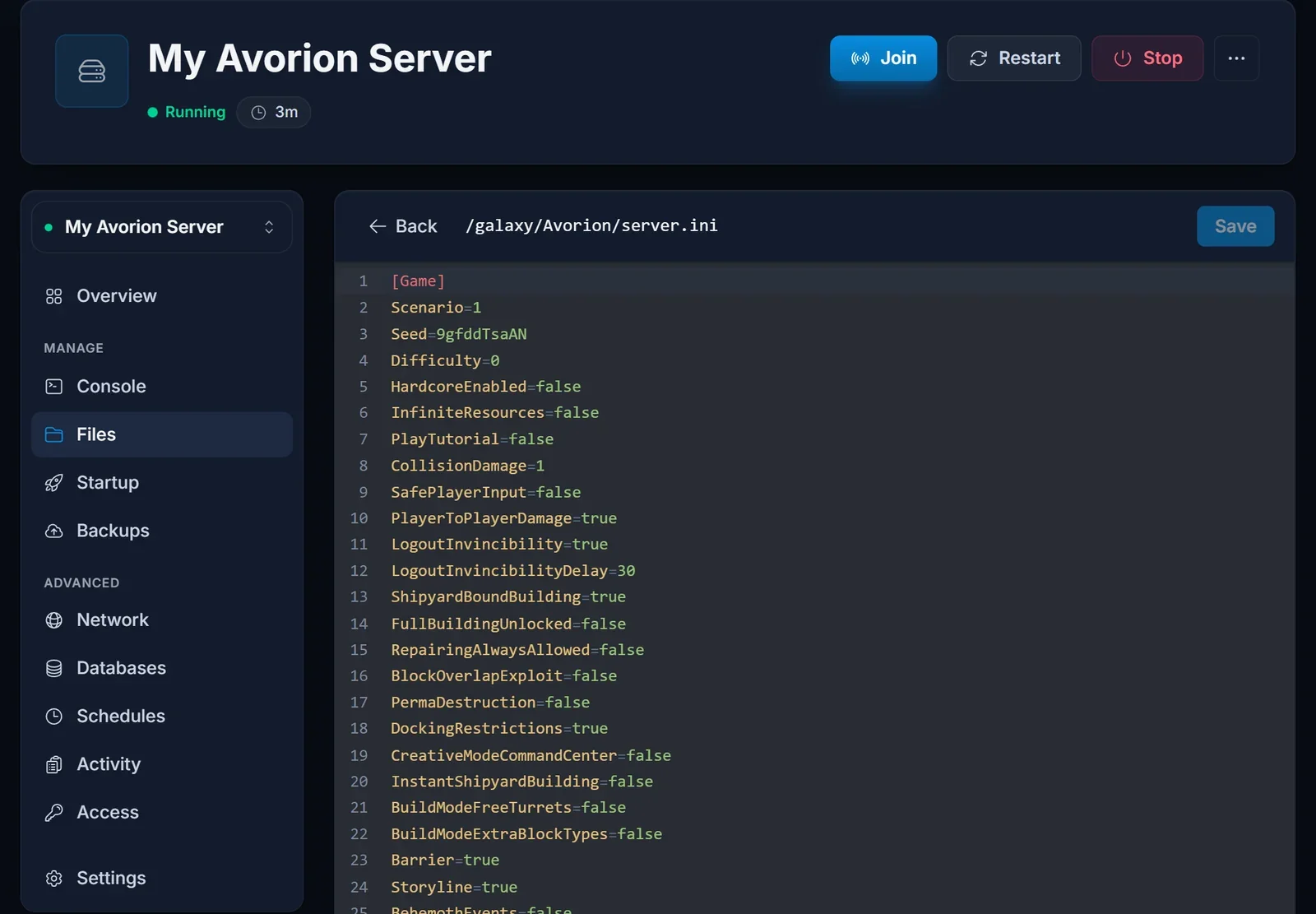
The server writes this file itself, so edit it only while the server is stopped:
- Press Stop and wait until the panel shows the server as offline.
- Open
/galaxy/<Galaxy Name>/server.iniin the Files tab. - Change the values you want, for example
PlayerToPlayerDamage=falsefor a server where players cannot shoot each other. - Save, then press Start.
If a setting also has a field on the Startup tab, such as the difficulty or the collision damage, change it on the Startup tab and use server.ini for the rest.
Add Steam Workshop mods
The server loads Steam Workshop mods from a file called modconfig.lua in the galaxy folder. It does not exist on a new server, so you create it yourself: in the Files tab, go into /galaxy/<Galaxy Name>/, create a new file named modconfig.lua and give it this shape:
modLocation = ""
forceEnabling = false

mods =
{
    {workshopid = "1691539727"},
    {workshopid = "1691591293"}
}

allowed =
{
}
Each workshopid is the number at the end of that mod's Workshop page URL. Every entry ends with a comma except the last one, so check the commas whenever you add or remove a mod. allowed is the list of client-side mods players may use on your server; leave it empty if you do not need it. Leave modLocation empty and forceEnabling on false.
Restart the server. It downloads the listed mods on boot and keeps them updated on every later boot, and players' games download the same Workshop mods when they join. The Console tab confirms what it found with a line like Found 2 mods in "galaxy/Avorion/modconfig.lua". The format comes from the official Avorion wiki page on using mods on dedicated servers. Note that Avorion disables achievements while mods are in use.
Common issues
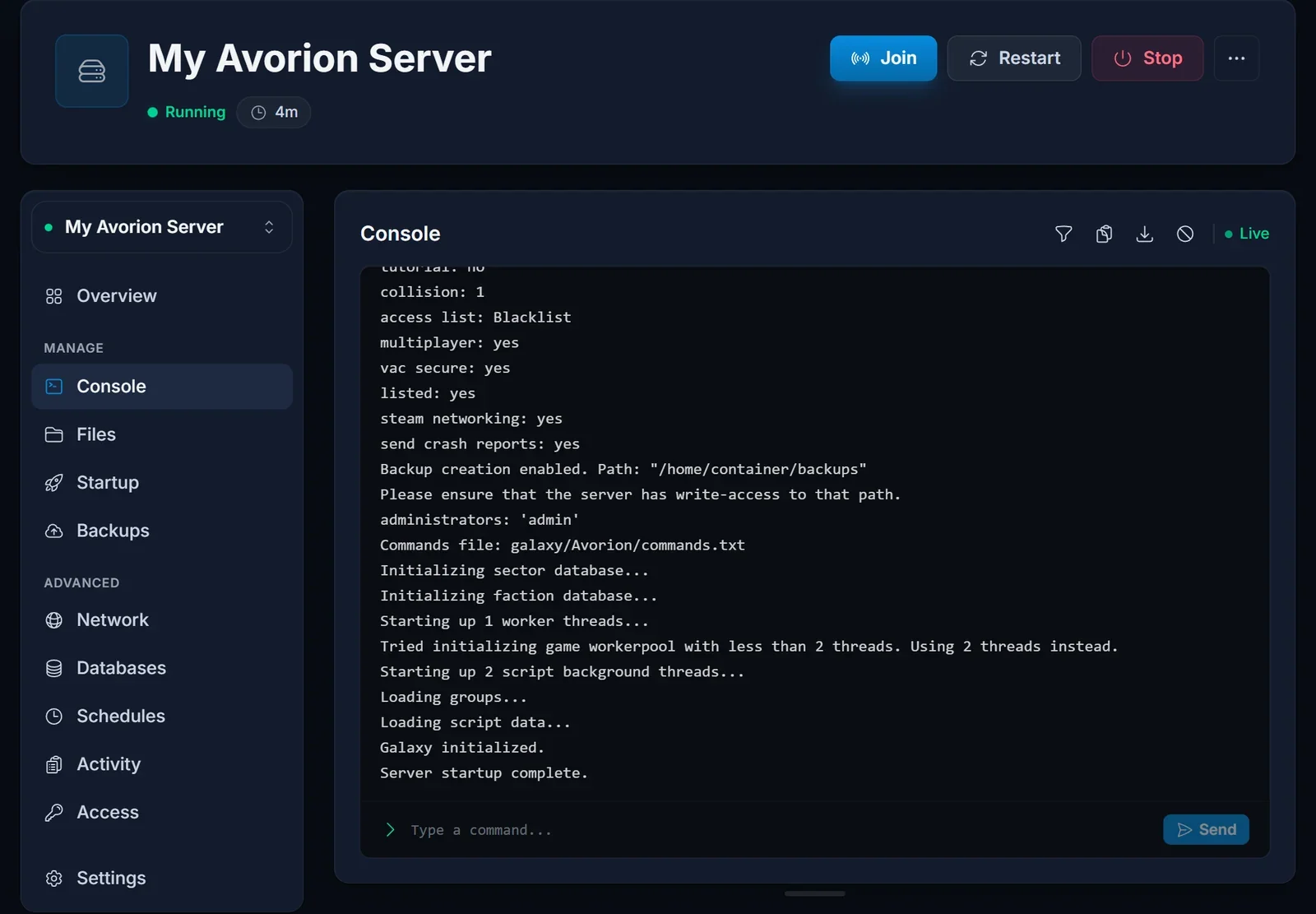
The server stops during boot. Read the Console tab. A healthy boot ends with Galaxy initialized. and Server startup complete., and anything that stops it before that is named in the lines above.
My server.ini changes were undone. The server was running when you saved. It rewrites the file itself, so stop the server, make the edit again and start it.
The galaxy is empty after a restart. Galaxy Name was changed, so the server started a new galaxy. Your old one is still under /galaxy/<old name>/. Put the old name back and restart.
I am not admin. Admin ID has to be the numeric SteamID64 of the account you play on, and it only applies after a restart.
Mods did not load. Check the Found ... mods line in the Console. If it says 0, the file is in the wrong galaxy folder, or has the wrong name. Also check the commas between entries.
Players cannot find the server. List Publicly must be true, and players have to search the server list for your Server Name. Join via IP cannot see a server on a custom query port.
Players cannot join after a game update. Leave Auto Update on and restart the server so it pulls the same version the players have.
Next steps
Send your players How to Join an Avorion Server. Plans and hardware are on our Avorion server hosting page, and the DoomHosting game panel page shows what else you can manage from the panel.
