
To join an Avorion server hosted with DoomHosting, open the game's multiplayer server list and search for the server's name. Join via IP will not find it, and this guide explains why, what the server owner needs to check first, and what to do when the server does not show up.
Before you start: the server name
You join an Avorion server by its name, not its address, so ask the owner for the exact Server Name. Owners find it on the Startup tab of the DoomHosting panel, in the Server Name field. A name like DoomHosting.com Avorion Server is hard to spot among hundreds of public servers, so a short, distinctive name makes the search much easier.
The server also has to be running. The panel's Overview page shows its state, the live player count and the connection address.
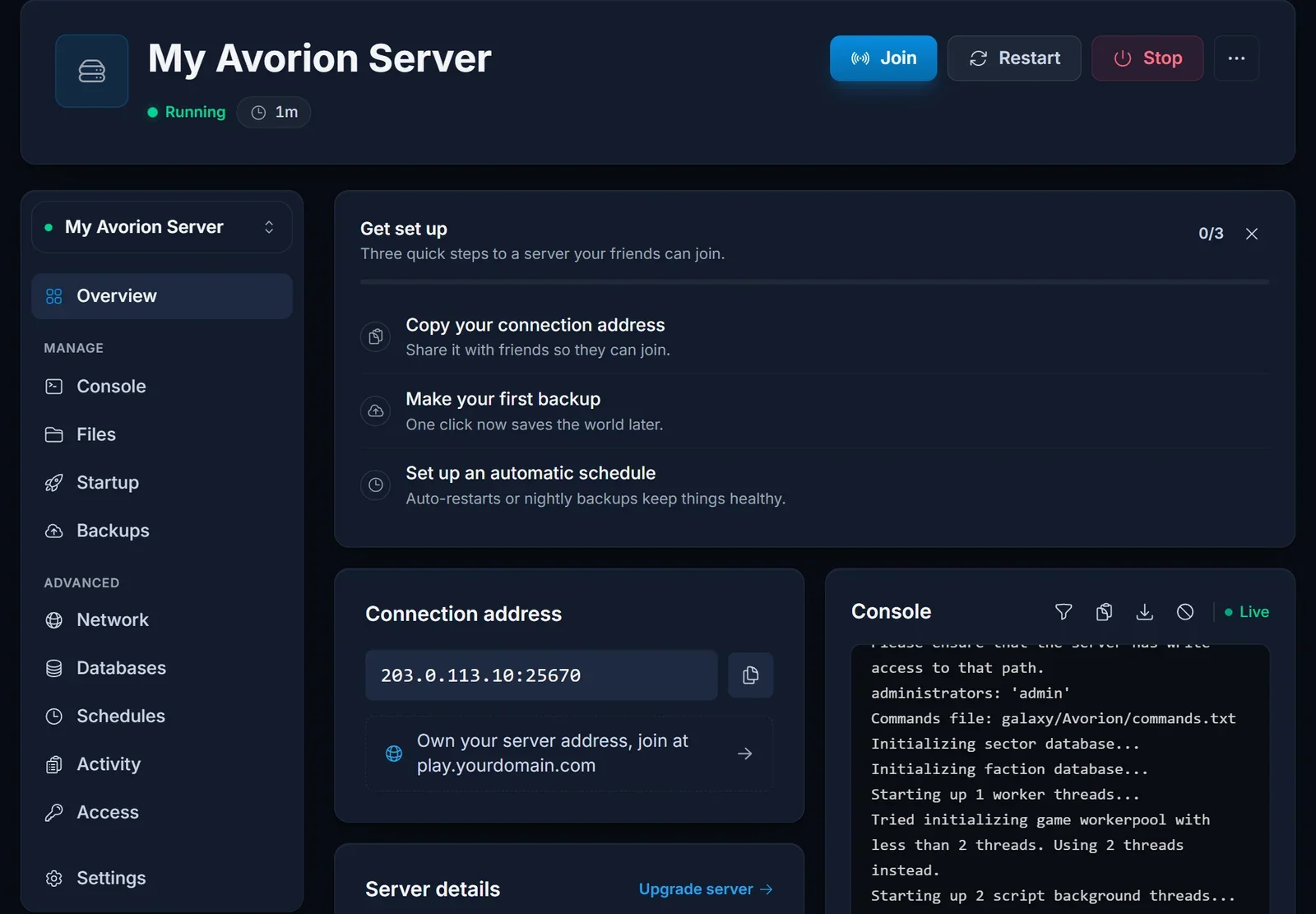
The address is useful for the owner to recognise the server and for support, but players do not need to type it anywhere.
Join from the server list
- Launch Avorion and open the multiplayer server list from the main menu.
- Find the Server Name in the list. Typing part of the name into the list's search or filter box narrows it down quickly.
- Select the server in the results and join it.
If the server runs Steam Workshop mods, your game downloads them while it connects, so the first join can take a little longer. Later joins reuse the files you already have.
Why Join via IP and Join LAN show nothing
Avorion expects a server to answer on the default query port. Every server we host has its own assigned query port instead, because many servers share one machine. The game says this itself when the server starts:
Players won't find this server in the 'Join via IP' and 'Join LAN' windows. Players will be able to join via the server browser.
So the Join via IP window stays empty even with the correct address typed in, and Join LAN only looks at your home network. The server list is the way in, and it works normally.
Server owners: keep it listed
For the server to appear in the list, List Publicly on the Startup tab must be true. That is the default. If it was switched to false, set it back and restart the server, otherwise players have nothing to search for.
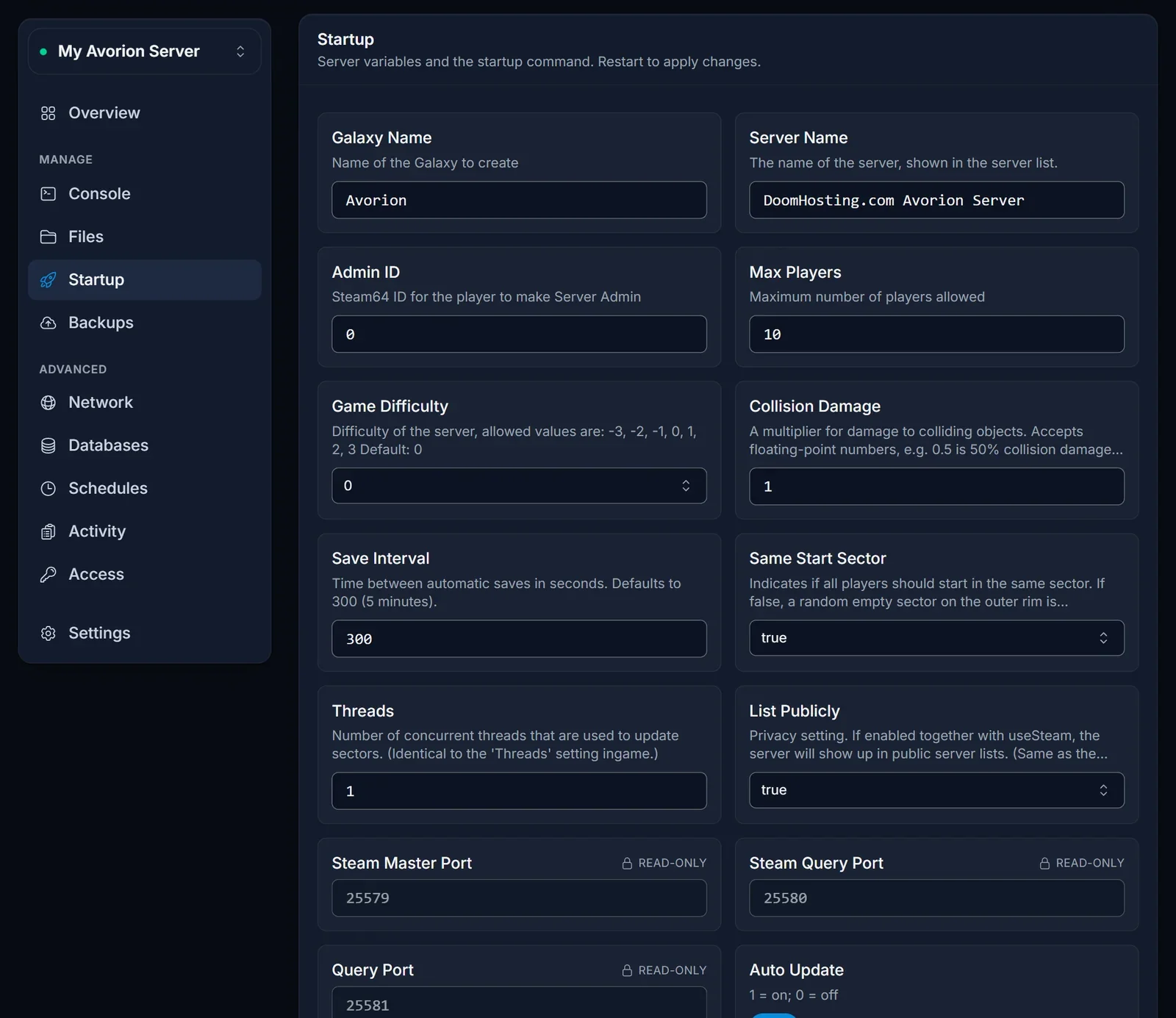
Changing the Server Name also needs a restart before the list shows the new name. Our Avorion setup guide covers the rest of the Startup tab.
Common issues
The server is not in the list. Check that it has finished booting. The Console tab ends a healthy boot with Galaxy initialized. and Server startup complete.
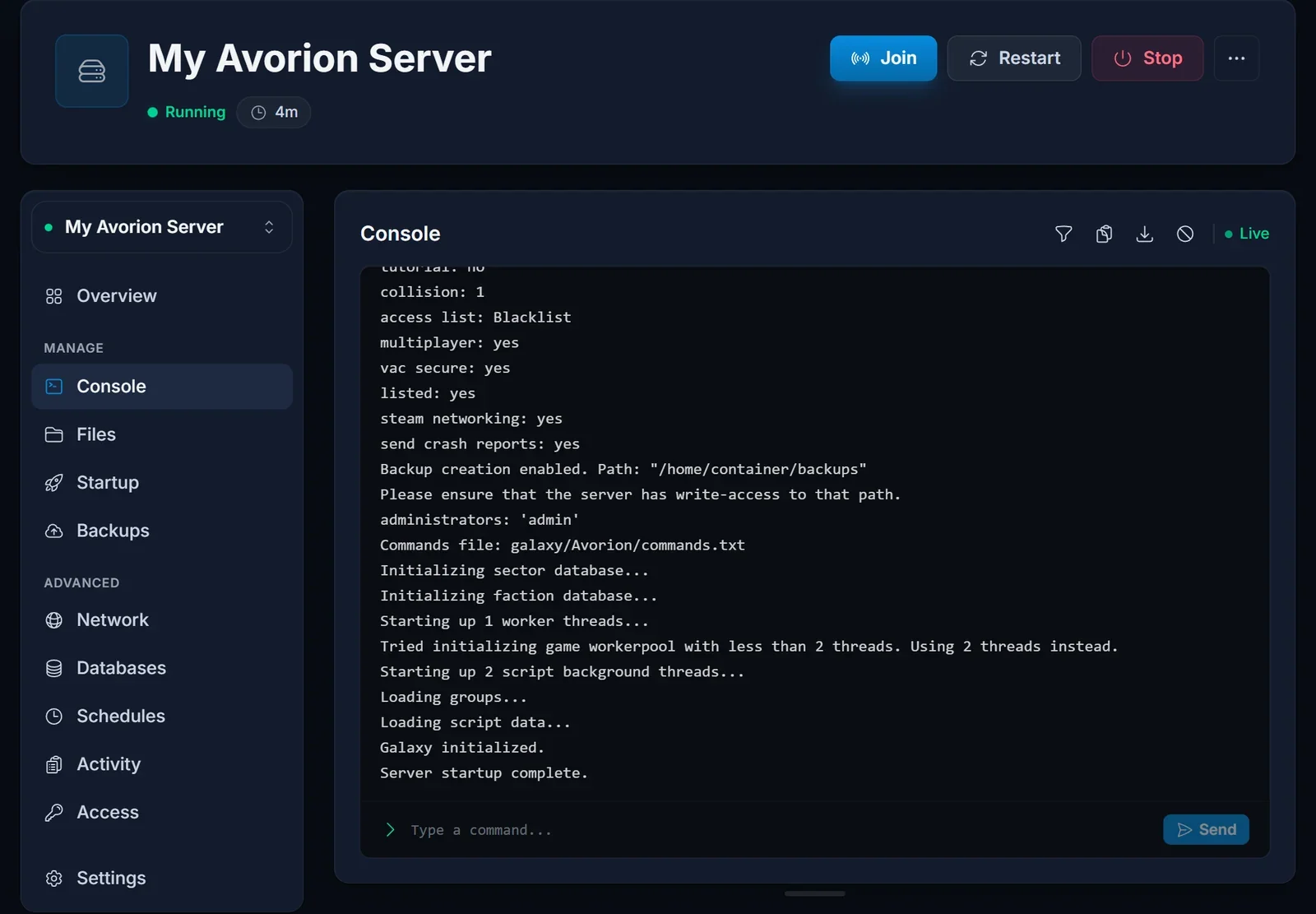
Right after a restart the public list can take a moment to catch up. Refresh the list before assuming something is wrong.
The name does not come up. Try a smaller part of the name and check the spelling with the owner. If the server was renamed, the list only shows the new name after a restart.
It worked yesterday, now I cannot connect. Your game probably updated. The owner restarts the server with Auto Update on, and it downloads the same version on boot. If the owner runs the beta branch, you need to switch to the same branch in Steam.
The server is full. Max Players on the Startup tab sets the slot count, 10 by default and up to 64. The Overview page shows how many players are online.
Join via IP says nothing is there. That is expected on our servers, see above. Use the server list.
Next steps
Setting up your own server? Start with How to Set Up Your Avorion Server. Plans and hardware are on our Avorion server hosting page, and the DoomHosting game panel page shows what you can manage from the panel.
