
Want to keep playing a world you started in singleplayer, or move one over from another server? You can upload any Aloft world onto your DoomHosting server. Aloft worlds are folders named w_<name>, and your server loads whichever one Map Name points to.
Find your world on your PC
On your computer, Aloft stores worlds here:
%USERPROFILE%\AppData\LocalLow\Astrolabe Interactive\Aloft\Data##\Saves
Each world is a folder named w_<WorldName>. The Data## is Aloft's save-version folder (for example Data06). Grab the whole w_<WorldName> folder you want to bring over.
Upload it to your server
- Stop your server first, so your files are not overwritten on shutdown.
- Connect with FTP. FileZilla works well, and the save folder is several levels deep, so FTP is far easier than the File Manager. Your FTP details are on the panel (the connection / Access area); the control panel overview shows where.
- Open the Aloft save folder on your server:
.wine/drive_c/users/container/AppData/LocalLow/Astrolabe Interactive/Aloft/Data06/Saves
Use the Data## folder that already exists on your server. It is created the first time the server runs (currently Data06; a future Aloft update may bump the number, so open whichever Data## is there).
- Upload your entire
w_<WorldName>folder into thatSavesfolder.
Keep a backup: your worlds live only in this Saves folder, so if you ever clear the .wine folder, copy Saves somewhere safe first.
Point your server at the world
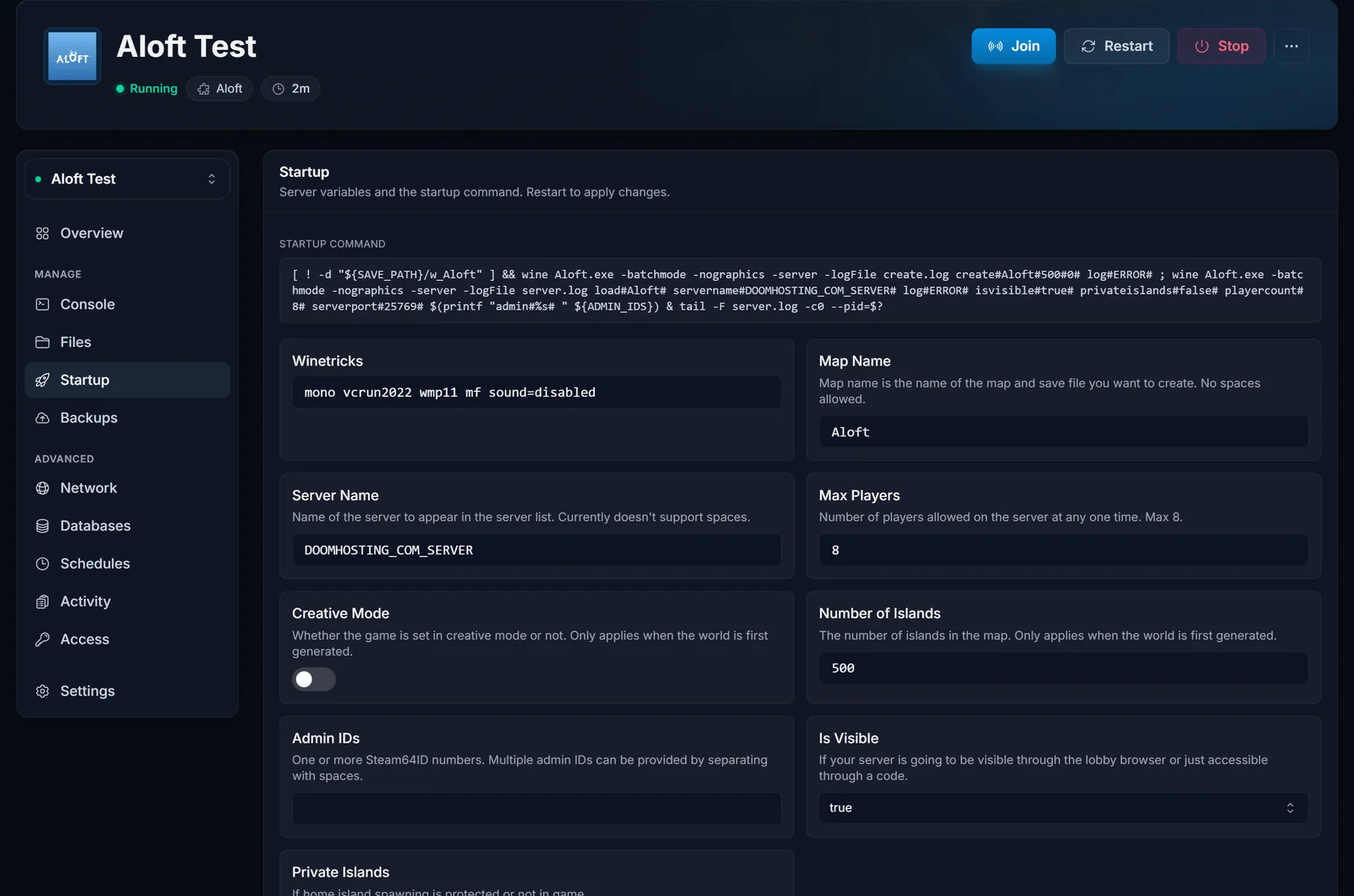
Open the Startup tab and set Map Name to your world's name, the part after w_, with no spaces. Save.
Start the server
Start it, and your server boots straight into your uploaded world. It only generates a fresh world when no world with that name exists, so your upload loads as-is. Share the room code from the connect card and your crew can join.
Common issues
- A brand-new world generated instead of yours. Map Name does not match the folder name exactly. It is case-sensitive, drops the
w_prefix, and allows no spaces. Set it to match the folder. - The world is not found. The
w_<name>folder (with_map.map,_overview.json, and_settings.jsoninside) must sit directly in the server's existingData##/Saves, not zipped, and not in a differentData##. - The world loads oddly or not at all. A save loads best when your game and the server are on the same Aloft version, the save format changes between updates.
Need a server to host your world on? See our Aloft server hosting page.
