

Your Aloft server is ready to fly the moment it is deployed. This guide covers the essentials: finding your room code so friends can join, tuning your world on the Startup tab, and giving yourself admin powers.
Find your room code
Aloft servers are joined with a 6-digit room code, not an IP address. Your server generates one on first boot and writes it to ServerRoomCode.txt in the server's root folder. Open the File Manager in the DoomHosting control panel to read it, then share that code with your friends. Up to 8 players can build, sail, and explore one shared world together.
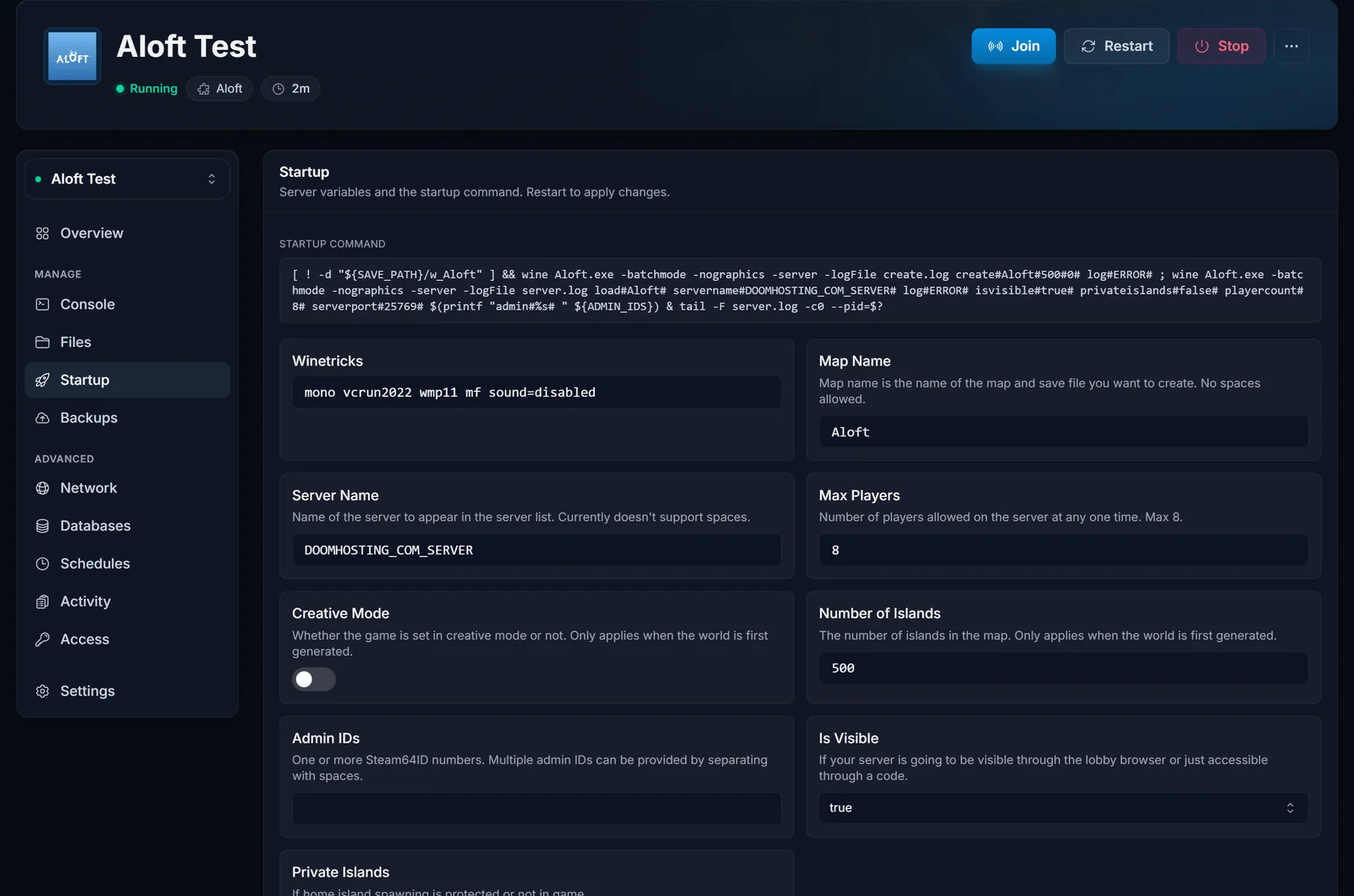
Configure your server on the Startup tab
Aloft keeps its settings on the Startup tab in your panel, not in a config file. Open it to adjust:
- Server Name: the name other players see for your server.
- Map Name: the world your server loads. A fresh world is generated the first time the server starts.
- Max Players: up to 8.
- Creative Mode: turn it on for a relaxed, resource-free building session.
- Number of Islands: how many islands generate across your sky.
- Is Visible / Private Islands: control whether your server appears in the in-game browser and whether islands stay private.
Change a value, save, and restart the server for it to take effect.
Join your Aloft server
In Aloft, open the multiplayer menu and enter your server's 6-digit room code to join. If you turned Is Visible on (Startup tab), your server also shows up in the in-game server browser, so friends can find it there too. Make sure everyone is on the same game version as the server so they can connect cleanly.
Make yourself an admin
To get admin powers in game, add your Steam ID to the Admin IDs field on the Startup tab. You can add several IDs separated by spaces. Find your 17-digit Steam ID with a tool like steamid.io, paste it in, save, and restart the server.
Keep your world safe
Set up a backup from the Backups tab so a rough hurricane or a wrong setting never costs you your islands. From the Schedules tab you can also automate restarts and nightly backups, which keeps a busy 8-player world healthy. New to the panel? The control panel overview shows where each tab lives.
Need more power as your crew grows? Scale your server RAM anytime from the panel, or see our Aloft server hosting page for plan details.
