
There are two reliable ways to join a The Forest dedicated server: the in-game dedicated server browser and Steam's server favorites. Both are quick, and the favorites method finds servers the in-game browser sometimes misses. Here is each, plus fixes for the usual failure cases.
Method 1: the in-game server browser
- Launch The Forest and click Multiplayer.
- Choose Join, then the Dedicated tab.
- Search the server name, or scroll the list. Clearing filters helps on busy days.
- Select the server and join. If it has a password, the game asks for it now.
Continuing a character: when you rejoin a server that has a Steam account token configured, your position and inventory are restored from your last visit. On servers without the token you start fresh each session.
Method 2: Steam server favorites
The Steam server list is faster than the in-game browser and keeps your regular servers one click away:
- In Steam, open View, then Game Servers.
- On the Favorites tab, click the plus icon.
- Enter the address as
IP:portusing the server's QUERY port, not the game port. The Forest answers Steam's server queries on the query port; server owners can read both ports off their panel's Network tab. - Add it, then select the server and press Connect while The Forest is running.
Common issues
Server missing from the dedicated list: the in-game browser is slow to index new servers. Use the exact name in search with all filters cleared, or fall back to the Steam favorites method, which queries the address directly and finds it immediately.
Wrong password: the join password is the server password, not the admin password. Ask the server owner which one they set.
Version mismatch: one side has not updated. Restart Steam to pull the latest The Forest patch; server owners can update from their panel with one click.
You spawn as a new character every time: the server has no Steam game server token configured. Point the owner at the token section of our The Forest setup guide; it takes two minutes to fix.
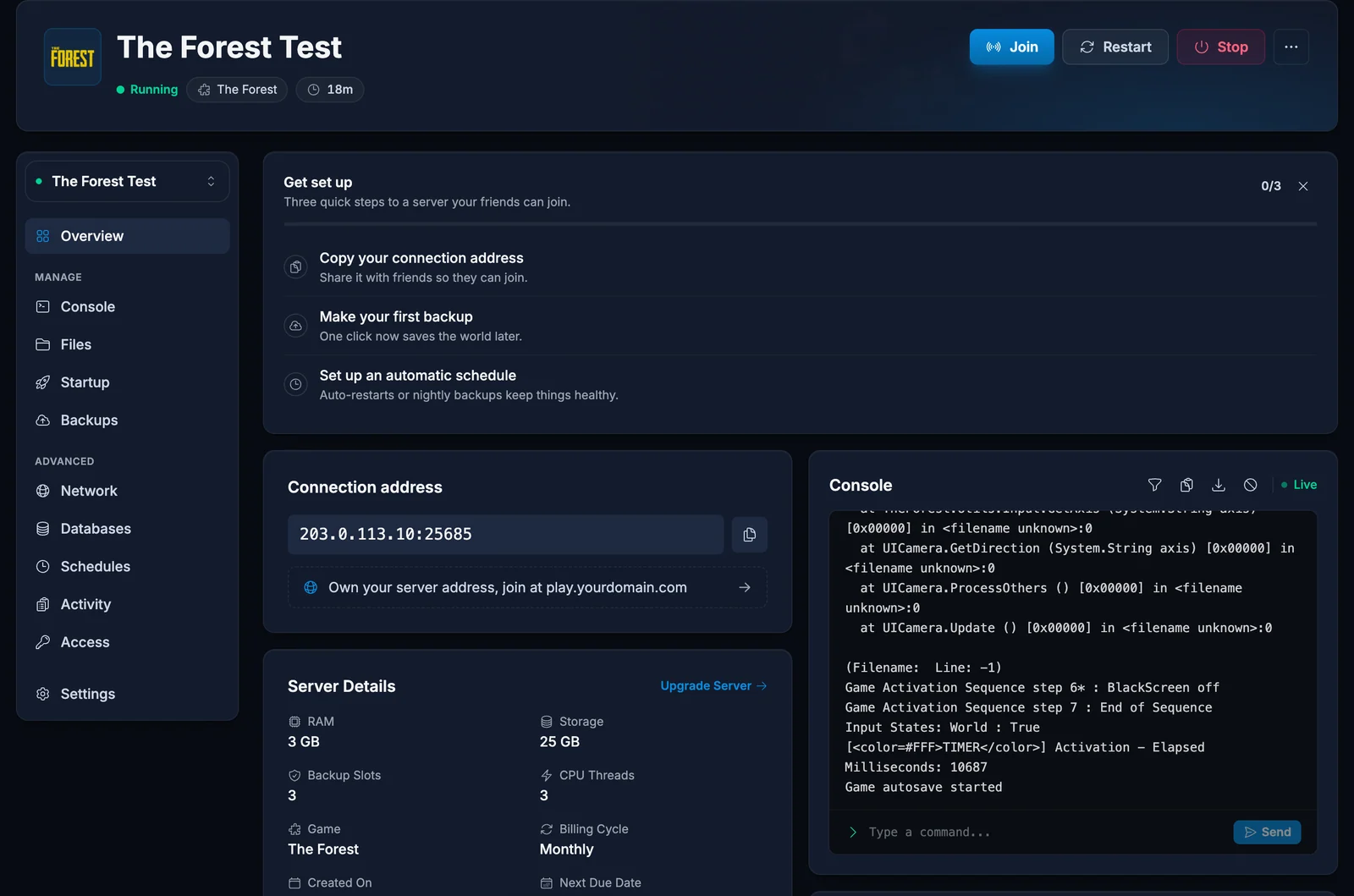
Connection timeout: the server may be restarting or mid-save. Give it a minute and retry. If it never answers, the owner should check the server state on their panel dashboard.
Rather run the server yourself? Rent a The Forest server from DoomHosting: online in minutes, persistent world around the clock, and a control panel that handles saves, passwords, and updates for you.
