
Setting up a The Forest dedicated server on DoomHosting takes a few minutes, and there is exactly one setting that trips people up: the init type that decides whether the server starts a new world or loads your save. This guide covers that first, then the rest: passwords, difficulty, admin access, the Steam token for player progress, and the extra config toggles.
The one setting that matters: Init Type
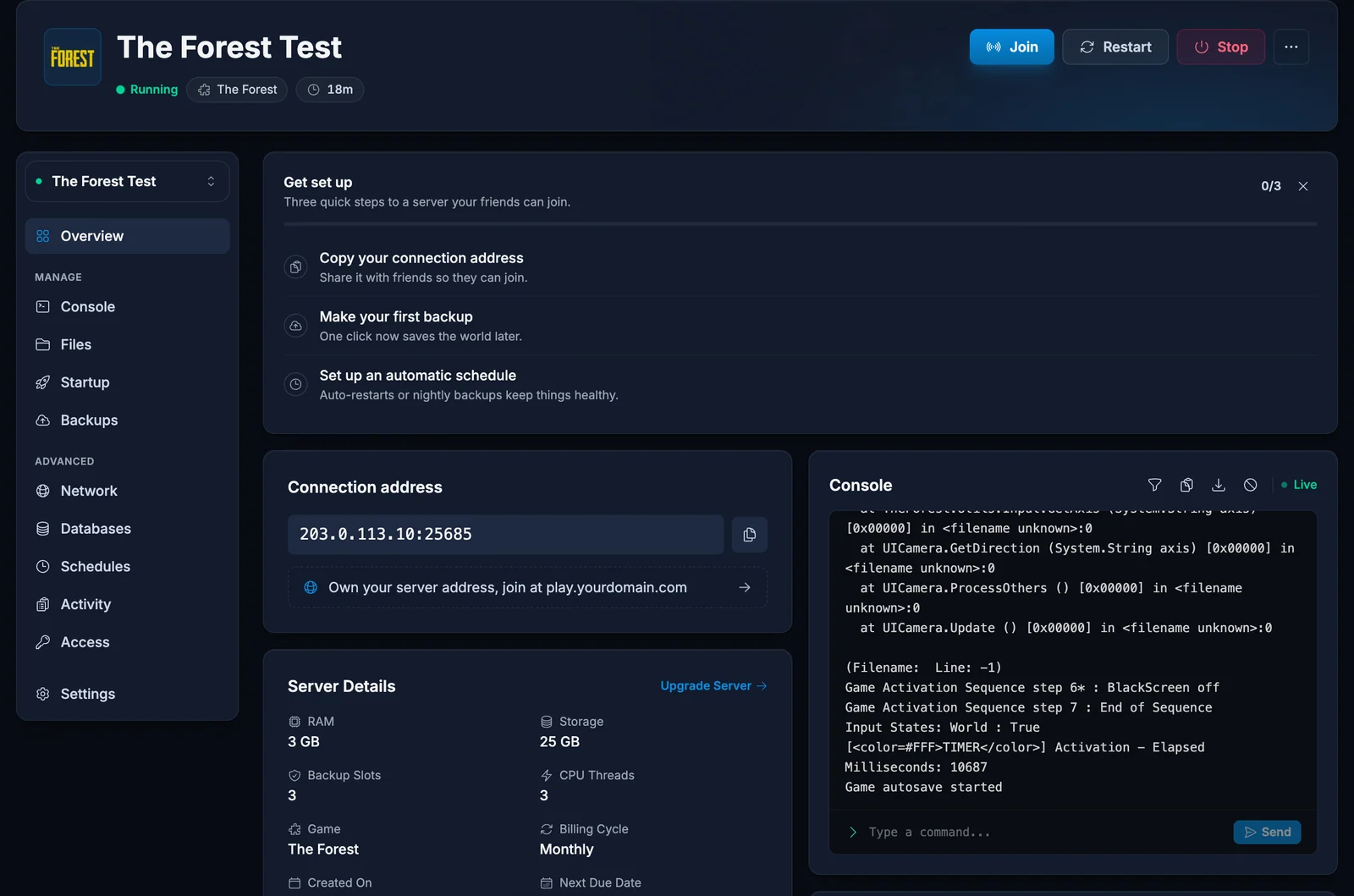
In the panel's Startup tab you will find Init Type with two values:
- New: the server generates a fresh world when it boots.
- Continue: the server loads the existing save.
Your server ships set to New so the first boot creates a world. After that first session, switch Init Type to Continue and restart. If you leave it on New, every restart starts the world over. Nothing is deleted (saves live in slots), but the server will not load your progress until the setting says Continue.
Basic settings
All of these live in the Startup tab and are written into the server config on every boot:
- Server Name: what players see in the dedicated server browser.
- Max Players: co-op in The Forest is at its best with a handful of players; the engine strains on very high counts.
- Server Password: set one to keep the peninsula private. Players are prompted when joining.
- Admin Password: change the default before your first session. Anyone with this password can run admin commands in-game.
- Difficulty: Peaceful, Normal, or Hard. This applies when a NEW world is created.
Ports: already handled
The Forest uses a game port, a query port, and a Steam port. All three are allocated and opened automatically when your server is created; you can see them in the Network tab. No port forwarding, no firewall rules.
Save player progress between sessions: the Steam token
Without a Steam game server token, The Forest treats returning players as new arrivals: position and inventory reset between sessions. The token is free and takes two minutes:
- Open Steam's game server account page and log in.
- Create a token with App ID 242760 (The Forest's client app ID).
- Paste the token into the Steam Account Token field in the Startup tab and restart.
This is the single most common "why did my stuff disappear" cause on The Forest servers, worth doing before your group's first real session.
Extra world toggles
A few settings have no Startup field but live in the config file. Stop the server, open Files and edit TheForestDedicatedServer_Data/forest/config/config.cfg, then start again:
veganMode off
vegetarianMode off
treeRegrowMode off
allowBuildingDestruction on
serverAutoSaveInterval 15
veganMode removes all enemies, vegetarianMode removes them during the day, treeRegrowMode regrows 10 percent of cut trees while you sleep, and the autosave interval is in minutes. Edit only these lines; the panel manages the name, ports, and password lines automatically and rewrites them on boot.
Becoming admin in-game
Join your server and open the chat. Type the admin password like this:
/admin YourAdminPassword
You then have access to the built-in commands (kick, ban, save and more). Type /help for the list.
Common issues
World reset after a restart: Init Type was still on New. Switch it to Continue in the Startup tab and restart; your save slots are still there and the newest one loads.
Players lose their inventory between sessions: no Steam token set. Follow the token steps above.
Server not in the in-game list: the dedicated browser can lag behind. Search by name with filters cleared, or add the server's query port address to Steam favorites, covered in how to join a The Forest server.
Your server is live around the clock, so the group can play without you online. If anything acts up, support is one click away in your DoomHosting panel.
