

To join a HumanitZ dedicated server, find it by name in the in-game server browser, or type its IP address and port into Direct Connect. This guide shows where to find the address in the DoomHosting panel, how both ways of joining work, and what to check when you cannot get in.
Get the address from the panel
The server owner opens the server in the DoomHosting panel. The Overview page shows the connection address on the connection card, with a copy button next to it.
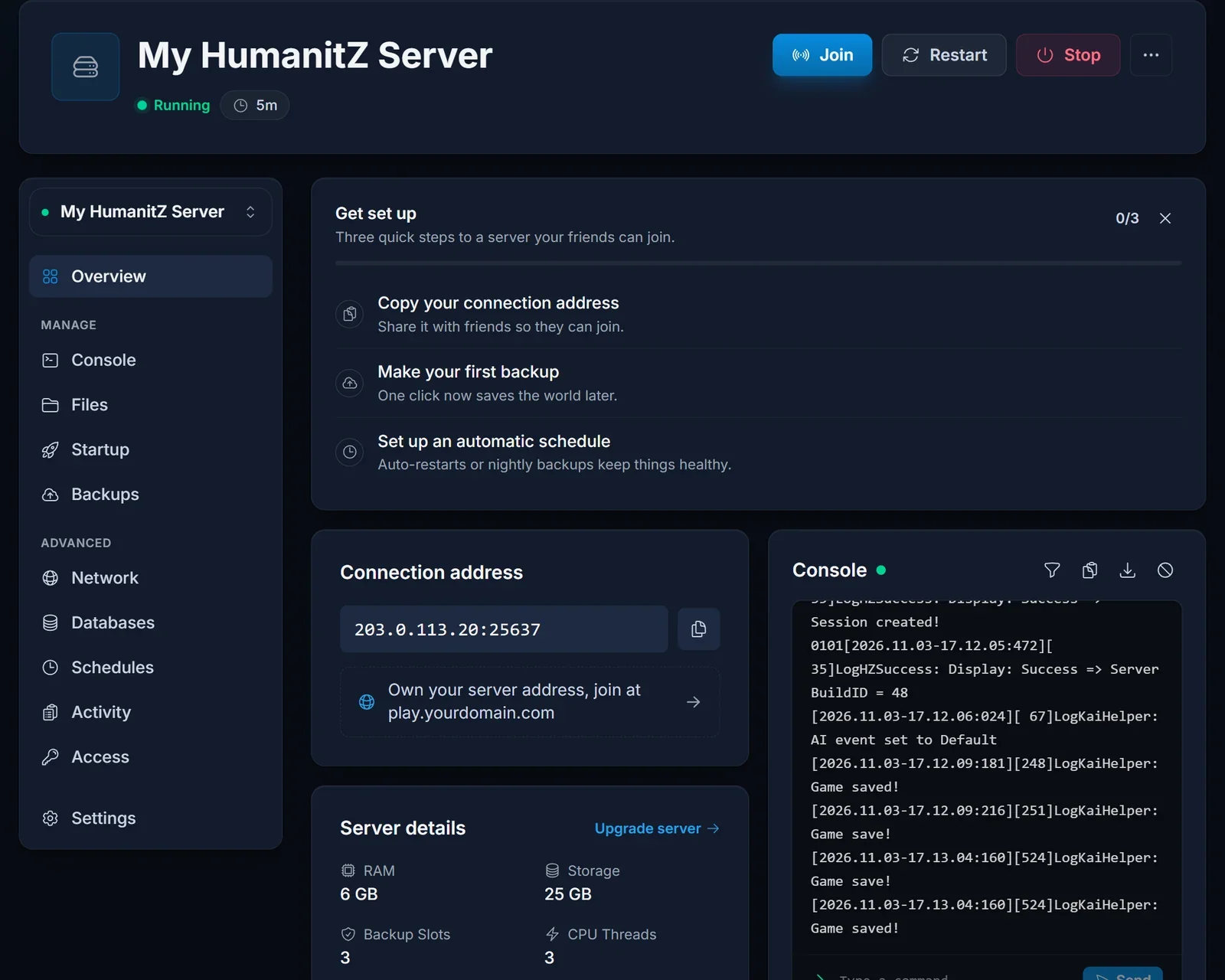
The address is an IP and a port separated by a colon, for example 203.0.113.20:25637. That port is the game port, which is the one players need. The server has to show as Running before anyone can connect.
Join from the server browser
- Launch HumanitZ and open the multiplayer server list.
- Search for the server name the owner set on the Startup tab.
- Select the server and join. Enter the password if it asks for one.
A server that just started can take a minute or two to appear in the list. If it still does not show up, use Direct Connect.
Join with Direct Connect
Direct Connect skips the list and works even when the server is hidden from it.
- Open the multiplayer server list in HumanitZ.
- Find the direct connection fields at the bottom of the screen.
- Enter the IP address and the port from the connection card in their own fields.
- Connect, and enter the password if the server has one.
Servers with a password
A password is optional. If the owner filled in Server Password on the Startup tab, every player has to enter it to join. Ask the owner for the current value, since it changes whenever they change that field and restart.
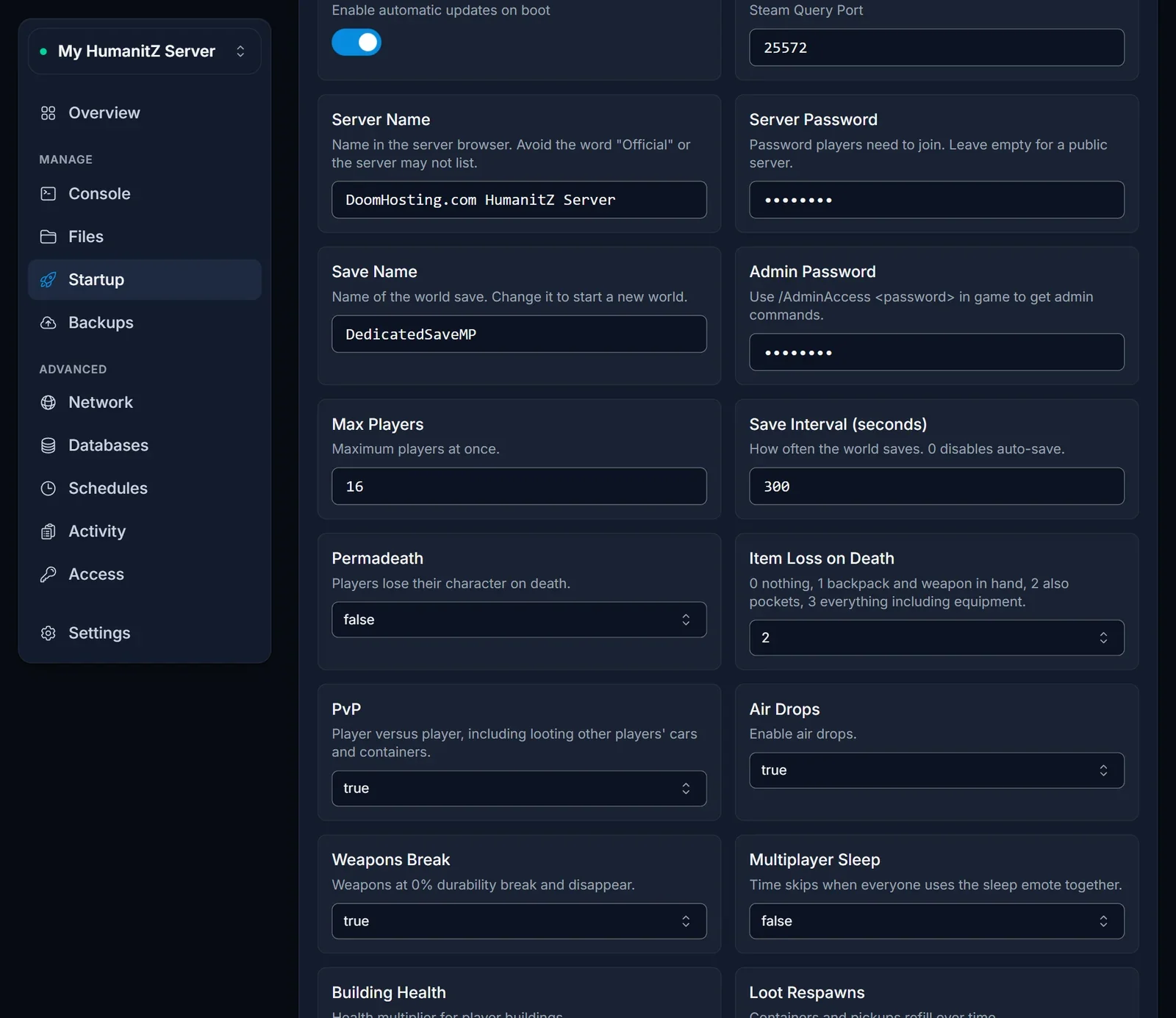
Owners: the password, the server name and every other setting are covered in our HumanitZ server setup guide.
Common issues
The server is not in the list. Check that it shows as Running. A Search ID other than HumanitZ_Dedicated, or the word "Official" in the server name, keeps a server out of the default list. Direct Connect still works.
Connection failed or timed out. Make sure you entered the port as well as the IP, exactly as the connection card shows it, and not the query port. A network that blocks outgoing UDP traffic can also stop the connection.
Version mismatch. You need the same game version as the server. The server updates itself on every start, so the owner restarts it, and players update HumanitZ in Steam.
The password is refused. The owner may have changed it, and it only takes effect after a restart. Ask for the value that is on the Startup tab now.
The server is full. The Max Players setting caps how many people can be online at once. The owner can raise it on the Startup tab and restart.
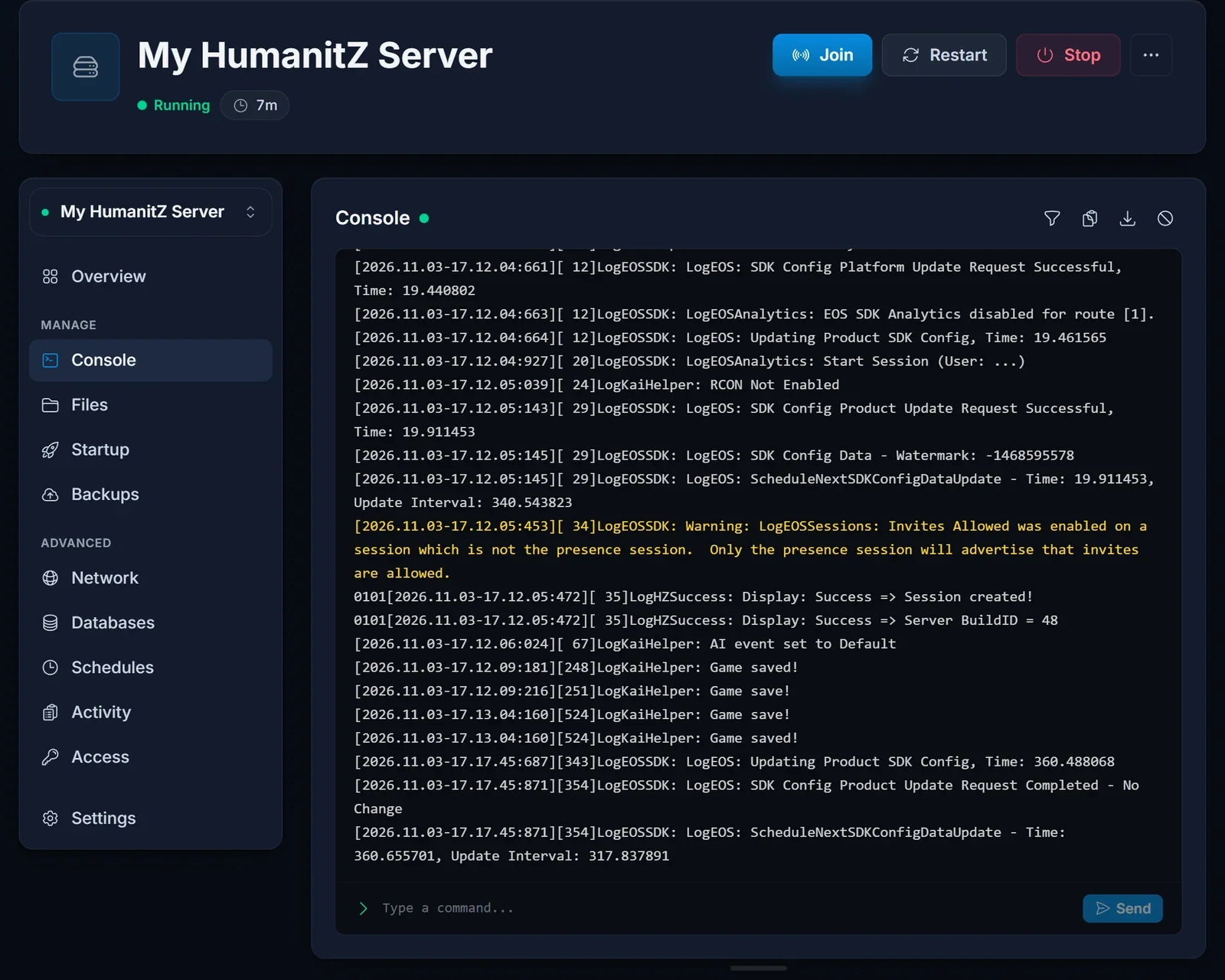
You are not sure the server is up. The owner can open the Console tab. A server that is ready for players prints Session created! near the end of its startup log.
Next steps
Setting up your own server? Start with HumanitZ Dedicated Server Setup. Plans and hardware are on our HumanitZ server hosting page, and the DoomHosting game panel page shows what you can manage from the panel.
