

A HumanitZ dedicated server from DoomHosting runs the official Linux server build, keeps your world online when everyone logs off, and puts more than 75 world settings on the Startup tab of the panel. This guide covers starting the server, naming it and locking it with a password, tuning zombies, loot and PvP, and starting a fresh world.
Start the server and copy its address
Open the server in your DoomHosting panel and press Start. The first start downloads the server files from Steam, so give it a few minutes. When the console prints Session created! the server is Running and ready for players.
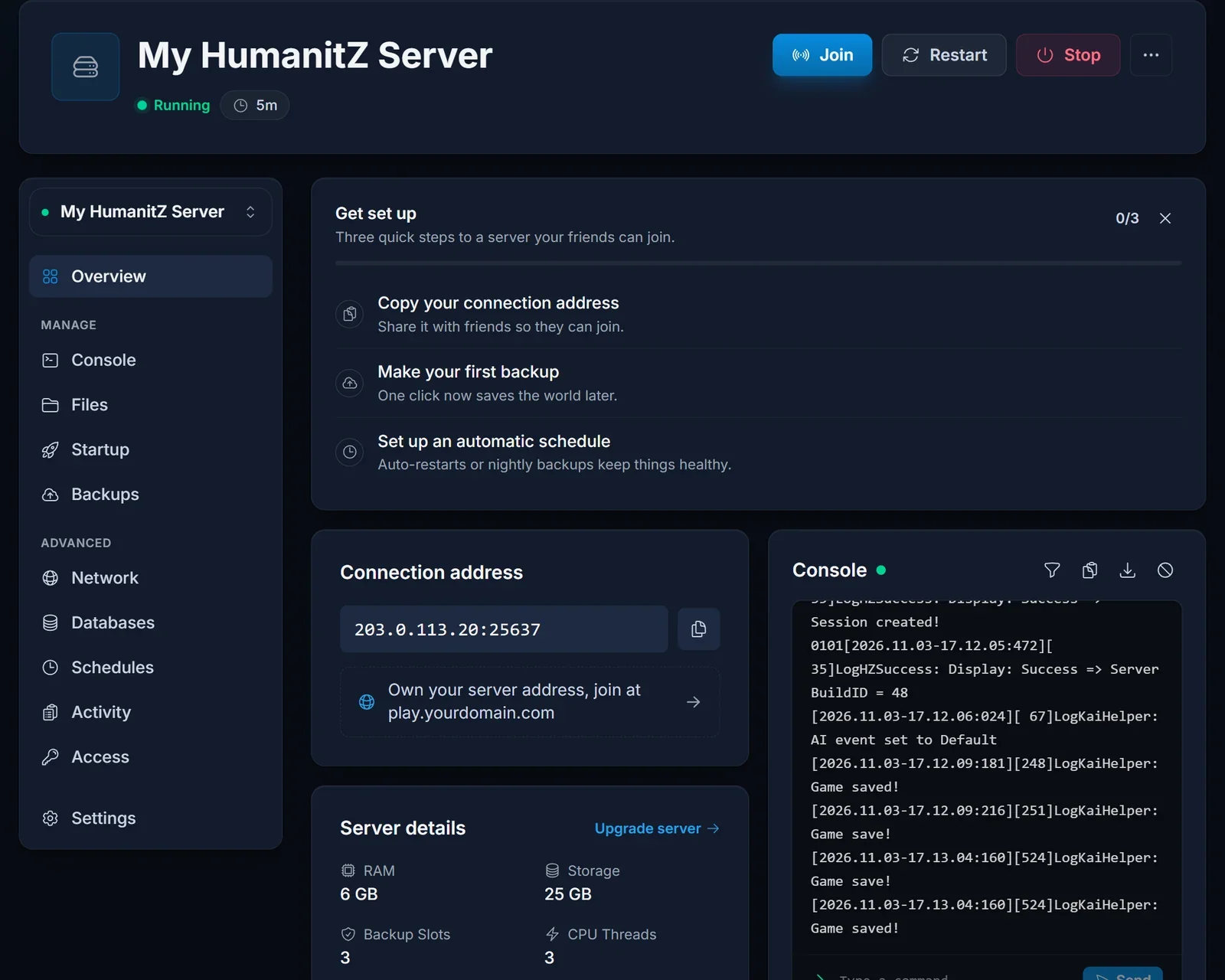
The connection address on the Overview page is the IP and the game port your players need. Send them our guide on how to join a HumanitZ server.
Server name, password and admin access
Open the Startup tab. The first block holds the settings that decide how players find and enter your server.
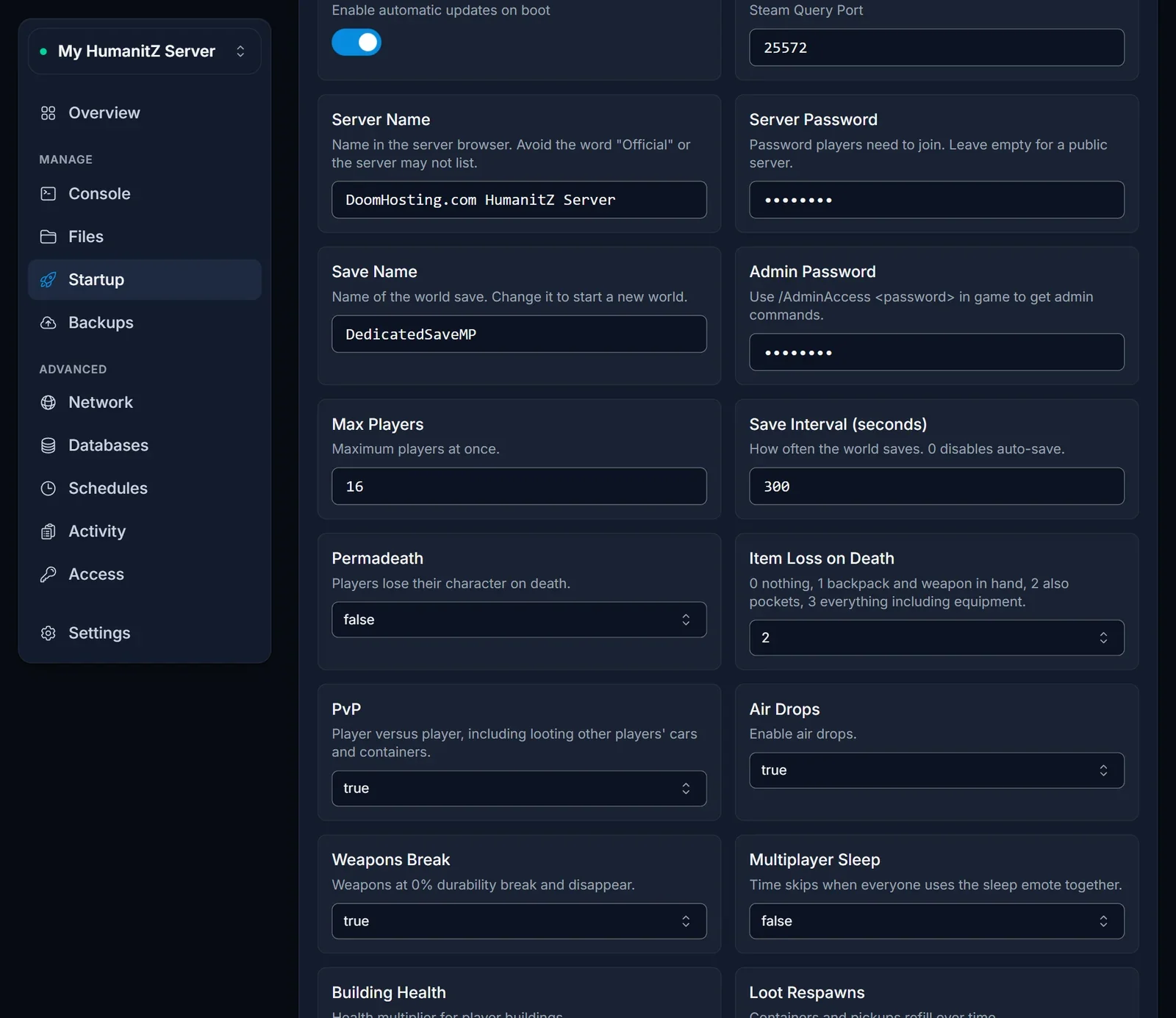
| Setting | What it does |
|---|---|
| Server Name | the name players see in the in-game server browser |
| Server Password | optional; players have to enter it before they get in |
| Admin Password | type /AdminAccess <password> in the game chat to get admin commands |
| Max Players | how many players can be online at the same time |
| Search ID | leave it at HumanitZ_Dedicated to stay in the public list |
Do not use the word "Official" in your server name. The game reserves it, and a server with it in the name may not start or show up in the list.
A Search ID other than HumanitZ_Dedicated takes the server out of the default list. Players then only find it when they search for that exact ID, which is a simple way to keep a group server out of sight.
Zombies, loot, PvP and the day cycle
Scroll down the Startup tab for the world settings.
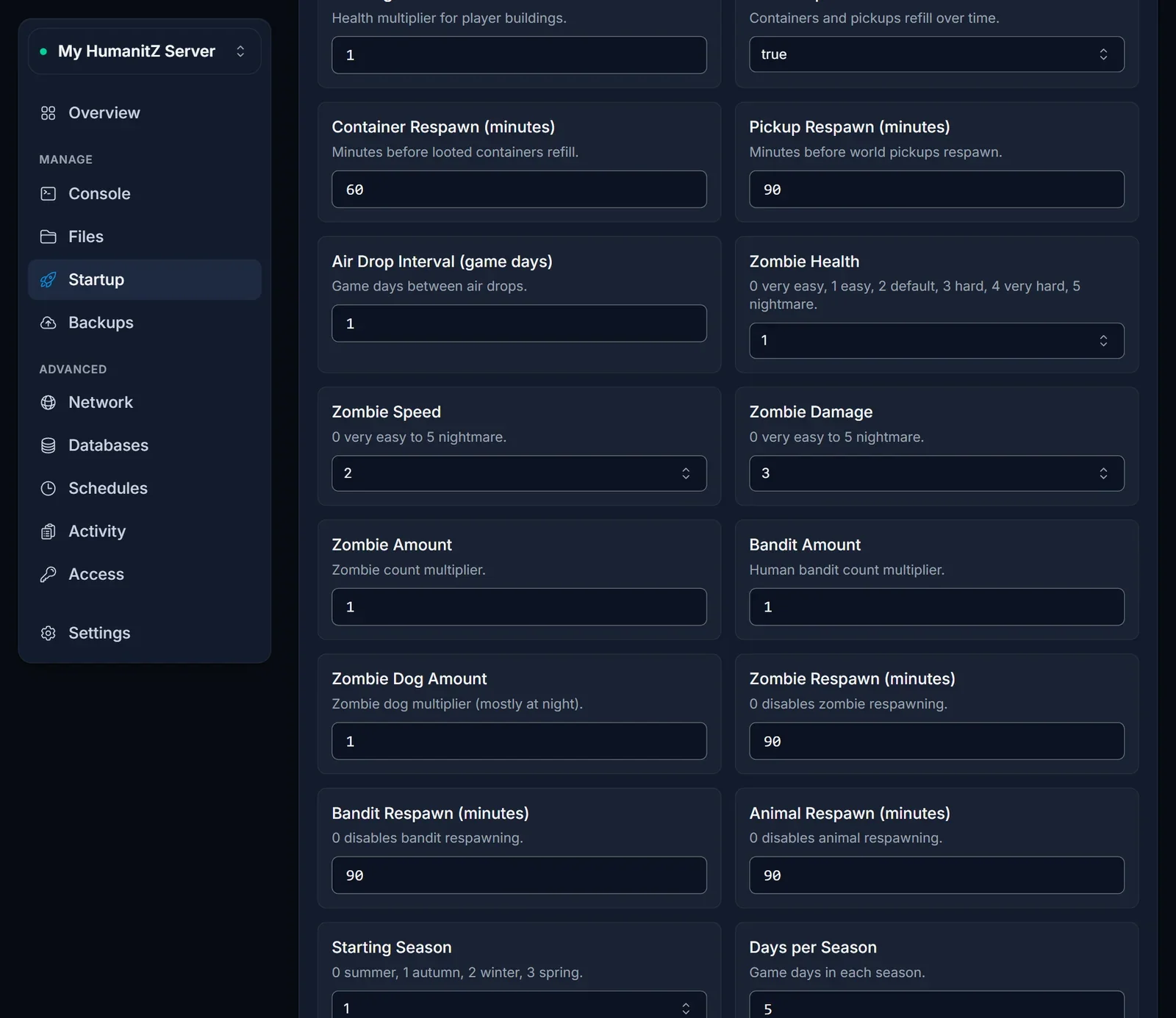
The ones most groups change first:
- PvP and Permadeath: player damage, and whether a death deletes the character.
- Item Loss on Death: from 0 (keep everything) to 3 (lose equipment too).
- Zombie Health, Speed and Damage: 0 is very easy, 5 is nightmare.
- Zombie Amount and Bandit Amount: multipliers, so 2 means twice as many.
- Food Loot, Ammo Loot and the other loot settings: 0 is scarce, 4 is abundant.
- Raid Events: how often zombies and bandits attack your base, from off to insane.
- Day Length and Night Length: real minutes of each.
Restart the server after you change a setting. On every start the panel writes the Startup values into HumanitZServer/GameServerSettings.ini, which is the file the game reads.
Edit GameServerSettings.ini directly
A few advanced options are not on the Startup tab: RCON, the map streaming segments and the weather odds. Open HumanitZServer/GameServerSettings.ini in the Files tab, stop the server first, make the change, save and start it again.
Any setting that is also on the Startup tab is overwritten from the Startup tab on the next start, so change those in the panel instead of the file.
Start a new world
The Save Name setting decides which world the server loads. Enter a new name and restart, and the server creates a fresh world under that name. Put the old name back to return to your previous world, because it stays on the server.
Each world is a folder named after its Save Name in HumanitZServer/Saved/SaveGames/SaveList/Default/, which you can see in the Files tab. Take a backup from the Backups tab before you experiment, so a world can always come back.
How much RAM you need
HumanitZ uses close to 5 GB on a brand new world before anyone joins, which is why our plans start at 6 GB. A group of up to around 16 players with a growing base runs well on 8 GB. Our HumanitZ RAM calculator gives a number for your player count, and you can add RAM later from the panel without losing the world.
Common issues
The server stays on Starting. The first start downloads the game, which can take a few minutes. Watch the Console tab; the server is ready when it prints Session created!.
Your settings did not change. The game only reads its settings when it starts, so restart the server after every change on the Startup tab.
The server does not show up in the browser. Check the name does not contain "Official" and that Search ID is HumanitZ_Dedicated. Players can always join with Direct Connect, as our join guide shows.
Players get a version error. The server updates itself through SteamCMD on every start, so restart it to pick up a new game patch.
Next steps
Plans and hardware are on our HumanitZ server hosting page, and the DoomHosting game panel page shows what else you can manage from the panel.
