

There are two ways into an Abiotic Factor dedicated server: search for it by name in the in-game server browser, or use Direct Connect with the IP and port. Both work for PC players, whether they came in through Steam or through the game's own EOS network.
Get the address from your control panel
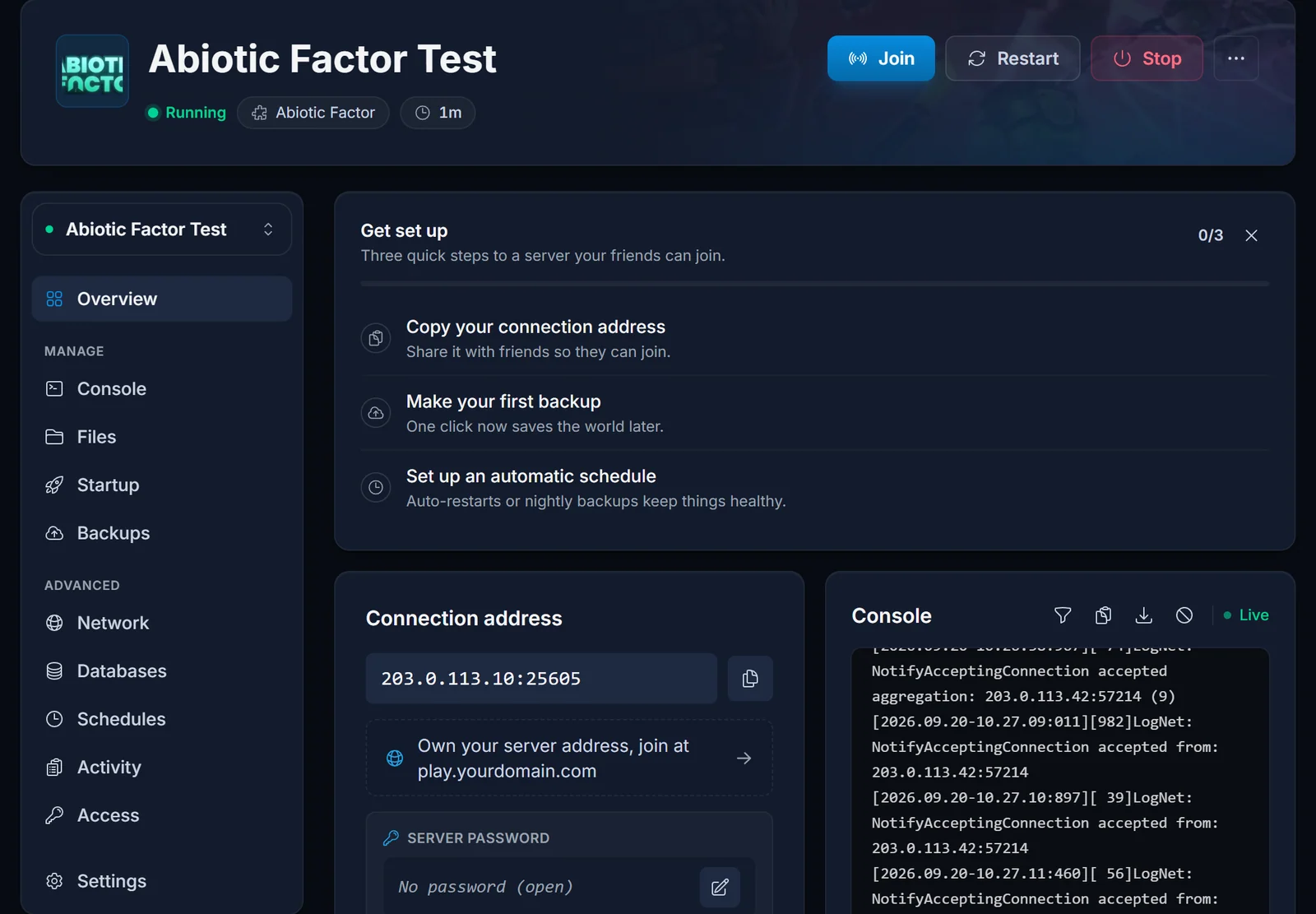
Open your server in the control panel. The connection card on the Overview shows the IP address and the port, with a copy button. That pair is everything a player needs.
Your server name matters just as much, because it is what people type into the browser search. You set it on the Startup tab: see getting started with your Abiotic Factor server if you have not picked one yet.
Turn crossplay on first
Do this before anything else if somebody cannot see the server. Crossplay is a per-player setting in Abiotic Factor, not a server one. A player who has it switched off will not see a cross-platform server in the browser and cannot join it, no matter how correct the address is.
Every player opens the game settings and enables crossplay, then returns to the main menu. This is the single most common reason a friend reports that your server "does not exist".
Join from the server browser
- From the main menu, choose Enter The Facility, then Join A Server.
- Type your server's exact name into the search field and apply it.
- Select the server and join. If a password is set, the game asks for it here.
Search for the distinctive part of the name rather than a common word. A search for "Abiotic" returns a page of unrelated servers, and yours will be buried somewhere in the list.
Join with Direct Connect
Direct Connect is the faster route when you already have the address, and it is the one that still works while a listing is slow to appear.
- From the main menu, choose Enter The Facility, then Join A Server.
- Open Direct Connect.
- Enter the IP address and the port from your control panel, then connect.
The port is the game port shown on the connection card. It is not always the game's default of 7777, because each server on shared hardware gets its own, so copy the one your panel shows rather than typing a number from memory.
Players on other platforms
Your server runs with the game's own default platform setting, because we pass no flag that restricts it. We have not verified a PlayStation or Xbox player joining one of our servers, so we do not promise console access. If that is why you are renting, ask support before you order and we will tell you what we know.
Either way, the moderator file accepts Steam ids only. Anyone who needs admin rights without a Steam id gets them through the Admin Password instead, typed in game. The getting started guide covers both routes.
When the server does not show up
Work down this list in order.
Check the server is actually running. The control panel shows the state, and the console should have printed Engine is initialized. on the last boot.
Check crossplay. Covered above, and it accounts for most reports. Every player, in their own settings.
Use Direct Connect instead. The browser listing goes through Steam's server advertising and can lag behind a restart by a few minutes. Direct Connect talks to the server itself, so it works immediately.
Check the name you are searching for. It has to match what is set on the Startup tab, and a rename takes a minute or two to propagate to the browser.
Check the password. A server with a password set still appears in the browser, but the join fails without it. Make sure the whole group has the current one.
If the server was just restarted onto a new game version, everyone needs to be on that version too. Servers update from Steam when they boot, so a player still on the previous build cannot connect until their own client updates.
Once everyone is in, the getting started guide covers difficulty, loot and death penalties, and there is more about the panel on the Abiotic Factor server hosting page. You can manage all of it from the control panel.
